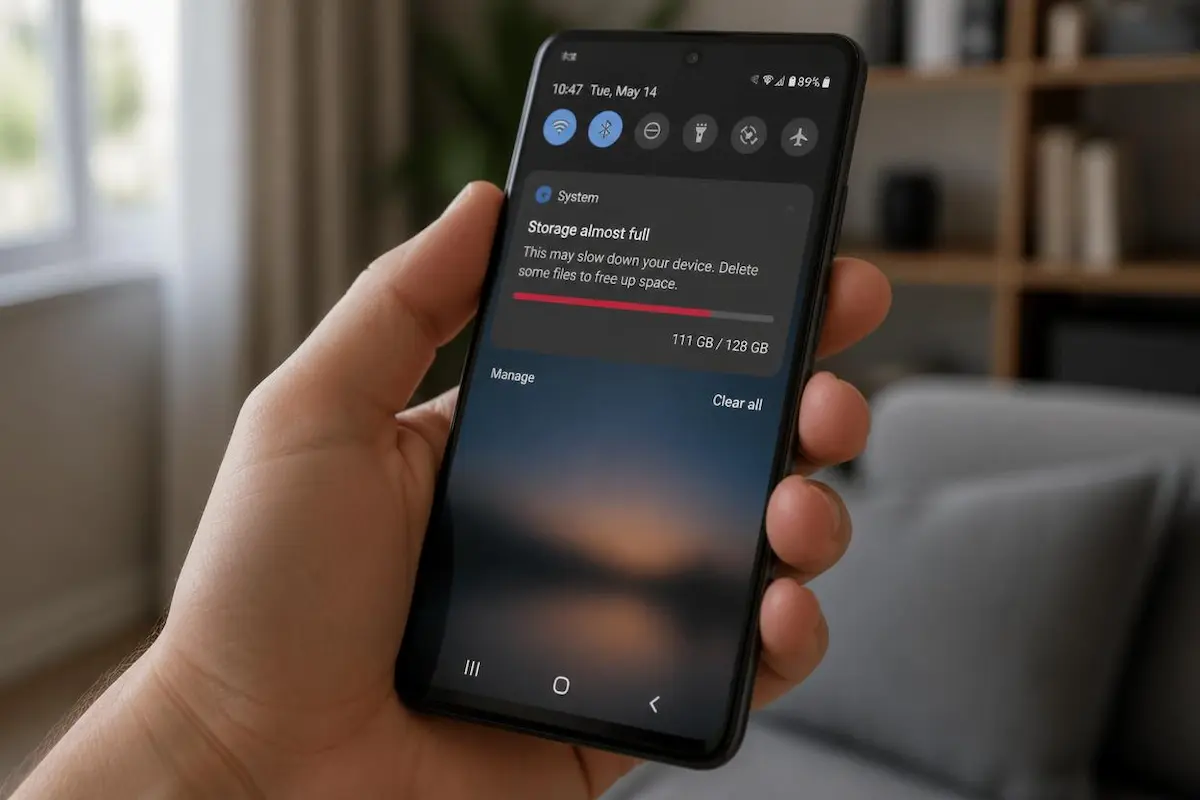
Your phone says the storage is full. Apps won't update, the camera refuses to save a photo, and every tap feels slower. Don't panic, and please don't start deleting random folders. This guide takes you through the safest order: look first, remove the obvious junk, move your precious files to the cloud, and only then touch apps and chat media. Every step is written for beginners, with a picture of the screen so you know exactly what to tap.
1. Why your Android phone runs out of space
When Android says the storage is full, something real is taking the space. The trouble is that the culprit is rarely obvious. On most phones it comes down to four things:
- Photos and videos. Usually the biggest slice, especially if you film in 4K.
- Apps and their data. Games and social apps keep growing long after you install them.
- Chat media. Every photo, video and voice note you receive in WhatsApp or Telegram is saved on the phone.
- Junk. Cache (temporary files), old downloads, duplicates and forgotten screenshots.
Keep in mind that Android itself and the apps that came with the phone already use a good part of the storage before you add anything. A 128 GB phone never gives you a full 128 GB to play with.
Rule of thumb: try to keep about 10 to 15 percent of your storage free. Below that, updates can fail, the camera can stop saving, and the phone feels slower.
The three safety levels used in this guide
Safe to remove: cache, junk files, duplicates, old screenshots and photos that are already backed up. Remove with care: app data, chat media and downloads, because you may not be able to get them back. Leave alone: system files and anything you don't recognise.
2. Check what is taking the space
Before you delete anything, find out what is actually big. Guessing wastes time and risks the wrong files.
- Open Settings and tap Storage. On Samsung phones, go to Battery and device care and then Storage. On other brands, type "Storage" in the Settings search bar.
- Look at the coloured bar. Each colour is a category, such as apps, photos and videos, or documents.
- Tap the largest category to see what is inside it.
In this example, photos and videos are the biggest category, followed by apps. That tells us where to look first. If you see a Free up space button, as in the picture, it usually opens Files by Google, which is the tool we use next.
3. The safest quick win: the Clean tab
Files by Google is Google's free file manager. It comes preinstalled on many phones, and you can get it from the Play Store if yours doesn't have it. Its Clean tab finds junk for you, so you don't have to hunt for it.
- Open Files by Google. On Pixel and many other phones you can also go to Settings, Storage, Free up space.
- Tap the Clean tab at the bottom.
- Review the cards: junk files, duplicate files, old screenshots, large files and unused apps.
- Tap Select and free up on a card, tick only what you recognise, and confirm.
Junk files and old screenshots are low risk. Large files and duplicates deserve a quick look, because they might contain something you want to keep.
Don't forget the Trash. Files you remove here first go to the Trash. Space is only freed after you empty it: open the menu in Files by Google, tap Trash, and delete everything permanently.
4. Clear cache, but not storage
Cache is a pile of temporary files an app keeps to load faster, such as thumbnails and web pages. If you delete it, the app simply rebuilds it. Browsers, social apps and streaming apps can pile up several gigabytes.
- Open Settings, then Apps, and choose the app.
- Tap Storage and cache.
- Tap Clear cache.
The two buttons look similar, but they are very different. Clear cache is safe. Clear storage wipes the app's data: logins, settings, offline downloads, and sometimes the app's whole history. Treat it like a reset button.
Chrome tip: open Chrome, go to Settings, Privacy and security, Delete browsing data, and tick only Cached images and files. Leave passwords and cookies unticked so you stay logged in to your sites.
5. Photos and videos: back up, then free up
Photos and videos are usually the biggest saving, and also the most emotional ones to lose. So the order matters: back up first, free up second.
Google Photos is the easiest option for most people. Every Google account includes 15 GB of free storage, shared between Gmail, Drive and Photos. If you need more, Google sells extra space, or you can copy your files to a computer with a USB cable.
- Open Google Photos and tap your profile picture.
- Check that the backup is finished and says Backup complete.
- Tap Free up space and confirm.
This only removes the copies on your phone. The originals stay in your account, and you can still see them in the app and on the web.
Careful with "Delete". In Google Photos, a normal Delete removes the photo from your account too. The space-saving option you want is the one that says it removes the copy from this device only.
6. Chat apps: the hidden space hog
Group chats are often the quiet winner of the biggest-folder contest. Funny videos, forwarded memes and voice notes add up fast, and they sit on your phone even if you never open them again.
- Open WhatsApp, tap the three dots, then Settings.
- Tap Storage and data, then Manage storage.
- Use the Larger than 5 MB filter, tick the items you don't need, and tap Free up space.
This removes the media from your phone, not the text of your messages. Menu names can differ slightly between app versions. Media you delete here can't be brought back unless it was backed up or someone sends it again, so look at the big chats before you tick them.
Telegram
Telegram is gentler. Go to Settings, Data and Storage, Storage Usage, and tap Clear Cache. Telegram keeps your media in its cloud, so it downloads again when you open the chat.
7. Unused apps: archive or uninstall
Most of us have apps we haven't opened in months. In the Play Store, tap your profile picture, then Manage apps and device, then Manage, and sort the list by size or by how rarely you use it. Games and video editors are usually the heaviest.
You have two ways to get rid of an app. Since Android 15, the Archive option is available: open the app's info page and tap Archive. It removes most of the app's files but keeps your data and the icon. When you want the app back, tap the icon and it reinstalls, which needs an internet connection.
Here is how the options compare:
| Action | What it removes | What it keeps |
|---|---|---|
| Clear cache | Temporary files only | The app, your data, your logins |
| Archive | Most of the app's files | Your data and the app icon |
| Uninstall | The app and its local data | Only what is saved in the cloud |
| Clear storage | All the app's data | Only the app itself |
My simple advice: archive apps you might want again, and uninstall the ones you have honestly forgotten about.
8. Downloads, offline maps and leftovers
A few more places collect files quietly. They are quick to check:
- Downloads folder. In Files by Google, tap Browse, then Downloads, and sort by size. Old installers, forwarded PDFs and half-forgotten videos live here. Delete only what you recognise.
- Offline maps. In Google Maps, tap your profile picture, then Offline maps, and remove regions from past trips.
- Streaming downloads. Netflix, YouTube Premium, Spotify and podcast apps keep offline copies. Delete what you already watched or heard.
- Recordings. Screen recordings and voice memos are small at first but can reach gigabytes.
- A memory card. If your phone has a microSD slot, move old photos and videos there.
9. What you should never delete
Cleaning feels good, but a few things should stay untouched. This quick comparison keeps you out of trouble:
Be extra careful with Clear storage on authenticator and banking apps. You could lose your login codes and get locked out of your accounts.
Also skip "cleaner" and "booster" apps. Many are full of ads, ask for broad permissions, and rarely free more than the built-in tools. Android and Files by Google already do the job.
Golden rule: if you don't know what a file is, leave it. And never delete the only copy of something you care about.
10. Keep it from filling up again
Two settings do most of the work for you. In Files by Google, open the menu, tap Settings, and turn on Smart Storage. It can automatically remove photos that are already backed up when your storage runs low. In the Play Store, tap your profile picture, then Settings, General, and turn on Automatically archive apps. Settings names can vary a little by phone and app version.
Then add a small habit: once a month, spend five minutes in the Clean tab, empty the Trash, and glance at your chat apps. That is usually enough.
My experience
I followed these steps on a mid-range Android phone with 128 GB of storage running Android 15. It had been warning me about low space for weeks, and the Storage screen showed 112 GB used.
The Clean tab gave the first quick win: about 2.4 GB of junk and old screenshots in less than a minute. Clearing cache on the browser and two social apps added roughly 4 GB. The real surprise was WhatsApp, where three busy group chats held around 9 GB of media. After that, Google Photos freed about 24 GB of already backed-up photos and videos, and archiving two games I hadn't opened for months returned another 3.6 GB.
One thing went wrong: after the first cleanup the Storage screen barely changed. The reason was simple, the files were still in the Trash of Files by Google. Once I emptied it, the numbers dropped as expected. I also learned to leave "Clear storage" alone on my authenticator app.
In the end the phone went from 112 GB to about 69 GB used, and it felt noticeably quicker when opening the camera and installing updates.
💬 Comments