1. What Mac cleaners actually do
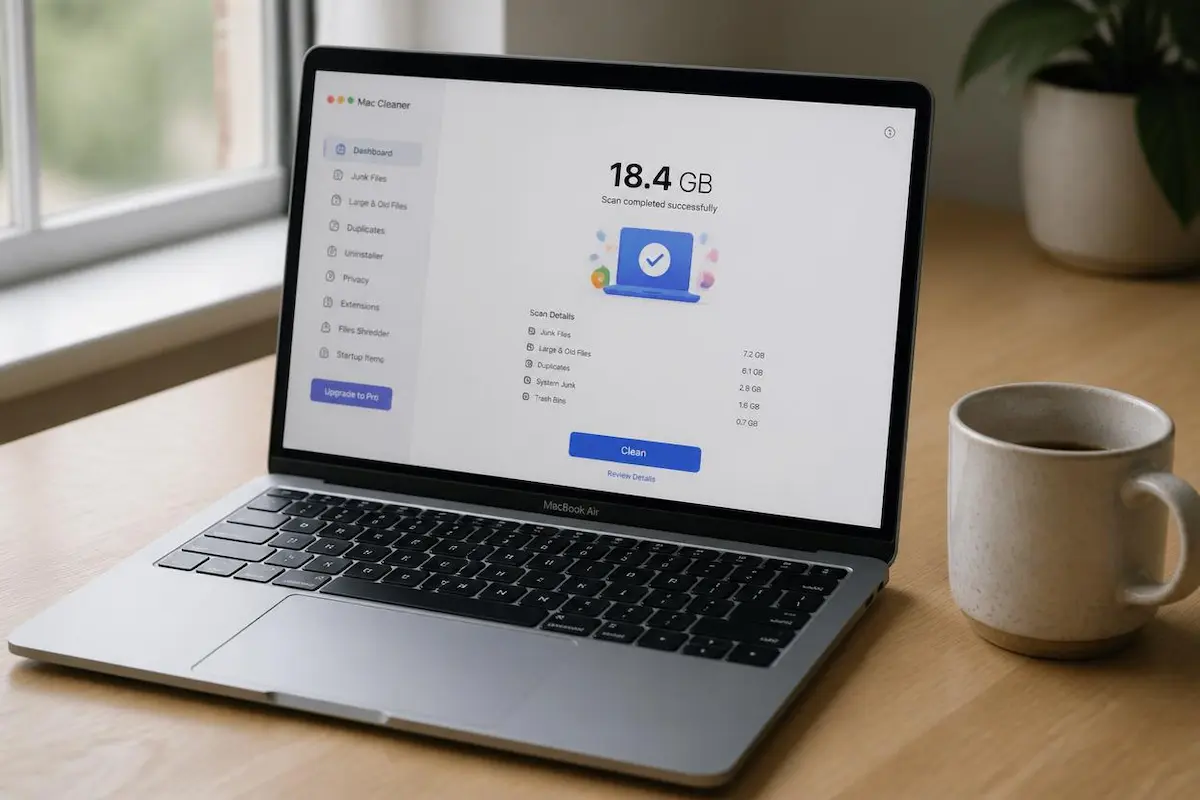
Strip away the marketing and a Mac cleaner does a handful of simple jobs. It scans your drive for files that are safe to remove, shows you the total, and deletes them when you click a button.
Most of them bundle the same set of tools together:
Junk and cache removal
Apps and macOS store temporary files called caches to help apps and services work efficiently. Cleaners can find some of these files, along with old logs and support files left behind by uninstalled apps. However, not every file labelled as a cache or leftover is safe or useful to delete.
Large and old file finder
This lists the biggest files on your Mac, such as forgotten videos, installers and old iPhone backups. It is usually the most useful part.
Uninstaller and startup manager
An uninstaller can help remove an app and some of its associated support files. A startup manager shows which apps launch when you log in. The exact files removed depend on the app and the uninstaller.
Malware scan
Some cleaners also include a malware scanner. macOS has built-in protections such as Gatekeeper, notarization and XProtect, which help block and remove known malware. These protections are important, but they do not make a Mac immune to every threat.
Notice that "Old iOS backups" is the biggest line here. That is real, useful space. The system cache line is the one to be careful with, as we will see next.
2. Are they safe?
Cleaners from established developers, including CleanMyMac, are generally designed to avoid deleting files macOS needs. However, no cleanup tool can know whether every personal file is important to you. The main risk is approving a deletion without checking exactly what has been selected.
There are two real risks to know about:
Deleting something you wanted
Old iOS backups, mail attachments and "large files" might be the only copy of something you care about. A cleaner cannot know that. You can.
Fake cleaners and scareware
Many Mac "cleaner" ads and pop-ups are scams. They show a fake virus warning, then push you to buy a useless app or install something worse. Only download cleaners from the developer's official website or the Mac App Store, and never trust a browser pop-up that says your Mac is infected.
Also be wary of aggressive cache deletion. Clearing caches rarely makes a Mac faster. Apps may simply rebuild them when needed, which can make the next launch slower and temporarily use additional resources.
3. Are they worth paying for?
For most people, no. A cleaner mainly saves you time. It does not unlock anything your Mac cannot do on its own. It is worth paying for only if you value one tidy dashboard over spending ten minutes in Finder and System Settings.
Here is how the main options compare:
| Option | Best for | Cost | Watch out for |
|---|---|---|---|
| macOS Storage settings | Finding big files and quick wins | Free, built in | Less detailed |
| CleanMyMac | All-in-one convenience | Paid (check current pricing) | Easy to over-clean |
| Cleamio | Simple junk removal | Trial, then paid | Fewer tools than big names |
| DaisyDisk | Seeing where space went | Paid, one-time | Shows, does not auto-clean |
| AppCleaner | Removing apps fully | Free | Does only one job |
| OmniDiskSweeper | Listing files by size | Free | Plain interface |
If you are curious, most paid cleaners offer a free trial or free scan. Run the scan, then compare the result with what macOS already shows you. You will often find you can free the same space yourself.
4. What macOS already does for free
Your Mac has a surprisingly capable cleanup tool built in. Open the Apple menu, choose System Settings, then go to General and click Storage.
You will see a colour bar showing what is using your drive, and a list of recommendations underneath.
Three quick wins here
Empty Trash Automatically removes items that have been in the Trash for more than 30 days. Optimise Storage can remove Apple TV movies and shows you have already watched and keep only recent Mail attachments on your Mac when storage space is needed. Store in iCloud can store files from your Desktop and Documents folders in iCloud Drive and use iCloud Photos for your photo library, keeping optimised copies on your Mac when appropriate. Make sure you have enough available iCloud storage before enabling it.
Open a category such as Documents to review the files taking up space. Depending on the macOS version and category, you can sort files by size, inspect them in Finder and delete items you no longer need.
Remove startup apps
Slow start-up is usually caused by apps that launch at login. Go to System Settings → General → Login Items & Extensions and switch off anything you do not need straight away.
If an app is switched on and you rarely use it, turn it off. You can still open it by hand whenever you need it.
A word on System Data
That grey "System Data" category confuses many people. It includes files that do not fit into the other storage categories, such as caches, logs, virtual memory files, temporary files and app support data. macOS manages this category, and its size can change over time. You cannot delete its contents directly from Storage settings, so avoid removing unfamiliar system files by hand.
5. Free and cheap alternatives
If you want a little more power than Storage settings, these focused tools each do one job well.
DaisyDisk
Shows your whole drive as an interactive chart of circles, so you can see at a glance where the space went. It is paid but one-time, and it never deletes anything on its own.
OmniDiskSweeper
A free tool that simply lists every folder and file by size. Plain and old-fashioned, but very effective for hunting down space hogs.
AppCleaner
Free and lightweight. Drag an app onto it and AppCleaner looks for associated support files that may remain after a normal uninstall. Review the results before deleting them.
Malwarebytes
If your only reason for a cleaner is a malware scan, a dedicated security tool is a better choice than a cleaner that includes one. Download it only from the official site.
Cleaning by hand
Often the biggest wins are manual. Check your Downloads folder, delete unused installers (.dmg files), clear old Messages attachments, and remove old iPhone backups you no longer need. These alone can free several gigabytes.
6. When a cleaner does make sense
Cleaners are not useless. They fit a few situations well:
You are short on time. One scan replaces ten minutes of digging through folders.
You manage a family member's Mac. A simple dashboard can be easier than explaining System Settings over the phone.
You want one tool for several jobs. If you already like the uninstaller, startup manager and large-file finder together, the price may feel fair.
If none of these sound like you, start with the free tools above. You can always add a paid app later if you find it genuinely useful.
Quick checklist
Before you install any Mac cleaner, run through this list:
1. Check System Settings → General → Storage first and see how much space you can free without installing another app.
2. Download only from the official website or Mac App Store. Ignore pop-ups that claim your Mac is infected.
3. Read the list of items before clicking Clean. Untick anything you do not recognise.
4. Keep a Time Machine backup before any big cleanup.
5. Skip "speed boost" and "RAM cleaner" promises. They rarely help a healthy Mac.
6. Do not delete unfamiliar files from System Data by hand. macOS manages this category, including many temporary files and caches.
💬 Comments