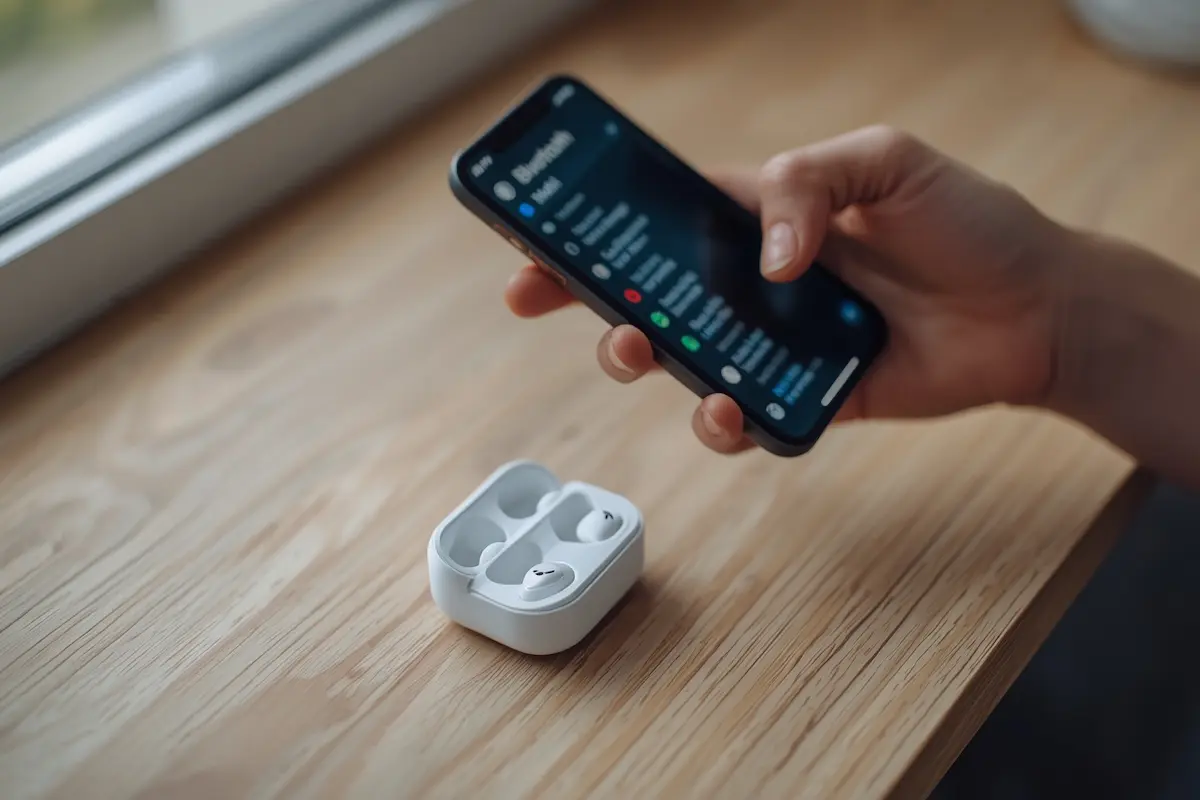
You open the Bluetooth menu and your headphones just aren’t there. Or your car says “Pairing failed” for the third time in a row. It’s one of those small tech problems that can ruin a whole commute, and the good news is that it’s almost always fixable in a few minutes.
Bluetooth is the short-range wireless link that connects headphones, speakers, keyboards, smartwatches and cars to your phone or computer. When it breaks, the cause is usually boring: a stale pairing, a device that isn’t really in pairing mode, or a setting that got switched off.
This guide goes through the fixes in the order that saves the most time. We start with quick checks, then move on to forgetting and re-pairing, and finish with steps for Android, iPhone, Mac, Windows 11 and cars. Wherever it helps, you’ll see a mockup of the exact screen, so you know where to tap or click.
Start with the 60-second checks
Before you touch any deep settings, rule out the boring causes. They explain more failed pairings than any software bug. Google’s own Android Bluetooth help page starts with the same basics, and so does Apple’s.
Swipe down from the top of the screen to open the quick settings on Android.
If both tiles look right and the accessory is charged and nearby, it’s time to look at what’s really going on.
Why Bluetooth pairing fails in the first place
Two different things hide behind the word “Bluetooth not connecting”, and they have different fixes.
Pairing happens once. Your two devices introduce themselves, agree to trust each other and save a shared secret key.
Connecting happens every time after that. The devices find each other again and use the saved key to open the link.
If that saved key gets out of sync on one side, for example after a system update, a battery swap or a factory reset of the accessory, the devices still “know” each other but can no longer agree. That’s why deleting the pairing on both sides and starting fresh fixes so many cases.
Other common causes are a device that isn’t discoverable, a full list of saved devices, a damaged driver on Windows, power-saving settings that put Bluetooth to sleep, and radio interference. Bluetooth shares the crowded 2.4 GHz band with Wi-Fi, so a busy room can make things worse.
Use this table to jump to the part of the guide that matches what you’re seeing:
| What you see | Likely cause | Go to |
|---|---|---|
| The device never appears in the list | Not in pairing mode, low battery, or connected to something else | Section 3 |
| It appears but says “Couldn’t connect” or “Pairing rejected” | Stale pairing data | Section 4 |
| It worked yesterday and now nothing works | Bluetooth cache or an update gone wrong | Sections 5 and 6 |
| Works on the phone, not on the PC | Driver or Bluetooth service | Sections 7 and 8 |
| The car says “Phone not found” | Full device list in the car | Section 9 |
| It connects but stutters or cuts out | Interference, distance or power saving | Section 11 |
Put the device into real pairing mode
Switching an accessory on is not the same as putting it into pairing mode. When you turn headphones on, they usually try to reconnect to the last device they knew. They only show up in a new device’s list when they’re in pairing mode, which some manuals call discoverable mode.
The giveaway is the light. Most devices flash a light quickly, often white or blue, when they’re ready to pair. If the light is steady or off, you’re not in pairing mode yet.
| Device | Typical way to start pairing | What you’ll notice |
|---|---|---|
| Wireless earbuds | Put both buds in the case, open the lid, then hold the small button on the case for a few seconds | The case light flashes |
| Over-ear headphones | With the headphones off, hold the power button until the light flashes | A beep or a voice says “pairing” |
| Bluetooth speakers | Hold the Bluetooth button until it beeps | The light blinks quickly |
| Keyboards and mice | Hold the pairing key, or switch to a new Bluetooth channel | The channel light flashes |
| Cars | Open the Phone or Bluetooth menu and choose “Add device” | The screen shows the car’s name and a code |
These are typical gestures, not universal ones. The exact button and timing depend on the model, so check the manual or the manufacturer’s website if nothing happens.
Illustration of a typical earbuds case. The button and light colours differ from brand to brand.
One more detail that trips people up: pairing mode doesn’t last forever. Many devices give up after one or two minutes. So open the Bluetooth screen on your phone first, keep it open, and only then start pairing mode on the accessory. Apple’s support page for Bluetooth accessories that won’t connect recommends exactly this kind of clean start.
Forget the device and pair it again
If the device shows up in your list but refuses to connect, this is the fix that works most often. You delete the old pairing on the phone, then create a brand-new one.
Forget device?
Your phone will no longer be paired with WH-1000XM5.
Left: iPhone. Right: Android. The numbered badges mark the buttons you need.
Two extra tips make this fix more reliable. First, if the accessory has also been paired with other devices, forget it there too. Apple’s guidance is to unpair the accessory from your other devices if it pairs with some of them but not with your iPhone. Second, some headphones keep their own list of saved devices, so a stale entry for your phone may still be stored on the accessory. If forgetting alone doesn’t help, do a factory reset of the accessory (see section 10).
Android: clear the Bluetooth cache
The cache is a small store of temporary data that the phone’s Bluetooth service keeps so it can work faster. When that data gets corrupted, usually after a system update, Bluetooth can behave strangely: devices vanish, connections drop, or the toggle gets stuck. Clearing the cache is safe, and it doesn’t delete your pairings.
Menu names change slightly between Pixel, Samsung and other brands, but the path is the same.
If that doesn’t help: reset Wi-Fi, mobile and Bluetooth
As a last software step on Android, reset the network settings. On a Pixel, open Settings › System › Reset options › Reset Wi-Fi, mobile & Bluetooth. On Samsung it’s Settings › General management › Reset › Reset network settings.
This erases saved Wi-Fi networks and every saved Bluetooth pairing, so make sure you know your Wi-Fi password first. Your photos, apps and accounts stay untouched.
iPhone and Mac: permissions and network reset
Apple devices follow the same logic, plus one extra thing that’s easy to miss: apps need permission to use Bluetooth. If your accessory works with a companion app, such as a headphone, fitness band or car app, check this before anything else.
On an iPhone or iPad
The app names are examples. You’ll see the apps installed on your own iPhone.
On a Mac
Open System Settings › Bluetooth, click the (i) button next to the problem device and choose Forget This Device. Switch Bluetooth off and on, restart the Mac if needed, then pair the accessory again. This matters most right after a big macOS upgrade, when old pairings can become stale.
Apple has a full walkthrough on its support page for Bluetooth accessories that won’t connect. If none of your accessories can connect to any iPhone, iPad or Mac, contact Apple Support, because the Bluetooth hardware may have a fault.
Windows 11: remove the device and add it again
On a Windows PC, the pattern is the same: make sure Bluetooth is on, remove the broken pairing, and add the device again. Windows 10 reached its end of support on 14 October 2025, so the steps below use Windows 11. The menus on Windows 10 look similar.
Windows 11 Settings. The “Remove device” option is hidden behind the three dots.
Run the Bluetooth troubleshooter
Microsoft’s official Bluetooth guide for Windows recommends starting with the automated Bluetooth troubleshooter in the Get Help app. Search for Get Help in the Start menu, open it and ask it to fix Bluetooth. It runs a few checks and tries to repair common faults on its own.
Windows 11: driver and Bluetooth service
If Windows can’t find any Bluetooth devices, or the Bluetooth toggle has vanished from Settings, the cause is usually the driver. A driver is the small piece of software that lets Windows talk to the Bluetooth chip. Microsoft calls an outdated or incompatible driver one of the most common causes of Bluetooth problems, and it often appears after a Windows update.
Your adapter name will differ, for example Realtek, MediaTek or Qualcomm instead of Intel.
Check the Bluetooth Support Service
Windows also needs a background service to handle Bluetooth. Press Windows + R, type services.msc and press Enter. Find Bluetooth Support Service, double-click it, set the startup type to Automatic and click Start if it isn’t running.
Stop Windows from switching the adapter off
In Device Manager, double-click your Bluetooth adapter, open the Power Management tab and untick Allow the computer to turn off this device to save power (if the tab is available). This helps when a keyboard or mouse disconnects after a few minutes of idle time.
If you use a USB Bluetooth dongle, plug it into a different port. A short USB extension cable also helps, because USB 3 ports and busy hubs can generate radio noise right next to the dongle.
Bluetooth not connecting in the car
Cars add their own twist: the head unit, which is the car’s built-in screen and audio system, can only remember a limited number of phones. If your family has changed phones a few times, the list may simply be full. Many cars also refuse to add a new device while driving.
A typical car head unit. Menu names vary: some cars call it “Connections” or “Phone setup”.
If you use wireless Android Auto or Apple CarPlay, remember that the first connection still starts with Bluetooth. Remove the car from the Android Auto or CarPlay settings on your phone too, then set everything up again from scratch. On an iPhone this is Settings › General › CarPlay, where you choose the car and tap Forget This Car.
Finally, try a full power cycle: switch the car off, open and close the driver’s door, wait a minute, and start it again. If the car still can’t connect to any phone, ask the dealer about a head unit software update.
Headphones and speakers that still refuse to pair
When your phone and PC both fail to pair with one specific accessory, stop blaming the phone. The accessory itself probably has stale data or old firmware. Firmware is the built-in software that runs inside the device.
Do a factory reset of the accessory
A factory reset wipes the accessory’s list of saved devices and puts it back to a clean state. The gesture depends on the model. Common patterns are holding the power button and a volume button together for 10 to 15 seconds, or holding the case button of earbuds until the light changes colour. AirPods, for example, have a setup button on the back of the case that you hold for about 15 seconds. Search for your exact model name plus “factory reset”, or read the manual.
After the reset, forget the device on your phone or PC, then pair it again as a new device.
Update the firmware
Many brands offer a companion app where you can update the firmware and change settings. Install it, connect the accessory and look for an update. Bugs with specific phones or new Android and iOS versions are often fixed this way. If the app can’t see the device, make sure it has Bluetooth permission (iPhone) or unrestricted battery use (Android), otherwise the system can put it to sleep.
Remember the one-device rule
Older and cheaper accessories can talk to only one phone at a time. Better ones support multipoint, which lets them stay connected to two devices at once, for example your phone and your laptop. Even then, calls and music can fight over the connection. If your headphones jump between devices, switch Bluetooth off on the one you aren’t using.
Not every gadget pairs from the Bluetooth menu
Some devices, such as fitness bands, smartwatches, smart locks and item trackers, use a low-energy version of Bluetooth and connect through their own app. They often don’t appear in the system Bluetooth list at all. If you can’t find one, open its app and pair from there.
When it’s interference, not the device
If your accessory connects but crackles, stutters or drops out, you’re probably dealing with interference or distance rather than a pairing problem. Bluetooth uses the 2.4 GHz band, the same one used by many Wi-Fi networks, microwave ovens and cheap wireless gadgets.
Here’s what usually helps:
If you’ve done all of this and the accessory fails on every phone and computer you try, the hardware may be faulty. At that point it’s worth checking the warranty before you spend more time on it.
What I Learned from Troubleshooting
Bluetooth problems seem to appear every few months, usually at the worst possible moment. I’ve encountered most of the issues covered in this guide while using a Samsung Galaxy A21, a Windows 11 laptop and a couple of inexpensive wireless speakers and headphones.
The solution that works most often is also the simplest: remove the device from the phone’s Bluetooth settings, put the accessory back into pairing mode and connect it again. It takes about a minute and solves most connection problems. I’ve learned to try this before moving on to more complicated solutions.
One problem that took me much longer to figure out involved a speaker that simply wouldn’t appear in the available devices list. I tried changing phone settings, clearing the Bluetooth cache and restarting the device. The actual cause turned out to be surprisingly simple: the speaker was still connected to another device in the next room. Turning off Bluetooth on that device fixed the problem immediately. Since then, checking whether an accessory is already connected somewhere else has been one of my first troubleshooting steps.
On Windows, I encountered a different issue. After a major update, my laptop stopped detecting Bluetooth devices altogether. Updating the Bluetooth adapter driver from the laptop manufacturer's website solved the problem, while the Bluetooth Support Service was already running normally. My approach now is to start with the Windows Bluetooth troubleshooter, check for driver updates and only consider more drastic solutions if those steps fail.
💬 Comments