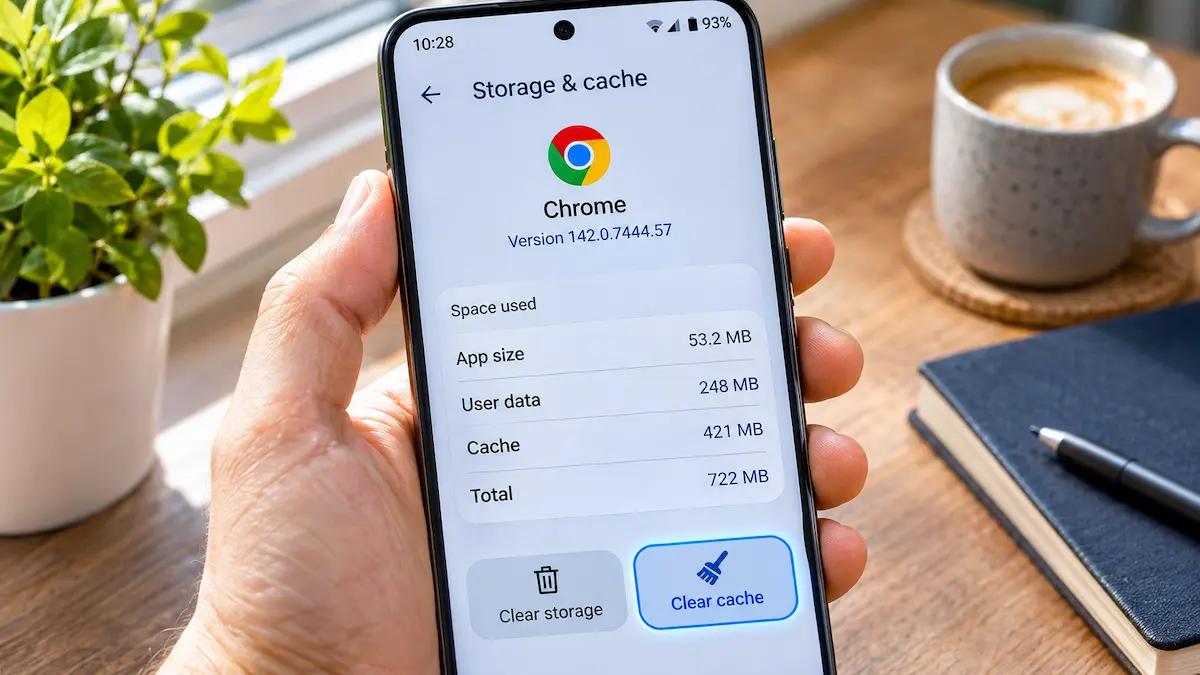
Your phone says storage is almost full, or one app keeps freezing, and every guide says "clear the cache". The trouble is that Android puts two similar buttons side by side, and only one of them is harmless. This guide shows you exactly which is which, how to clear the cache safely in 2026, and when it is better to leave it alone.
1. What cache actually is
Cache is a stash of temporary files that an app saves on your phone so it can work faster next time. Think of a thumbnail of a photo, a map tile you already viewed, or a song snippet your music app keeps ready.
The key point is that cache is disposable. If you delete it, the app simply downloads or creates those files again the next time you need them. Nothing you made, saved or signed in with is stored there.
Over months, though, the cache of some apps can grow surprisingly large. Social media, video, browsers and map apps are the usual culprits, and a few gigabytes of cache on a phone with limited space is a real problem.
2. Cache vs data: the difference that matters
Every app has two kinds of storage on your phone, and Android shows them close together:
Cache (safe to clear)
Temporary copies of things the app can fetch again. Clearing it is like emptying a rubbish bin that the app refills on its own.
Data or storage (not safe)
Your logins, settings, downloaded files, offline content, saved games and local chats. Clearing this resets the app to the state it was in on the day you installed it.
Depending on your Android version and phone brand, the dangerous button is called Clear data or Clear storage. Both do the same thing: they wipe everything the app keeps for you.
3. How to clear the cache of one app
This is the safest and most precise method. The menu names vary slightly between brands, but the path is almost always the same.
1. Open Settings and tap Apps (some phones say Apps & notifications and then See all apps).
2. Pick the app you want, for example your browser or a social network.
3. Tap Storage & cache (on Samsung phones just Storage).
4. Tap Clear cache and nothing else. The Cache figure should drop to zero or close to it.
If the cache figure still looks large a few minutes later, don't worry. The app may already be rebuilding it as you use it, which is normal behaviour.
4. Clearing cache for many apps at once
Older Android versions had a single "Cached data" option under Storage that cleared everything in one tap. Newer versions of stock Android have removed it, so on a Pixel phone you generally have to go app by app, starting with the biggest ones.
To find them, open Settings > Storage and look at the list of apps sorted by size. Anything that stands out is worth a visit.
Samsung and a few other brands still offer a bulk cleanup. On a Galaxy phone, open Settings > Battery and device care > Storage, then use the cleanup suggestions. Read what is selected before confirming, because these screens sometimes bundle large files or unused apps together with temporary files.
Avoid third-party "booster" or "cleaner" apps. They are unnecessary, often full of ads, and the built-in tools do the same job without extra permissions.
5. When clearing cache helps, and when it doesn't
It helps when
Your storage is nearly full and one or two apps hold a lot of cache. It also helps when a single app shows old content, fails to load images, crashes on launch or keeps showing an outdated version of a page. Corrupted temporary files cause these problems, and a fresh start usually fixes them.
It doesn't help when
Your whole phone feels slow, the battery drains quickly or storage keeps filling up even after cleaning. Those problems usually come from too many background apps, an outdated system, or big files such as videos and downloads, not from cache.
Clearing cache also has a small cost. The next time you open the app it must rebuild what it removed, so it may load a little slower and use some mobile data. That is why doing it every day is pointless.
6. Apps where you should be extra careful
Clearing the cache is safe in all of these, but this is where people go wrong and tap the neighbouring button by mistake.
Messaging apps
WhatsApp, Telegram and Viber keep your media and sometimes your local chat history in the storage section. Clear cache is fine. Clear storage can remove chats that were never backed up.
Streaming and music apps
Spotify, Netflix and YouTube Music keep offline downloads as app data. Clear the cache if you must, but never clear storage unless you are happy to download everything again.
Banking and authenticator apps
Resetting these can force you through a full re-registration, or lock you out of one-time codes. Authenticator apps are the biggest risk, so skip them completely.
Delete app data?
All of this app's data will be deleted permanently. This includes all files, settings, accounts and databases.
Games
Many games store progress locally if you never linked an account. Clearing data could erase hours of play for good.
7. Don't forget your browser's cache
Chrome and other browsers have their own cleaning tool, and it works differently. In Chrome, tap the three dots, then Delete browsing data, and choose Cached images and files.
Leave Cookies and site data and Saved passwords unticked unless you really want to sign out of every website. The cache option alone is enough to fix most "this page looks broken" problems.
My experience
I tried this on a Pixel and on a Samsung Galaxy phone that had been running for over a year without a cleanup. On both, a handful of apps held most of the cache: Instagram, Chrome, Google Maps and a video app.
Clearing only those four freed several gigabytes in a couple of minutes, and I stayed signed in everywhere. A day later, Instagram had already rebuilt part of its cache, which is exactly what should happen.
The one thing that went wrong was on the Samsung phone, where the buttons sit very close together. I almost tapped Clear storage on a messaging app. Now I always read the button label before I tap, even when I think I know the screen.
💬 Comments