Your Wi-Fi works fine for hours, then it drops in the middle of a video call. You restart the router, it comes back, and you never find out what actually went wrong. Sound familiar?
Windows 11 has a built-in tool that can answer that question for you. With a single command, it creates a Wi-Fi report: a web page that lists every time your PC connected, disconnected or failed to connect over the last few days, and the reason behind it. There is nothing to download and nothing to sign up for. In this guide, I'll show you how to create the report, where Windows saves it, how to read it without a degree in networking, and what to do with what you find.
What is a Wi-Fi report?
A Wi-Fi report, which Windows calls a WLAN report (WLAN simply means wireless network), is an HTML file that Windows builds from the logs it keeps about your wireless adapter. Open it in any browser and you get a timeline of your Wi-Fi activity, a list of connection sessions, the reasons for any disconnects, and a lot of technical details about your adapter and network.
What the report can tell you
- When your PC connected to and disconnected from a Wi-Fi network.
- How long each connection lasted.
- Which connection attempts failed, and the reason Windows recorded.
- Details about your Wi-Fi adapter, its driver, and the networks around you.
When it's worth creating one
The report is most useful when the problem comes and goes. If your Wi-Fi is slow or dead all the time, you probably already know something is wrong. But random drops, trouble reconnecting after sleep, or a connection that is fine in the morning and terrible at night are exactly the kind of mystery the report is good at solving. It shows you patterns you would never notice by yourself.
It also helps when you need to talk to your internet provider or a support technician. A report with clear timestamps is much harder to brush off than "my internet is bad sometimes".
What you need before you start
The requirements are short, but each one matters:
- Administrator rights. You have to open the command window as an administrator. If you only use a standard account, Windows will ask for the admin password.
- A Wi-Fi adapter. The tool reports on wireless connections. A desktop PC that uses only an Ethernet cable and has no Wi-Fi card has nothing to report.
- Some history. The report only covers the time your PC was on and had Wi-Fi switched on. If you installed Windows yesterday, it will be short.
- A web browser. Edge, Chrome or Firefox all work fine.
The command is the same on every language version of Windows 11, so type it in English even if your system is set to another language.
How to create the report
This takes less than a minute. Here is the whole process:
- Right-click the Start button (or press Windows key + X) and choose Terminal (Admin). If you see Command Prompt (Admin) instead, that's fine too.
- When Windows asks whether you want to allow the app to make changes, click Yes.
- Type the command below and press Enter:
netsh wlan show wlanreport - Wait a few seconds while Windows collects the data. When it finishes, you'll see the line Report written to, followed by the full path of the file.
Illustration: the command and the confirmation line you should see.
If you get a message about needing elevation or administrator rights, the window was not opened as an administrator. Close it and start again from step 1. Some users also report error codes such as 0x3A98 when the tool can't read the wireless data. Restarting your router and trying again often clears it.
How to open the report
Windows doesn't open the report automatically. It only saves it, in a hidden system folder called ProgramData. You have three easy ways to open it.
Option 1: Open it straight from the command window
In the same window, paste this and press Enter. Your default browser will open the report:
start C:\ProgramData\Microsoft\Windows\WlanReport\wlan-report-latest.html
Option 2: Use the Run box
Press Windows key + R, type the folder path below, and press Enter. File Explorer will open the folder, and you can double-click wlan-report-latest.html.
Illustration: the Run box with the folder path typed in.
Option 3: Save a copy somewhere easy to find
The report is overwritten every time you run the command. If you want to keep a copy for comparison, for example before and after you change a setting, copy it to your Desktop with this command:
copy "C:\ProgramData\Microsoft\Windows\WlanReport\wlan-report-latest.html" "%USERPROFILE%\Desktop\wifi-report.html"
You can double-click the copy at any time, and it will open in your browser just like the original.
How to read the report
The first time you open a Wi-Fi report, it looks like a lot. Don't worry. You can ignore about 90% of it. Start at the top and focus on the parts below.
The summary chart
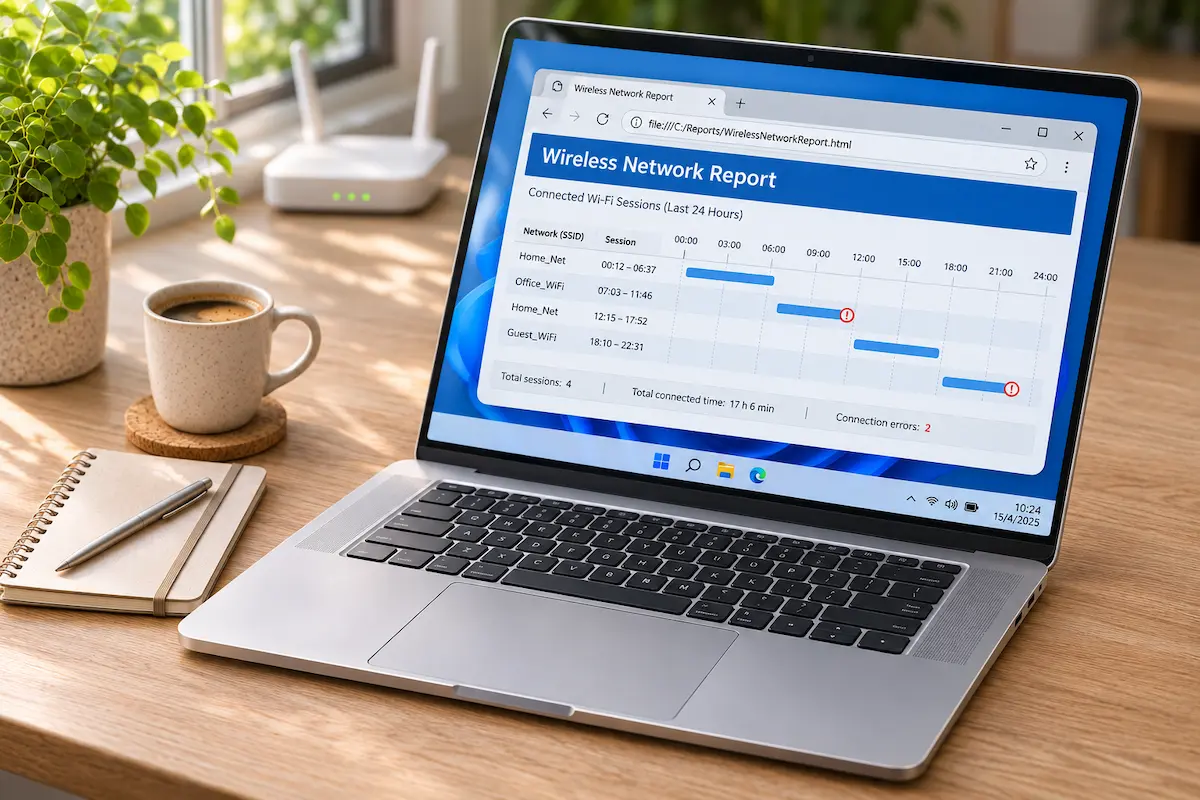
Near the top, you'll find a timeline that shows each day and the connection sessions within it. Think of it as a heart-rate monitor for your Wi-Fi. Long unbroken bars are good news. Lots of short bars, or gaps in the middle of the day, mean your connection kept breaking. Error markers appear in red, and you can click them to see what Windows recorded at that moment.
Wireless Network Report
Sample data for the last 3 days
Illustration with sample data. Your own report will look different.
Disconnect reasons and session details
Further down, the report lists the sessions in detail and groups the reasons Windows recorded for each disconnect. If one reason shows up again and again, that's your main suspect. A disconnect that Windows says was started by the network points toward the router or the signal. One that follows a sleep or wake-up points toward the adapter's power settings or its driver.
Script output
At the bottom, the report includes the results of several system commands, such as ipconfig /all and netsh wlan show all. This is the geeky part. It lists your adapter, driver details, the IP address your router gave you, and the Wi-Fi networks that were visible at the time. You rarely need it for everyday troubleshooting, but a support technician will love it.
The exact layout can change a little between Windows versions, but these are the parts worth knowing:
| Section | What it shows | What to look for |
|---|---|---|
| Summary chart | A timeline of Wi-Fi sessions for each day | Short sessions, gaps and red error markers |
| Disconnect reasons | Why Windows says each session ended | The same reason repeating many times |
| Wi-Fi sessions | Start time, end time and length of each session | Drops at the same time every day |
| Script output | Adapter, driver, IP and nearby network details | An old driver, or a missing IP address |
Patterns to watch for
- Drops at the same time every day. Something on a schedule is interfering, such as a router that reboots overnight, a neighbor's network that gets busy in the evening, or a device in your home that switches on at a set time.
- Failures right after waking from sleep. This usually points to the adapter's power-saving settings or an outdated driver.
- Many very short sessions. A weak signal is the classic cause. Check how far you are from the router and how many walls are in between.
- Everything looks clean, but the internet still feels slow. Then Wi-Fi probably isn't the culprit, and it's worth testing the connection itself or your internet provider.
Handy options and extra commands
Look further back in time
By default, the report covers the last three days. If the problem is rare, add the duration option to go back further. For example, this gives you two weeks of history:
netsh wlan show wlanreport duration=14
You can go up to 28 days. Keep in mind that a longer history means a longer report, so it is easier to start with the default and increase it only if you need to.
Create the report right after a problem
If Wi-Fi just dropped and came back, create the report right away. Fresh events are easier to match to what you experienced, because you still remember roughly when it happened.
Two more commands worth knowing
netsh wlan show interfacesshows your current connection: the network name, signal strength, channel, and connection speed.netsh wlan show driversshows what your adapter and driver support, including the Wi-Fi standards it can use.
Run them in the same admin window. They give you a live snapshot, while the report gives you the history.
What to fix when the report shows problems
The report points you in a direction, but it doesn't repair anything. Here are the fixes I'd try first, from the easiest to the most involved.
- Restart the router and your PC. It sounds basic, but it clears a surprising number of glitches.
- Move closer, or switch bands. The 5 GHz band is faster but has a shorter range. The 2.4 GHz band reaches further but is more crowded. Try whichever suits your room better.
- Change the router's Wi-Fi channel. If you live in an apartment building, dozens of networks may be fighting over the same channel. Most routers can pick the best one automatically, or you can set it by hand.
- Update the Wi-Fi driver. Open Device Manager, expand Network adapters, and check your adapter's manufacturer for a newer driver. Windows Update sometimes offers one, too.
- Turn off adapter power saving. In Device Manager, right-click your Wi-Fi adapter, choose Properties, open the Power Management tab, and untick Allow the computer to turn off this device to save power. This is a common fix for drops after sleep.
- Forget the network and reconnect. Go to Settings > Network & internet > Wi-Fi > Manage known networks, remove the network, and connect again with the password.
- Use Network reset as a last resort. Open Settings > Network & internet > Advanced network settings > Network reset. It reinstalls your network adapters and sets everything back to default, so you'll need to reconnect to your Wi-Fi networks afterward.
After each change, give it a day, then run the report again and compare. That's the real power of this tool. It lets you check whether a fix actually worked, instead of guessing.
Privacy note: the report includes details about your PC and the networks it has connected to. Share it only with people you trust, such as your internet provider or a support technician, and don't post it publicly.
My experience
I first used this tool on a Windows 11 laptop that kept dropping Wi-Fi in the evenings, usually in the middle of a video call. I had blamed the router for weeks, but I had no proof.
I created the report with the default three days. The summary chart told the story straight away: the disconnects were not random. They clustered in the same two-hour window each evening, and Windows reconnected within seconds every time. That pattern looked far more like interference or a crowded channel than a faulty laptop.
I changed two things: I moved the router's Wi-Fi channel and connected the laptop to the 5 GHz band. The next day, I ran the command again and saved a copy next to the old one. The evening gaps were gone, and the sessions were long and unbroken. The best part was being able to compare the two files side by side instead of trusting my memory.
One thing that went wrong: my first attempt failed because I had opened a normal Command Prompt window. Opening it as an administrator fixed it immediately. Now I run the report whenever the Wi-Fi acts up, before touching any settings.
Frequently asked questions
Do I need administrator rights to create a Wi-Fi report?
netsh wlan show wlanreport command. Without admin rights, Windows will refuse to create the report.Where does Windows 11 save the Wi-Fi report?
wlan-report-latest.html in C:\ProgramData\Microsoft\Windows\WlanReport. ProgramData is a hidden folder, so the easiest way to reach it is to paste the path into the Run box or the File Explorer address bar.How many days does the Wi-Fi report cover?
netsh wlan show wlanreport duration=14.Does the Wi-Fi report fix my connection problems?
Is it safe to share my Wi-Fi report with someone?
Does the Wi-Fi report also work on Windows 10?
netsh wlan show wlanreport command works on both Windows 10 and Windows 11, and it creates the same kind of HTML report.
💬 Comments