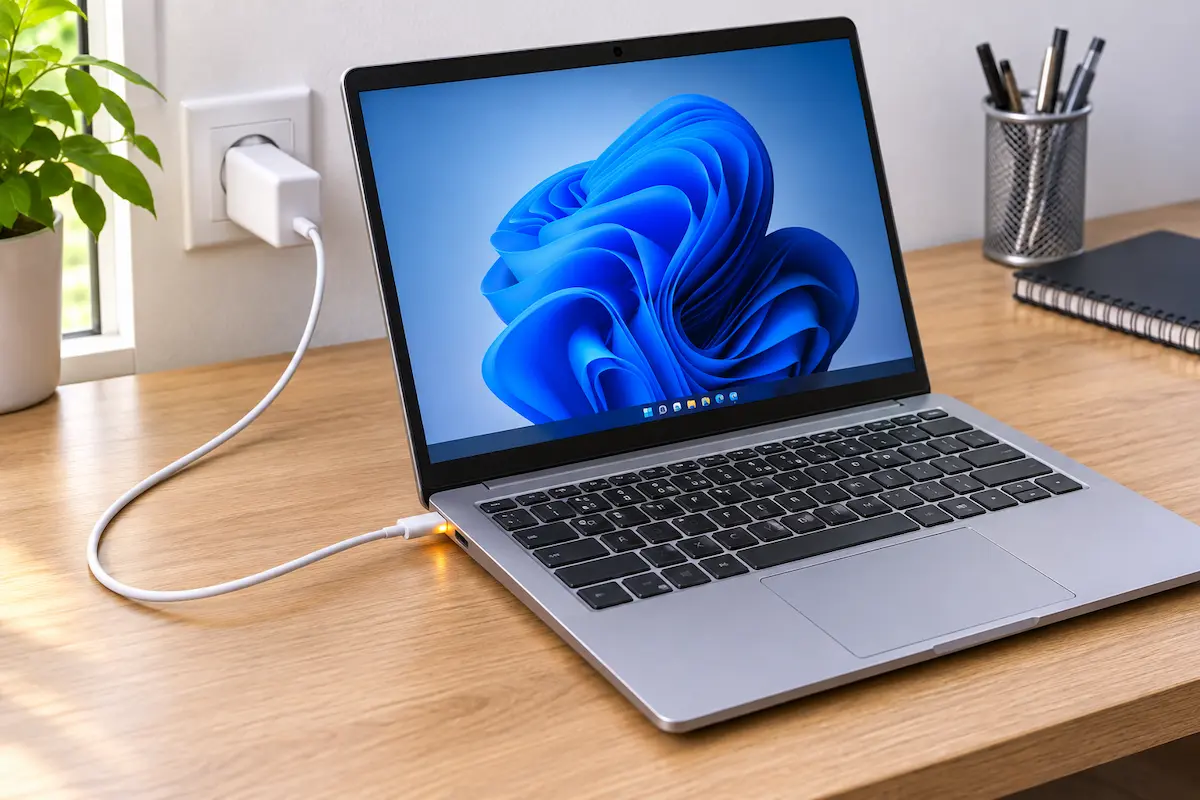
You plug in the charger, and nothing happens. Or Windows says “plugged in, not charging” while the battery slowly drains. It feels like a dead laptop, but most of the time it is not.
In this guide we test the pieces one at a time: the outlet, the charger, the cable, the port, the settings and finally the battery. Follow the order, and you will know exactly what to fix or replace.
1. Start with the quick checks
It sounds too simple, but a surprising number of charging problems end here. Spend two minutes on these before you touch anything else.
Check the outlet and the plug
Plug a phone charger or a lamp into the same outlet to make sure it works. If you use a power strip, try a wall socket instead. Then push every connection in firmly: the plug into the outlet, the power brick, and the connector at the laptop.
Look for a charging light
Most laptops have a small LED near the port or on the front edge. It usually glows white, amber or green when power arrives. No light at all points to the charger, the cable or the port. A light that is on while the battery still does not rise points to settings or the battery itself.
Restart once
A frozen power controller can look like a hardware fault. Shut the laptop down, unplug the charger, wait ten seconds, plug it back in and start the laptop again. If it charges, great. If not, keep going.
2. Test the charger and the cable
The charger is the part that fails most often. It gets bent, pulled, wrapped tightly and dragged around in a bag every day.
Inspect it by eye and by touch
Look along the whole cable for kinks, cracks and bare wire, especially near both connectors. Check the plug for bent or blackened pins. A power brick that is very hot, buzzes loudly or smells burnt should be thrown away.
Match the wattage
Every laptop charger has a label with its output, for example “20V 3.25A” or “65W”. If the laptop charges over USB-C, a small phone charger of 20W may keep the laptop alive but will not charge it while you work. Use a charger with the same wattage as the original, or higher.
With USB-C, the cable matters too. Many cables are made for phones and cannot carry laptop power. For laptops above 60W, look for a cable rated for 100W.
Swap in a known good charger
The cleanest test is to borrow a charger that is made for your model, or a matching one from a friend. If the laptop charges at once, you have found the fault. A single loose barrel connector or one tired cable is cheaper than any repair.
Be careful with older Dell laptops with a barrel plug. They read a small ID chip in the charger, and a cheap copy can trigger a message such as “AC adapter type cannot be determined”, with charging limited or switched off.
3. Inspect the charging port
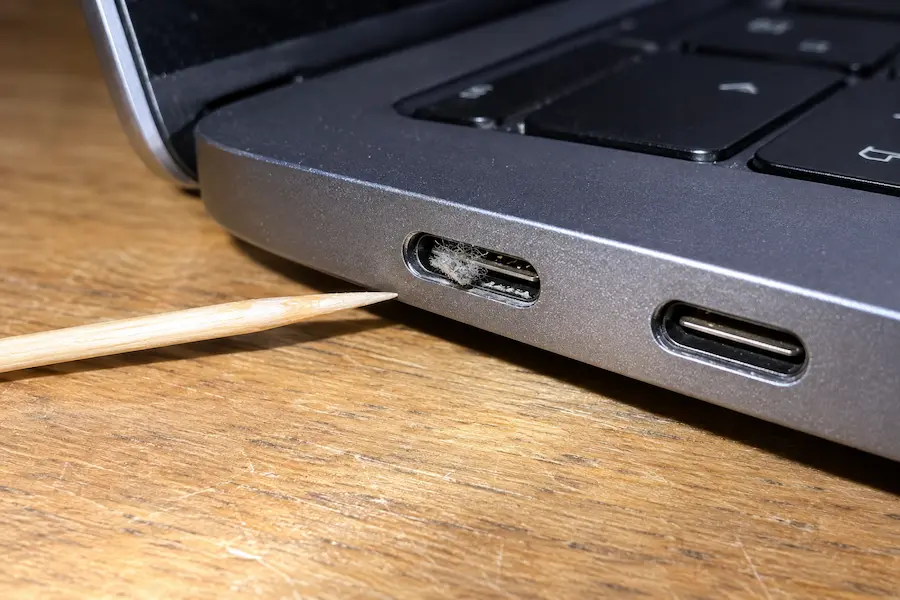
If the charger works on another laptop but not on yours, look at the port. Lint, dust and crumbs pack down into the small opening over months, and the plug no longer sits fully inside.
Clean it safely
Shut the laptop down and unplug everything first. Shine a phone light into the port. If you see lint, pick it out gently with a wooden toothpick, or short puffs of compressed air. Never use metal pins, a needle or a knife. You can bend the contacts or short the port.
Test for a loose fit
Plug the charger in and wiggle the connector very lightly. If the charging light flickers or the connection comes and goes, the port is worn or its solder joints are cracked. That needs a repair, because the port is soldered to the motherboard on most laptops.
If your laptop has more than one USB-C port, try the other one. Some models charge through both, and some only through one. Your manual will tell you which.
4. Read what Windows is telling you
If the charger and the port are fine, check what Windows reports. Hover your mouse over the battery icon in the taskbar. You may see a message like the one below.
Windows 11 taskbar, with the pointer resting on the battery icon.
This message means the laptop sees power, but the battery is not accepting it. There are two common reasons.
A battery limit is switched on
Many brands now include a feature that stops charging at about 80 percent to protect the battery. It is called Conservation Mode in Lenovo Vantage, Battery Health Charging in MyASUS, and similar names in Dell Power Manager and HP’s battery care settings. If the battery stops at 80 percent, nothing is broken. Turn the limit off if you want a full charge before a trip.
The battery is too hot or too cold
Laptops pause charging when the battery is outside a safe temperature range. Let the laptop cool down on a hard surface, away from sun or a heater, then try again in a few minutes.
Also install pending Windows updates and the latest BIOS and driver updates from your manufacturer’s support page. Charging bugs are sometimes fixed there.
5. Reset the power and the battery drivers
If the laptop sees the charger but still refuses to charge, the battery software may be confused. A reset fixes this more often than you would expect.
Do a power drain
Shut the laptop down and unplug the charger. If the battery is removable, take it out. Hold the power button for 30 seconds, then put the battery back, plug in the charger and power on. Laptops with a built-in battery use the same idea without the removal step. Some models, such as many Lenovo IdeaPads, also have a tiny reset hole on the bottom. Check your manual.
Reinstall the battery drivers
Right-click the Start button and choose Device Manager. Open Batteries, then right-click Microsoft ACPI-Compliant Control Method Battery and choose Uninstall device. Do the same for Microsoft AC Adapter.
Confirm, then shut the laptop down, unplug the charger, wait a few seconds, plug it in and start the laptop. Windows will reinstall both entries on its own. If the Batteries section is missing completely, Windows cannot find the battery at all. That points to a loose internal battery connection or a dead battery, and it is a job for a service center.
6. Check the battery and know when to replace it
Batteries wear out. After a few years, a battery that once lasted all day may last an hour, and in the end it may stop accepting a charge.
Run a battery report
Open Command Prompt and type powercfg /batteryreport, then press Enter. Windows saves an HTML file and shows its location. Open it and compare “Design capacity” with “Full charge capacity”. If the second number is well under half of the first, the battery is worn out, and replacing it is the real fix.
On a MacBook
Open System Settings, go to Battery and check Battery Health. If it says the battery needs service, book an appointment. Try a different cable and outlet, and restart the Mac first. Resetting the SMC only applies to older Intel models.
Know the danger signs
Stop using the laptop right away if the trackpad lifts, the case bulges or the keyboard is pushed up. These are signs of a swollen battery. Do not charge it, do not press on it, and take it to a service center. A swollen battery can catch fire.
If your laptop has a removable battery or a screw-in panel, a replacement is usually simple. With a glued battery, repairs cost more, so ask for a quote and compare it with the value of the laptop. Buy batteries and chargers from the manufacturer or trusted sellers. Very cheap copies are the common cause of the next problem.
7. Symptom guide: what points to what
Use this table as a quick map once you have run the tests above.
| What you see | Most likely cause | What to do |
|---|---|---|
| No light, no charging | Charger, cable or outlet | Try another outlet and a known good charger |
| Works only when the cable is held | Worn cable or loose port | Replace the cable, then check the port |
| Plugged in, not charging | Battery limit, heat or drivers | Check the manufacturer app, then reinstall drivers |
| Charges slowly or drains while working | Charger is too weak | Use the original wattage or higher |
| Stops at 80 percent | Battery protection mode | Turn the limit off in the maker’s app |
| Dies when unplugged | Worn battery | Run a battery report and replace it |
8. My experience
I went through these steps on a five-year-old 15.6-inch Windows 11 laptop that showed “plugged in, not charging” and sat at 62 percent. The charging light was on, so I suspected the battery first.
A different outlet changed nothing. A borrowed 65W USB-C charger did, and the battery started to rise within a minute. My original cable had a hidden crack near the connector. I only saw it when I bent it under a light.
On a second, older laptop, the problem was lint in the port. A toothpick fixed it in half a minute. The battery report on that machine showed a full charge capacity of about 31,000 mWh against a design capacity of 45,000 mWh, so the battery had lost around 30 percent. It still works, but I planned a replacement.
The lesson for me was to test the cheapest parts first. The cable and the port cost almost nothing to check, and they solved two out of two cases.
9. FAQ
Why is my laptop plugged in but not charging?
The most common causes are a worn cable, a charger that is too weak, a dirty or loose port, a battery limit in the manufacturer’s app, or a worn-out battery.
Can a bad charger damage my laptop?
Yes. A cheap or mismatched charger can deliver unstable power and stress the charging circuit and the battery. Use the original charger, or a trusted one with the same voltage and at least the same wattage.
Is it safe to use a laptop plugged in with a dead battery?
Usually yes, as long as the charger works and the battery is not swollen or hot. A swollen battery is a safety risk, so stop using the laptop and have the battery replaced.
How long does a laptop battery last before it needs replacing?
Most batteries lose noticeable capacity after about two to four years of regular use, or a few hundred full charge cycles. Heat and keeping the battery at 100 percent all the time speed up the wear.
💬 Comments