Most PC cleaners promise to “speed up your computer” and then bury you in pop-ups, scary red warnings and paid upgrades. FluentCleaner does the opposite. It is a free, open-source cleaner for Windows that does one job, clearing out cache and junk files, and it shows you exactly what it will delete before it touches anything. This guide explains how it works, how to set it up, and where you should be careful.
What FluentCleaner actually is
FluentCleaner is a disk cleaner for Windows 10 and Windows 11. It was created by a developer who goes by Belim (builtbybel on GitHub), and it is released under the MIT license, so anyone can read the source code. The project describes itself with a long tagline: modern, transparent, no spyware, no scareware, no dark patterns, no upsell garbage and no fake registry magic.
In plain words, it clears the things that pile up quietly over months: browser caches, temporary files, leftover logs and cache folders from the programs you have installed. It supports the usual browsers (Edge, Chrome, Firefox, Opera and Brave) and a long list of everyday apps.
The look is the other big selling point. The interface is built with WinUI 3, the same modern framework behind many newer Windows apps, so it has tabs, rounded corners and an app theme setting instead of the cramped 2009-style window many cleaners still use. You can see the project on GitHub, where it has thousands of stars.
One person, no company
There is no company or investor behind it. It is a one-person project, supported by optional donations through PayPal and Ko-fi. That has a good side (no one is pushing you toward a paid tier) and a limit worth knowing about (updates depend on one developer’s time).
Why it exists: the CCleaner problem
The developer’s story is simple. Small tools that start out great are sometimes bought by bigger companies and slowly pile on extras until they feel nothing like the original. In the project’s README he points at CCleaner as the classic example, and says he wanted a cleaner in the spirit of the mid-2000s version, but built for how Windows works today.
That is his opinion, of course, and you can decide what you think of it. What matters in practice is what you get: a cleaner with no bundled offers, no VPN advert on launch and no “your PC is at risk” alarms.
The secret ingredient: winapp2.ini
Instead of writing every cleaning rule from scratch, FluentCleaner reads a community-made file called winapp2.ini. Think of it as a giant, public rulebook: thousands of entries, built up over more than 15 years, that say exactly which folders belong to which app and are safe to clear. Every entry is specific and can be inspected, so there are no sweeping “delete everything in Temp” commands.
The README also notes that CCleaner 7 dropped support for this format. That does not affect FluentCleaner, because it has its own parser that works independently of CCleaner.
Modern or Classic: which edition to pick
FluentCleaner comes in two flavors. Both use the same cleaning engine and the same winapp2.ini parser underneath, so they find the same junk. The difference is the window around it and what has to be installed first.
| FluentCleaner (Modern) | FluentCleaner Classic | |
|---|---|---|
| Interface | WinUI 3, .NET 10 and Windows App SDK | WinForms, .NET Framework 4.8 |
| Download size | About 140 MB unpacked, 243 files | About 3.57 MB unpacked, 20 files |
| Runtime | Bundled, but needs the Windows App SDK 2.0.1 runtime installed once | Uses the .NET Framework already on your PC |
| Works on | Windows 10 2004 (build 19041) or later and Windows 11, x64 or ARM64 | Practically any Windows |
| Best for | Everyday use on a current PC | Older, locked-down or portable setups |
My simple rule: if you are on Windows 11 (or an up-to-date Windows 10) and you like the modern look, take the main Modern edition. If you want something tiny that you can drop on a USB stick, or you are on an old machine, take Classic. The developer has even opened a public vote asking people which one they actually use day to day.
How to download and install it
There are two easy ways to get the Modern edition.
Option 1: download from GitHub
- Open the official FluentCleaner page on GitHub and go to the latest release.
- Download
FluentCleaner-win-x64.zipfor the Modern edition, orFluentCleaner-Classic-net48.zipfor Classic. - Unzip the folder anywhere you like and run the app. It is portable, so there is no installer.
Option 2: install with WinGet
If you use Windows Package Manager, open Terminal and run the commands below. The first installs the Modern edition, and the second updates it later.
winget install --id Builtbybel.FluentCleaner --exact

winget upgrade --id Builtbybel.FluentCleaner --exact
WinGet installs the Modern edition only. Classic stays a portable download.
One extra step for the Modern edition
The Modern edition needs the Windows App SDK 2.0.1 runtime, which you install once. It must be that exact version, because an older or newer one will not work. If the app refuses to start or shows “Unknown Hard Error”, install the runtime from the link in the project’s README and restart Windows.
Watch out for fake websites. The developer says FluentCleaner has no connection to fluentcleaner.org. The only official source is the GitHub repository, so download from the releases page there and nowhere else. A polished website does not make a download official.
Opening the app and running your first scan
When FluentCleaner opens, you see a tabbed window with a category list on the left and an empty results area on the right. At the bottom are two buttons: Analyze and Run Cleaner. A search box at the top filters the list, and the gear icon opens Settings in a new tab.
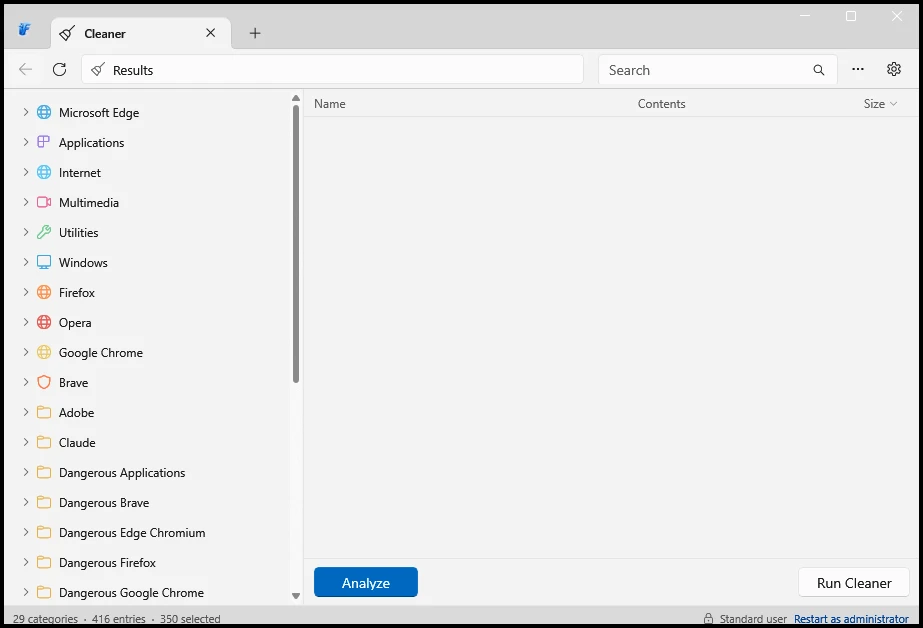
The left side is the part to understand. Each category (Microsoft Edge, Applications, Internet, Multimedia, Utilities, Windows and the other browsers) expands into individual entries, one per app or cache. In the example above the status bar reads 29 categories, 416 entries and 350 selected, so most items are ticked by default.
You will also see groups with “Dangerous” in the name, such as Dangerous Firefox or Dangerous Google Chrome. These hold the more aggressive entries, for example things that can log you out of websites. Open them, read what is inside, and leave them alone until you know what each item does.
Standard user or administrator
The bottom-right corner says Standard user with a Restart as administrator link. Some system locations need administrator rights, so restart the app that way if you want a deeper clean of Windows itself. For a normal browser and app cleanup, standard rights are enough.
Before you scan, close your browsers and any app you plan to clean. Files that are in use cannot be deleted, and closing the browser lets its cache clear properly.
Reading the results and cleaning
Click Analyze. Nothing is deleted at this stage. FluentCleaner simply scans every ticked entry and lists what it found, with the number of files and the size. While a scan or clean is running, the Analyze button turns into a Cancel button, so you can stop at any time.
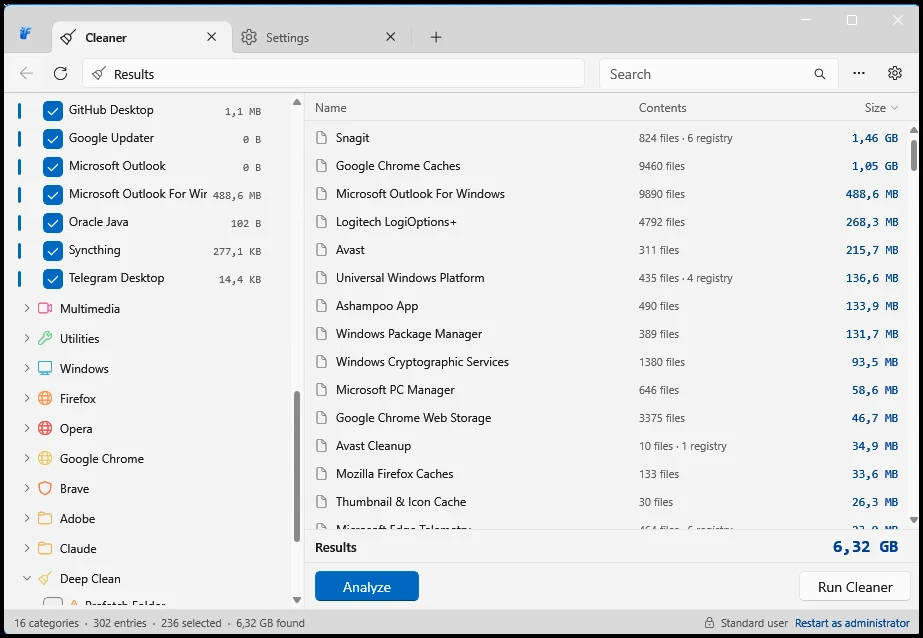
The example scan above found 6.32 GB of removable data. The biggest items were a screenshot tool’s cache at 1.46 GB, Chrome caches at 1.05 GB and Outlook data at 488.6 MB. This is exactly the kind of list that makes the app useful: you can see where the space went before you decide anything.
What “registry” means in the Contents column
Some rows say something like “824 files · 6 registry”. That does not mean a registry scan. It means that app’s entry also lists a handful of specific registry values, such as a recent-files list, that belong to it. It is a short, named list, not a hunt through the whole registry.
Cleaning
- Untick anything you want to keep. Click an entry on the left to see exactly what it covers.
- Check the Deep Clean group on the left. In the screenshot, its Prefetch Folder item has a warning icon and is not ticked, which is a good default to keep.
- Click Run Cleaner and wait for the total to finish.
One honest note: browser caches will be rebuilt as you browse, so the first visit to a few sites can feel a touch slower afterwards. That is normal and not a sign of damage.
The cleaning databases explained
Everything FluentCleaner can clean comes from lists called databases. You manage them in Settings > General > Database, where each one has an on/off switch.
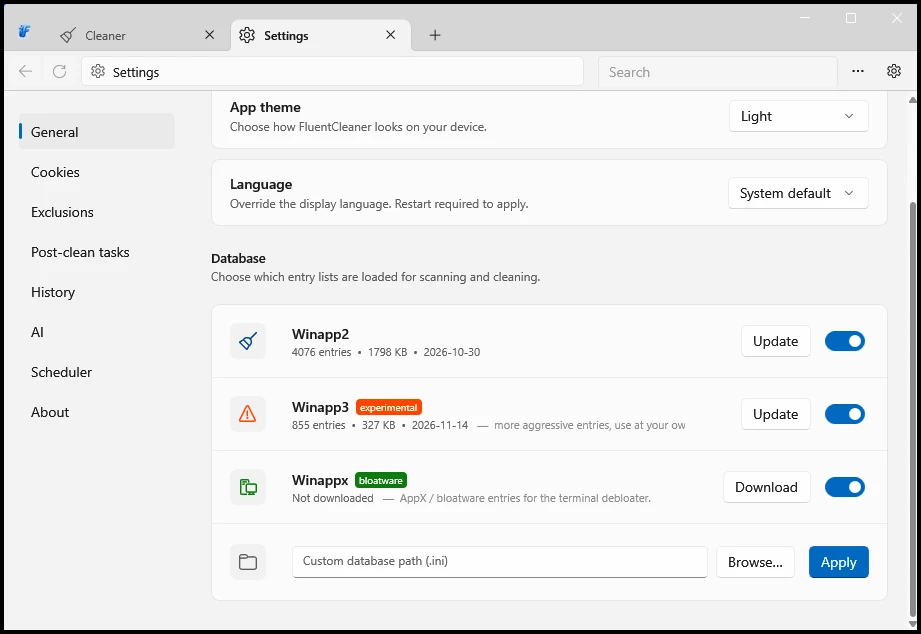
- Winapp2 is the main community database. In the screenshot it holds 4076 entries, and its Update button pulls the latest version from GitHub.
- Winapp3 is marked experimental. It adds more aggressive entries and carries the warning “use at your own risk”. Turn it on only if you know what you are doing.
- Winappx is a bloatware list. It feeds the built-in terminal’s debloat module rather than the main Cleaner, and it is not downloaded until you choose to.
- Custom database lets you point to your own
.inifile with Browse and Apply. Other cleaners publish their own variants of the format, and you can plug those in too.
When several databases are switched on, FluentCleaner loads them in order and quietly skips any entry whose name already appeared, so you do not get duplicates or errors.
Settings, scheduling and optional AI
The Settings menu on the left lists General, Cookies, Exclusions, Post-clean tasks, History, AI, Scheduler and About. A few of these are worth a closer look.
History
FluentCleaner keeps a record of your past clean runs: the date, how much space was freed and how many items were removed. It keeps the latest 50 entries to stay lightweight, and it is a nice way to see how fast junk comes back.
Scheduling
The Modern edition has a built-in scheduler with daily, weekly and at-logon triggers, plus an optional shutdown after the run. If you prefer to do it yourself, use Windows Task Scheduler with this command:
FluentCleaner.exe /AUTOruns a silent clean using your saved selection and then exits.FluentCleaner.exe /AUTO /SHUTDOWNdoes the same and shuts Windows down afterwards.
Each automatic run adds a detailed log to %AppData%\FluentCleaner\auto.log, with the time, every deleted path and the total size.
AI explanations (optional)
Newer releases can explain an entry in plain English before you clean it. This is fully opt-in: you choose a provider such as Groq, OpenAI or Anthropic and add your own API key. With no key, the feature does not appear and nothing is sent anywhere. If you dislike AI in your tools, you can simply ignore it.
What it deliberately leaves out
FluentCleaner is just as interesting for what it refuses to do. The developer calls these omissions deliberate, and I think the reasoning holds up.
No registry cleaner
Windows reads registry keys only when it needs them. Ten thousand orphaned keys left behind by old programs have no measurable effect on boot time or speed. Meanwhile, a tool that deletes the wrong key can break an app or, in rare cases, Windows itself. The upside is mostly placebo and the downside is a broken install, which is why there is no bulk registry cleaning here. If you really need to tidy up after a broken uninstall, Microsoft’s Autoruns or a careful manual edit is a better tool.
No “military-grade” file shredding
Overwriting a file 7 or 35 times sounds impressive, but it made sense on old hard drives. On an SSD, the controller decides where data physically lands, so overwriting from software does not reliably touch the same spot. And the files FluentCleaner removes are cache, temp files and logs. Normal deletion is the correct tool for that, and anything more would be security theater.
So will it speed up my PC?
Be realistic. On a modern PC with lots of free space you will probably not notice a dramatic change. The real benefit is reclaiming storage, clearing corrupted caches and tidying privacy traces. If your drive is nearly full, it matters more, because Microsoft notes that low storage can slow Windows down and block updates.
Pros, cons and who it is for
What works well
- Free and open source (MIT license)
- No ads, upsells or fear tactics
- Every entry is specific and inspectable
- Clean, modern WinUI 3 interface
- Scheduler, history and WinGet install
- Tiny portable Classic edition
What to keep in mind
- It is a one-person project
- The Modern edition needs a separate runtime and is about 140 MB
- It deletes files, so ticks matter
- Winapp3 and Deep Clean need judgement
- Fewer features than big suites, by design
FluentCleaner is a good fit if you remember when CCleaner was a simple tool, if you are short on disk space, or if you like seeing exactly what a program will do. It is not for people who want a single button that promises to “optimize everything”. It will not do that, and it is honest about it.
Quick tips for safer cleaning
- Always click Analyze first and read the biggest items before you run anything.
- Close your browsers and apps before cleaning, so locked files do not get skipped.
- Stay away from the “Dangerous” groups, Deep Clean and Winapp3 until you understand what an entry removes.
- Know what clears history. Recent release notes warn that clearing Firefox browsing history also clears bookmarks, and that the Office cleaner can remove pinned files, so it is switched off by default.
- Use the Exclusions page to protect anything you never want touched.
- Update the databases now and then with the Update button in Settings, so new apps and fixes are covered.
- Create a restore point before your first deep clean, just for peace of mind.
- Clean about once a month, or let the scheduler do it. Windows has its own Storage Sense for lighter automatic cleanup.
FAQ
Is FluentCleaner free and safe to use?
FluentCleaner is free and open source under the MIT license, and it has no ads or paid tiers. It is as safe as the items you tick: nothing runs until you select it, and each entry targets specific paths. It does delete files, so back up anything important and only download it from the official GitHub page.
Will FluentCleaner make my PC faster?
Probably not by much on a PC with plenty of free space. Where it helps is reclaiming disk space and clearing corrupted caches, which matters if your drive is nearly full, because low storage can slow Windows down and block updates.
Does FluentCleaner have a registry cleaner?
No, and that is deliberate. Windows loads registry keys on demand, so thousands of orphaned keys have no measurable effect on speed, while removing the wrong one can break an app. Some cleaning entries do remove a few specific registry values that belong to an app, but there is no bulk registry scan.
Should I choose the Modern or the Classic edition?
Choose Modern if you want the current Windows look and do not mind installing the Windows App SDK runtime once. Choose Classic if you want a tiny portable download of about 3.5 MB or you are on an older or locked-down PC. Both use the same cleaning engine.
FluentCleaner will not launch or shows Unknown Hard Error. What should I do?
The Modern edition needs the exact Windows App SDK 2.0.1 runtime for your system, usually x64. Install it, restart Windows, and try again. A newer or older runtime will not work. If the problem continues, report the exact error and your Windows version on the project's GitHub page.
Can FluentCleaner run automatically?
Yes. The Modern edition has a built-in scheduler with daily, weekly and at-logon options. You can also run FluentCleaner.exe with the /AUTO argument from Windows Task Scheduler, which cleans silently using your saved selection and writes a log to %AppData%\FluentCleaner\auto.log.
Does FluentCleaner work on Windows 10?
Yes. It supports Windows 10 version 2004 (build 19041) and later, as well as Windows 11. Despite using WinUI 3, it does not require Windows 11. The Classic edition runs on practically any Windows version.
💬 Comments