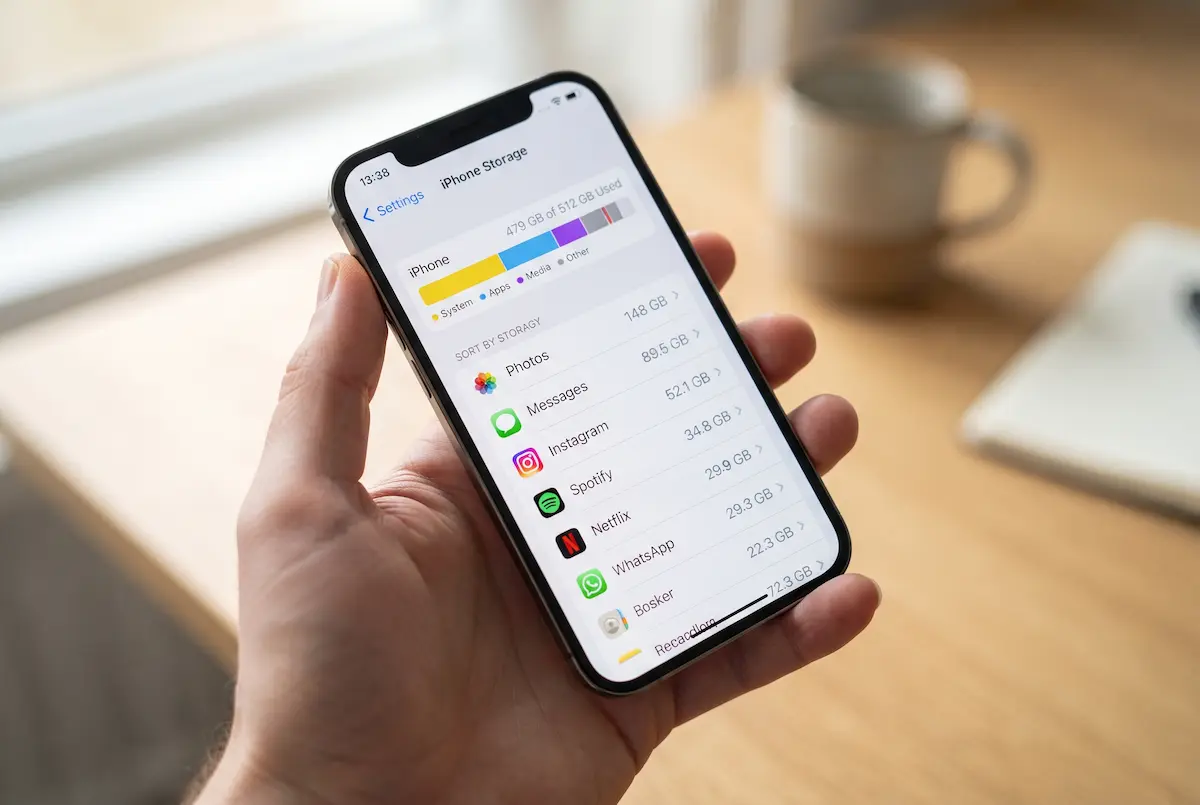
That “iPhone Storage Full” warning always seems to show up at the worst moment — right when you want to film something, or install an update you actually need. The good news is that you almost never have to buy a bigger phone or delete memories you care about.
Most of the clutter on an iPhone comes from just a handful of places: photos and videos, apps and their hidden data, message attachments, and a mysterious category called System Data. Below you will find 12 fixes, ordered roughly by how much space they tend to free up. Every step uses built-in iPhone settings, so you do not need an extra app, and you can stop as soon as you have enough room.
One note before we start: the menu names here match recent versions of iOS in 2026. If yours looks a little different, update iOS first and everything will line up. And if you use iCloud Photos, read way 4 before you delete a single picture — it is the one place where a cleanup can go wrong.
First, see what is actually using your space
It is tempting to start deleting random things, but a two-minute check saves you from cleaning the wrong corner of your phone. A person with a huge photo library needs a different plan than someone whose games and messaging apps are the real problem.
1. Open iPhone Storage and read the bar
Go to Settings > General > iPhone Storage. Give it a few seconds to calculate. At the top you will see a colored bar that splits your storage into categories such as Apps, Photos, Messages and System Data. Below it, iOS lists every app from largest to smallest, and often adds a few suggestions like Offload Unused Apps or Review Large Attachments.
Look at two things: which category is the widest, and which apps sit at the top of the list. Each app also shows when you last used it, which makes it easy to spot big apps you forgot about months ago.
Example of what the iPhone Storage screen looks like. Your numbers will be different.
To help you decide where to start, here is a rough idea of what each fix is worth. These are typical ranges, not promises, because every phone is different.
| Where to clean | Effort | Typical payoff |
|---|---|---|
| Photos and videos | Medium | Often the biggest: several GB or more |
| Big apps and games | Low | Hundreds of MB to several GB each |
| Messages attachments | Low | Hundreds of MB to a few GB |
| Safari and app caches | Very low | Usually a few hundred MB |
| System Data | Low | Varies: often small, sometimes large |
Photos and videos: the biggest wins
On most iPhones, the camera roll is the heaviest thing by far. A single minute of 4K video can take hundreds of megabytes, and it adds up quickly. Start here.
2. Empty the Recently Deleted album
When you delete a photo or video, it does not really leave your phone. It moves to a folder called Recently Deleted and stays there for 30 days, still taking up space. Open Photos > Albums > Utilities > Recently Deleted, unlock it with Face ID if asked, tap Select, then Delete All.
It is the fastest win in this whole guide, and it is surprising how often it frees several gigabytes at once. Just make sure there is nothing in there you still want to keep.
3. Clear out duplicates, screenshots and screen recordings
In the same Utilities section you will find a Duplicates album. Tap Merge next to a set of duplicates and iOS keeps the best version while removing the extra copies. Then scroll down to Media Types and look through Screenshots and Screen Recordings. Most of these were useful for five minutes and never again: a parking spot, a recipe, a receipt you already paid.
Select a handful at a time, delete, and move on. You do not have to be perfect, because even a quick sweep can free a surprising amount.
4. Turn on Optimize iPhone Storage
If you use iCloud, this is the setting that lets you keep your whole library without filling up your phone. Go to Settings > your name > iCloud > Photos and choose Optimize iPhone Storage. Your full-quality originals stay safely in iCloud, while your iPhone keeps lighter versions that still look great on its screen. When you open a photo, the full version downloads in the background.
Important: with iCloud Photos on, your devices are kept in sync. If you delete a picture from your iPhone, it is deleted from iCloud and every other device too. To save space, use Optimize iPhone Storage instead of deleting photos you want to keep. You also need enough iCloud space for your whole library, and the free plan is small.
The setting to choose: Optimize iPhone Storage.
5. Record smaller videos from now on
Cleaning up is only half the job. If you shoot a lot of video, change the defaults so the problem does not come back. Open Settings > Camera > Record Video and pick a lower option such as 1080p HD at 30 fps instead of 4K at 60 fps. The difference in file size is large, and on a phone screen most people cannot tell the difference.
Also check Settings > Camera > Formats and make sure High Efficiency is selected. It saves photos and videos in a more compact format without a visible loss in quality. For the videos you already have, open the Videos album, tap Select, and remove long clips you will never watch again.
Apps and their leftover data
Apps are the second big space hog, and not only because of their size. Many of them quietly collect caches, downloads and temporary files that can grow far bigger than the app itself.
6. Offload apps you rarely use
Offloading is a clever middle ground. It removes the app but keeps your documents and data, so when you reinstall it later, everything is exactly where you left it. To do it, open Settings > General > iPhone Storage, tap an app, and choose Offload App.
If you would like iOS to do this by itself, turn on Settings > App Store > Offload Unused Apps. It only touches apps you have not opened for a while, and their icons stay on your Home Screen so you can tap to bring them back.
An app page in iPhone Storage. Notice that Documents & Data is much bigger than the app itself.
7. Delete apps and games you never open
Be honest with yourself here. If an app has not been opened in months, you will not miss it. Games are the usual suspects, since some take several gigabytes. Tap and hold the icon, choose Remove App, then Delete App.
There is also a neat trick for apps you do use. Look at the Documents & Data line on the app page, as in the example above. When it is much bigger than the app size, the app has piled up cache. Deleting and reinstalling it resets that to nearly zero. Social, streaming and messaging apps are common culprits. Just make sure you remember your login first.
8. Clear Safari history and website data
Websites store small files on your phone to load faster, but over the years they add up. Go to Settings > Apps > Safari > Clear History and Website Data and confirm. On older versions of iOS, the Safari settings sit directly in the main Settings list.
You will be signed out of some websites, and your browsing history will be erased on every device that uses the same Apple Account. Your saved passwords are not affected. If you want to be more selective, open Advanced > Website Data and remove only the largest sites.
Messages, music and files
These three do not look heavy at first glance, but years of photos in chats, offline playlists and forgotten downloads can easily reach double-digit gigabytes.
9. Trim Messages and chat apps
Every photo, video and voice note you receive in Messages is stored on your iPhone. Open Settings > General > iPhone Storage > Messages and use Review Large Attachments or browse the Photos and Videos categories to remove the biggest items. Swipe left on a file and tap the trash icon.
To stop the buildup, open Settings > Messages > Keep Messages and change Forever to 1 Year or 30 Days. iOS will warn you that older messages will be deleted, so only do this if you do not need your old chats. Third-party chat apps keep their own media too. In WhatsApp, for example, open Settings > Storage and Data > Manage Storage to clean up per chat.
Keep Messages set to 1 Year instead of Forever.
10. Remove downloaded music, podcasts and shows
Offline downloads are great for flights and commutes, but they stay on your phone long after you have stopped listening. Check Settings > General > iPhone Storage for Music, Podcasts, TV and any streaming apps you use, then open each app's own Downloads or Library section and remove what you have already finished.
In Apple Music, you can go to Settings > Apps > Music > Downloaded Music to see everything at once and swipe left to remove it. Turning on Optimize Storage there lets iOS remove music you have not played in a while when space runs low.
11. Clean up Files, Mail and Voice Memos
Open the Files app, tap Browse, and look at On My iPhone and Downloads. Switch to list view and sort by Size to see the heaviest items first. Old PDFs, installers and shared videos like to hide here. Do not forget the Recently Deleted folder in Files, which works just like the one in Photos.
Two other places are worth a quick look: large attachments in the Mail app, and the Voice Memos app, which also keeps deleted recordings for a while. Neither is usually huge, but together they can make a difference on a phone that is nearly full.
System Data and the last resort
This is the category that confuses almost everyone, so let us make it simple.
12. Shrink System Data the safe way
System Data is the catch-all bucket for things iOS manages itself: caches, logs, temporary files, Siri voices and parts of updates. You cannot delete it with a button, and you should not try to use shady “cleaner” apps that promise to. What you can do is give iOS the chance to tidy up:
Restart your iPhone. Temporary files get cleared during a restart, and it costs nothing. Update iOS through Settings > General > Software Update, because updates often clear out bloated caches. If a downloaded update is sitting in your storage list waiting to be installed, you can tap it and delete it, then download it again later when you have space. And do the other steps in this guide, since clearing Safari data and app caches also reduces System Data.
Be patient, too. After a big cleanup, iOS sometimes takes a day or so to recalculate the numbers, so the chart may not update immediately.
The last resort: if System Data is still huge after all of the above and your phone is acting strange, the cleanest fix is to back up your iPhone to iCloud or a computer, then go to Settings > General > Transfer or Reset iPhone > Erase All Content and Settings and restore from the backup. Only do this after you have confirmed that the backup finished, because it wipes the phone.
My experience
I went through all twelve steps on an iPhone with 128 GB that had been nagging me about storage for weeks. The surprise was where the space was hiding. Emptying Recently Deleted and merging duplicates gave me back several gigabytes in about five minutes, and it felt almost too easy.
The real chunk came from two places: a pile of old screen recordings and a messaging app whose Documents & Data was far bigger than the app itself. Deleting and reinstalling that app cleared a big part of it, and switching Keep Messages from Forever to 1 Year trimmed a bit more. In total I got back roughly 19 GB without losing a single photo I cared about, since Optimize iPhone Storage handled the rest.
What did not work for me was waiting for System Data to drop on its own. It only shrank noticeably after a restart and an iOS update. My advice: start with the easy wins, check the numbers after each step, and stop when you have enough room.
💬 Comments