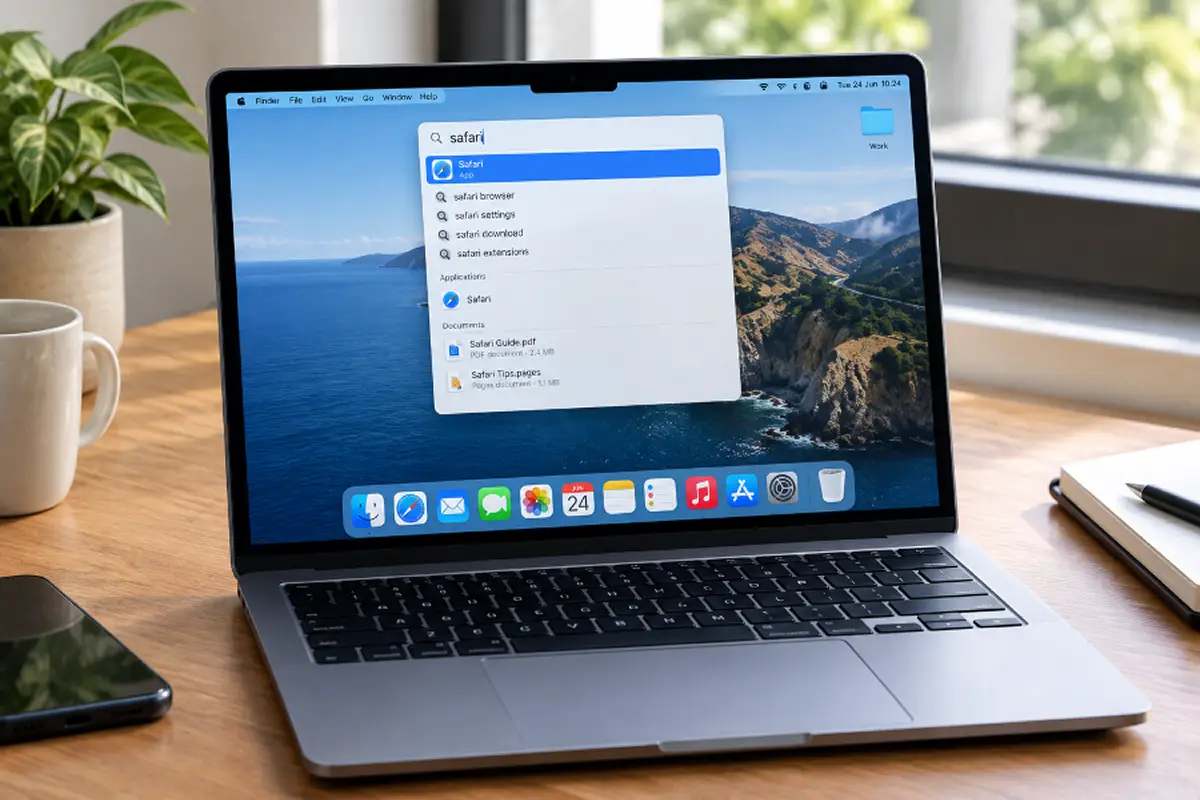
Most people use maybe ten percent of what macOS can actually do. You open apps, switch windows, drag files around — and never touch the dozens of small features Apple buried a few clicks deep in System Settings, or hid behind a keyboard shortcut nobody ever mentions.
None of these are exotic hacks. They are all built directly into macOS. I went through my own daily workflow and picked out the ten that actually made a measurable difference, in the order I'd recommend setting them up.
🔍 Quick Look actions Built-in Instant
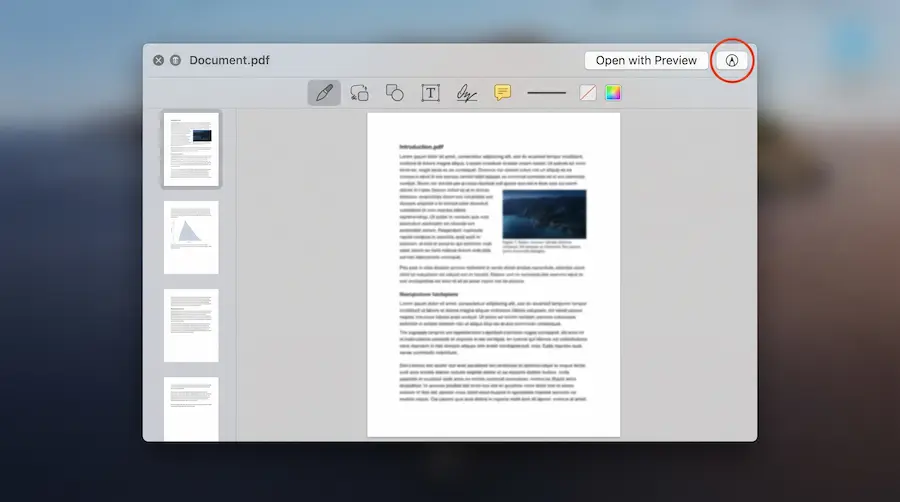
Select any file in Finder and hit the space bar. That's Quick Look, and most people already know it as a simple file preview. What they miss is the small toolbar along the top of the preview window. For images, it lets you rotate, crop, and mark up with the same annotation tools as Preview — without ever launching Preview. For PDFs, you can add a signature or fill in a form field directly from that toolbar.
It sounds small, but if you sign or annotate two or three documents a day, this alone removes an app-launch step every single time.
⌨️ Text replacements that work system-wide Underrated
In System Settings → Keyboard → Text Replacements, you can create shortcuts that expand automatically anywhere you type — Mail, Slack, Notes, a browser form, anything. Type "eml" and have it expand into your full email address. Type "addr" and get your full mailing address. Type "mtg" and get a boilerplate meeting-request sentence.
This is the same engine behind autocorrect, just repurposed. Once you have five or six of these set up for things you type constantly, the time saved adds up fast.
⚙️ Quick Actions and Automator in Finder
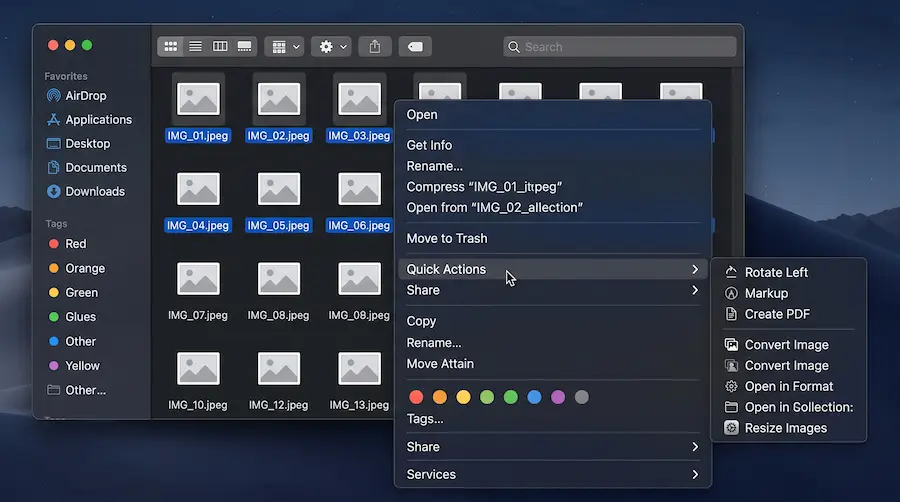
Right-click a file in Finder and look near the bottom of the menu for Quick Actions. By default macOS already includes a few, like rotating an image or creating a PDF. What's less known is that you can build your own with Automator (or Shortcuts on newer macOS versions) and have them appear in that exact same right-click menu.
A common one people build: select a batch of images, right-click, and instantly resize all of them to a fixed width, or convert them all to a different format — no app, no upload to an online converter, no manual repetition.
📐 Hot corners for instant window control
Under System Settings → Desktop & Dock → Hot Corners, you can assign an action to each corner of the screen — triggered just by moving your mouse there, no click needed. Bottom-right corner to lock the screen instantly before stepping away. Top-left to show all open windows (Mission Control). It replaces reaching for a keyboard shortcut with a single, fast mouse movement you barely think about after the first day.
🪟 Stage Manager's hidden window grouping
Stage Manager gets criticized a lot, mostly because people turn it on, don't understand it, and turn it right back off. The part that's actually useful: drag a second window onto the stacked thumbnails on the side, and it groups with the active app as a set. Click that group later, and both windows open together, in the same arrangement, every time. It's a lightweight way to build ad-hoc "workspaces" without setting up a single Space.
🧮 Spotlight as calculator and converter
Everyone uses Spotlight (Cmd + Space) to open apps. Far fewer use it as a fast calculator — type a sum directly and the answer appears at the top. It also converts units on the fly (type 10 miles in km) and doubles as a dictionary and quick web lookup, all without opening a browser tab.
📋 Universal Clipboard between your devices
If you're signed into the same Apple ID on your Mac and iPhone with Wi-Fi and Bluetooth both on, copying text or an image on one device lets you paste it directly on the other with a normal Cmd + V or long-press paste — no messaging yourself a link, no AirDrop. It's easy to forget this exists because it works silently in the background once it's set up correctly.
🗂️ Rearranging menu bar icons by dragging
Hold Cmd and drag any icon in the menu bar to reorder it, or drag it off the bar entirely to remove it. Most people don't realize this works on nearly every menu bar icon, including some from third-party apps. A clean, ordered menu bar sounds cosmetic, but it cuts down the visual noise you scan past dozens of times a day.
📄 Preview's underrated PDF tools
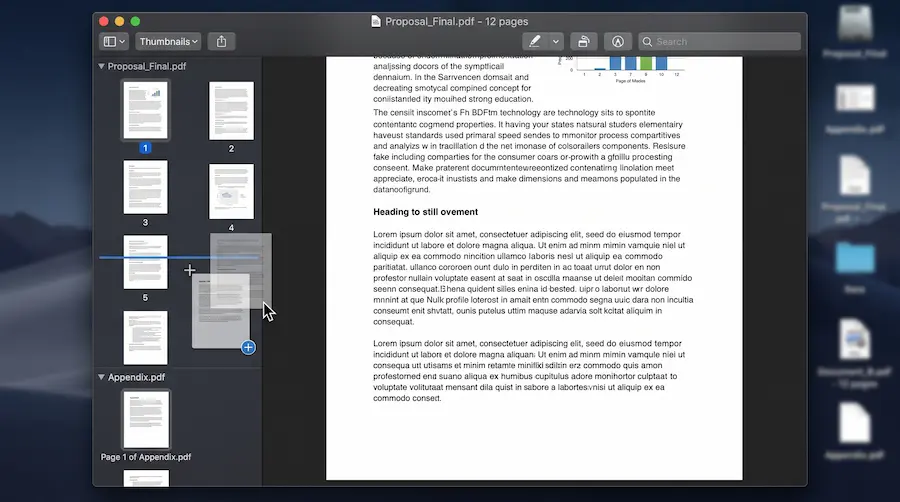
Preview is usually thought of as "the thing that opens images," but it also merges PDFs. Open one PDF, then drag a second PDF file directly into the sidebar thumbnail list — it merges into a single document instantly. You can also reorder, delete, or extract individual pages from that same sidebar, all without any third-party PDF software.
📂 Go To Folder — skip the clicking Fast
Inside Finder, press Cmd + Shift + G and a small box appears where you can type a path directly, like ~/Library/Application Support. It jumps there instantly, no clicking through nested folders. It's one of the oldest features on this list, and still one of the fastest ways to reach a deeply buried folder.
~ as a shortcut for your Home folder.🎯 Which ones are worth setting up first
If you only have ten minutes, start with these two — they carry the most day-to-day weight for the least setup effort:
My experience
I tested all ten of these on a MacBook Air with an M2 chip, running the current version of macOS, over about two weeks of normal daily use — writing, editing images for articles, and managing files for this site.
The text replacements and Quick Actions were the two that actually changed my daily rhythm, not just something I used once and forgot. I set up five text replacements (email, two addresses, a meeting-request line, and a signature block) and built one Quick Action that resizes and renames batches of article images in one right-click — something I used to do manually in an image editor for every single article.
Stage Manager's window grouping took longer to get used to than I expected. The first few days I kept forgetting it groups by proximity, and I'd accidentally merge two windows I didn't want together. Once I understood the drag distance needed to avoid that, it settled into a genuinely useful habit for pairing a browser window with a notes app while researching.
Universal Clipboard worked reliably for text every time. For images, it occasionally needed a few seconds longer than expected, especially over a weaker Wi-Fi connection — not a dealbreaker, just worth knowing it isn't always instant.
Nothing on this list required a restart, a permissions dance, or any troubleshooting. Everything is a built-in setting, which is exactly why I think it's worth the ten minutes to set up.
💬 Comments