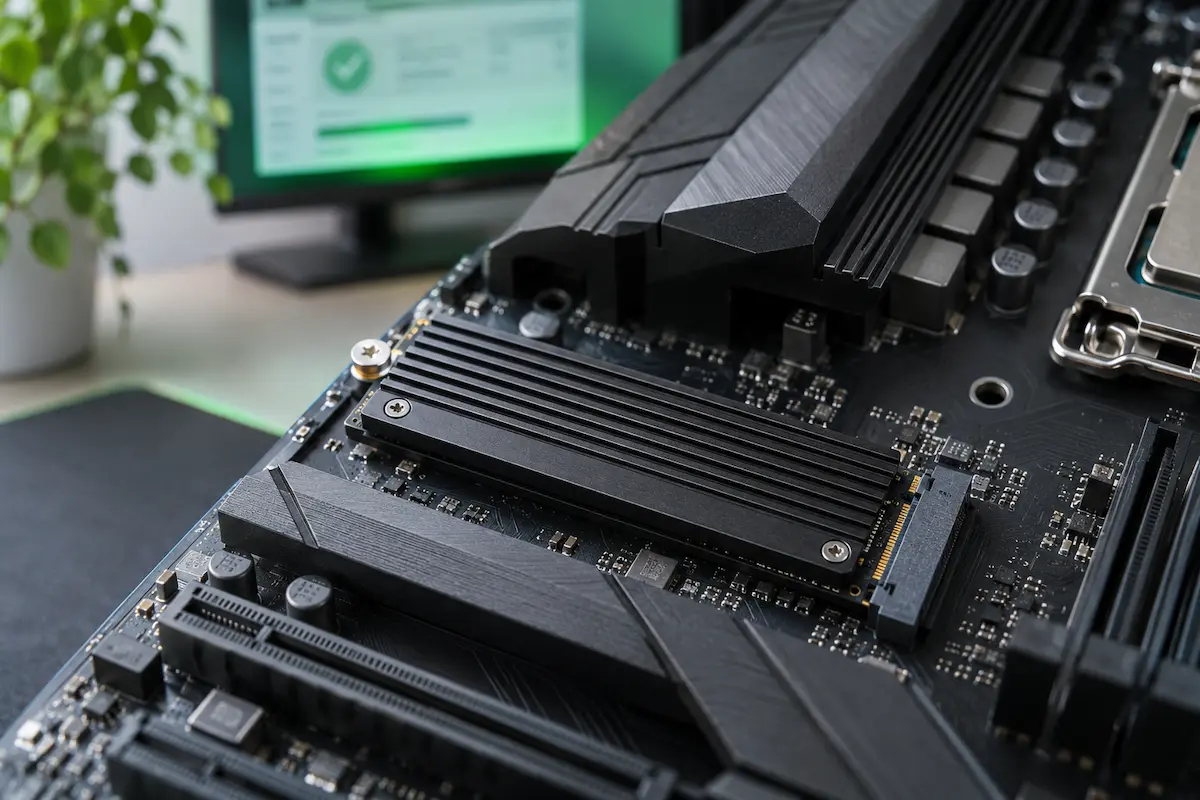
An SSD doesn’t click, grind or whine before it dies. There is nothing to hear, so most people only notice a problem when a file refuses to open or the PC refuses to boot.
That is why a quick health check every few months is worth your time. It takes about five minutes, it costs nothing, and it can give you the one thing you really want from a failing drive: a warning.
In this guide you will check your SSD with Windows 11 and with free tools such as CrystalDiskInfo, learn what the numbers mean, spot the signs of trouble, and see what to do before any data is lost.
What “SSD health” actually means
An SSD stores your files in flash memory cells. Every time data is written, those cells wear down a tiny bit. To make up for that, the drive keeps a pool of spare cells and swaps them in when a worn one stops working.
Health tools read a small report that the drive keeps about itself. That report is called S.M.A.R.T., short for Self-Monitoring, Analysis and Reporting Technology. NVMe drives keep a very similar health log. The numbers that matter most are:
- how much of the drive’s rated lifespan you have already used,
- how many spare cells are left,
- how many errors the drive has logged,
- and how hot it runs.
SSDs also fail differently from old hard drives. A hard drive often gives you weeks of clicking noises. An SSD can run perfectly for years and then stop responding within a day, usually because of a controller or firmware fault rather than slow wear.
The honest limit of any health check: it shows how a drive is doing today. It cannot promise tomorrow. Treat it as an early warning, and keep a backup either way.
Which type of SSD do you have?
Two kinds are common in 2026. SATA SSDs look like thin 2.5-inch boxes. NVMe SSDs are small sticks that plug into an M.2 slot on the motherboard. The difference matters here, because the built-in Windows check only reads NVMe drives.
To see which one you have, press Ctrl + Shift + Esc to open Task Manager, go to the Performance tab and click your disk. The model name and type appear in the top right corner.
Check SSD health in Windows 11 (no download)
The fastest check is already inside Windows 11. It takes less than a minute and needs no extra software.
What a healthy NVMe SSD looks like in Windows 11 Settings.
Windows shows three values:
- Estimated remaining life is the manufacturer’s estimate of how much of the drive’s lifespan is left.
- Available spare is the share of spare cells that are still unused. 100% means the reserve is untouched.
- Temperature is the current temperature of the whole drive in °C.
If you don’t see a Drive health section at all, your drive is probably a SATA SSD or sits inside a USB case. Windows only monitors NVMe SSDs, so move on to the next section.
Windows also raises its own alert when a drive crosses a danger line. Microsoft lists three critical warnings: Spare capacity is low, Reliability is degraded and Drive is set to read-only. You can read what each one means on Microsoft’s support page about storage critical warnings. If you ever see one, jump straight to the section “What to do before data is lost”.
CrystalDiskInfo: the free tool to start with
CrystalDiskInfo is the tool most people reach for first, and for good reason. It is free, open source, and reads SATA SSDs, NVMe SSDs and hard drives from nearly every brand. It also turns the raw S.M.A.R.T. data into a simple status you can understand at a glance.
How to use it
35 °C
C:
31 °C
D:
CrystalDiskInfo with a healthy NVMe SSD. “Good” means the drive reports no known problem.
The status has four colors. Good is blue, Caution is yellow, Bad is red and Unknown is grey. Caution and Bad both mean it is time to back up, which we cover later.
Download it only from the official site. Fake “free disk tools” pages are a common way to pick up unwanted software.
One limit to know about: an SSD inside a USB enclosure often shows nothing, because the USB adapter hides the drive’s health data from Windows. If your external drive appears empty here, that is usually the adapter, not a dead drive.
How to read the numbers
You don’t need to understand every line. These are the values worth a look. The names below are the NVMe ones, and SATA SSDs report similar things under slightly different names.
| Value | What it tells you | Looks fine | Time to worry |
|---|---|---|---|
| Health Status / Percentage Used | How much of the drive’s rated lifespan is used up. | Above 50% health | Falling toward 20% or lower |
| Available Spare | How many spare cells are left in reserve. | 100% or close to it | Dropping toward the spare threshold (often 10%) |
| Critical Warning | A flag the drive raises when something is seriously wrong. | 0 | Anything other than 0 |
| Media and Data Integrity Errors | Errors the drive could not correct. | 0 | Above 0 and growing |
| Unsafe Shutdowns | Times the power was cut without a proper shutdown. | A handful | Climbing fast for no clear reason |
| Temperature | How hot the drive is right now. | Below about 60 °C | Often above 70 °C |
| Total Host Writes | All the data written to the drive so far. | Far below its TBW rating | Close to its TBW rating |
| Reallocated Sectors (SATA) | Worn areas the drive has already replaced. | 0 | Any increase over time |
TBW means “terabytes written”. It is the amount of data the manufacturer says the drive can take during its warranty, and you will find it on the drive’s spec sheet. Power On Hours simply tells you how old the drive is. It is not a health score by itself.
SATA SSDs often use brand-specific names such as Wear Leveling Count, Media Wearout Indicator or Remaining Life. You don’t have to decode them. CrystalDiskInfo converts them into the single Health Status percentage.
One odd number rarely means danger. Look for trends instead: a value that gets worse each time you check. Some healthy drives also show a few entries in “Number of Error Information Log Entries”, so that line alone is not a reason to panic.
PowerShell and smartmontools for a deeper look
PowerShell, already built into Windows
If you prefer typing, Windows can report health without any download. Right-click the Start button, choose Terminal (Admin) and run these two commands, one after the other:
Get-PhysicalDisk | Select-Object FriendlyName, MediaType, HealthStatus, OperationalStatus
Get-PhysicalDisk | Get-StorageReliabilityCounter | Select-Object Wear, Temperature, PowerOnHours, ReadErrorsTotal
PS C:\Windows\system32> Get-PhysicalDisk | Select-Object FriendlyName, MediaType, HealthStatus, OperationalStatus

FriendlyName        MediaType HealthStatus OperationalStatus
------------        --------- ------------ -----------------
Samsung SSD 980 1TB SSD       Healthy      OK

PS C:\Windows\system32> Get-PhysicalDisk | Get-StorageReliabilityCounter | Select-Object Wear, Temperature, PowerOnHours, ReadErrorsTotal

Wear Temperature PowerOnHours ReadErrorsTotal
---- ----------- ------------ ---------------
   3          35         3214               0

PS C:\Windows\system32>
A healthy drive reports Healthy and OK. Wear is the percentage of life used, so 3 means 97% is left.
The first command shows the overall verdict: Healthy, Warning or Unhealthy. The second shows wear, temperature and error counts. Some drives, and most USB enclosures, return empty fields here. That only means the information isn’t available, not that something is wrong.
smartmontools for power users
smartmontools is a free, open-source toolkit that reads S.M.A.R.T. data from almost any drive. Its command-line tool is called smartctl. It works on Windows and Linux, and on macOS too, though some Mac internal drives expose only limited data. Here is the basic routine:
smartctl --scan
smartctl -a /dev/nvme0
The first command lists your drives. The second prints the full report for the NVMe drive. You will see a line saying the overall health test result is PASSED. Treat that as the lowest bar, not as a clean bill of health. Read Percentage Used, Available Spare and Media and Data Integrity Errors as well.
Free tools from SSD makers
Most big brands ship their own free utility. These tools know their own drives well, so they can show exact wear figures and offer firmware updates. They only work with that maker’s drives, though.
Samsung Magician covers Samsung SSDs and includes a drive health view, firmware updates and a data migration tool. Kingston SSD Manager does the same for Kingston drives, with health, usage and temperature information. Western Digital, SanDisk, Kioxia, SK hynix and Transcend offer similar utilities, and you can find them on each brand’s support page.
| Tool | Works with | Price | Best for |
|---|---|---|---|
| Windows Settings | NVMe SSDs only | Built in | A quick look in under a minute |
| CrystalDiskInfo | SATA, NVMe and hard drives, most brands | Free, open source | The main check for any drive |
| PowerShell | Most internal drives | Built in | Quick health and wear numbers |
| smartmontools | Nearly any drive | Free, open source | Command line, Linux, scripts |
| Samsung Magician | Samsung SSDs | Free | Health, firmware and cloning on Samsung |
| Kingston SSD Manager | Kingston SSDs (not in USB cases) | Free | Health and firmware on Kingston |
A word of caution about firmware updates: they can fix bugs, but an update that fails midway is risky. Back up your files first, and don’t interrupt the update.
Warning signs that an SSD is failing
Sometimes the tools stay green while the drive already misbehaves. Pay attention if you notice any of these:
- Files that suddenly won’t open, or open as corrupted.
- Files or folders that vanish without you deleting them.
- The PC freezes while saving, copying or installing something.
- Apps and games crash, or you get blue screens that mention the disk.
- Windows runs a disk repair at almost every startup.
- The drive suddenly becomes read-only.
- The PC no longer boots, or the drive disappears from the BIOS and comes back after a restart. This is a very bad sign.
- Disk errors in Event Viewer. Open Windows Logs › System and look for Disk events with IDs 7, 11, 51 or 153.
An example of what a warning looks like. This is the moment to back up, not to keep working as usual.
Slow doesn’t always mean dying
A slow SSD is not automatically a failing one. A nearly full drive slows down, and so does an overheating one, because it throttles its speed to cool off. Check the free space and the temperature first. If both are fine and the drive is still slow and showing errors, take the warning seriously.
What to do before data is lost
How you react depends on what you see. Use this as a quick guide:
Good
Health above 50%, no critical warning, zero errors.
Keep your normal backups and check again in three months.
Caution
Health near 20%, spare running low, or errors that keep growing.
Back up now, order a replacement and use the drive only for light work.
Bad
A critical warning, read-only mode, disk errors or a drive that drops out.
Stop writing to it, copy what you can and replace it.
chkdsk /f on a drive you suspect is failing until your files are safe, because they write a lot to the disk.The classic advice is the 3-2-1 rule: three copies of your data, on two different kinds of storage, with one copy somewhere else. It sounds like a lot, but even a simple version, your PC plus an external drive plus a cloud folder, covers almost every case.
There is one more reason to back up early. When you delete files on an SSD, a feature called TRIM usually wipes them for good, so the “undelete” tools that worked on hard drives often find nothing. Recovery from a dead SSD is also hard and expensive. A backup is far cheaper.
How to help your SSD last longer
A few habits cost nothing and keep the drive in better shape:
- Keep 10 to 20 percent free. A nearly full drive is slower and has less room to spread out writes.
- Keep it cool. Use the heatsink that came with your motherboard and keep air moving through the case.
- Shut down properly. Hard power-offs raise the Unsafe Shutdowns count and can damage data in flight.
- Update the firmware when the maker publishes a fix, after a backup.
- Leave TRIM on. Windows turns it on by default. To check, open a terminal and run
fsutil behavior query DisableDeleteNotify. A result of 0 means TRIM is working. - Check health every three months. Put a reminder in your calendar and take a screenshot each time, so you can compare results.
My experience
I ran every check in this guide on two drives: a 1 TB NVMe SSD in a Windows 11 laptop that is about three years old, and a 256 GB SATA SSD from an older desktop.
Windows Settings showed Drive health for the NVMe drive only. The SATA drive had no health section at all, exactly as Microsoft says. CrystalDiskInfo read both within seconds. The NVMe drive came back as Good at 97%, with a temperature of 35 °C at idle.
One number stood out: Unsafe Shutdowns was at 17. That came from the times the laptop froze and I held the power button. It was a good reminder to wait a minute before pulling the plug.
The drive reached about 52 °C during a long file copy and went back to the mid-30s at idle, which is normal.
What went wrong: CrystalDiskInfo showed nothing at all for a drive in a cheap USB enclosure. I first thought the drive had died, but the enclosure was simply hiding the data. Now I check these drives inside the PC, and I check every three months.
FAQ
How often should I check my SSD’s health?
Once every three months is plenty for most people. Also check right after anything suspicious, such as a freeze while saving a file, a blue screen, or a Windows disk warning.
What is a good SSD health percentage?
Anything above 50% is comfortable, and a drive in the 80s or 90s is in great shape. When health falls toward 20%, start planning a replacement. Don’t wait until a tool turns yellow.
How long does an SSD last?
Most consumer SSDs come with a warranty of three to five years or a set amount of written data (the TBW rating), whichever comes first. Normal home use rarely reaches that write limit in that time. Sudden faults are more common than a slow wear-out, which is why backups matter more than health numbers.
Does a Good status mean my SSD is safe?
It means the drive reports no known problem right now. It can’t catch a sudden controller or firmware failure, so keep backups even when everything is green.
Can I recover data from a dead SSD?
Sometimes, but it is harder than with a hard drive. Files you deleted are usually gone for good because of TRIM, and a drive that doesn’t respond at all often needs a specialist lab and a big bill. Back up before there is a problem.
Is CrystalDiskInfo safe?
Yes, when you download it from the official CrystalMark site. It is open source and only reads data from your drives.
Why does CrystalDiskInfo show nothing for my external SSD?
Many USB enclosures and adapters don’t pass the drive’s health data on to Windows. The drive is probably fine; the adapter is hiding the report. Try a different enclosure, or connect the drive internally.
Does a nearly full SSD hurt its health?
A very full drive gets slower and has less room to spread out writes. Try to keep at least 10 to 20 percent of the space free.
💬 Comments