Your iPhone is acting a little strange. A website keeps showing last week's version, a page looks broken, a login won't stick, or one app has quietly swallowed several gigabytes of storage. Search for a fix and you'll see the same advice every time: clear the cache.
It's good advice, but only some of the time. In this guide I'll show you how to clear cache on iPhone for Safari, Chrome and your other apps, step by step, with each one taking about a minute. I'll also tell you honestly when it makes a real difference and when you'd just be signing yourself out of everything for no reason.
1. What the cache actually is
Think of the cache as your iPhone's pantry. The first time you open a website, your phone downloads the logo, the fonts, the images and a pile of small code files. Instead of throwing them away, it keeps a copy. Next time you visit, it grabs the copy from the pantry instead of fetching everything again, so the page opens faster and uses less mobile data.
Apps do the same thing. A music app stores album art, a social app stores thumbnails and videos you scrolled past, and a chat app keeps the photos from your conversations. All of that is cache.
Cache, cookies and website data are not the same
These three get mixed up all the time, and the difference matters when you tap the clear button:
Cache is the stored copies of images and files. Deleting it is harmless. Cookies are tiny notes that websites leave on your phone to remember you, for example that you're signed in or what's in your basket. Deleting them signs you out. Website data is the umbrella term Apple uses for both, plus other local storage that sites keep.
Why a cache goes bad
Most of the time the cache is a quiet helper. It only causes trouble in a few situations: a site was updated but your phone still holds the old copy, a file got corrupted while downloading, or the cache simply grew huge over months. Those are the cases where clearing it actually fixes something.
2. Should you clear it? When it helps and when it doesn't
Here's the part most guides skip. Clearing the cache is not a magic cure for a slow iPhone. It solves a few specific problems and does nothing for the rest. This table will save you some time:
| What you're seeing | Will clearing cache help? | Better move |
|---|---|---|
| A website shows an old version or looks broken | Yes, usually | Clear that site's data, or all of Safari's |
| You get stuck in a login loop | Often | Delete that site's website data |
| One page won't load, others are fine | Sometimes | Try a private tab first |
| An app is using several GB of storage | Sometimes | Use the app's own clear cache option |
| The whole phone feels slow | Rarely | Restart, update iOS, free up storage |
| Wi-Fi or mobile data is slow | No | Check the connection or router |
| Battery drains fast | No | Check Settings > Battery |
| You want to remove your browsing traces | Yes | Clear history and website data together |
One more thing worth knowing: iOS manages system caches by itself. When storage runs low, your iPhone quietly throws out temporary files it can recreate. So the cache you can clear yourself is mostly the browser and app cache, which is exactly what the next sections cover.
3. How to clear the Safari cache on iPhone
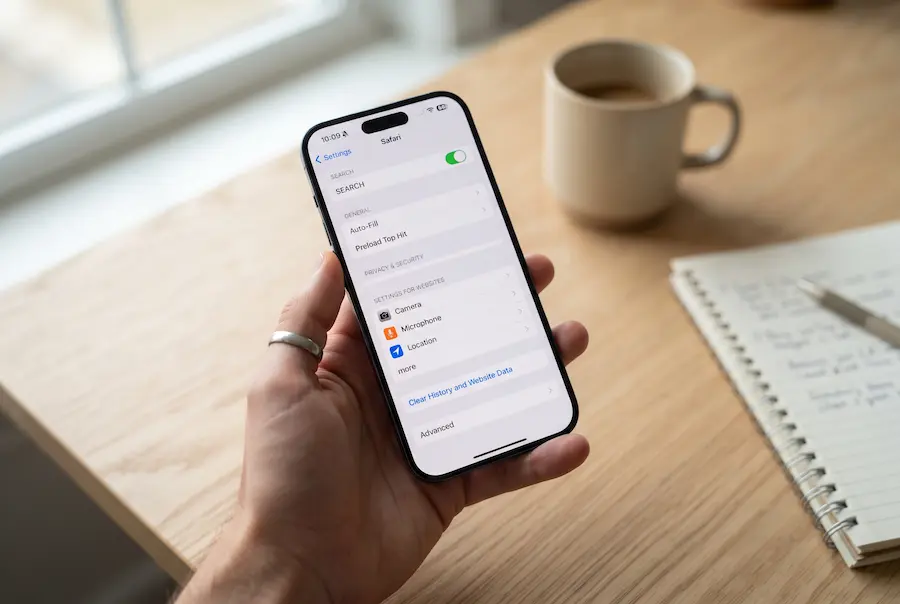
Safari is the browser most people use on an iPhone, so let's start there. The steps below are for iOS 26. On iOS 18 they're the same. On older versions, Safari sits directly in the main Settings list instead of under Apps.
Clear everything in Safari
Clear the cache but keep your history
Sometimes you want the website data gone but you'd like to keep your history. Safari lets you do that:
Clear the cache for one website only
This is the option I'd reach for first, because it's the least disruptive. If only one site is misbehaving, there's no reason to sign out of everything else.
In the same Website Data screen, use the search box to find the site, or tap Edit. Swipe the site to the left (or tap the red minus) and choose Delete. Only that site's stored data disappears. Reopen the page and it loads fresh.
4. How to clear the Chrome cache on iPhone
If you use Chrome on your iPhone, clearing Safari won't touch it. Chrome keeps its own cache, so you have to clear it from inside Chrome.
Firefox, Edge and most other iPhone browsers work the same way: look for a privacy or data section in the browser's own settings and clear the cache there. Under the hood they all use Apple's web engine, but each one keeps its own storage, which is why you have to clear them one by one.
5. Clearing the cache of other apps
Here's where iPhone differs from Android. iOS has no system-wide "clear cache" button, and apps are not allowed to clean each other's files. That leaves you with three realistic options.
Option 1: look inside the app's settings
Many apps that store lots of media have their own cleaner. Telegram is a good example: go to Settings > Data and Storage > Storage Usage and tap Clear Entire Cache. Spotify has Settings > Storage > Delete cache. Streaming, music and messaging apps usually hide it under a heading like Storage, Data or Downloads. This is by far the safest method, because the app removes only what it can download again.
Option 2: find the space hogs first
Not sure which app is the problem? Open Settings > General > iPhone Storage. Your apps are listed from largest to smallest. Tap one and you'll see two numbers: the size of the app itself and the size of its Documents & Data. When the second number is far bigger than the first, the app is carrying a lot of cache and downloaded files.
96 GB of 128 GB used
Option 3: delete and reinstall the app
If an app has no clear cache option, deleting it and installing it again gives you a clean start. Note that Offload App is not the same thing: it removes the app but deliberately keeps its documents and data, so it won't shrink the cache.
6. What to try when the cache isn't the problem
If you cleared the cache and nothing changed, don't keep clearing it. These are the fixes that more often solve a sluggish or glitchy iPhone:
7. How often should you do this?
Short answer: only when you have a reason. A healthy iPhone doesn't need a weekly cache cleanup, and doing it on a schedule just makes your phone slower and your life more annoying, because you'll keep signing in to everything.
A simple rule works well. If one site misbehaves, clear that site's data. If Safari is acting up in general, clear Safari. If storage is the issue, check iPhone Storage and use the cleaner inside the biggest app. Everything else can wait until you actually see a problem.
There's one exception: privacy. If you're handing your phone to someone or you used a shared device, clearing history and website data together is a sensible thing to do.
8. My experience
I tested these methods on an iPhone 14 running iOS 26. Before making any changes, I checked iPhone Storage and found that Safari was taking up around 1.1 GB, while Telegram was using just over 4 GB. Most of Telegram's storage came from photos and videos in group chats, many of which I had viewed once and never needed again.
Clearing Safari's history and website data for all time reduced its storage usage to a few hundred megabytes within seconds. As expected, my usual news and shopping websites loaded a little more slowly the first time I visited them again. After a day of normal browsing, however, everything felt back to normal. I didn't notice any meaningful improvement in everyday browsing speed.
The biggest inconvenience was having to sign in again. I was logged out of my email account, two shopping websites and my bank. Getting back into my banking app was particularly frustrating because I needed a verification code by text message and had to reset my password. Looking back, I would have tried the Advanced > Website Data option first and removed data only for the websites that were actually causing problems.
The most useful fix was much more targeted. One website kept displaying an outdated version of a page even after it had been updated. Clearing that site's data solved the problem immediately without affecting my other browsing sessions. Telegram also proved easy to clean up: using Clear Entire Cache freed up more than 3 GB in seconds. My chats and media remained available, since Telegram stores cloud-synced content on its servers and downloads it again when needed.
💬 Comments