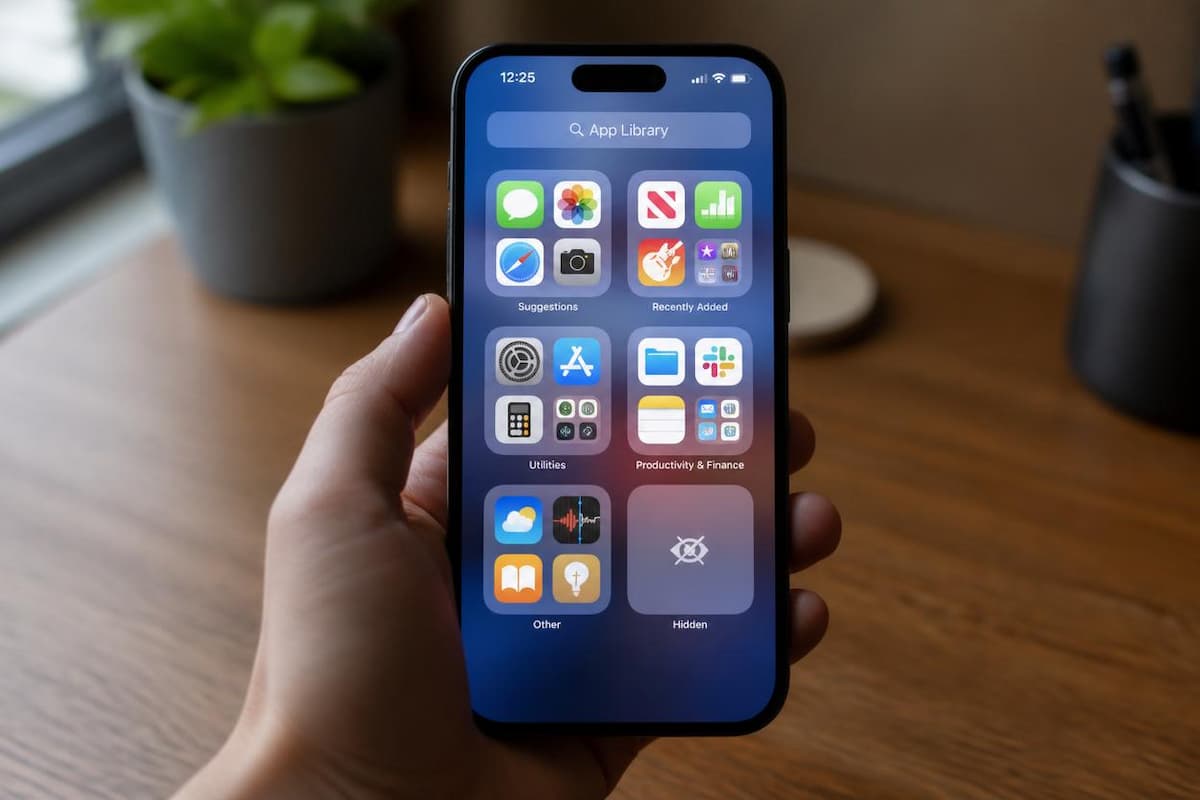
Maybe you hand your iPhone to your kids now and then. Maybe you just don't love having a banking app or a private journal sitting on the first page of your Home Screen where anyone can see it. Either way, you've probably wished you could make an app disappear.
Since iOS 18, Apple has had a proper built-in way to do exactly that: lock an app behind Face ID and tuck it into a private Hidden folder. The catch is the other half of the story. Hide an app once, and a few weeks later you can't remember where it went.
This guide covers both halves in iOS 26: how to hide apps on iPhone, and every place to look when you need one back.
1. Hiding, locking and removing: what's the difference?
People use “hide” for several different things on an iPhone, and that's where most of the confusion starts. Here are the main options side by side.
| Method | What it does | Good for |
|---|---|---|
| Move to a folder | Tucks the icon somewhere less obvious. It's still easy to find with a quick search. | Tidying up, not privacy |
| Require Face ID (lock) | The icon stays on your Home Screen, but opening the app needs Face ID, Touch ID or your passcode. | Stopping casual snooping |
| Hide and Require Face ID | Locks the app and moves it off your Home Screen into the Hidden folder in App Library. | Lending your phone to someone |
| Screen Time restrictions | Switches certain apps or features off until someone enters the Screen Time passcode. | Kids and family setups |
None of these delete anything. Your app, your login and your data stay exactly where they were. In this guide we focus on the second and third rows, because that's what most people actually mean when they ask how to hide an app.
2. What you need before you start
The feature is simple, but it has a few ground rules. Check these first and you'll avoid most of the head-scratching later.
3. How to hide an app on iPhone
This takes about ten seconds once you know where to tap. We'll use a made-up banking-style app called Budget Buddy as the example, but any app you installed from the App Store works the same way.
The icon disappears from your Home Screen straight away. It now lives only in the Hidden folder at the bottom of App Library, and it needs Face ID every time you open it.
4. Lock an app without hiding it
Sometimes you don't need the app to vanish. You just want a quick barrier in front of it. In that case, follow the same first two steps, touch and hold the icon and tap Require Face ID, but this time pick the plain Require Face ID option instead of the “Hide” one, and authenticate when asked.
The icon stays right where it is. The difference is that opening the app now triggers a Face ID check first. If Face ID doesn't recognise you, you can fall back to your passcode.
This is a nice middle ground for apps like notes, photo editors or chat apps. A hidden icon can raise questions (“where did that app go?”), while a locked one just quietly says no.
5. How to find your hidden apps
Here's the part people forget. Hidden apps don't get deleted, they just move to one specific place. To get to it:
If you can't see a Hidden folder at all, you probably haven't hidden anything yet, or your iPhone is still on iOS 17 or older. We cover that in the troubleshooting section below.
6. See every hidden app in Settings
If you'd rather get a clean list than dig through App Library, there's a second door. Open Settings, tap Apps, and scroll all the way down. The last row is Hidden Apps. Tap it, confirm with Face ID, Touch ID or your passcode, and you'll see everything you've hidden.
This is handy when you've hidden several apps over time and can't remember which ones. If the page says there are no hidden apps, then nothing is hidden on this iPhone.
7. How to unhide an app
Changed your mind? Bringing an app back takes four quick taps:
The app leaves the Hidden folder and goes back to App Library, where you'll find it again with your other apps. If you want its icon on a Home Screen page again, touch and hold it in App Library and choose Add to Home Screen.
8. An app is missing but you never hid it: check Screen Time
Not every vanished app is in the Hidden folder. If you (or someone in your family) never used the Face ID option, another setting is probably responsible. The most common culprit is Screen Time.
Screen Time can switch off certain built-in apps and features, such as Safari, Mail or the Camera. When that happens, the icon doesn't just get harder to find. It's gone from the Home Screen and from search.
If you don't remember setting a Screen Time passcode, someone else may have set it up, for example a parent or a company that manages the device. In that case, the passcode holder needs to change it.
9. Check where new apps are going
Here's another sneaky one. If you install a new app and it never shows up on your Home Screen, your iPhone may be sending new downloads straight to App Library only. Open Settings, tap Home Screen & App Library, and look under Newly Downloaded Apps. Choose Add to Home Screen if you want new apps to land on your Home Screen like before.
Two more places are worth a quick look before you panic:
10. Common problems and quick fixes
I can't see a Hidden folder in App Library
The folder only appears on iOS 18 or later, and it's most useful once you've actually hidden something. Check your version under Settings, General, Software Update. If you're up to date and still don't see it, restart your iPhone and look again.
I dragged an app onto the Hidden folder and it bounced back
This one confuses a lot of people. In App Library, dragging an icon onto the Hidden folder can look like it worked, even though the app didn't really move. It's not a reliable way to hide things. Stick to the touch-and-hold method from section 3, and double-check afterwards by opening the Hidden folder.
The Hide option isn't there
Apps that came with your iPhone can't be hidden. If you only see Require Face ID or nothing at all, the app is one of Apple's own. For those, Screen Time is the closest tool you have.
Face ID keeps failing
Wipe the front camera area, take off sunglasses if they block the scan, and try again. You can always tap Enter Passcode as a fallback. If Face ID itself doesn't work well, fix that first in Settings, Face ID & Passcode.
One last tip: notifications are a separate thing. If a hidden app can send alerts, check Settings, Notifications, and decide whether you want banners from it to appear on your lock screen.
11. Important Tips to Keep in Mind
Hiding apps on an iPhone is a straightforward process, but a few details are worth knowing before you get started. Face ID protects access to hidden apps, while the Hidden folder in the App Library keeps them out of sight on your Home Screen.
To find the Hidden folder, swipe left through your Home Screen pages until you reach the App Library. Scroll to the bottom, tap Hidden, and authenticate with Face ID. If you have several Home Screen pages, you may need a few extra swipes to get there.
It's best to hide apps individually rather than trying to move an entire folder into the Hidden folder. After hiding an app, check the Hidden folder to confirm that it appears there.
You can also review your hidden apps through Settings, then Apps, and Hidden Apps. Face ID is required to access this list. When you unhide an app, it may not automatically return to your Home Screen. If necessary, find it in the App Library and add it back manually.
For better privacy, hide only the apps you want to protect, remember which ones you've hidden, and check the Hidden Apps list whenever you need to manage them.
💬 Comments