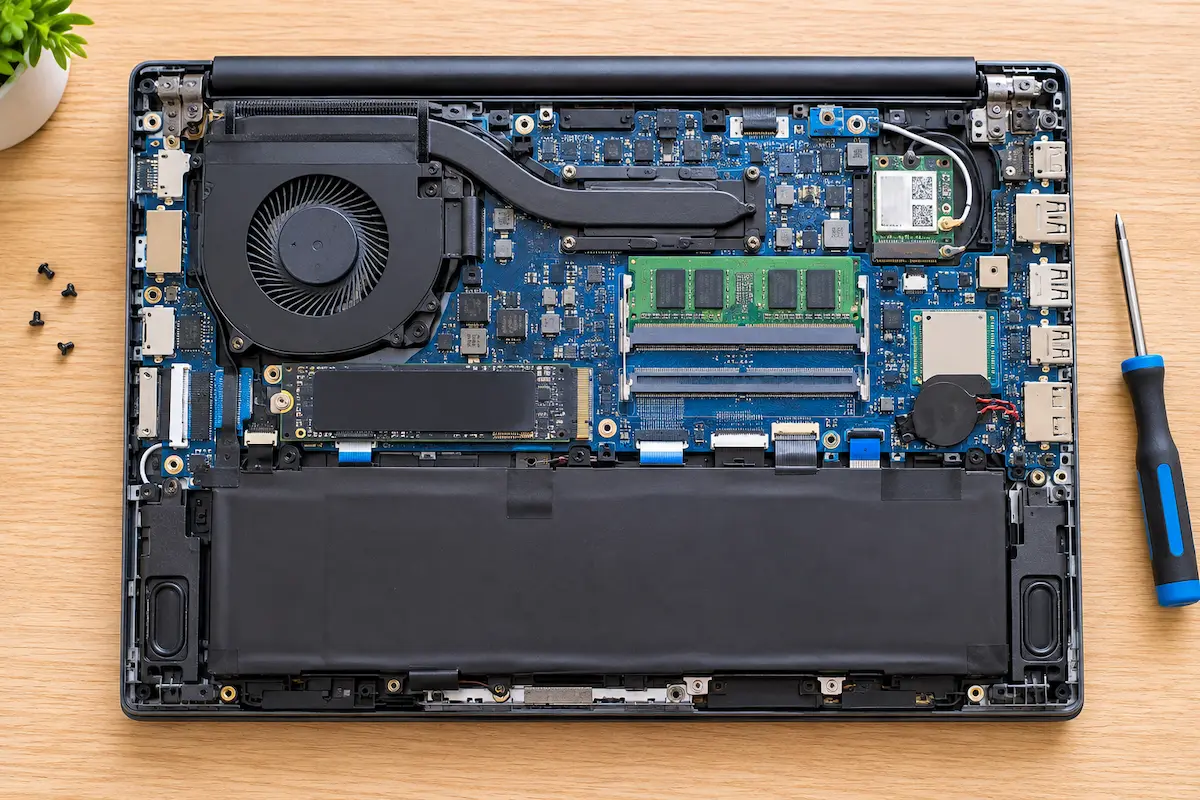
Most upgrade mistakes start with one wrong assumption: “it’s a 15-inch Lenovo, so the RAM I saw online should fit.” Laptops of the same name can ship with different memory types, different drives and even soldered parts. This guide shows you how to find the exact model and see what is really inside, using tools you already have, before you spend a cent.
Why the exact model matters
A laptop’s marketing name only tells you the family. Inside the same family, manufacturers often sell several variants: one with DDR4 memory and another with DDR5, one with a free second drive slot and another with none, one with an Intel processor and a sibling with AMD. A part that works in one variant can be physically or electrically incompatible with the other.
Knowing your exact model also unlocks the manufacturer’s support page, where you will find the official specification sheet, the service manual and the right drivers. That is the fastest way to confirm whether a part is compatible, and it costs nothing.
The rule I follow: never order an upgrade until you know the exact model, the current RAM type and speed, the drive type (SATA or NVMe), and whether the parts are soldered. Everything below helps you collect those four facts.
The 30-second check in Windows Settings
Start with the simplest route. In Windows 11, open Settings → System → About. In Windows 10, open Settings → System → About as well. The “Device specifications” block lists the device name, processor, installed RAM and system type (64-bit or 32-bit).
This is a good first look, but notice what is missing: it does not tell you the RAM type, how many slots are used or what kind of drive you have. Treat it as a starting point, not the full picture.
Find the exact model name and number
Method 1: System Information
Press Win + R, type msinfo32 and press Enter. On the System Summary page, look at three lines: System Manufacturer, System Model and System SKU. On many laptops the model line shows the commercial name, while the SKU or product number identifies the exact configuration. Note the BIOS version on the same screen, because some upgrades require an up-to-date BIOS.
Method 2: The label on the laptop
Turn the laptop over. Most brands print the model name, a model or machine type code, and a serial number on a sticker or etched into the case. On some thin models the label is hidden inside the battery bay or printed under the bottom cover. A quick photo of this label is handy later when you look for parts.
Method 3: Ask the system for the serial number
If the sticker has worn off, open PowerShell and run Get-CimInstance Win32_BIOS | Select-Object SerialNumber. Enter that serial number on the manufacturer’s support site and it will usually show the exact configuration the laptop shipped with. Keep in mind that this shows the factory build, not changes someone made later.
See RAM, storage and GPU in Task Manager
Press Ctrl + Shift + Esc and open the Performance tab. Click Memory, and in the lower right you will see the speed, the number of slots used and the form factor. This is the quickest way to learn whether your laptop has a free memory slot.
7.1/15.8 GB (45%)
SSD (NVMe)
Intel UHD Graphics
Memory
16 GB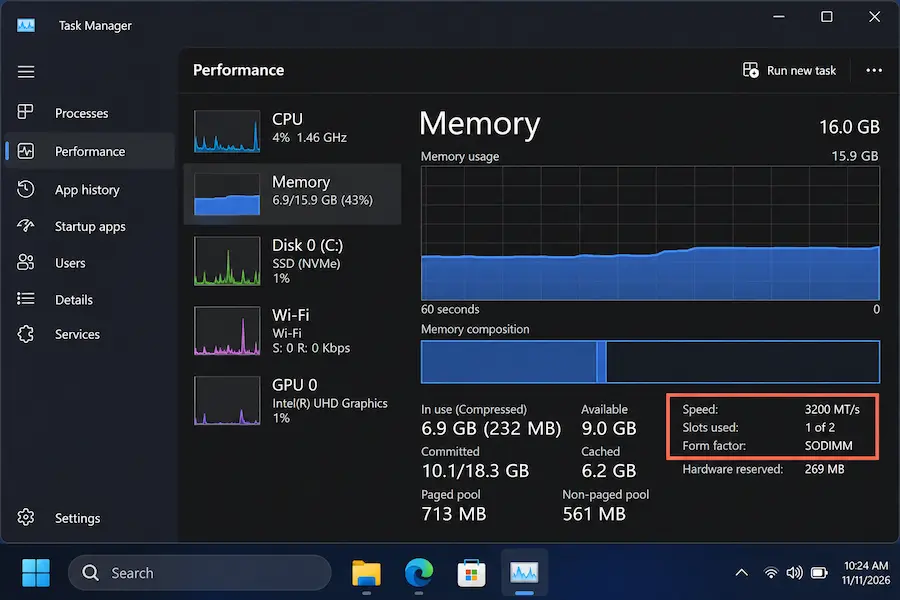
In this example, “Slots used: 1 of 2” means one 16 GB stick is installed and a second slot is free, so adding another matching module is possible. Click Disk in the left list to see whether the drive is an SSD or an HDD, and GPU to see which graphics chips are active. If you see two GPUs, the laptop has integrated and dedicated graphics.
Exact details with one PowerShell command
Task Manager shows speed but not the memory generation. For that, right-click Start, open Terminal (or PowerShell) and run the commands below.
The SMBIOSMemoryType number tells you the generation: 26 means DDR4, 34 means DDR5 and 24 means DDR3. Capacity is in bytes, so 17179869184 is 16 GB. The disk command reports MediaType (SSD or HDD) and BusType: NVMe means a modern M.2 drive, while SATA means an older or cheaper one. The old wmic command is deprecated and missing on newer Windows 11 builds, so use these PowerShell commands instead.
Free tools: CPU-Z and HWiNFO
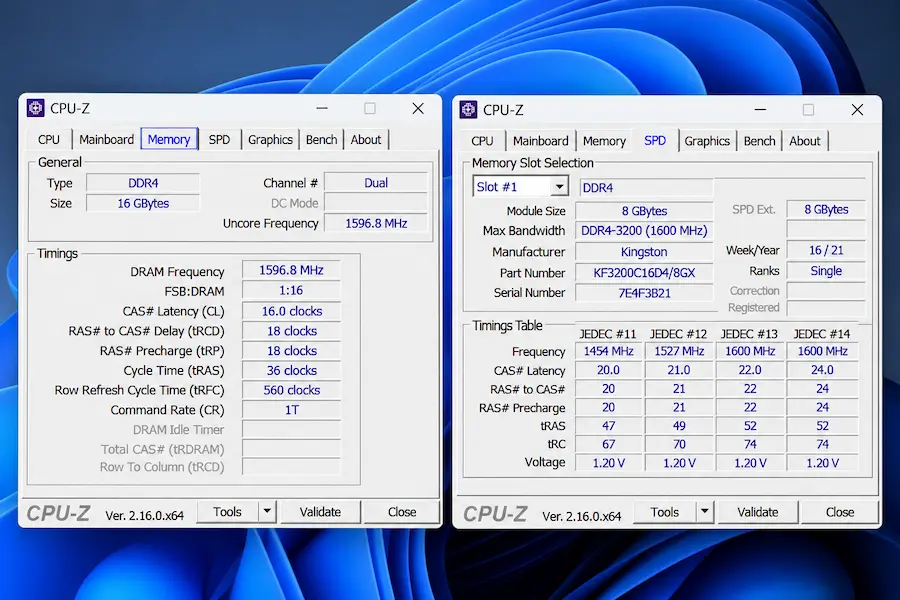
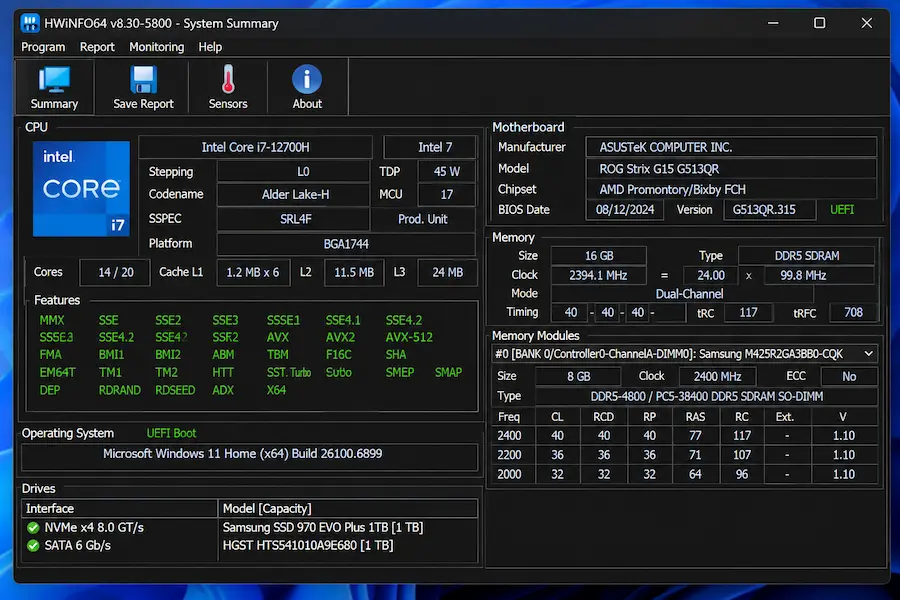
If you prefer a window to a command line, two free tools cover almost everything. CPU-Z has a Memory tab (type, size, frequency) and an SPD tab that lists each slot and the exact module in it, including the manufacturer and part number. HWiNFO (free for personal use) gives a more detailed report: choose Sensors-only off and Summary on, then check the drives, memory and motherboard sections.
| Method | Shows | Best for |
|---|---|---|
| Settings → About | CPU, RAM total | Fastest first look |
| msinfo32 | Model, SKU, BIOS | Exact model name |
| Task Manager | RAM speed, slots, drive type | Free-slot check |
| PowerShell | RAM generation, bus type | DDR4 or DDR5 |
| CPU-Z / HWiNFO | Module brand, part number | Buying a matching stick |
Mac and Linux
On a Mac, click the Apple menu and choose About This Mac. It shows the model name, year, chip and memory. For the exact model identifier, open System Settings → General → About. Remember that Apple silicon Macs use memory built into the chip, so RAM cannot be upgraded later.
On Linux, open a terminal and run sudo dmidecode -t system for the model, lscpu for the processor, sudo dmidecode -t memory for the RAM modules and lsblk for the drives.
Check what can actually be upgraded
Once you know what you have, check whether you can change it. Compare your findings with the manufacturer’s specification sheet or service manual and look for these four things:
Usually upgradeable
SODIMM RAM slots (if the spec says “2 slots”)
M.2 SSDs, if you know the size (2280 is the most common) and NVMe or SATA type
The battery, on many business laptops
Often not upgradeable
Soldered RAM, common on thin and light models
Mixed designs: some have 8 GB soldered plus one free slot
Wi-Fi cards on a few brands that lock them to a whitelist
Do not forget the battery. Run powercfg /batteryreport in a terminal and it saves a file named battery-report.html in the current folder. Compare “Design capacity” with “Full charge capacity”: if the second number is far lower, a new battery may help more than extra RAM.
My experience
I ran all of these checks on an older 15-inch Lenovo IdeaPad with 8 GB of RAM and a 256 GB SSD that I wanted to speed up. Settings → About said only “8.00 GB installed RAM”, which looked like a simple one-stick job. Task Manager told the real story: “Slots used: 1 of 2”, DDR4 at 3200 MT/s. That meant I could add a second stick instead of replacing the first.
The one thing that did not work was the old wmic command from a guide I found. It simply was not recognised, and PowerShell’s Get-CimInstance gave me the same answer in one line. CPU-Z’s SPD tab then showed the brand and part number of the installed stick, so I bought a module with matching speed. After opening the laptop, the sticker inside matched the CPU-Z data. With 16 GB, the laptop stopped swapping to disk with Chrome and a few apps open. Checking first saved me from buying DDR5 by mistake, which would not have fit at all.
FAQ
What is the difference between a model name and a model number?
The model name is the marketing name, such as an IdeaPad or Inspiron series. The model number or product number identifies the exact build. Use the number when you search for parts or drivers.
Can I find my laptop’s hardware without opening it?
Yes. Settings, System Information, Task Manager and PowerShell show almost everything. Opening the laptop is only needed to confirm physical details like the free slots or the M.2 drive size.
How do I know if my laptop’s RAM is DDR4 or DDR5?
Run the PowerShell memory command and read the SMBIOSMemoryType value: 26 means DDR4 and 34 means DDR5. CPU-Z’s Memory tab also shows the type.
Is it safe to use tools like CPU-Z and HWiNFO?
They are widely used and only read hardware information. Download them from the developers’ official websites, not from third-party download portals.
💬 Comments