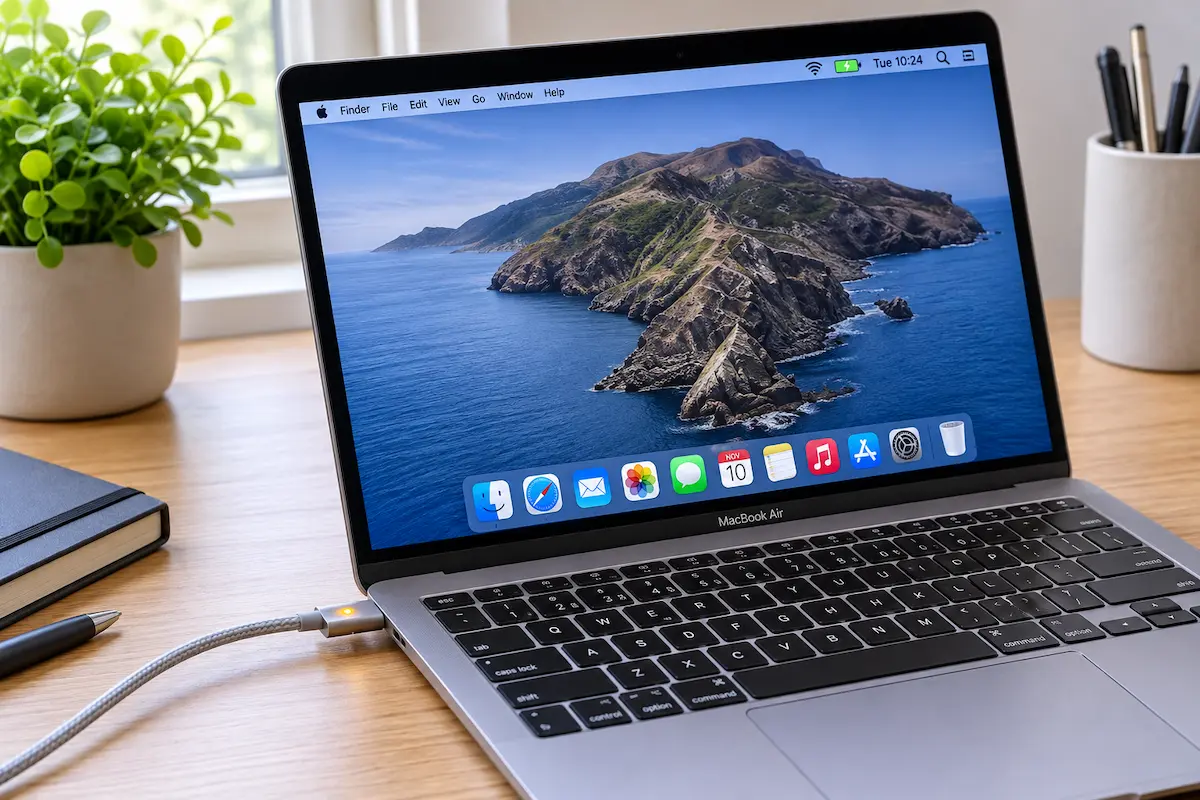
You plug in your MacBook, glance at the screen, and wonder: is it actually charging? Sometimes the answer is obvious. Other times the battery icon looks different, the light on the cable is off, or the percentage hasn't moved in an hour.
The good news is that your Mac gives you several clear signals. You only need to know where to look. This guide covers the battery icon in the menu bar, the MagSafe light, a few built-in checks, and what to do if the answer turns out to be “no”.
Start with the battery icon in the menu bar
The quickest check is the battery icon in the top-right corner of your screen. It changes depending on what your Mac is doing, and once you know the three main looks, you can read it in half a second.
The three states to know
A lightning bolt on the battery means the Mac is taking in power and the battery is charging. A plug symbol means the Mac is connected to power but is not adding charge right now, usually because the battery is already full or is being held at a set level. A plain battery with no symbol means you are running on battery power.
The three battery icon states in the macOS menu bar
One more thing: if the icon looks yellow, that is Low Power Mode, not a charging problem. And if it turns red, the charge is getting very low.
Tip: turn on the percentage so you can see the exact number. Open System Settings → Control Center, find Battery, and switch on Show Percentage. Watching the number tick up is the simplest proof that charging works.
Click the icon for the full picture
If the icon alone isn't clear, click it. The menu that opens has a line called Power Source. It reads Power Adapter when your Mac is getting power from the wall, and Battery when it isn't.
The Power Source line tells you where your Mac is getting its power
Depending on your version of macOS and your settings, the menu may also show a note that charging is on hold. That is related to Optimized Battery Charging, which we'll come back to in a moment.
For more detail, choose Battery Settings…. The Battery page shows your current level and a usage graph covering the last day or so, so you can see when the Mac was plugged in and how the percentage moved. If the line climbed while the Mac was connected, charging has been working.
What the MagSafe light is telling you
Newer MacBook Pro and MacBook Air models have a MagSafe 3 port, and the cable has a small light on the connector. Older MacBooks with MagSafe 1 or MagSafe 2 use the same idea. The light is useful because you can glance at it without even opening the lid.
- Amber: the battery is charging.
- Green: the battery is fully charged.
- No light: the cable isn't delivering power, or isn't connected.
MagSafe connector light colors
A blinking light, or no light at all while the cable is firmly attached, usually points to a problem with the cable, the adapter or the outlet. We'll go through those checks in section 7.
Remember that the light sits on the cable, not on the Mac. If the Mac is switched off or asleep, the light still shows the charging state, which makes it handy for a quick check across the room.
No light? Other signs your Mac is charging
MacBooks that charge only through USB-C, such as the MacBook Air with M1 and many 13-inch MacBook Pro models, have no light on the cable at all. That doesn't mean you're guessing. These signs work on every MacBook:
- The menu bar bolt. It appears within a second or two of connecting power.
- The charging chime. Most Macs play a short sound when power is connected, as long as the volume isn't muted.
- The percentage. Wait a few minutes with the Mac idle. If the number goes up, charging works.
- A warm spot near the port. A little warmth while charging is normal, but it isn't a measurement. Treat it as a hint, not proof.
A quick Terminal check
If you like to see the facts in plain text, open Terminal (you'll find it in Applications → Utilities) and type pmset -g batt, then press Return. The word charging appears when charging is in progress. When the Mac is connected but not adding charge, you'll see AC attached; not charging instead.
Two example results: charging, and connected but not charging
The exact numbers will differ on your Mac, of course. What matters is the wording after the percentage.
Check System Information for the hard facts
For the most detailed answer, ask macOS directly. Hold down the Option key, click the Apple menu in the top-left corner, and choose System Information. In the left sidebar, open Power under Hardware.
Three sections matter here:
- Charge Information shows whether the battery is charging and whether it is fully charged.
- Health Information shows the cycle count and the battery condition.
- AC Charger Information shows whether a charger is connected and its wattage.
The Power page in System Information (example values)
The wattage line is the one people forget. If the number is far lower than the adapter that came with your Mac, you're probably using the wrong charger, and that explains a lot of “it's plugged in but the battery won't rise” stories.
Plugged in but not charging: is it a problem?
Not always. Several perfectly normal situations make a MacBook stop charging, or charge very slowly, for a while.
Common harmless reasons
The battery is full. This is the simplest one. At 100% your Mac stops charging and only draws what it needs from the wall.
Optimized Battery Charging is holding it back. To slow down battery wear, macOS can pause charging at around 80% and finish later, based on your routine. You'll see a plug symbol and a number that refuses to climb. This is a feature, not a fault.
The Mac is too warm. Charging produces heat, and so do demanding apps. When the Mac gets hot, it may slow or pause charging until it cools down.
The adapter is too weak for the job. If you're editing video or gaming on a low-wattage charger, your Mac may use more power than the charger supplies. The battery then stays flat or even drains slowly while plugged in.
| What you see | What it usually means | What to do |
|---|---|---|
| Bolt icon, amber light | Charging normally | Nothing, you're good |
| Plug icon, green light, 100% | Battery is full | Unplug whenever you like |
| Plug icon, stuck near 80% | Optimized Battery Charging is holding the charge | Wait, or switch the feature off in Battery settings if you need a full charge now |
| Percentage falls while plugged in | Adapter too weak, or a very heavy workload | Check the wattage and close demanding apps |
| No light, no icon change | No power reaching the Mac | Check the outlet, cable and adapter (section 7) |
| “Service Recommended” in Battery Health | The battery has worn down | Contact Apple or an authorized repair provider |
To check Optimized Battery Charging, open System Settings → Battery, then click the i button next to Battery Health. The same panel shows your battery condition and maximum capacity.
What to do when your MacBook really isn't charging
If the signs say “not charging” and none of the harmless reasons fit, work through these steps in order. Most problems are solved in the first three.
- Try another outlet. Skip power strips and extension leads for now, and plug straight into the wall.
- Inspect the cable and adapter. Look for fraying, kinks, bent connectors or marks that look burnt. If you can, borrow a known-good Apple cable and adapter and test with those.
- Check the wattage. The number is printed on the adapter. Use the one that came with your Mac, or one with the same wattage or higher. A phone charger might add a trickle at best.
- Try a different port. On models with several USB-C ports, switch to another one. Unplug hubs, docks and other accessories so they can't get in the way.
- Clean the port. Switch the Mac off first. Then gently remove lint with a dry, soft brush or a wooden or plastic toothpick. Never use metal, and never use liquids.
- Restart your Mac. A simple restart clears many odd power glitches, especially on Apple silicon Macs.
- Update macOS. Open System Settings → General → Software Update and install anything that's waiting.
- Let it cool. If the Mac feels hot, unplug it, close heavy apps and give it half an hour in a cooler spot.
- Intel Macs only: reset the SMC. Older Intel MacBooks have a power controller that can occasionally get confused. Apple's support site has the exact key combination for your model. Apple silicon Macs don't need this step.
- Run Apple Diagnostics. On an Apple silicon Mac, shut down, then press and hold the power button until startup options appear, and press Command + D. On an Intel Mac, hold D while the Mac starts up.
Stop and get it checked if the case looks bulged, the trackpad is lifting, you smell something burning, or Battery Health says Service Recommended. Those are battery issues, and they are not worth risking.
My experience
I tried all of this on two very different machines: a MacBook Air with the M2 chip and its MagSafe 3 cable, and an older 2018 Intel MacBook Pro that charges over USB-C only. Between them, they covered both types of “is it charging?” checks.
On the Air, the MagSafe light was the fastest answer. Amber appeared the moment the cable clicked in, and it turned green once the battery had topped up. On the Intel MacBook Pro, with no light to look at, I relied on the menu bar bolt and the pmset -g batt line, which turned out to be the most reliable pair.
The biggest surprise was Optimized Battery Charging. The Air sat at 80% for most of an afternoon with the plug symbol showing, and for a while I assumed something was wrong. It wasn't. The Mac was simply following its routine, and it climbed to 100% later in the evening.
The other lesson was about wattage. With a small phone charger on the MacBook Pro, the percentage barely moved while I was working, and it actually dropped during a video call. The same Mac charged normally on its original adapter. Since then, the first thing I check is the wattage line in System Information, before touching anything else.
💬 Comments