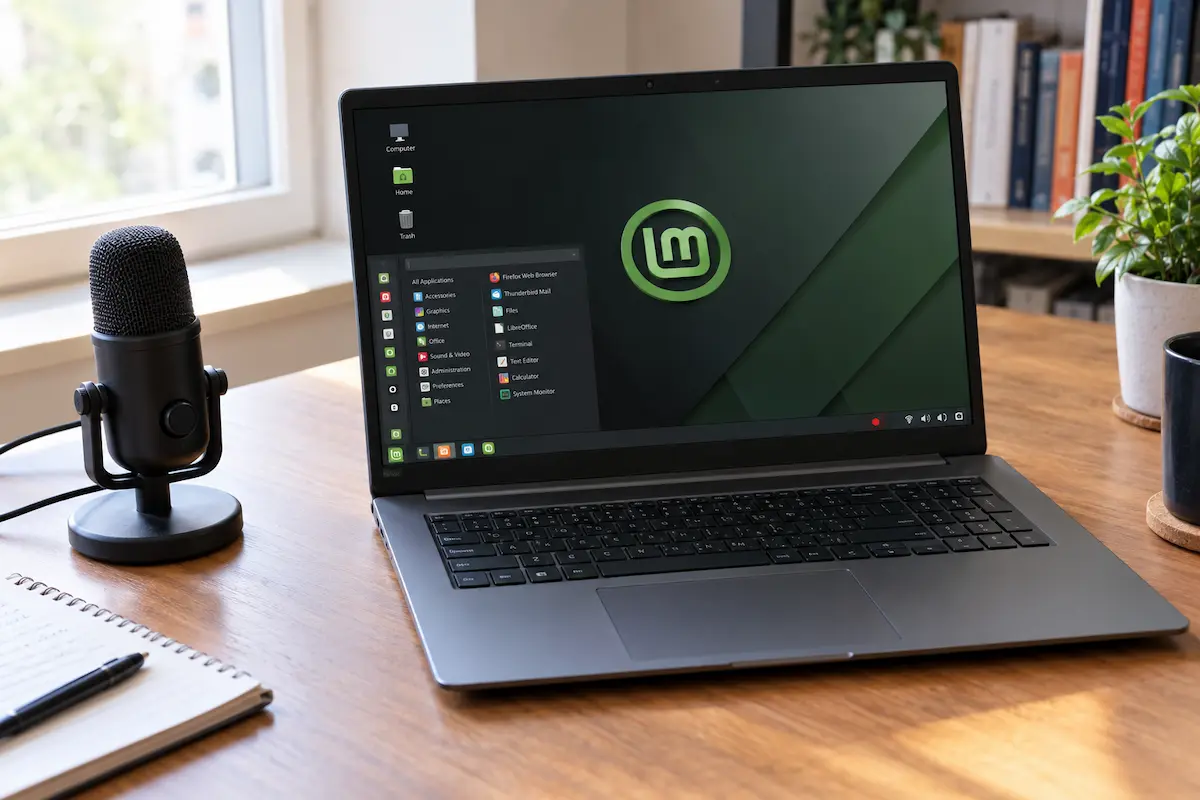
Need to show a friend how to fix something, save a tutorial, or capture a bug for tech support? Recording your screen on Linux Mint is easier than most people expect. Mint even has a recorder built in, although almost nobody knows about it.
In this guide you will find the best free ways to record your screen and your apps in 2026: the hidden built-in recorder, SimpleScreenRecorder, OBS Studio and a couple of extras. By the end you will know exactly which one to pick.
Which screen recorder should you use?
The best screen recorder depends on what you want to capture. Some tools are suitable for quick clips, while others offer microphone recording, window selection and more advanced controls. Here is a quick comparison.
| Tool | Best for | Sound | Window or area |
|---|---|---|---|
| Built-in recorder | Quick, basic recordings | Usually video only | Depends on the desktop environment |
| SimpleScreenRecorder | Desktop tutorials | Microphone and system audio, depending on configuration | Yes, with supported capture options |
| OBS Studio | Tutorials, webcam and streaming | Multiple audio sources | Yes, using supported capture sources |
| Kazam | Basic desktop recording | Supported, depending on configuration | Yes, with supported capture options |
| FFmpeg | Advanced users and automation | Yes, with the appropriate audio input | Possible, using suitable capture options |
If you want a quick recommendation, start here:
Before you start: check your session
Linux Mint traditionally uses the X11 display system, although support for Wayland depends on the desktop environment and version. Screen recorders can behave differently between these sessions, so it is worth checking which one you are using before troubleshooting a recording problem.
Open a terminal with Ctrl + Alt + T and run this command:
echo $XDG_SESSION_TYPEIf the output is x11, your current session uses X11. This is generally compatible with traditional Linux screen-recording tools, but it does not guarantee that every application will work without additional configuration.
Check your free disk space. Long recordings can occupy several gigabytes. Protect your privacy. Close email, messaging apps and other windows containing information you do not want to show in your video.
Method 1: The built-in recorder
Some Linux Mint desktop environments provide a basic screen-recording feature that can be started with a keyboard shortcut. Availability and controls depend on the desktop environment and version, so the following steps apply to Cinnamon setups where this shortcut is supported.
- Press
Shift + Ctrl + Alt + Rto start recording, if the shortcut is available and assigned. - Check for a recording indicator in the desktop panel or notification area, if your version displays one.
- Perform the actions you want to capture on screen.
- Press the same shortcut again to stop recording. If supported, the video is saved as a
.webmfile, usually in your Videos folder.
What it cannot do
Where this basic recorder is available, its features are limited compared with dedicated applications. It may record video without audio and offer no way to select an individual window or screen area. If you need microphone audio, more capture options or greater control, use a dedicated screen recorder.
If the shortcut does nothing
First, check which desktop environment you are using. In Cinnamon, open System Settings, select Keyboard and inspect the available shortcuts for screen recording. The exact category and shortcut may vary by version. If the shortcut is missing or unassigned, use a supported recording application instead. Do not assume that restarting Cinnamon will fix the problem, particularly if you are using Xfce or MATE.
Method 2: SimpleScreenRecorder
SimpleScreenRecorder is a desktop recording application for Linux that offers more control than a basic built-in recorder. It supports screen capture, audio input and configurable output settings. The available formats and capture options depend on your installed version and system configuration.
Install it
Open the Software Manager, search for SimpleScreenRecorder and install it if it is available. Alternatively, open the terminal and run:
sudo apt install simplescreenrecorderRecord your screen
- Open SimpleScreenRecorder from the applications menu and click Continue on the welcome screen.
- Under Video input, choose Record the entire screen or select a supported area or window capture option if available.
- Enable Record the mouse cursor if you want viewers to follow your movements. A frame rate of 30 FPS is usually sufficient for software tutorials.
- Enable Record audio if you need sound. Select the appropriate audio backend and input source available on your system. The names and options may differ between audio configurations.
- Click Continue, choose the output folder and filename, and select an available container format and encoding options. Use MP4 only if the required format and encoder are available.
- Continue to the final screen, click Start recording and, when finished, use the application's save or stop control to complete the recording.
Tip: Open the application's settings and assign keyboard shortcuts to the recording actions you use most often. If pause and resume are supported, you can assign shortcuts to those actions too. This lets you control the recording without switching to the application window while demonstrating another program.
Method 3: OBS Studio
OBS Studio is a free, open-source recording and streaming application widely used for tutorials and video production. It offers more control than basic recorders, including window capture, webcam overlays and separate audio sources. Download it from the official OBS website or check its availability in the Linux Mint Software Manager.
Install it
One option is to install the Flatpak version from Flathub, provided Flatpak support is enabled on your system. Open the Software Manager, search for OBS Studio and select the available Flatpak package. Alternatively, open a terminal and run:
flatpak install flathub com.obsproject.StudioRecord your screen
- Open OBS. If the automatic configuration wizard appears, choose the option to optimize for recording rather than streaming.
- In the Sources panel, click + and select the available screen-capture source to record your desktop. To capture a single application, choose Window Capture if it is available in your session.
- To capture computer audio and your voice, add the appropriate audio output and audio input sources, if they are available. On Linux, the exact source names and setup can differ between X11, Wayland and audio configurations.
- Check the preview and audio meters, then click Start Recording. When finished, click Stop Recording.
Source names and available capture methods depend on your OBS version and desktop session. On X11, OBS may offer sources such as Screen Capture (XSHM) and Window Capture (Xcomposite). Wayland sessions may use different capture methods.
OBS commonly uses MKV as its default recording format because it is more resilient if recording is interrupted. To create an MP4 copy, open File and select Remux Recordings, or configure the recording format under Settings and Output. Remuxing an MKV recording to MP4 usually avoids re-encoding the video.
How to record just one app
Recording the whole screen can expose desktop notifications and other open applications. Capturing a single window or a selected area can keep your tutorial focused, but the available methods depend on the recording tool and your display session.
OBS Window Capture: When supported, it can capture a particular application window without recording the entire desktop. SimpleScreenRecorder: You can select a fixed rectangular area where this option is available, but other windows that overlap that area may appear in the recording. The exact behavior depends on the capture method.
For software tutorials, a 1280 × 720 recording is often sufficient for online viewing. Set the capture resolution in the application's settings where possible, and check that menus and text remain readable before recording the full video.
Two more options: Kazam and FFmpeg
Kazam
Kazam is an older Linux screen recorder. If it is available in your software repositories and works with your desktop session, you can try installing it with:
sudo apt install kazamOpen the application and select the available capture mode, such as full screen, window or area. Enable the speaker or microphone options if they are available and needed. Kazam is primarily associated with X11, so compatibility with newer display systems and audio configurations may be limited.
FFmpeg in the terminal
FFmpeg is a command-line tool that can record your desktop without opening a graphical recording application. The following example captures an entire X11 desktop at 30 frames per second and encodes it as H.264 video:
First, install FFmpeg:
sudo apt install ffmpegThen run the command below, replacing 1920x1080 with your actual screen resolution if necessary:
ffmpeg -f x11grab -framerate 30 -video_size 1920x1080 -i :0.0 -c:v libx264 -preset ultrafast -crf 23 screen.mp4Press q in the terminal to stop recording. This example assumes an X11 session and a display accessible as :0.0. It will not work unchanged on every system, particularly if your display uses a different identifier or you are using Wayland.
To add microphone audio: FFmpeg must be configured with the correct audio input for your system. On systems using PulseAudio compatibility, you can list available sources with:
pactl list short sourcesIdentify your microphone's source name, then use it in place of YOUR_MICROPHONE_SOURCE in this example:
ffmpeg -f x11grab -framerate 30 -video_size 1920x1080 -i :0.0 -f pulse -i YOUR_MICROPHONE_SOURCE -c:v libx264 -preset ultrafast -crf 23 -c:a aac -b:a 128k screen.mp4Replace the placeholder with the actual source name. The command above records the screen and microphone; it does not automatically mix in your computer's playback audio. Audio input availability depends on your installed audio system and FFmpeg build.
How to record sound
There are two main types of audio you may want to capture. Computer audio is the sound played by applications, such as a video or music. Microphone audio is your voice or other sound picked up by a microphone.
In SimpleScreenRecorder, audio sources named Monitor of often capture the output of a playback device, while other sources may correspond to microphones or other inputs. The exact names depend on your audio configuration. In OBS Studio, select the appropriate audio input and output sources available on your system.
Use headphones while recording narration to reduce the chance of your microphone picking up sound from your speakers and creating an echo. Before starting a long recording, make a 10-second test and play it back. Confirm that both the picture and the required audio are present and clear.
Common problems and quick fixes
The video is a black screen
First, check whether you are using an X11 or Wayland session. Some recording methods work only with X11, while others depend on the desktop environment and capture method. If you use Linux Mint Cinnamon, check the available session options at the login screen. On Xfce or MATE, the options may be different. With OBS Studio, try a different screen or window capture source if available.
There is no sound
Check that you selected the correct audio source. To record your voice, choose the microphone; to record sound playing on your computer, select the appropriate audio output or monitor source, if available. Also, make sure the microphone is not muted in your system's sound settings. Some built-in screen recorders capture video only and do not record audio.
The video is choppy
Reduce the frame rate to 30 FPS and, if necessary, lower the recording resolution to 1920 × 1080 or 1280 × 720. Close resource-intensive applications and try a faster recording preset if your recorder offers one. If the problem continues, test a shorter recording to see whether your computer is struggling to encode the video in real time.
The file is too big
Reduce the recording quality or use a more efficient video encoder, such as H.264, with a suitable quality setting. You can also compress the finished recording with FFmpeg, as explained in the FAQ below. Keep in mind that additional compression may reduce image quality.
My video editor will not open the WebM file
Try converting the recording to MP4 with FFmpeg, using the command provided in the FAQ below. MP4 with H.264 video and AAC audio is supported by many video editors and media players, although compatibility depends on the application.
Practical tips for recording your screen on Linux Mint
The best screen recorder depends on what you want to capture. Linux Mint Cinnamon includes a built-in recording shortcut that is useful for quick, silent clips, while dedicated applications offer more control over video and audio settings.
- For quick recordings: Use the built-in screen recording shortcut when you only need to capture screen activity without sound.
- For tutorials with voice: Choose SimpleScreenRecorder if you want a straightforward way to record your screen and microphone.
- For advanced recordings: Use OBS Studio when you need to capture a specific window, combine multiple sources, or adjust audio levels.
Before you start: Make a short test recording and play it back. Check that the video displays correctly and that your microphone captures your voice at a suitable volume. This simple check can prevent problems in longer recordings.
Frequently asked questions
Does Linux Mint have a built-in screen recorder?
Where are my screen recordings saved?
Can I record my screen with sound on Linux Mint?
Does screen recording work on Wayland?
What is the best free screen recorder for Linux Mint?
How do I convert a WebM recording to MP4?
sudo apt install ffmpeg. Then navigate to the folder containing your recording and run ffmpeg -i recording.webm -c:v libx264 -crf 23 -c:a aac recording.mp4. Replace recording.webm with your input filename. The command converts the video to H.264 and, if an audio stream is present, converts it to AAC. The resulting MP4 file is compatible with many video editors, media players, and phones.
💬 Comments