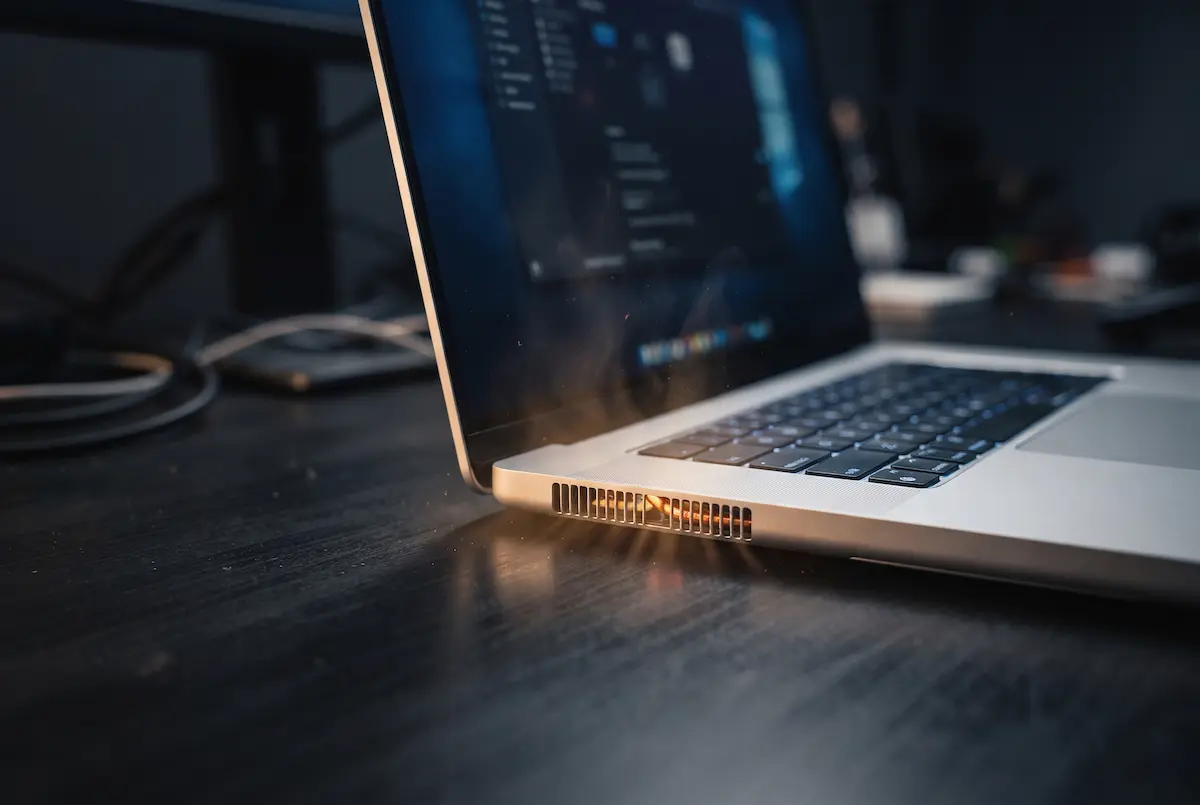
You’re watching a video or typing an email when suddenly your laptop starts sounding like a hair dryer. It’s annoying, and it can be worrying, too. The good news is that a noisy fan is usually a sign that something is making your laptop work harder than necessary, not necessarily a sign of a serious problem. In many cases, you can reduce the noise in just a few minutes without spending any money. This guide takes you through the fixes in the most practical order: first, identify what is causing the heat; then, adjust a few Windows settings; and finally, if needed, clean the vents and check for potential hardware issues.
Why Laptop Fans Get Loud
A laptop’s processor generates heat whenever it is working. A small fan helps carry that heat out through the vents. The harder the processor works, the more heat it produces and the faster the fan may need to spin. A noisy fan usually points to one of three things: the laptop is under a heavy workload, heat is struggling to escape, or the fan itself has a problem.
Some fan noise is completely normal. The fan may speed up briefly after startup, while Windows installs updates, or during a video call, a game, or a large file export. The warning sign is a fan that stays loud when you are barely doing anything, or one that makes unusual rattling or grinding noises.
Prefer to watch it?
Power off and unplug, find the vents, clean them with compressed air and wipe down the outside. Every step is shown on screen in under nine minutes.
Light Work
Heavy Work
Start with the simplest fixes
It may be tempting to open the laptop straight away, but there is no need to rush. A demanding app or restricted airflow may be all that is causing the noise, and you can check both without spending any money. Work through the steps below in order, starting with the easiest checks, and stop when the problem is resolved.
Find Out What Is Keeping Your Laptop Busy
Press Ctrl + Shift + Esc to open Task Manager. Select the Processes tab, then click the CPU column header to sort the list by processor usage. If your laptop is sitting idle but one app is using a significant amount of CPU, it may be contributing to the fan noise.
Once you have identified the busiest process, here is what to do next:
A browser at the top: Close unnecessary tabs, especially those running videos or other demanding content. Then check the browser section below for more ways to reduce its workload.
Antimalware Service Executable or a Windows Update process: Windows Security may be scanning files, or Windows may be downloading or installing updates. These activities can temporarily increase CPU usage and fan noise. Give them time to finish, then check whether the fan slows down.
An unfamiliar app using a lot of CPU while the laptop is idle: Search for its name online before closing it, as some legitimate Windows processes may not be familiar to you. If you suspect malware, run a scan with Windows Security. Persistent, unexplained CPU usage is worth investigating.
If a legitimate app is simply demanding too much processing power, closing it when you do not need it or reducing its workload may be all it takes to make your laptop quieter.
Switch the Windows Power Mode
Windows 11 includes a power mode setting that lets you prioritize energy efficiency, a balance between efficiency and performance, or maximum performance. Open Settings, go to System, select Power & battery, and look for Power mode.
For everyday tasks such as browsing, writing documents, and watching videos, try Best power efficiency. Depending on your laptop, this setting may reduce processor activity and heat, allowing the fan to run more quietly. If you are gaming, editing video, or running other demanding applications, switch to Balanced or Best performance when you need more processing power.
Available options can vary by laptop and power configuration. If the fan becomes noticeably louder while the charger is connected, compare the available power modes both on battery and while plugged in.
Stop Unnecessary Apps from Starting with Windows
Some apps launch automatically when Windows starts and continue running in the background. This can increase CPU usage and make the fan work harder, even when you are not actively using those apps. Open Task Manager and select Startup apps. Check the Startup impact column, then right-click apps you do not need at startup and select Disable.
Disabling an app here does not remove it from your computer. It simply prevents the app from launching automatically when you sign in to Windows. You can still open it manually whenever you need it.
Before disabling an entry, make sure you know what it does. Leave Windows Security and other essential security components alone. If you rely on cloud storage to keep files synchronized, remember that disabling its startup entry may delay synchronization until you open the app again.
Reduce Your Browser's Workload
Your web browser can be a significant source of background activity, especially when you have many tabs open. Close tabs you no longer need, particularly those playing videos, displaying live feeds, or running demanding web applications. Remove extensions you no longer use, and pause autoplay videos on pages you leave open in the background.
In Google Chrome and Microsoft Edge, press Shift + Esc to open the browser's built-in task manager, where available. It shows how much CPU and memory individual tabs and extensions are using. If one tab is consuming unusually high resources, close it and check whether the fan slows down.
Clean the Laptop Vents and Fan
Over time, dust can accumulate around the vents and inside the cooling system, restricting airflow. When heat cannot escape efficiently, the laptop may increase the fan speed to compensate. If your laptop is several years old and the fan has gradually become louder, dust buildup is one possible cause.
How to Clean It Safely
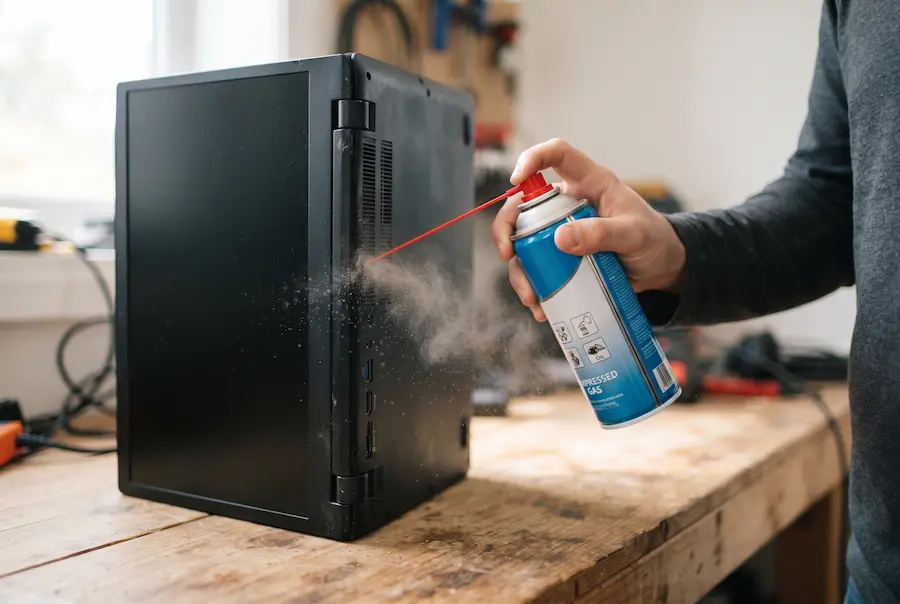
Shut down the laptop completely and unplug the charger. If the battery is removable, take it out. Locate the ventilation openings, which are usually on the underside or along the rear or sides of the laptop. Use short bursts of compressed air, following the manufacturer's cleaning instructions, and avoid forcing dust deeper into the cooling system.
If you can safely access the fan, prevent its blades from spinning freely while applying compressed air. Do not force a tool through the vents or touch internal components unnecessarily. Avoid using a household vacuum cleaner directly on the laptop's internal components because static electricity can damage sensitive electronics. Wipe the exterior with a clean, dry cloth.
When to Leave It to a Professional
Cleaning the exterior vents is a reasonable first step for most users. Opening the laptop to reach the fan and heatsink requires more care, and the procedure varies by model. It may also affect warranty coverage, depending on the manufacturer's terms. If the fan remains loud after basic troubleshooting, or you are not comfortable opening the laptop, ask a repair technician to inspect the cooling system.
Give Your Laptop Room to Breathe
Where you place your laptop makes a difference. Soft surfaces such as beds, couches, and blankets can block the air intakes underneath, causing heat to build up and the fan to work harder. Even resting the laptop directly on your lap can obstruct its vents.
On a Bed or Blanket
On a Hard, Raised Surface
Use your laptop on a desk or table, leaving a few centimeters of clearance around the ventilation openings. A laptop stand or a pair of small risers under the rear edge can improve airflow, provided they do not block any vents. A cooling pad may also help if your laptop runs hot, but it is an additional aid, not a substitute for cleaning blocked vents or reducing excessive processor activity. Avoid direct sunlight and warm locations, such as next to a radiator.
Use Your Manufacturer's Quiet Mode
Many laptop manufacturers provide their own software for managing fan speed, cooling, and performance profiles. These settings may offer more control over cooling behavior than Windows power settings alone. Look for the manufacturer's app in the Start menu. Examples include MyASUS or Armoury Crate on supported ASUS models and Lenovo Vantage on Lenovo laptops. Dell, HP, and Acer also offer model-dependent power, cooling, or thermal controls. If available, try a Quiet, Silent, or Cool profile.
Keep Windows and Drivers Up to Date
Install pending Windows updates and check your laptop manufacturer's official support page for relevant driver updates. Some updates improve power management, thermal control, or system stability. A BIOS or UEFI update may also address specific hardware or cooling issues, but it is not necessary for every noisy fan.
Only install a BIOS update intended for your exact laptop model and follow the manufacturer's instructions carefully. Connect the charger, ensure the battery has sufficient charge, and never interrupt the update once it has started. If the laptop is working normally and no relevant BIOS update is recommended, there is no need to update the BIOS just to try to reduce fan noise.
What Different Fan Sounds Mean
The type of noise, when it occurs, and whether it changes with the workload can help you narrow down the cause. Use this table as a starting point rather than a definitive diagnosis.
| What You Hear | Likely Cause | What to Do |
|---|---|---|
| Steady airflow noise while idle | Background activity, restricted airflow, or a cooling issue | Check Task Manager, inspect the vents, and check temperatures if possible. |
| Loud fan during games or video calls | Increased processor or graphics workload | Try a quieter power mode, improve airflow, or reduce the workload. |
| Loud fan for a few minutes after startup | Startup applications, updates, or background maintenance | Check Task Manager and allow legitimate background tasks to finish. |
| Rattling, grinding, or repeated clicking | A damaged fan, worn bearing, or something interfering with the blades | Arrange an inspection and fan replacement if necessary. |
| High-pitched whine that does not follow fan speed | Possible electrical noise, known as coil whine | Check whether the sound changes with the workload or power mode. Seek service if it is new or accompanied by other problems. |
| Loud fan with unexpected shutdowns or severe slowdowns | Possible overheating or a cooling-system fault | Stop demanding tasks, check the vents, and arrange a technical inspection if the problem persists. |
Advanced: Limit the Processor's Maximum Speed
If your laptop still runs noisily during everyday tasks, you can try limiting the processor's maximum performance through Windows power settings. Open Control Panel, select Hardware and Sound, then Power Options. Click Change plan settings next to your selected power plan, followed by Change advanced power settings. Expand Processor power management and then Maximum processor state.
If the setting is available, try reducing the maximum processor state to 99% and check whether the fan becomes quieter. On some systems, this prevents or reduces CPU Turbo Boost, which can lower heat output. However, the effect depends on the processor, firmware, and Windows power configuration, and the setting may not be available on every laptop.
The trade-off is potentially lower peak performance, especially during demanding tasks. If you notice a significant slowdown, restore the original setting. This is an optional workaround, not a substitute for addressing blocked vents, excessive background activity, or a faulty cooling system.
Quick Checklist
1. Open Task Manager and identify any unnecessary apps using excessive CPU resources.
2. Try Best power efficiency in Windows power settings for everyday tasks.
3. Disable unnecessary startup apps that you do not need running automatically.
4. Close unused browser tabs and remove extensions you no longer need.
5. Use the laptop on a hard, stable surface with its ventilation openings unobstructed.
6. Shut down the laptop and clean the exterior vents carefully, following the manufacturer's instructions.
7. Try the manufacturer's quiet profile and install relevant Windows and driver updates.
Common mistake: Using a laptop on a blanket, soft cushion, or other surface that blocks its air intakes. If the fan makes grinding or rattling noises, or the laptop shuts down unexpectedly, do not rely on software settings alone. Have the cooling system checked.
FAQ
Why Is My Laptop Fan Suddenly So Loud?
Common causes include a demanding background app, numerous browser tabs, a Windows update, or restricted airflow. Open Task Manager and sort the Processes list by CPU usage to identify unusually busy applications. If nothing stands out, check the vents and make sure the laptop is resting on a hard, stable surface. A sudden change accompanied by unusual noises or overheating deserves further investigation.
Is a Loud Laptop Fan Bad for My Laptop?
Fan noise alone does not necessarily indicate a problem. The fan is designed to remove heat, and it normally speeds up when the processor or graphics hardware is working hard. However, persistent overheating, obstructed vents, or a failing fan can cause problems. If you hear grinding, rattling, or clicking, or the laptop repeatedly shuts down or slows down unexpectedly, have it inspected.
Can I Turn Off My Laptop Fan Completely?
You should not try to disable the cooling fan while the laptop needs it. The fan helps prevent overheating, and stopping it can cause excessive temperatures, reduced performance, or automatic shutdowns. Instead, try a more efficient power mode, the manufacturer's quiet profile, and improved airflow. Fan behavior should remain under the control of the laptop's cooling system.
Does a Cooling Pad Help Reduce Laptop Fan Noise?
A cooling pad may improve airflow and reduce temperatures on some laptops, which can help the internal fan run more slowly. The results depend on the laptop's design and the cooling pad itself. It will not resolve the underlying cause if an application is using excessive CPU resources or dust is blocking the cooling system. Try the simpler fixes first.
How Often Should I Clean My Laptop Vents?
There is no single cleaning schedule that suits every laptop. Check the vents periodically and clean them when you notice dust buildup, following the manufacturer's recommendations. You may need to inspect them more often in dusty environments or homes with pets. If dust has accumulated deep inside the cooling system, a professional cleaning may be more effective than cleaning the exterior vents alone.
Why Does My Laptop Fan Get Loud When the Laptop Is Idle?
A background process may be using the processor even when no applications are open. Check Task Manager, allow legitimate Windows updates or security scans to finish, and investigate unfamiliar processes before closing them. Restricted airflow or a cooling-system problem can also cause persistent fan noise. If the fan speeds up briefly after startup and then settles down, the behavior may be normal.
When Should I Replace the Fan or Renew the Thermal Paste?
A fan that makes persistent grinding, rattling, or clicking noises may need to be replaced. Thermal paste may need attention if an older laptop continues to overheat despite clean vents and a functioning fan, but high temperatures alone do not prove that the paste has failed. A technician can check the cooling system and determine whether the fan, heatsink, thermal paste, or another component needs attention. Opening the laptop may also affect warranty coverage, depending on the manufacturer's terms.
💬 Comments