Spam calls and texts are designed to interrupt you, push you into reacting quickly, or make a fake message look familiar. Your iPhone or Android phone already has tools that can screen unknown callers, identify likely spam, filter messages, and block repeat offenders. The best setup depends on how often you receive calls from new customers, delivery drivers, schools, clinics, or other numbers you do not have saved. This guide shows how to reduce unwanted contact while keeping a way to find legitimate calls and messages.
1. Choose the right level of filtering
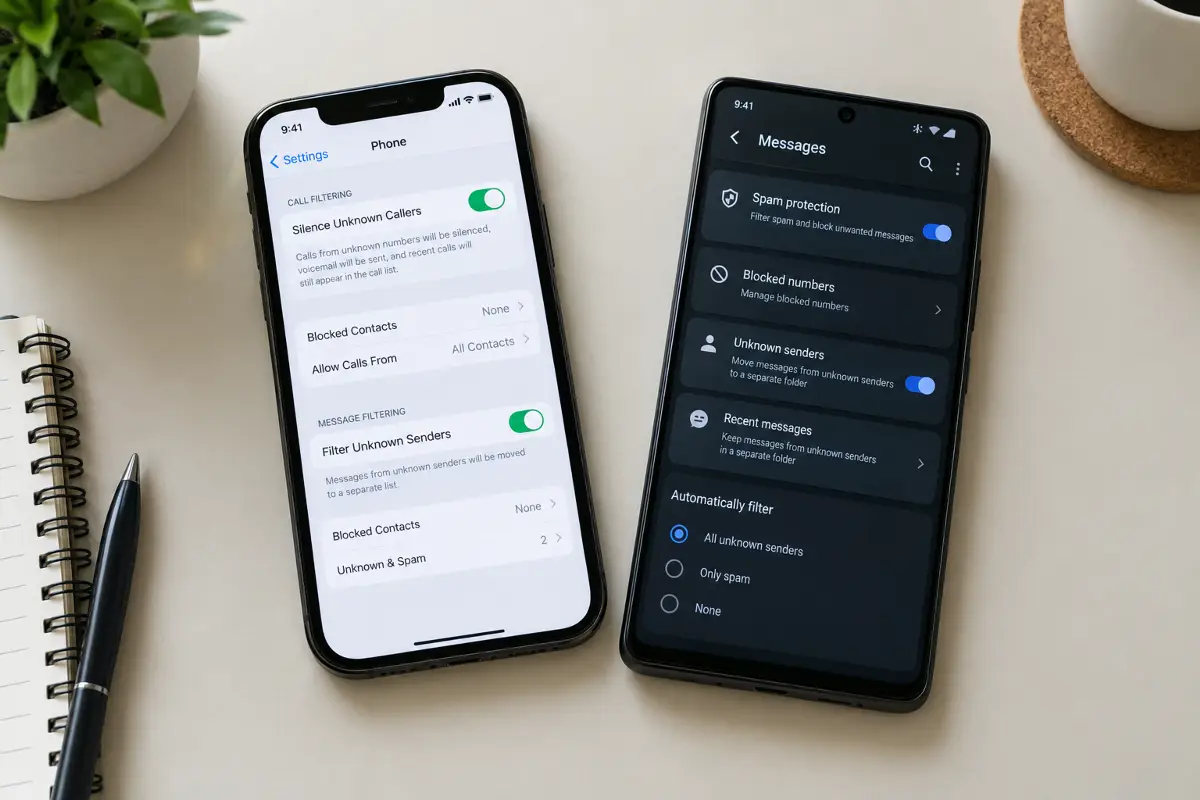
There are three different jobs a spam feature may perform. Caller ID labels a number as a business or possible spam. Screening asks an unknown caller to identify themselves before your phone rings, or lets you review a response. Blocking or silencing prevents the call from interrupting you. These options are related, but turning on caller ID does not necessarily block anything.
Text filtering also has more than one meaning. A phone may put unknown senders in a separate inbox, detect likely junk and hide notifications, or block one particular sender. A filtered conversation may still be available in a separate folder, so check that folder occasionally if you are waiting for a verification code, appointment reminder, or delivery update.
Start with spam identification and message filtering. Then decide whether to silence unknown calls. If your work or daily life depends on calls from numbers you have not saved, screening is often a better fit than a blanket silence setting. If you rarely need calls from new numbers, stricter filtering can make the phone quieter.
Menu names vary with operating-system version, language, phone maker, carrier, and default apps. On Android, the instructions below describe Google’s Phone and Messages apps; Samsung and other manufacturers may place similar controls elsewhere. If a menu is missing, search Settings for terms such as “spam,” “unknown callers,” or “caller ID.”
Before you switch on strict filtering: save important contacts, make sure voicemail is set up, and learn where filtered calls and messages appear. Filters can misclassify real people, and a silenced call may not produce the notification you expect.
2. Stop spam calls on iPhone
Screen or silence unknown callers
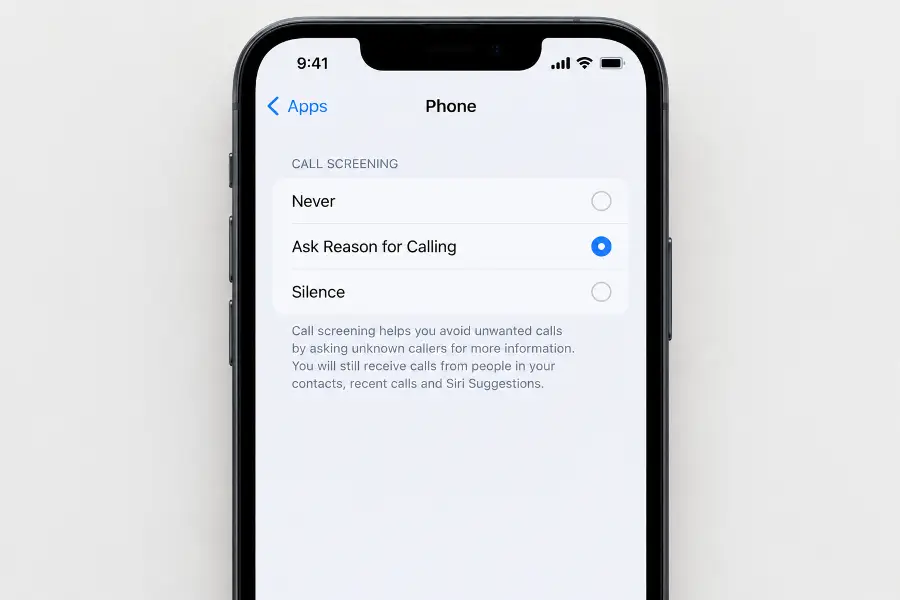
On current iPhone software, open Settings → Apps → Phone. Find the call-screening choice and select the behavior that suits you. Depending on the version and region, you may see options such as asking an unknown caller for a reason before the phone rings, silencing unknown callers, or allowing calls normally. Screening can make a caller explain why they are calling; silencing sends unsaved numbers to voicemail and leaves a record you can review.
“Unknown” does not always mean “a scammer.” It can include a new doctor’s office, a job recruiter, a courier, or someone calling from a work line you have not saved. If you choose Silence, check Recents and voicemail while the feature is active. Add trusted callers to Contacts or mark a legitimate filtered caller as known when that option appears.
Turn on spam identification and filtering
Go to Settings → Apps → Phone and review the options for call identification and spam. iPhone can use information from Apple Business Connect, supported carriers, and compatible call-identification apps. Availability depends on your carrier, country, and installed apps. If a carrier or iOS identifies a likely spam call, you may be able to send it to voicemail or a Spam list instead of receiving a normal ring.
To block a specific caller, open the Phone app, find the call or contact, open its details, and choose the block option. You can also block a known contact from that contact’s card. If a number is being incorrectly silenced or filtered, open the relevant filtered-call list and mark it as known, if offered. You can review blocked contacts under the Phone settings and remove a number if you blocked it by mistake.
Filter texts from unknown senders
Open Settings → Apps → Messages and look for Unknown Senders and spam-filter options. You can also open Messages, tap the Filters control, and choose Manage Filtering. Turn on Screen Unknown Senders to place messages from people you have not interacted with in a separate filter. You can review those conversations later and mark a legitimate sender as known.
On iOS 26, the Messages app can also move messages it identifies as spam into a Spam folder. Review that folder occasionally so you can recover a legitimate message that was caught by mistake. Feature labels and availability can differ by region and software version. If you use a third-party filtering extension, check its permissions and publisher before enabling it.
3. Stop spam calls on Android
Enable caller ID and spam protection
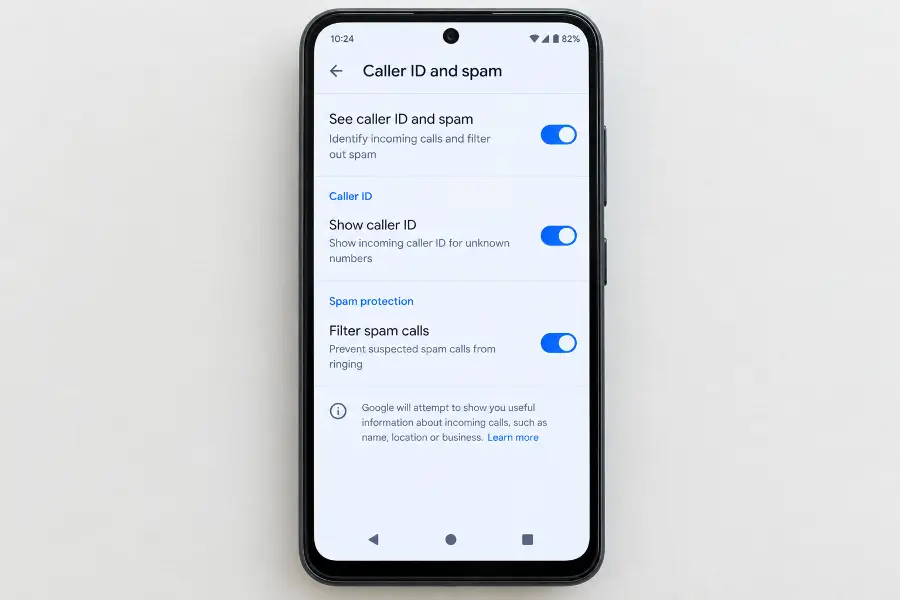
If you use the Phone by Google app, open it and tap the three-dot menu, then Settings → Caller ID and spam (some versions label the page “Spam and Call Screen”). Turn on caller ID and spam identification. Where available, turn on Filter spam calls to send calls Google identifies as spam to a quieter path. Filtered calls can still appear in call history, and behavior around voicemail notifications varies.
Google’s caller ID and spam feature may send numbers for calls outside your contacts to Google to help identify a business or likely spam. Review the explanation in the app’s settings if that data handling matters to you. Google says it does not get phone numbers from your Contacts list for this feature, but it does process remote numbers to provide caller identification.
Pixel phones may offer Call Screen, which asks some callers who they are and why they are calling. Its availability and automatic screening options depend on the Pixel model, Android version, language, and country. Look under Phone → Settings → Spam and Call Screen. Do not assume every Android phone has Pixel Call Screen.
Block repeat callers and private numbers
To block one number in Google Phone, open Recents, select the call, and choose Block or report spam. You can also long-press a call and choose the same action. To block calls from private or unidentified numbers, go to Phone → More → Settings → Blocked numbers and turn on Unknown, if that option appears.
That Google Phone setting blocks calls that hide their number; it does not block every ordinary number that is missing from your contacts. Some manufacturers offer a separate setting for unknown callers, while others do not. Read the exact description before enabling it, because “unknown number” can mean either a hidden caller ID or any unsaved number depending on the app.
If a real caller is marked as spam, open the call history, select the call, and choose Not spam or unblock it. Report only calls you reasonably believe are unwanted. That feedback can help improve shared spam labels, but a label is not proof of a caller’s identity.
4. Filter and block spam texts
Google Messages on Android
Open Google Messages, tap your profile picture, and go to Messages settings → Spam protection or Protection & Safety → Spam protection. Turn on spam protection if the control is available. Google Messages can warn about or move suspected spam conversations into Spam & blocked. Exact wording and availability depend on the app and device.
To report a specific conversation, touch and hold it, then choose the block and report-spam option. You can also open a conversation, tap its menu, and choose the block/report action. In Google Messages, reporting a conversation as spam also blocks it and moves it out of the main inbox. Review the Spam & blocked folder if a message disappears unexpectedly; you can unblock a sender from there.
Google describes some data use for spam detection in its settings and privacy information. Depending on the feature and message type, identifiers or message signals may be processed to detect abuse, and reporting a conversation shares information with Google. Read those details if you want to understand exactly what is sent when you report a message.
Other Android messaging apps
Samsung Messages, a carrier messaging app, or another SMS app may use different menus. Look in the conversation menu for Block number, Report spam, or Block and report. Check whether reporting also blocks the sender and where blocked conversations are stored. If the app has no spam detection, you can still block an individual sender and ask your carrier whether it offers message filtering.
Android lets you set a default SMS app, and filtering usually works only in the app handling your messages. If you switch messaging apps, review its spam protection and notifications rather than assuming your old settings carried over. Keep the operating system and messaging app updated through their normal update channels.
5. Handle suspicious messages safely
Scam texts often imitate delivery companies, banks, toll agencies, subscription services, or people you know. They may claim that a parcel is delayed, an account is locked, a payment failed, or a prize is waiting. A familiar name or logo does not prove the message is real. Caller ID and sender details can be spoofed, and scammers can make a fake message look urgent.
- Do not tap links or open attachments in an unexpected message asking for payment, passwords, account details, or identity information.
- Do not reply to a suspicious message, even to argue or ask who sent it. Replying can confirm that your number is active.
- Verify independently. Open the company’s official app or type a website address you already know. Call the number printed on your bank card or official paperwork, not a number in the message.
- Block and report the conversation using your messaging app’s spam controls. In the United States, many carriers accept forwarded spam texts at 7726 (SPAM); check your carrier’s instructions and local reporting options.
- Keep evidence when money or accounts are involved. Save a screenshot and note the sender and time before deleting the message, then report it to your carrier, the impersonated organization, or the relevant consumer-protection agency.
Only use “STOP” with a recognized business that you previously signed up to hear from, such as a retailer or service you trust. A legitimate subscription sender should honor the opt-out. For a strange one-off message, do not reply; use the phone’s report and block features instead.
If you opened a link but did not enter information or install anything, close the page and avoid interacting further. If you entered a password, change it using the real service’s app or website, and change it anywhere else you reused it. If you shared a payment card, bank login, verification code, or identity details, contact the relevant provider promptly through a trusted channel. If you installed an app or profile at the message’s request, remove it and review your device’s security settings; seek help from the device maker or a trusted technician if you are unsure what changed.
In the United States, suspicious texts can be forwarded to 7726 and reported to the Federal Trade Commission. Other countries have their own carrier and consumer-protection reporting services. Use the official reporting site for your country, and avoid searching for support through contact details supplied by the suspicious sender.
6. Reduce repeat calls and protect access
Blocking one number can stop that sender from reaching you through that number, but it cannot prevent a caller from switching numbers or spoofing a different caller ID. If the same organization keeps contacting you, use its official opt-out process when the contact is legitimate, then ask your carrier about network-level call filtering. Carrier tools may differ by plan and country.
Be selective about sharing your phone number on public profiles, giveaways, or unfamiliar forms. Review privacy settings on accounts where the number is visible. Avoid installing caller-ID or message-filtering apps solely because an incoming caller recommends them. If you consider a third-party app, check the developer, independent reviews, permissions, subscription terms, and how it handles call and message data.
Never share a one-time login code with a caller or text sender. A real bank or support agent should not need you to read back a code that approves access or a payment. If someone claims to be a relative, hang up and call that person using a number already saved in your contacts.
Consider a separate ringtone or Focus profile for important contacts, but test it with a trusted person before relying on it. On either platform, filtering works best when your contacts are current and you have a routine for checking voicemail, filtered calls, and message folders.
7. Troubleshoot missed calls and false positives
A legitimate call went straight to voicemail
Check the Phone app’s Unknown, Spam, or filtered-call list, then review any call-screening choice that silences unsaved numbers. Add recurring doctors, schools, delivery services, and work contacts to your address book. On iPhone, mark a filtered caller as known where that action is offered. On Android, check whether the number was blocked manually or marked as spam, and use “Not spam” or unblock if appropriate.
A spam call still rings
Caller-ID databases are not complete, and number spoofing can make a scam call look like a local person or real organization. Confirm that spam identification and filtering are enabled in the Phone app you actually use. Then check whether your carrier offers additional filtering. If the caller uses a different number each time, blocking each number may have limited effect; screening unknown callers or sending them to voicemail may reduce interruptions.
A text is missing from the inbox
Check Unknown Senders, Spam, and Blocked folders in the messaging app. If you find a legitimate conversation, mark it as known or not spam and unblock it. Then add the sender to Contacts. If a verification code does not arrive, confirm that the service has the correct number, wait before requesting another code, and use the service’s official alternative sign-in method if available.
You cannot find the setting in these steps
Confirm the names of your Phone and messaging apps in Settings. Android manufacturers may replace Google’s apps with their own, and the carrier can affect call features. Update the app through the official app store if an update is available, then search Settings for “spam,” “caller ID,” or “unknown.” If a work or school administrator manages the device, some controls may be restricted.
Frequently asked questions
Can I block every number that is not in my contacts?
Some phones can silence or screen unknown callers, but availability and behavior vary. Blocking a private or unidentified number is different from blocking every number that is not saved in Contacts. Strict filtering can hide legitimate calls, so check voicemail and filtered-call lists.
Does blocking a spam number stop spoofed calls?
Blocking stops calls that arrive from that number, but scammers can spoof caller ID or use new numbers. Spam identification, carrier filtering, and reporting can help with repeat patterns, but no single filter catches every call.
Should I reply STOP to an unwanted text?
Only reply STOP to a legitimate business you recognize and previously agreed to hear from. Do not reply to suspicious or unexpected messages; block and report them instead.
What if I clicked a link in a scam text?
Close the page and do not enter more information. Contact the affected bank or service through its official app or a number you already trust. Change exposed passwords, enable multifactor authentication, and contact your carrier or bank promptly if you shared account or payment details.
Will spam filters block every scam call and text?
No. Scammers change numbers and message wording, and caller ID can be spoofed. Built-in filters reduce interruptions, while cautious handling and independent verification remain important.
💬 Comments