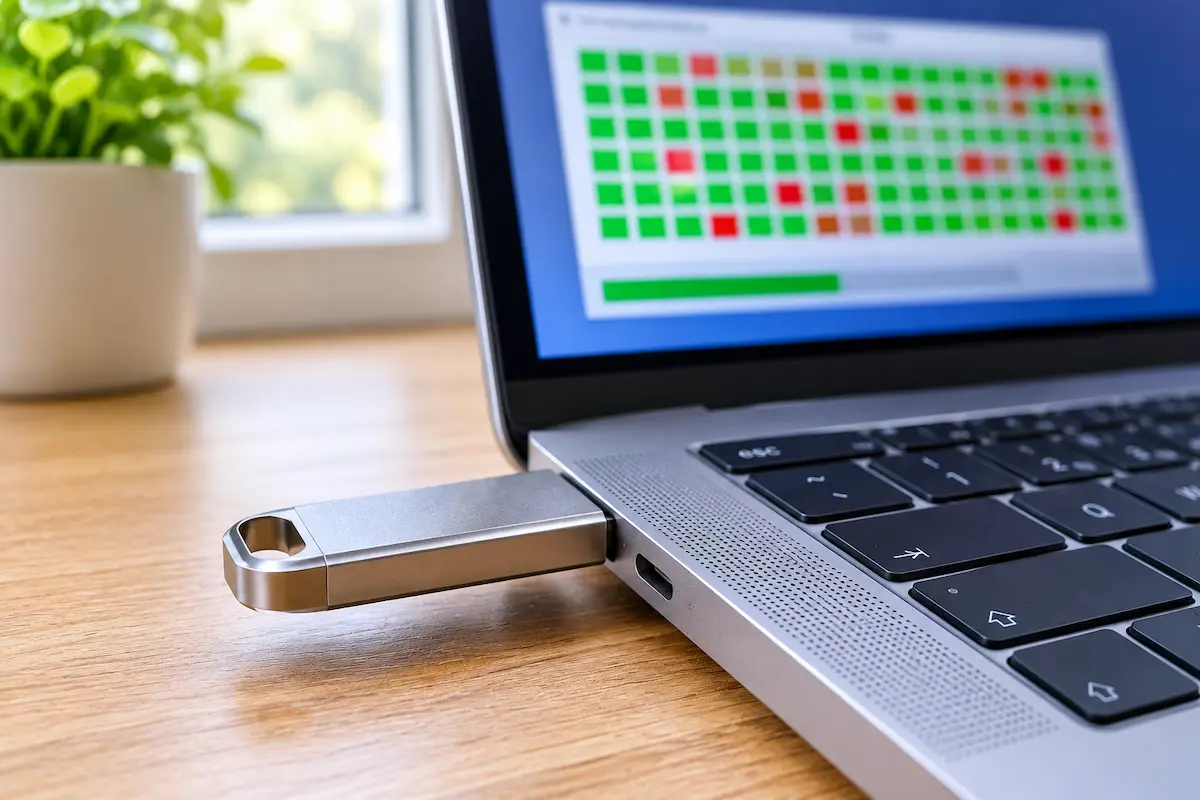
1. Why a fake drive fools your computer
A fake USB drive usually contains a small amount of real memory, often just a few gigabytes. Next to it sits a controller (the tiny chip that manages the memory) that has been set to announce a much bigger number. Windows, macOS, phones, cameras and TVs simply trust that number.
So the drive shows 1 TB in File Explorer, and you can start copying files without a single error. What happens after the real memory runs out depends on the fake. Some drives throw the extra data away, so the files look fine until you try to open them. Others loop back to the start and write over your older files, which is worse, because it can quietly destroy things you saved weeks ago.
That is why one rule matters more than any other: the size shown in Properties proves nothing. Only a test that writes data to the drive and reads it back can tell you the truth. The good news is that these tests are free and easy.
2. Warning signs before you test anything
Sometimes you can suspect a fake before the drive even arrives. None of these signs is proof on its own, but together they should make you careful.
On the listing
- An impossible size. A pocket-sized stick of 4 TB, 8 TB or more, sold for the price of a sandwich, is almost certainly fake.
- A price far below the usual one. Memory costs roughly the same per gigabyte across known brands. A huge discount is rarely a lucky find.
- A brand you can’t find anywhere else. Names that exist on one marketplace only, with dozens of five-star reviews written in the same style, deserve a second look.
On the drive itself
- The print looks blurry, the logo is slightly off, or the stick feels very light.
- Copying starts fast, then slows to a crawl after a few hundred megabytes.
- Some files copy without errors but won’t open later.
- The drive’s name or maker in Windows looks like a generic placeholder.
If any of this sounds familiar, don’t copy anything important to the drive yet. Run the tests below first.
3. The free programs we use
You don’t need many tools. Three free programs cover almost every case, and a fourth helps with speed. The first two are for Windows, the third is for Mac and Linux.
| Program | Works on | What it does | Time needed |
|---|---|---|---|
| ValiDrive | Windows | Quick spot check at 576 places across the drive | A few minutes |
| H2testw | Windows | Fills the free space with test files and reads every one back | Minutes to hours |
| F3 | macOS, Linux | The same full write-and-verify test as H2testw | Minutes to hours |
| CrystalDiskMark | Windows | Measures read and write speed | A few minutes |
Our routine is simple: run ValiDrive first to catch the obvious fakes quickly, then run H2testw (or F3) for a result you can fully trust.
4. ValiDrive: the quick first check
ValiDrive is a free, portable tool from Gibson Research Corporation. Instead of filling the whole drive, it writes and reads small samples at 576 spots spread across the claimed capacity, then restores the data it touched. It works with USB sticks, external drives and memory cards in a card reader.
- Download validrive.exe from the official GRC page at grc.com/validrive.htm and run it. There is nothing to install.
- Click “Check USB Drive” and plug in the stick when the program asks you to.
- Wait for the map to fill in, then read the report.
Reading the result is easy. Green squares mean the data came back correctly. Red squares mean there is no real storage at that spot, and blue or yellow squares point to read or write errors. A genuine drive gives you a fully green map, and the “validated” size matches the “declared” size.
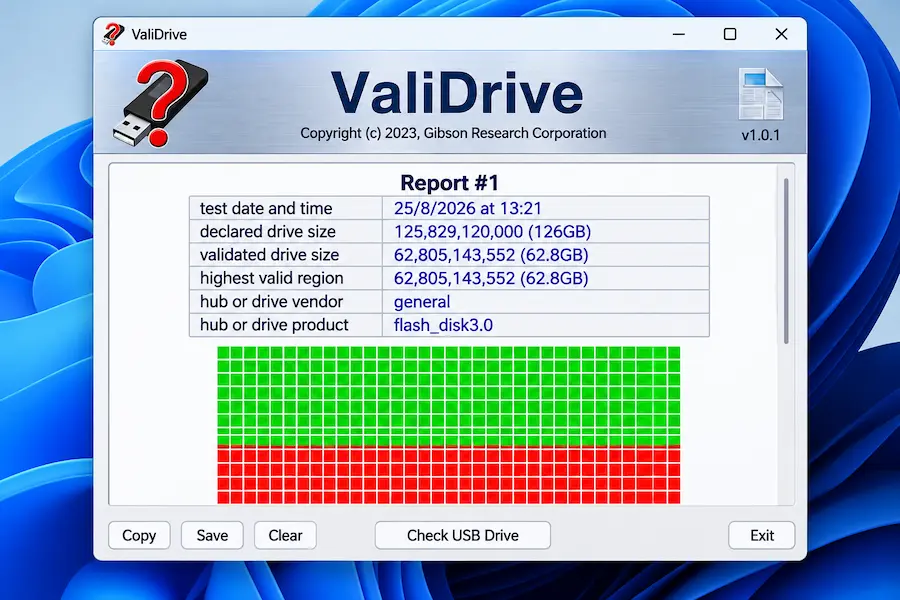
One warning: ValiDrive is a spot check. A fully green map is a very good sign, but it is not final proof, because some fakes pass it and still fail a full test. Use it to catch the obvious cases in minutes, then confirm with the next tool.
5. H2testw: the full test on Windows
H2testw is the program we trust most. It fills the drive with 1 GB test files, then reads every file back and compares it with what it wrote. A fake can’t hide from this, because the test checks directly whether the drive can store the full amount of data and return it unchanged. It is free, portable and works with USB sticks, memory cards and external drives.
- Back up and empty the drive. H2testw only tests free space, so an empty, freshly formatted drive gives the full picture.
- Run h2testw.exe and switch the language to English if you prefer.
- Click “Select target” and choose the drive letter of your stick. Check it twice so you don’t pick the wrong drive.
- Leave “all available space” selected and click “Write + Verify”.
- Wait for both passes to finish. It can take a few minutes on a small stick and several hours on a big, slow one.
14.4 GByte OK
43.3 GByte DATA LOST
How to read the result
A genuine drive ends with “Test finished without errors” and the amount written is close to its full size. A fake ends with the message “The media is likely to be defective”, followed by a few numbers.
- OK is the data that came back exactly as written. On a fake, this is roughly the real capacity.
- DATA LOST is everything that did not come back correctly.
- Overwritten or aliased memory means the drive loops back over old data, the nastier type of fake.
If the red message appears, you can stop the test. The details already tell you the true size, and finishing is not needed. When you’re done, delete the .h2w test files it left on the drive.
6. F3: the same test on Mac and Linux
F3 (short for Fight Flash Fraud) is the free, open-source equivalent of H2testw for macOS and Linux. It works the same way and has two commands: f3write fills the drive with test files, and f3read checks them.
- Install it. On a Mac with Homebrew, run
brew install f3. On Ubuntu, Debian and similar systems, runsudo apt install f3. - Find where the drive is mounted. On a Mac this is usually
/Volumes/NAME, and on Linux something like/media/yourname/NAME. - Run
f3writefollowed by that path, and when it finishes, runf3readwith the same path. - Read the summary. On a genuine drive only “Data OK” has a value. Anything under “Data LOST”, “Corrupted” or “Overwritten” means the same as in H2testw.
A faster option on Linux
Linux users also get f3probe, which finds the real capacity in minutes by writing only where it needs to. The catch is that it works on the whole device and erases everything on it. Find the device name with lsblk (for example /dev/sdb, not a partition such as /dev/sdb1), unmount the drive, and double-check the name before you press Enter. If you’d rather click than type, the F3 project page lists a few graphical front ends for both systems.
7. CrystalDiskMark: checking the speed
CrystalDiskMark is a free Windows program that measures how fast a drive reads and writes. It can’t prove a drive is fake, because slow drives are not always counterfeit. But it is a handy extra clue. If a stick sold as fast USB 3 gives only a fraction of the advertised speed, or its numbers drop sharply during a long copy, that matches what many fakes do.
Use it as a second opinion. The verdict on capacity should always come from ValiDrive, H2testw or F3.
8. What to do if your drive is fake
- Stop writing to it. Every new file can land in memory that doesn’t exist, or overwrite something else.
- Copy off what you need. Files written early, within the real capacity, are usually fine. Files written later may be gone for good.
- Save your proof. Take screenshots of the H2testw, F3 or ValiDrive result and of the capacity Windows reports. They make a dispute much easier.
- Ask for a refund. Open a return or an “item not as described” dispute as soon as you can, while buyer protection still applies.
Technically, you can shrink the drive’s partition to its real size and keep using it. We’d still treat it as a throwaway stick. Fakes are usually built with the cheapest memory, and anything that formats the drive back to its full fake size (a camera, a phone or a TV) will bring the problem back.
9. Quick checklist
- Be suspicious of any size or price that known brands don’t offer.
- Test every new drive once, right after it arrives, while you can still return it.
- Run ValiDrive first, then H2testw (Windows) or F3 (Mac and Linux).
- Test with an empty drive and back up anything important first.
- Download the tools only from their official pages.
- Never trust the size shown in Properties or on your phone.
- Keep screenshots of the results if you need to dispute the purchase.
💬 Comments