1. What counts as overheating
Every laptop gets warm. The processor (CPU) and graphics chip turn electricity into work, and the leftover energy becomes heat. A fan and a few metal pipes move that heat out through the vents. That is normal.
Overheating starts when the heat builds up faster than the laptop can get rid of it. At that point the laptop protects itself by slowing down, which is called thermal throttling. If that is not enough, it shuts off to avoid permanent damage.
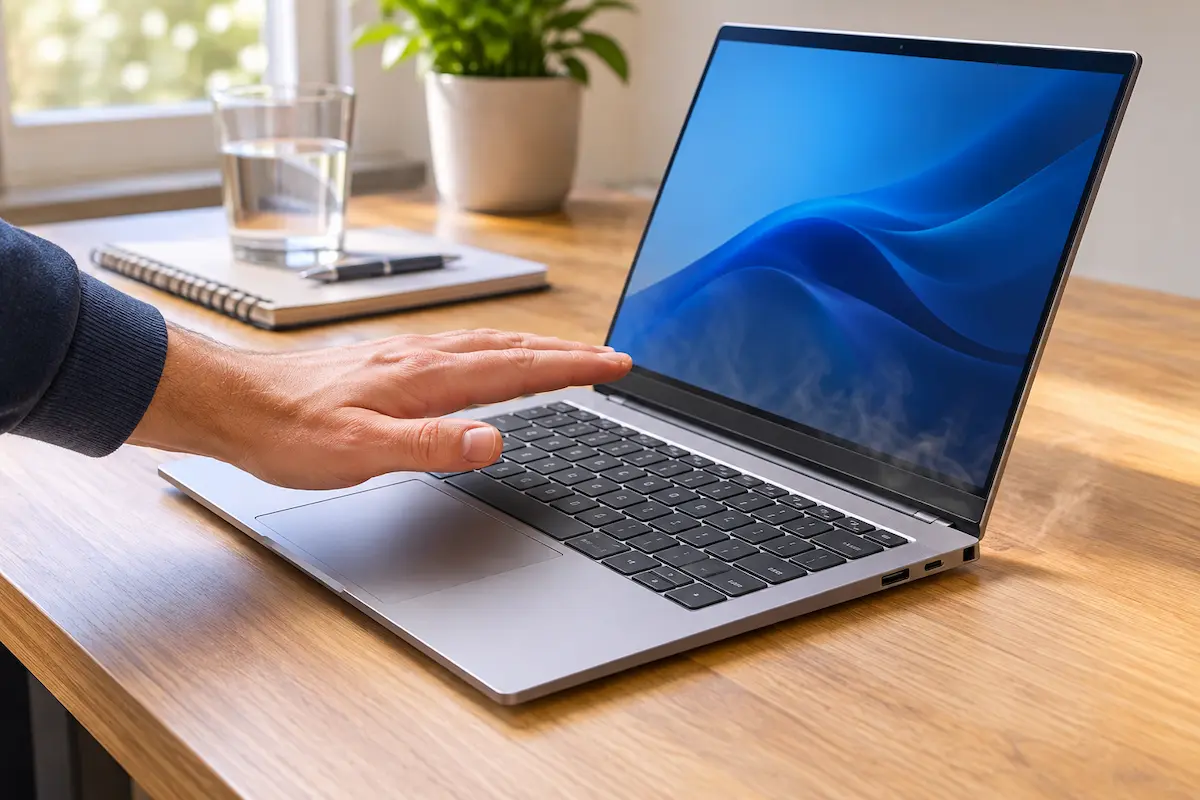
A simple rule: warm to the touch is fine, uncomfortably hot is a warning, and too hot to rest your hand on is a problem. Numbers help too, and we will get to them in section 4.
2. Warning signs to watch for
Laptops rarely fail without notice. These are the signs that heat is becoming an issue:
The fan is loud all the time
A fan that spins up during a game is expected. A fan that roars while you read email or watch a video means the cooling system is struggling, or something is keeping the processor busy.
Everything feels slower
Stuttering video, lagging typing and long loading times can all be throttling. The laptop is deliberately running at a lower speed to cool off, so it feels slow even though nothing is "broken".
Hot spots on the case
If the keyboard area, the underside or the area near the vents is too hot to touch, heat is not escaping properly.
Random freezes, restarts or shutdowns
A sudden black screen without a battery warning, especially during a demanding task, is a classic emergency shutdown.
Fast-draining or swollen battery
Heat wears out batteries. If the battery drains much faster than before, keep an eye on it. If the case looks bulged or the trackpad lifts up, stop using the laptop and get it checked. A swollen battery is a safety risk.
3. The most common causes
In most cases the cause is simple, and often it is not a hardware fault at all.
Dust blocking the fan and vents
This is the number one reason. Over a year or two, dust and pet hair coat the fan blades and clog the thin metal fins behind them. Less air gets through, so the heat stays inside.
Poor airflow under the laptop
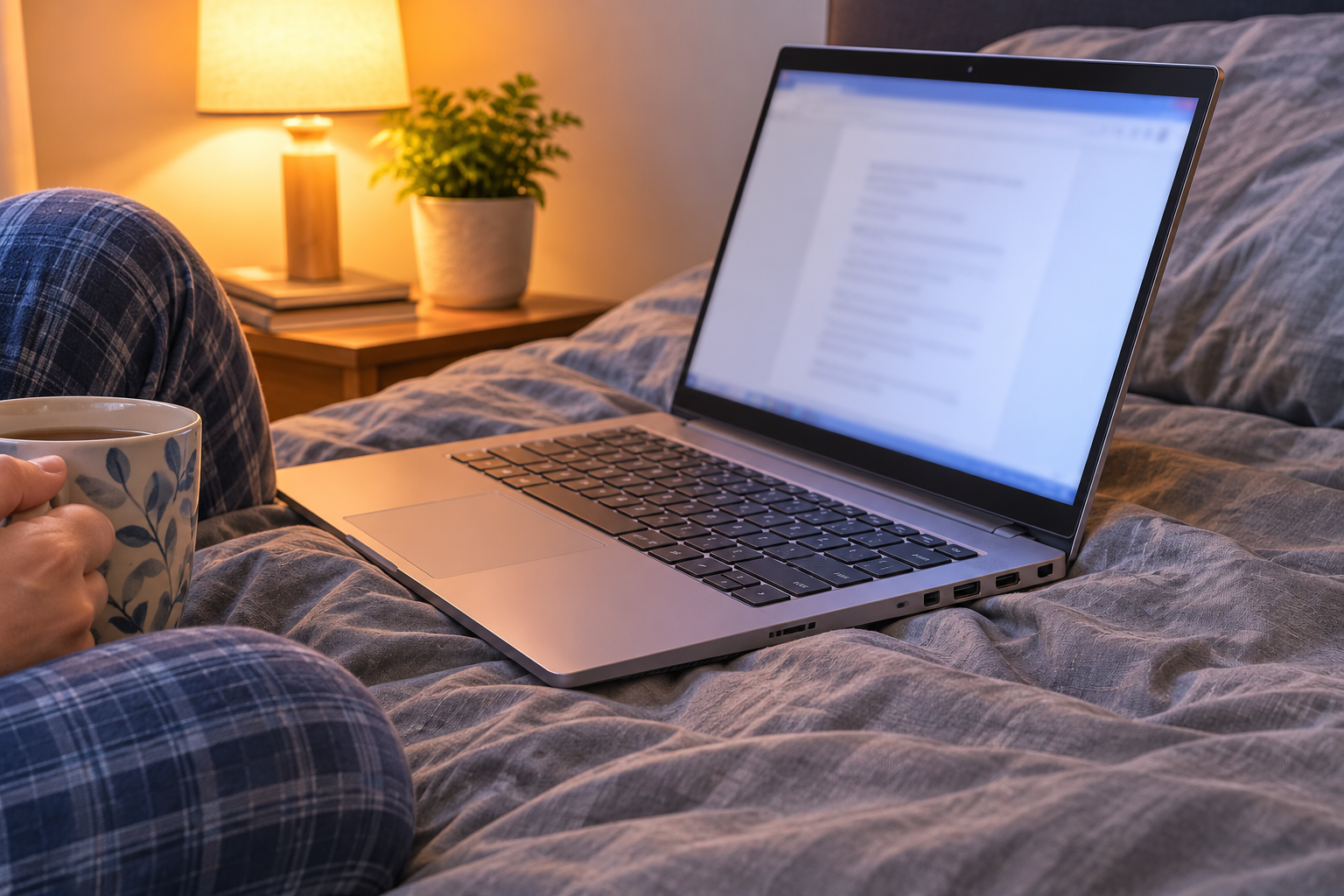
Most laptops pull air in from the bottom. On a bed, sofa, blanket or even your lap, the intake is half blocked. A hard flat surface makes a bigger difference than you might expect.
Too much running in the background
Dozens of browser tabs, a sync tool that is stuck, a game launcher or a program that never closes can keep the processor busy even when you are not doing anything.
Old thermal paste
Thermal paste is the thin layer that helps heat pass from the processor to the cooling pipe. After several years it can dry out and stop working well. Laptops that are four or five years old are the usual suspects.
Heavy tasks on a thin laptop
Video editing, gaming and 3D work push any laptop hard. Slim models simply have less room for cooling, so they run hotter under the same load.
Hot rooms and direct sun
A laptop in a hot car or in sun by the window starts with a handicap. The cooling system can only move heat into the surrounding air, so warmer air means less cooling.
Software issues
Outdated drivers, a buggy update or malware (for example a hidden crypto miner) can make the processor work at full speed all day.
4. How to check your temperature
Guessing by touch only gets you so far. A free monitoring tool shows the real numbers. On Windows, HWiNFO ↗ and Core Temp are popular and safe choices. Windows 11 shows the graphics card temperature in Task Manager, but not the CPU temperature, so a small extra tool is useful.
Open the tool, leave the laptop idle for a few minutes, and note the CPU temperature. Then run something demanding, like a video or a game, and watch again.
Here is a rough guide to what the numbers mean for a typical laptop processor. Exact limits differ by model, so treat it as a general reference.
| CPU temperature | Situation | What to do |
|---|---|---|
| 30–50 °C (idle) | Normal | Nothing |
| 60–85 °C (under load) | Normal for gaming or editing | Nothing, unless it stays there during light use |
| 85–95 °C | Too warm if sustained | Check airflow, background apps and dust |
| 95 °C and above | Throttling or shutdown is near | Stop the task, let it cool, then fix the cause |
If the idle temperature is high (above 60 °C with nothing running), the problem is likely a background process or old thermal paste. If only heavy tasks cause high numbers, dust and airflow are the first things to check.
On a Mac, there is no built-in temperature display, but Activity Monitor shows which apps use the most CPU. A loud fan on a MacBook almost always points to one of them.
5. Quick fixes you can try today
Start with the free, five-minute fixes. They solve more cases than you would think.
Move it to a hard, flat surface
A desk or table is ideal. A simple laptop stand that lifts the back by a couple of centimetres improves airflow and often drops the temperature by several degrees.
Close what you are not using
Press Ctrl + Shift + Esc to open Task Manager, click the CPU column to sort and see what is using the most. If a program you are not using sits near the top, close it. Also check the Startup apps tab and switch off things you do not need at boot.
Change the power mode
Windows 11 lets you trade a little speed for a lot less heat. Go to Settings > System > Power & battery and choose a lower power mode.
Keep Windows and drivers up to date
Laptop makers regularly release BIOS and firmware updates that improve fan curves, and graphics driver updates can fix runaway usage. Run Windows Update and check your manufacturer's support page.
Run a security scan
If the laptop is hot and the fan is loud while it is idle, run a full scan with Windows Security. Hidden miners and adware are a surprisingly common cause.
Lower the screen brightness and refresh rate
The display and its backlight add to the heat. On a laptop with a 120 Hz or 144 Hz screen, setting 60 Hz while you work also helps a little.
6. Cleaning dust and vents safely
If the laptop is more than a year old and the fan is loud, dust is probably involved. Here is a safe approach, from simple to more involved.
Level 1: external cleaning
Shut down the laptop and unplug it. Use short bursts of compressed air into the intake and exhaust vents. Hold the can upright and keep it a few centimetres away. A soft brush helps loosen the fluff before you blow it out.
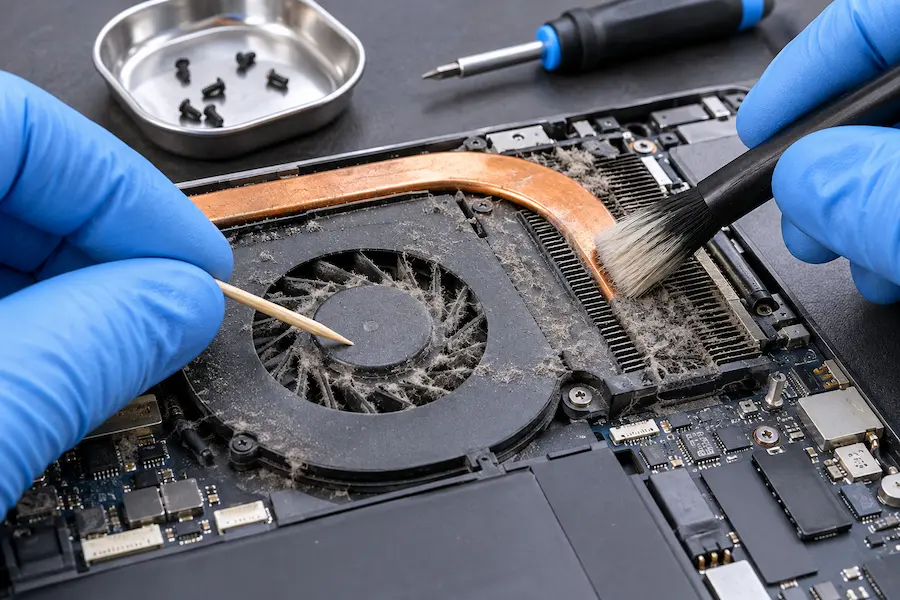
One important tip: hold the fan still with a toothpick or a cotton swab while you blow air. If the fan spins freely from the air pressure, it can generate a small voltage and, in rare cases, wear the bearings.
Level 2: opening the case
Many laptops let you remove the bottom cover with a few small screws. Look up a guide for your exact model first, because some have hidden screws under rubber feet or stickers. Disconnect the battery connector if the guide says so, and clean the fan and fins with a brush and air.
Avoid vacuum cleaners on the inside, because they can build up static electricity. Never use liquids.
7. When the problem is hardware
If a clean laptop with clean software still runs hot, the cause may be inside.
Replacing the thermal paste
On a laptop that is four or more years old, fresh thermal paste can lower temperatures by 5 to 15 degrees. The job requires removing the cooling assembly, so it is best for confident DIY users or a local repair shop. A repair shop usually does it quickly and for a fair price.
A failing fan
Grinding, clicking or rattling noises, or a fan that does not spin at all, mean it needs replacing. Fans are cheap parts for most models.
A worn battery
An old battery gets hotter during charging and use. If it holds little charge and the laptop is warm near the battery area, a replacement may help.
A laptop that is simply underpowered
Sometimes the laptop is working as designed. A thin office model used for 4K video editing will always run hot. In that case, lower the workload, use a cooling pad or consider a laptop built for the job.
8. Habits that keep it cool
A few small habits prevent most heat problems before they start.
Use the laptop on a hard surface and keep the underside clear. Do not leave it in a bag while it is running or asleep with active downloads. Keep it out of hot cars. Clean the vents every few months. Restart now and then so stuck processes do not pile up. And when you charge and work heavily at the same time, expect a little extra heat, which is normal.
A cooling pad can add a few degrees of help, especially for gaming laptops with big bottom vents. Think of it as a bonus, not a cure.
My experience
I tested these steps on a four-year-old 15-inch Windows laptop that had started shutting down during video calls. The fan was loud even on the desktop, and the CPU sat above 60 °C at idle.
The first big win was free: Task Manager showed a background sync tool stuck in a loop. Closing it and removing it from startup brought the idle temperature down noticeably. Switching the power mode from Best performance to Balanced took off a few more degrees without any change I could feel in daily use.
The remaining heat came from dust. After I opened the case, the fan and fins were covered in a grey felt of fluff. A careful cleaning, with the fan held still, made the laptop quieter straight away. Under a long video export the CPU peaked around 80 °C instead of brushing 95 °C, and the shutdowns stopped.
The one thing that went wrong: one hidden screw sat under a rubber foot, and I nearly pried the cover open before finding it. Always check a guide for your exact model first.
💬 Comments