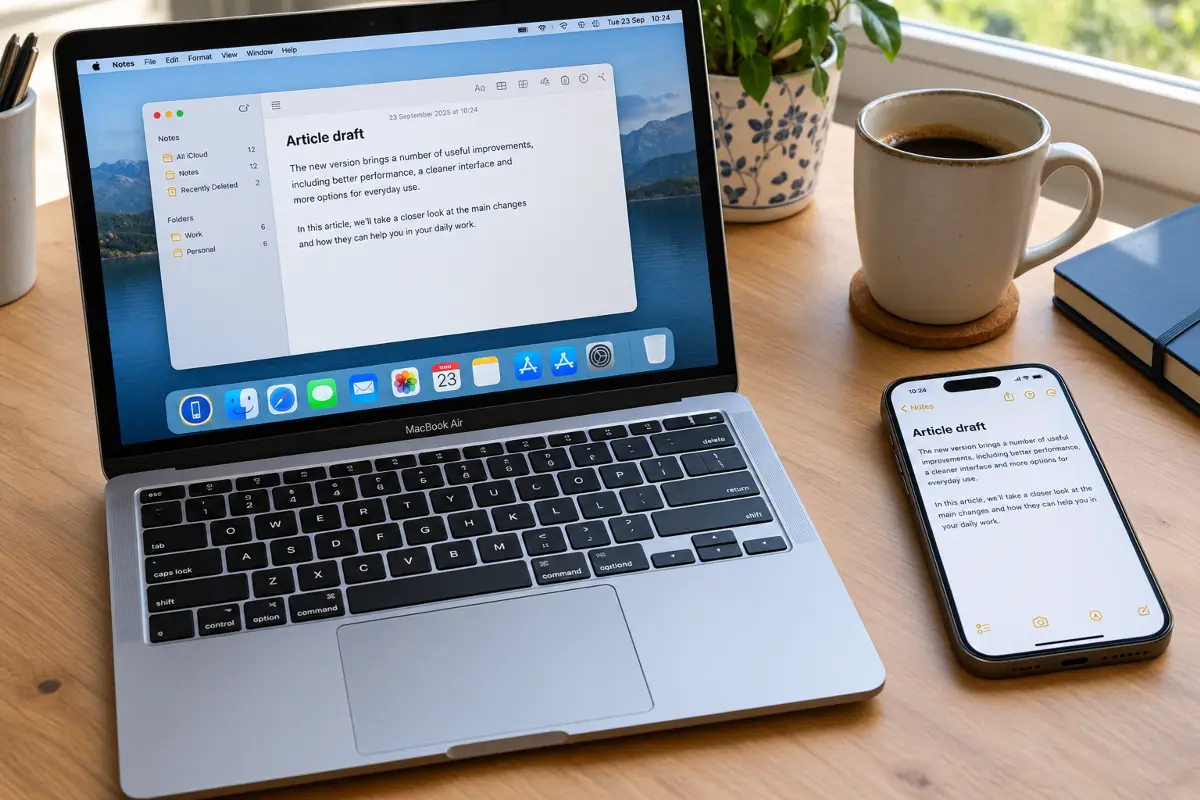
If you use a Mac and an iPhone, the two already know how to work as a team. Apple calls this Continuity: a set of small features that quietly pass your work, your copied text and your files between devices, without cables and without emailing things to yourself.
The catch is that most people only discover one or two of them by accident. Here are the four I use every single day — how to switch each one on, what it's actually good for, and what to check when it refuses to work.
⚙️ Before you start: what both devices need
None of this is difficult, but almost every "Continuity doesn't work" complaint I've seen comes down to one of the basics below being missed. Go through the list once and you'll save yourself a lot of head-scratching later.
Why do both radios matter? Bluetooth works like a quiet "I'm here" signal that lets your devices notice each other. When there's something to send, they open a direct Wi-Fi link between them. That's why the transfer is fast and your data doesn't travel through the internet.
🔄 Handoff: continue on the other device
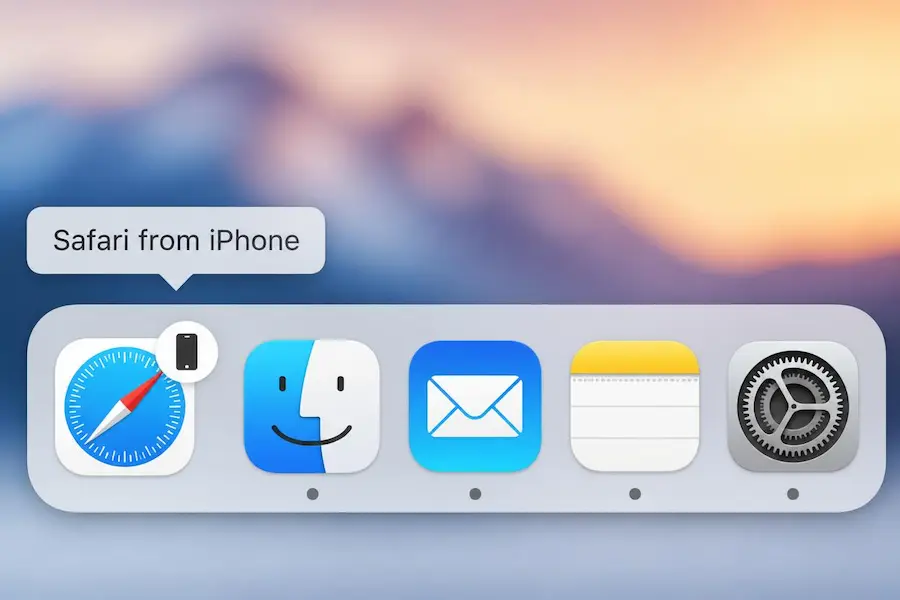
Handoff lets you start something on one device and carry on with it on the other. Say you start replying to an email on your iPhone on the bus. When you sit down at your Mac, a small app icon with an iPhone badge appears in the Dock. Click it, and the same email opens on the Mac, with everything you've typed so far.
How to turn it on
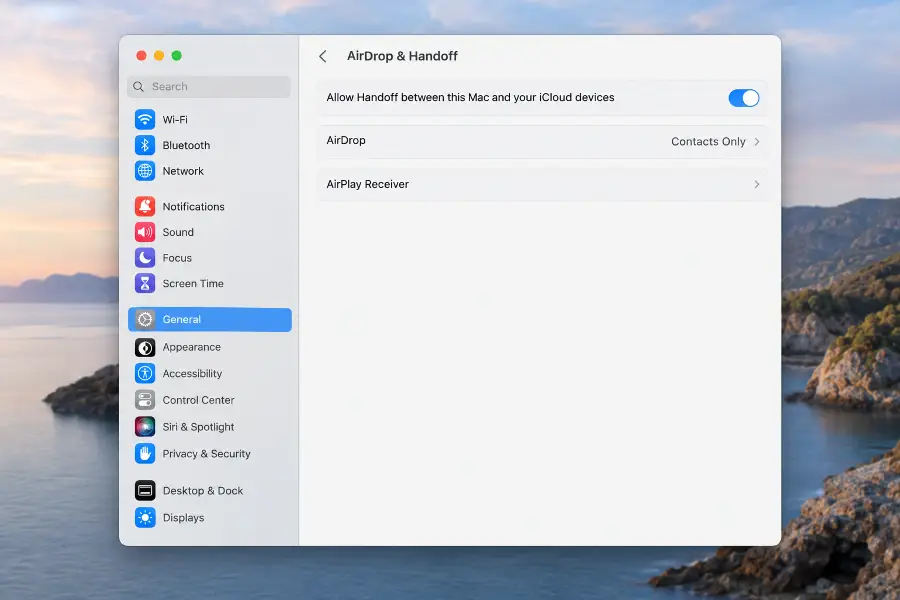
Handoff works with Apple's own apps — Safari, Mail, Notes, Pages, Numbers, Keynote, Maps, Calendar, Reminders — and with plenty of third-party apps that support it. It also works in the other direction: on the iPhone, the app you had open on the Mac shows up as a banner at the bottom of the app switcher.
📋 Universal Clipboard: copy on one, paste on the other
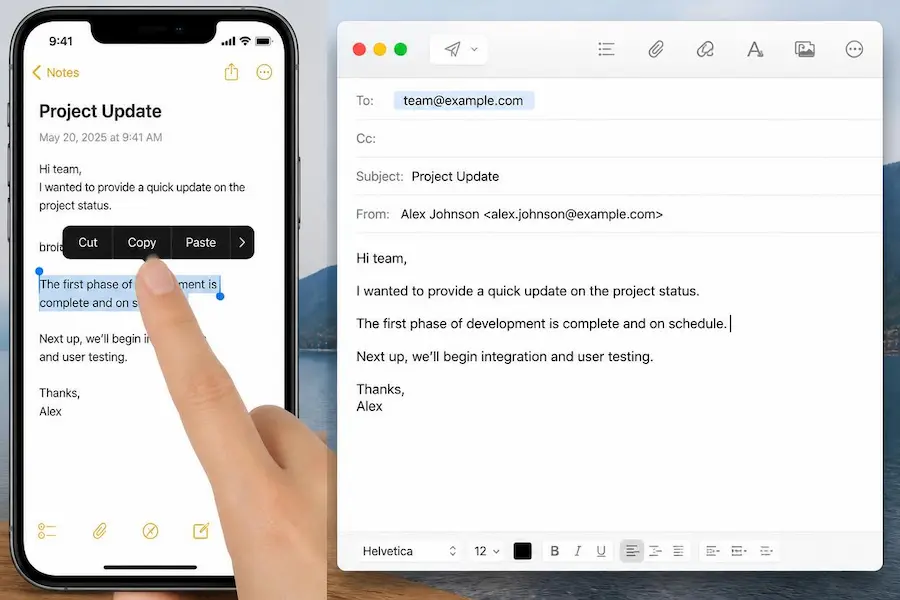
This is the feature people find by accident and then can't live without. Copy something on your iPhone — a sentence, a link, a phone number, even a photo — then press ⌘ Command + V on your Mac, and there it is. No app to open, no button to tap.
It works the other way round too. Copy a paragraph on the Mac, long-press a text field on the iPhone, choose Paste, and it drops right in. There's nothing separate to set up: if Handoff is on and both devices are nearby, Universal Clipboard is already active. The copied item only waits for a short while, though, so paste it within a minute or two.
📤 AirDrop: the fastest way to move files
When the Mac and the iPhone are in the same room, AirDrop beats every other way of moving files. Photos, videos, PDFs, contacts, links — they go straight from one device to the other over a direct, encrypted connection. No upload, no waiting for a cloud service to sync, and no loss of photo quality.
How to send something
From the Mac it works the same way: right-click a file, choose Share → AirDrop, and pick your iPhone.
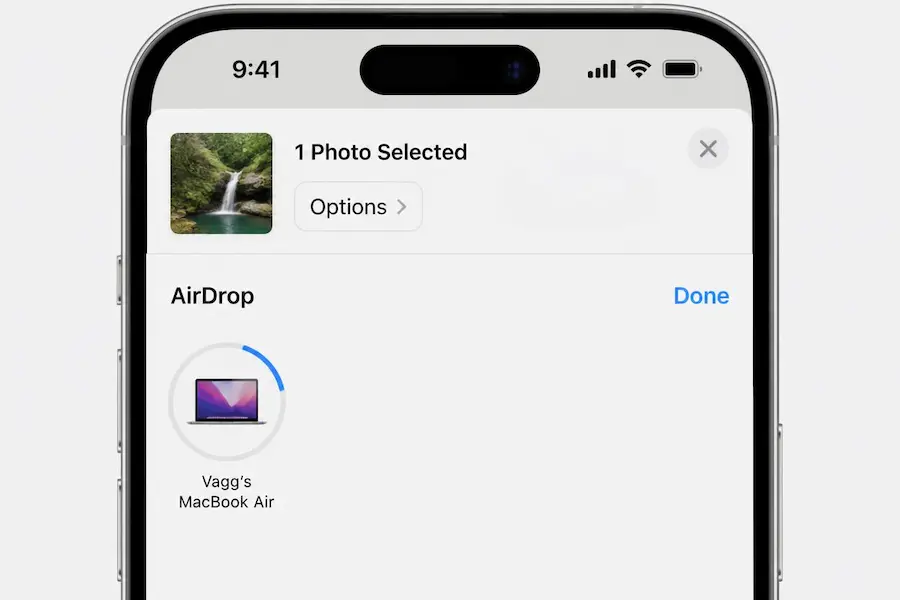
Who can send you files is up to you. On the iPhone, open Control Center, press and hold the network tile, tap AirDrop, and choose Receiving Off, Contacts Only or Everyone for 10 Minutes. On the Mac, the same choice is in the AirDrop window in Finder or in Control Center.
📸 Continuity Camera: your iPhone as a webcam and scanner
The camera in your pocket is far better than the one built into most laptops. Continuity Camera lets the Mac use it. Mount the iPhone near the screen, and it shows up as a camera in FaceTime, Zoom, Microsoft Teams, Google Meet in the browser, and pretty much any other video app.
How to use it as a webcam
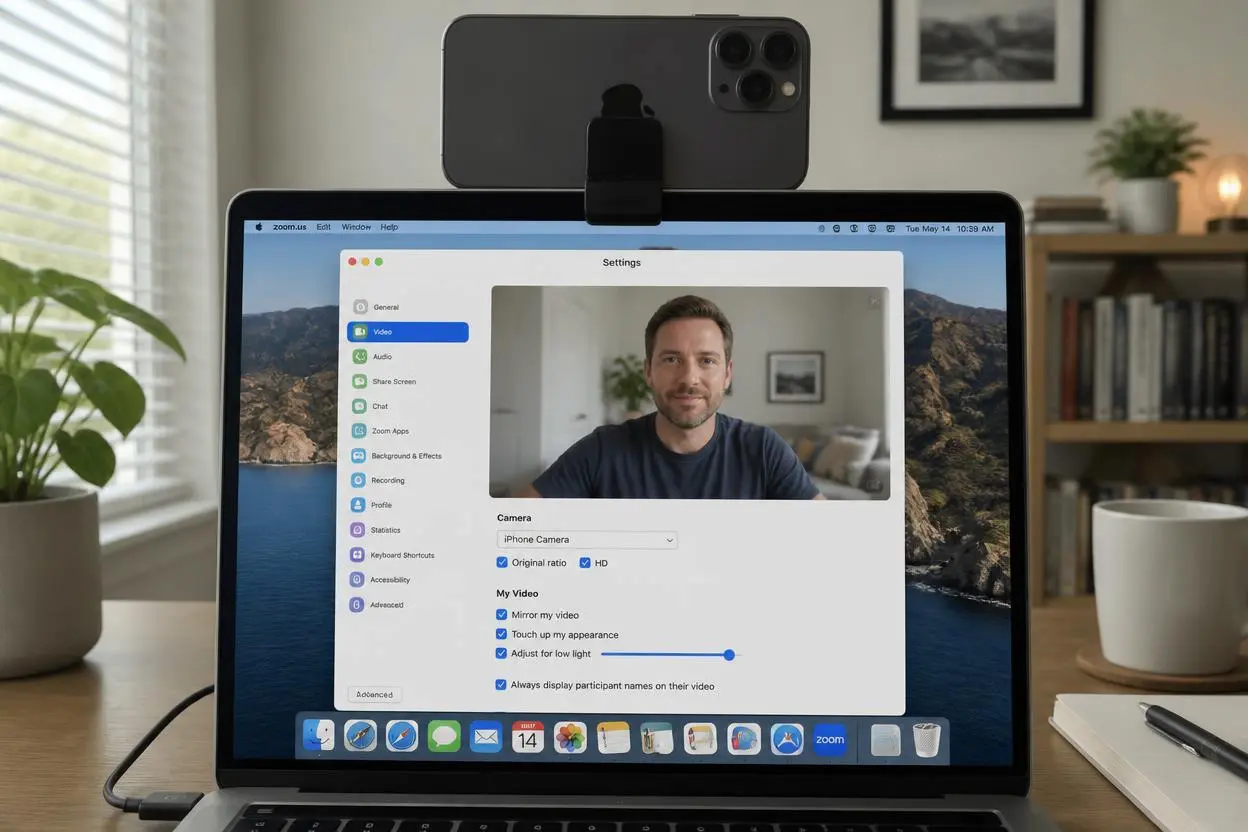
Once it's running, open Control Center on the Mac and click Video Effects. From there you can turn on Center Stage (keeps you in frame as you move), Portrait (blurs the background) and, on newer iPhones, Studio Light and Desk View, which shows the top of your desk as if the camera were looking down at it.
Scanning documents straight into the Mac
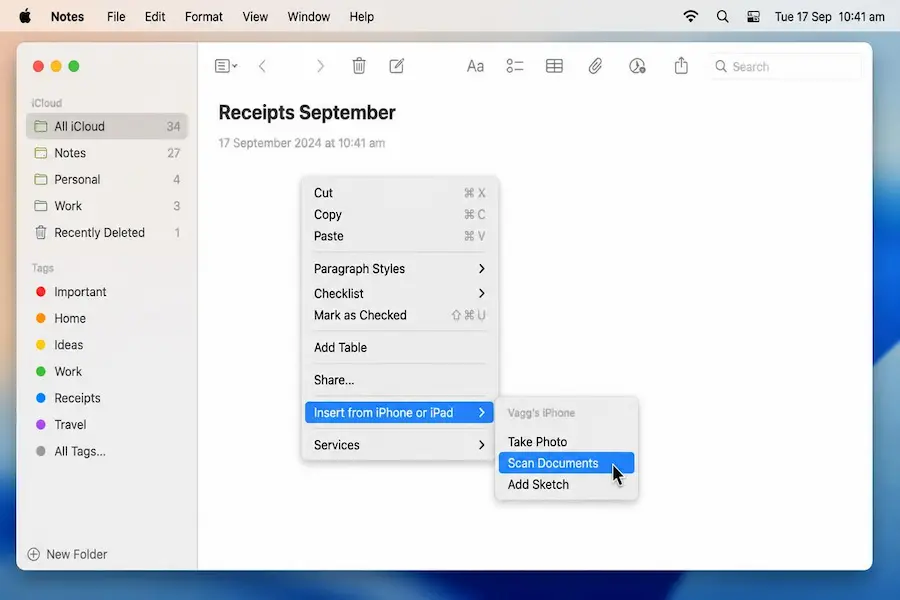
The part many people miss: you can use the iPhone to scan a paper document or take a photo and drop it straight into a Mac app. In Notes, Pages, Mail or TextEdit, right-click where you want it, choose Insert from iPhone or iPad, then Scan Documents or Take Photo. The camera opens on your iPhone. Capture the page, tap Save, and it appears on the Mac right where you clicked.
💭 My experience
I use all four features on a MacBook Air M2 and an iPhone 13, both running up-to-date software. I started using them without any particular plan. I would jot down ideas and article outlines in Notes on my iPhone during short breaks, then pick up where I left off on my Mac. Handoff made that transition so simple that, after a couple of weeks, I barely thought about it anymore. I open my MacBook, click the Notes icon in the Dock, and carry on from where I stopped on my phone.
Getting everything to work reliably took a little troubleshooting. At first, the Handoff icon appeared in the Dock inconsistently. I eventually realised that Bluetooth was disabled on my Mac, a setting I had changed months earlier and forgotten about. Turning it back on solved the problem. Later, Handoff stopped working after a macOS update. Restarting Bluetooth on both devices made no difference, but signing out of my Apple Account on the Mac and signing back in restored the connection.
Universal Clipboard is the feature I rely on most. When researching an article, I often collect links, short quotes and settings paths on my iPhone. I used to send these to myself by email, which was needlessly cumbersome. Now I simply copy text on my phone and paste it directly into my work on the Mac. Occasionally, the clipboard doesn't seem to sync when my Mac has been asleep for a long time. Copying the content again on the iPhone usually gets it working.
AirDrop is particularly useful for transferring large files. I tested it with a 1.2 GB 4K video, which took around 40 seconds to transfer from my iPhone to my Mac. Uploading the same file to cloud storage and downloading it again took well over five minutes on my home connection. The difference was substantial. One small annoyance is that the transfer can get stuck on “Waiting…” if my iPhone is locked. Unlocking it usually allows the transfer to proceed.
Continuity Camera has also proved useful, especially for video calls. I picked up an inexpensive magnetic mount to position my iPhone above my MacBook screen, and the image is noticeably sharper than the built-in webcam. The improvement is particularly apparent in the evening, when the lighting in my room isn't ideal. I also use the iPhone to scan documents directly into Notes, which has made the separate scanning app I used previously largely unnecessary.
One important note: these are my own observations, not guaranteed results. Handoff and Universal Clipboard can behave differently depending on the devices, software versions and connection conditions. AirDrop transfer times also vary with file size, wireless conditions and device proximity, while Continuity Camera's image quality depends partly on lighting and positioning.
❓ Frequently asked questions
Why doesn't the Handoff icon show up on my Mac?
Does Universal Clipboard work over mobile data?
Which iPhone do I need for Continuity Camera?
Is it safe to leave AirDrop on in public places?
Do these features use my iCloud storage?
🏁 The bottom line
Turn all four on in one go and give them a week. Each one is handy on its own, but together they make the Mac and the iPhone feel like a single machine.
💬 Comments