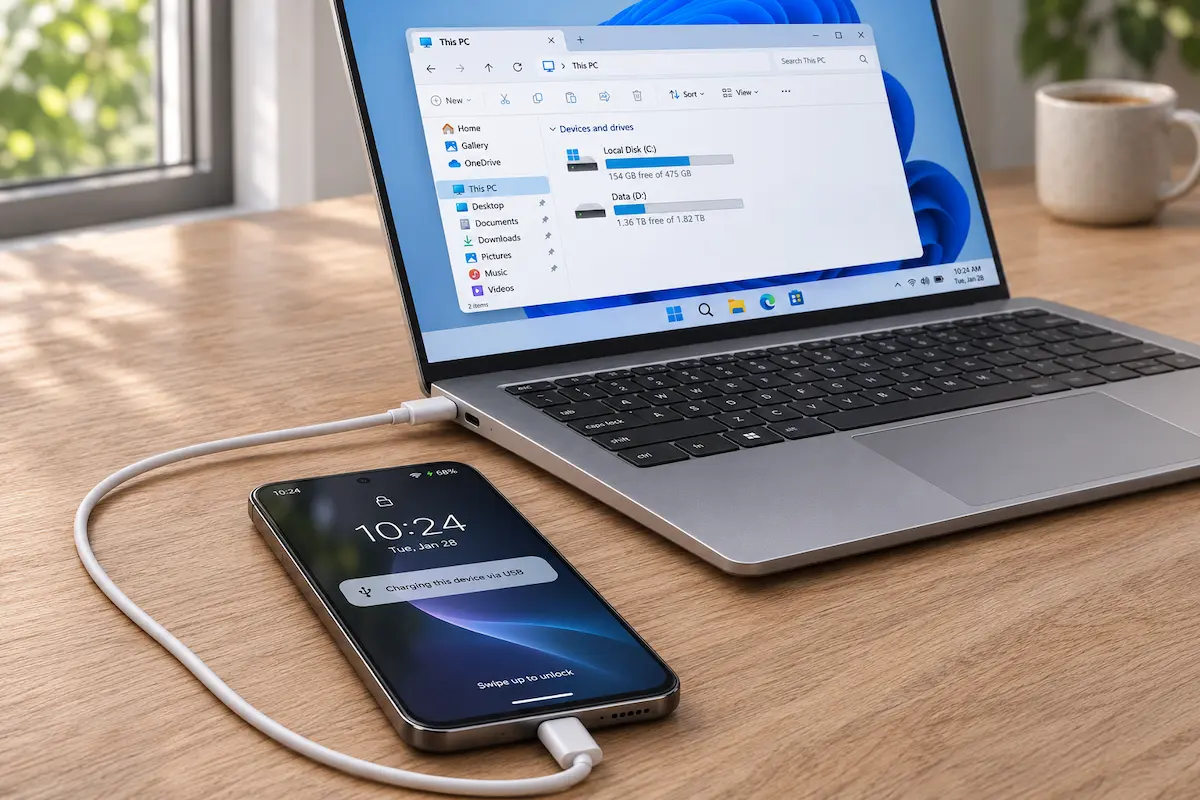
You plug your phone into your PC. You hear the connection chime, the battery icon starts ticking up, and then... nothing. No pop-up, no phone in File Explorer, no way to copy the video you actually came here for.
It's frustrating, but it's almost always easy to fix. Nine times out of ten, your phone is simply set to "charge only" (a deliberate safety default), or the cable can't carry data at all. The rest comes down to a stubborn port or a missing Windows driver.
This guide works through the fixes in the order that saves the most time, for both Android and iPhone on Windows 11 in 2026. Most people are done in under five minutes.
Why your phone only charges when you plug it into a PC
A USB cable does two jobs at once: it carries power, and it carries data. Your phone is built to say yes to the first and no to the second until you tell it otherwise.
That's on purpose. If your phone handed over its files to every port it touched, anyone with a rigged charging station at an airport or a café could try to pull data off it. So both Android and iOS start in a locked-down mode and wait for your approval. The catch is that many people never notice the approval prompt, or tap past it without reading.
For your files to show up on the PC, four things have to line up:
Quick shortcut: when you plug the phone in, does a USB notification appear on its screen? If yes, the cable is fine and the problem is the USB mode or the driver. If nothing appears at all, suspect the cable or the port first.
Fix it on Android in 30 seconds
This is the fix for most "my phone only charges" problems. Android remembers its USB mode, and "charging only" is the default every time you connect to something new.
- Unlock your phone. Android only shares files while the screen is unlocked. A locked phone will just charge.
- Plug it into your PC and wait a couple of seconds.
- Swipe down the notification shade and tap the notification that says Charging this device via USB.
- Under "Use USB for", choose File transfer. On some phones it's called "Transferring files" or "Media device (MTP)".
- Open File Explorer on the PC. Your phone should now be listed under This PC.
On a Samsung Galaxy phone
Samsung adds one extra step. When you connect, a pop-up asks Allow access to phone data? Tap Allow. If you tap Don't allow, or the pop-up vanishes before you see it, unplug the cable and plug it back in. Then pull down the notification shade, tap the USB notification, and select Transferring files.
Make File transfer the default
If you connect to your PC often, you can skip the notification dance. Open Settings > About phone and tap Build number seven times to unlock Developer options. Then go to Settings > System > Developer options > Default USB configuration and choose File Transfer.
Only do this on a phone you trust with your own PC. On a public charger or someone else's computer, charging only is the safer choice.
Using Android's Advanced Protection? On newer Android versions, that mode can block USB data while the phone is locked. Unlock the screen before you plug in, and check the mode's USB setting if the phone still refuses.
Check the cable first
If you did step 2 and no notification ever showed up, the cable is the prime suspect. Plenty of cables are made for charging only. They have the wires for power but none for data, and they cost a few cents less to make.
You'll find them bundled with power banks, speakers, headphones, e-readers, cheap gadgets, and sometimes as the "free" cable in a phone box from a third-party seller. The frustrating part is that they look identical to a proper data cable.
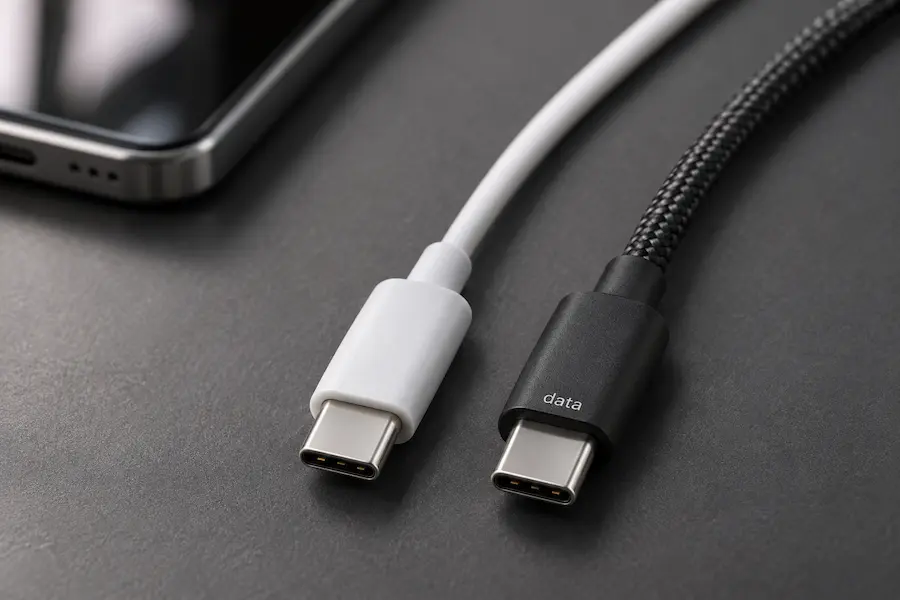
How to test a cable in two minutes
- Swap it for the cable that came with your phone. The original is almost always a data cable.
- Try the suspect cable on another phone and PC. If that phone only charges too, you've found your culprit.
- Watch for the USB notification. A charge-only cable never triggers it, because the phone can't tell a computer is on the other end.
- Wiggle the plug gently. If the connection drops in and out, the cable or the phone's port is worn. Lint inside the phone's port is another common cause, so look in with a torch and clean it with a wooden toothpick.
When you buy a replacement, choose one that clearly says "data sync" or "charge and sync" on the listing, or pick a well-known brand. For USB-C phones and USB-C laptops, a decent cable also saves you from slow transfer speeds on big video files.
Try a different USB port
If the cable checks out, move on to the port. A few simple changes solve a surprising number of cases:
- Plug straight into the PC. USB hubs, docks and cheap multiport adapters often pass power fine but drop data. Skip them while troubleshooting.
- On a desktop, use the ports on the back. Front-panel ports run through extra internal cables that sometimes fail.
- Try another port, and then another. Ports on the same PC can behave differently, especially older USB 2.0 and newer USB 3.x ports.
- Restart both devices. It sounds basic, but it resets a stuck USB connection more often than you'd expect.
- Wake the phone up. Keep the screen on and unlocked for the first few seconds after plugging in.
Windows still can't see it? Fix the driver
If you do see the USB notification on the phone, you've picked File transfer, and Windows still shows nothing, the driver is the next place to look. Windows normally installs a generic one called MTP USB Device on its own, but it can get stuck after an update.
- Right-click the Start button and open Device Manager.
- Look for your phone with a yellow warning triangle. It often sits under Other devices or Portable Devices.
- Right-click it and choose Update driver.
- Choose Browse my computer for drivers, then Let me pick from a list of available drivers.
- Select Portable Devices, then MTP USB Device, and click Next.
Windows then installs the generic driver, and the phone should pop up in File Explorer within seconds. If you don't see a warning triangle at all, try Uninstall device on the phone's entry, unplug the cable, plug it back in, and let Windows detect it fresh.
Also run Settings > Windows Update once. A pending update or a half-finished driver install can leave USB devices in a limbo state until the PC restarts.
iPhone: Trust, unlock and import
iPhones follow a different set of rules. There's no "USB mode" to switch. Instead, the iPhone asks whether it should trust the computer, and until you say yes, it only charges.
- Unlock the iPhone and keep the screen on.
- Plug it into the PC with a cable that supports data. Apple's own cable is the safest bet.
- Tap Trust when Trust This Computer? appears, then enter your passcode. If an Allow access to photos and videos? prompt shows up as well, tap Allow.
- Install the Apple Devices app from the Microsoft Store if you haven't. It replaces iTunes on Windows 11 and installs the drivers Windows needs.
- Open File Explorer and look for Apple iPhone > Internal Storage > DCIM. Or open the Photos app, click Import, and pick the iPhone.
If the Trust prompt never appears
- Unplug the cable, unlock the iPhone, and plug it in again. The prompt only appears while the screen is on.
- Restart both the iPhone and the PC, then try a different USB port.
- On the iPhone, open Settings > General > Transfer or Reset iPhone > Reset > Reset Location & Privacy. This brings back the Trust prompt. Your photos and apps stay untouched, but location and privacy permissions are reset.
- Make sure the Apple Devices app is installed and up to date.
Two iPhone quirks worth knowing
Photos come in HEIC. iPhones save pictures in a space-saving format that older Windows apps can't always open. To get regular JPEGs, go to Settings > Photos, scroll to the bottom, and under Transfer to Mac or PC choose Automatic.
Optimize iPhone Storage can leave gaps. If iCloud Photos is on and your phone keeps only small previews, the full-size originals live in iCloud. Importing over USB may then fail or give you blurry copies. Download the originals first, or grab them from iCloud.com or iCloud for Windows instead.
Also keep in mind that Windows only sees the camera roll over USB. For documents and other files, use iCloud Drive or the Files app and a cloud service.
No cable? Transfer files wirelessly
Sometimes the quickest fix is to skip the cable. If you only need to move a few files, one of these is often faster than all the troubleshooting above.
| Method | Works with | Best for | The catch |
|---|---|---|---|
| USB cable | Android, iPhone | Big batches, long videos, full backups | Needs the right mode and a data cable |
| Quick Share for Windows | Android | A handful of files, no cable at all | Both devices must be nearby, with Wi-Fi and Bluetooth on |
| Phone Link | Android (iPhone for calls and messages only) | Quick photo access and notifications | Needs a one-time setup and a Microsoft account sign-in |
| Cloud (Google Photos, OneDrive, iCloud) | Android, iPhone | Automatic backup of every photo | Uses your storage plan and a decent connection |
On Android, Quick Share is the easiest cable-free route to a Windows PC. Install the Quick Share app for Windows, sign in with your Google account, and send files from the phone's Share menu. For a few photos or a PDF it takes seconds.
For everything else, a cloud service quietly does the job in the background. Turn on photo backup in Google Photos, OneDrive or iCloud Photos on the phone, and the pictures show up on your PC without you touching a cable. It isn't instant for huge files, but it never needs a USB mode.
My experience
I went through this exact problem on a Windows 11 desktop and a laptop, using an Android phone, a Samsung Galaxy and an iPhone, so I could see how differently they behave.
The most annoying case was a cable I'd grabbed from a drawer, one that came with a power bank. The phone charged happily, but no USB notification ever appeared. I spent a while poking around Windows settings before I swapped in the cable from the phone's box. The notification showed up instantly. Since then, "no notification at all" is the first thing I check, and it has saved me a lot of time.
The second lesson was the front USB ports on my desktop. The phone charged there but never appeared in File Explorer. Moving the cable to a port on the back of the PC fixed it straight away, with no driver or settings changes.
On the iPhone, I simply missed the Trust prompt because the screen had locked a second after I plugged it in. Unlocking the phone and reconnecting brought it back. I also noticed that with "Optimize iPhone Storage" on, some of my photos arrived as small, blurry previews until I downloaded the originals first.
My habit now is simple: unlock the phone, plug it in straight to the PC, check the notification, then pick File transfer. If that fails, I change the cable before touching anything else.
Frequently asked questions
Why does my phone only charge when I connect it to my PC?
Usually because the phone is set to "charge only" by default, or the cable doesn't carry data. Phones do this on purpose, so a stranger's USB port can't read your files. Switch the USB mode to File transfer on Android, or tap Trust on an iPhone.
How do I change from charging only to file transfer on Android?
Unlock the phone, plug it in, swipe down the notification shade, tap the USB notification, and choose File transfer. You can make this the default under Developer options > Default USB configuration.
How can I tell if my USB cable is charge-only?
You can't tell by looking. The easiest test is to plug the phone in and see whether a USB notification appears. If it never does, or if the phone still only charges with a different cable, the first cable is probably power-only.
Why does my phone show up in File Explorer but the folders are empty?
The phone is most likely locked. Unlock the screen, make sure File transfer is selected, and unplug and reconnect the cable. If it's an iPhone, check that you tapped Trust and allowed access to photos.
Do I still need iTunes to transfer photos from an iPhone to Windows 11?
No. Install the Apple Devices app from the Microsoft Store, or just use File Explorer and the Photos app. Both work with the iPhone once you've trusted the computer.
Is it safe to tap Trust or Allow on a public computer?
It's best not to. Only grant data access to computers you own or fully trust. At airports, cafés and other public chargers, leave the phone on charge only or use your own wall charger and cable.
💬 Comments