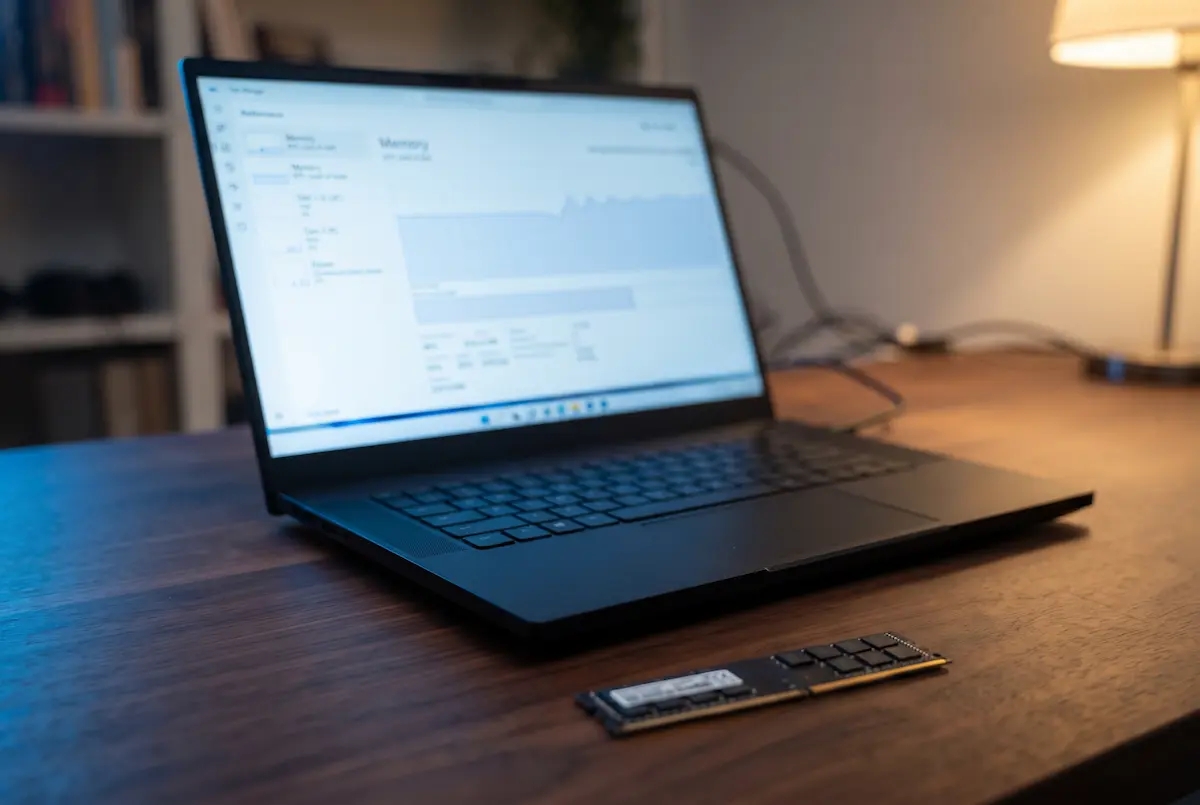
If your PC has 8 GB or 16 GB of RAM, you may have experienced this: Windows 11 runs smoothly at first, but after you open a browser, a game launcher and a couple of chat apps, everything starts to feel sluggish.
The good news is that you can often improve performance without upgrading your hardware. This guide shows you how to find out which apps are using your memory and how to free up RAM safely. Screenshots and visual examples of each step will help you find the right settings.
With RAM prices fluctuating, making better use of the memory you already have can also be a practical way to postpone an upgrade.
1. How Windows 11 really uses your RAM
RAM (random-access memory) is your PC's short-term workspace. Windows, apps and games use it to keep the data they need readily available. RAM is much faster than an SSD, so having enough memory helps your PC respond smoothly when you switch between tasks.
Windows 11 also uses available memory to cache frequently accessed data, helping files and apps load faster. That is why a nearly full memory bar is not automatically a problem: cached memory can often be reclaimed when an app needs it.
Problems arise when memory demand exceeds what your PC can comfortably provide. Windows can move some data to the paging file on your storage drive, but accessing that data is much slower than using RAM. Under memory pressure, you may notice stuttering, slow app switching or temporary freezes.
Read the Memory tab
Press Ctrl + Shift + Esc to open Task Manager, then select Performance › Memory. These four figures are useful starting points:
- In use: the memory currently being used by Windows, apps and other processes.
- Available: memory that can be allocated to apps without first moving data out of RAM. This includes both free and reclaimable memory.
- Committed: the amount of virtual memory Windows has committed to processes. The second number is the commit limit, which is influenced by physical RAM and the paging file.
- Cached: memory holding recently accessed data that Windows may be able to reuse or reclaim when needed.
Do not judge memory pressure by a single number. Check Task Manager while you are doing the things that normally slow your PC down. If available memory remains low, memory use keeps climbing, or apps become unresponsive, the following steps may help.
Windows 11 requires at least 4 GB of RAM, but meeting the minimum does not guarantee a smooth experience with several apps open. For everyday multitasking, 8 GB can feel restrictive, while 16 GB gives many users more breathing room. Games and demanding creative applications may need more, depending on their requirements.
2. Find what is using your memory
Before changing settings, identify which apps are using the most RAM. Open Task Manager, select the Processes tab and click the Memory column header to sort the list from highest to lowest usage.
Browsers often use several processes rather than a single one. Expand the arrow beside a browser's name to see its individual processes, where available. Remember that the memory shown for a process can change as you browse.
| Name | 6%CPU | 70%Memory ▼ | 1%Disk | 0%Network |
|---|---|---|---|---|
| ▾Apps (5) | ||||
| ▸Google Chrome (14) | 0% | 2,140.2 MB | 0 MB/s | 0 Mbps |
| ▸Steam (6) | 0% | 410.6 MB | 0 MB/s | 0 Mbps |
| ▸Discord (5) | 0% | 380.4 MB | 0 MB/s | 0 Mbps |
| ▸Spotify (4) | 0% | 320.1 MB | 0 MB/s | 0 Mbps |
| ▸Windows Explorer | 0% | 120.7 MB | 0 MB/s | 0 Mbps |
What to close, and what to leave alone
If you recognise an app and do not need it right now, select it and choose End task. Possible candidates include game launchers, chat apps, music players and peripheral utilities you are not using. Save your work first, because ending an app may cause you to lose unsaved changes.
Avoid ending unfamiliar Windows processes or essential services. Entries such as System, Registry, Memory Compression and Service Host are part of normal Windows operation. Closing them manually can cause problems and is not a reliable way to free up memory.
What Efficiency mode does
On supported processes, Task Manager offers Efficiency mode. It limits certain resource usage, particularly CPU activity, to reduce the impact of background processes. It does not directly reduce an app's RAM requirements, so treat it as a way to manage resource competition rather than a dedicated memory fix.
Watch for memory leaks
A memory leak occurs when a program retains memory it no longer needs instead of releasing it. If an app's memory use keeps increasing over time, even when you are not doing much with it, try closing and reopening the app and checking for an update. If the problem returns, the app or one of its extensions may need further troubleshooting.
Restarting your PC can also help when performance has deteriorated over a long session. Unlike a normal shutdown with Fast Startup enabled, a restart performs a fuller Windows session reset. It will not fix a recurring memory leak, but it can temporarily clear up problems caused by long-running processes.
3. Stop unnecessary apps from launching at startup
Apps that launch when you sign in can consume memory before you even start working. Disabling unnecessary startup apps is a simple way to reduce background activity, particularly on a PC with 8 GB of RAM.
Open Settings › Apps › Startup and turn off apps you do not need immediately after signing in. Alternatively, open Task Manager, select Startup apps, right-click an app and choose Disable.
Usually safe to disable
Depending on how you use your PC, you may be able to disable game launchers such as Steam, Epic Games Launcher and the EA app, as well as Discord, Spotify and update helpers for software you rarely use. You can also disable optional peripheral utilities if you do not need their extra features immediately after signing in.
What should stay enabled?
Keep security-related components and essential hardware utilities enabled. Be careful with backup and cloud-sync apps if you rely on them to protect or synchronise your files. Disabling an app at startup does not uninstall it; you can still launch it manually whenever you need it.
Restart your PC, open Task Manager and compare memory use after signing in. The improvement will depend on which apps were running automatically and how much memory they used.
4. Reduce your web browser's memory use
For many people, the web browser is one of the largest memory users on the PC. Open tabs, extensions and background pages can all consume RAM, especially when you keep many sites open at once.
Microsoft Edge
Open Settings › System and performance and look for the sleeping-tabs or resource-saving options. Turn on Sleeping tabs or Automatically put tabs to sleep, depending on your Edge version. Inactive tabs can then release some resources while you work in other tabs.
If you want Edge to use fewer resources after you close its window, consider turning off Startup boost and Continue running background extensions and apps when Microsoft Edge is closed, if those options are available. Startup boost can make Edge launch faster, so disabling it is a trade-off rather than a necessary change for everyone.
System and performance
System
Optimize Performance
Google Chrome
Open Settings › Performance and enable Memory Saver. Chrome can then deactivate eligible tabs you have not used for a while, freeing memory for active tabs and other apps. When you return to an inactive tab, Chrome reloads it as needed. Some activities, such as playing audio or an active download, may prevent a tab from being deactivated.
Two habits that help in any browser
Use your browser's built-in task manager to identify resource-heavy tabs and extensions. In Chrome, open the three-dot menu and select More tools › Task Manager. In Edge, the available task and performance tools can help you identify tabs or processes using excessive resources. The Shift + Esc shortcut is commonly used to open Chrome's task manager, but shortcuts and menus may vary by browser version.
Remove extensions you no longer use, since some extensions run scripts or perform tasks while you browse. Finally, bookmark pages you may need later instead of leaving dozens of tabs open. You can always reopen them when necessary.
5. Reduce other background activity
The following adjustments usually make smaller differences than closing memory-heavy apps or changing browser habits. However, reducing unnecessary background activity can still help on a PC with limited RAM.
Turn off Widgets if you do not use them
Open Settings › Personalization › Taskbar and turn off Widgets if you do not need them. This removes the Widgets button from the taskbar and may reduce related background activity, although the exact memory savings depend on your Windows version and configuration.
Review background activity for individual apps
Open Settings › Apps › Installed apps, select the three-dot menu beside a supported app and choose Advanced options. If Windows provides a Background app permissions setting, choose Never for apps that do not need to run in the background.
This setting is not available for every app, and classic desktop programs may manage background activity through their own settings. For those programs, review the startup options in section 3 and check the app's own preferences before disabling anything important.
Reduce visual effects if you prefer a simpler interface
Open Settings › Accessibility › Visual effects and turn off Transparency effects and Animation effects if you do not need them. This can make the interface feel simpler and may reduce some graphics work, particularly on systems with integrated graphics. However, it is unlikely to free up a large amount of RAM by itself.
6. Gamers: free up RAM before you play
Games can use a lot of memory, and running a browser with 20 open tabs alongside a game can leave less RAM available for gameplay. On a PC with 8 GB, that can contribute to stuttering and slowdowns. Before a long gaming session, try this quick routine:
- Close your browser or at least the tabs that use a lot of resources, such as video streams.
- Quit launchers and chat apps you do not need, but keep any launcher or service required by your game.
- Disable overlays you do not use, such as Discord's in-game overlay.
- Restart Windows if the PC has been running for a long time and performance has deteriorated.
Check your game's graphics settings
Texture quality can make a significant difference to video memory (VRAM) use. If your graphics card runs short of VRAM, the game may need to move or access data through system memory, which can hurt performance. Lowering texture quality by one step may help, especially on a graphics card with limited VRAM. The result depends on the game and your hardware.
Laptops with integrated graphics
In Task Manager, open Performance › Memory and check Hardware reserved. Integrated graphics may reserve part of your system memory for graphics-related use, leaving less available to Windows and your apps. The amount depends on your laptop's hardware and firmware settings.
Consider using two memory modules
When a PC supports dual-channel memory, using two compatible RAM modules can provide more memory bandwidth than a single module of the same total capacity. This can improve performance in some games, particularly on systems with integrated graphics that use system RAM as graphics memory. Check your motherboard or laptop specifications before buying additional memory.
7. Tweaks to avoid
Some online guides recommend changes that promise to free up RAM but can reduce stability or make Windows less responsive. These are best avoided.
Do not disable the paging file
The paging file helps Windows manage memory when apps need more virtual memory than can be provided by physical RAM alone. Disabling it can cause stability problems or prevent some apps from working correctly, even on a PC with plenty of RAM. For most users, the safest choice is to let Windows manage it automatically.
To check the setting, search Windows for View advanced system settings. Open it, select Settings under Performance, then go to Advanced › Virtual memory › Change. Make sure Automatically manage paging file size for all drives is selected.
Do not disable SysMain without a specific reason
SysMain is a Windows service that helps improve performance by learning usage patterns and preloading frequently used data. Windows can reclaim cached memory when other apps need it, so high memory use alone is not a reason to disable the service. Turning it off is unlikely to provide a reliable improvement for most users.
Avoid RAM cleaner apps
Many RAM cleaner tools force Windows to release cached data or use other methods that make memory usage appear lower temporarily. The released data may need to be loaded again from storage, which can increase delays instead of improving performance. Task Manager is a better place to identify apps that genuinely use too much memory.
Keep Memory integrity enabled
Memory integrity is a Windows Security feature found under Device security › Core isolation. It helps protect important system processes against certain attacks. Disabling it can reduce protection, so do not turn it off just to try to improve performance. If you suspect a compatibility or performance problem, investigate the specific cause first.
8. When it is time to add more RAM
If you have tried these changes and your PC still runs short of memory during your usual workload, upgrading the RAM may be the most effective solution. The right amount depends on the apps and games you use.
| Amount | Suitable for | Our take |
|---|---|---|
| 8 GB | Basic web browsing, office work, video streaming and light gaming | Can be enough for basic tasks, but may feel restrictive when several demanding apps are open |
| 16 GB | Everyday multitasking, many games and light photo or video editing | A good starting point for many home PCs |
| 32 GB | Demanding games, streaming while gaming, heavier editing and intensive multitasking | Worth considering if your workload regularly pushes memory usage close to its limit |
Check compatibility before buying
On a laptop, check whether the RAM is soldered to the motherboard or whether a memory slot is available. Soldered memory generally cannot be upgraded. On a desktop, check the motherboard's supported memory type, capacity and speeds, as well as the processor's memory specifications. Using two compatible modules can enable dual-channel operation on supported systems, but matched modules are not an absolute requirement for every upgrade.
Compare prices and compatibility before buying. You do not need to pay extra for RGB lighting or unusually high memory speeds unless they offer a benefit for your particular system and workload.
9. My experience
I focused on the changes that are most likely to make a practical difference on a PC with limited RAM: reviewing startup apps, checking browser memory use and closing unnecessary background programs. The key is to compare memory usage under similar conditions, rather than relying on a single reading immediately after startup.
On a laptop with 8 GB of RAM, for example, several apps running in the background can use a noticeable share of available memory before you start working. Disabling unnecessary startup apps and reducing the number of open browser tabs can leave more RAM available for the programs you actually need. The improvement depends on which apps were running and how much memory they used.
Some popular tweaks are less useful than they sound. Disabling SysMain is not a reliable way to free up RAM, and it may make frequently used apps load more slowly. RAM cleaner utilities can also produce misleading results by forcing Windows to release cached data that applications may need again shortly afterward.
For gaming, closing unnecessary apps before launching a demanding title can help reduce memory pressure, especially on a system with 8 GB of RAM. If performance remains limited, a compatible RAM upgrade may offer a more meaningful improvement. On supported systems, dual-channel memory can also improve performance, particularly when integrated graphics share system RAM.
💬 Comments