1. What counts as “high” RAM usage
RAM is your PC’s fast working memory. Windows, open apps, browser tabs and background services all use some of it. When demand approaches the amount available, Windows can move less-active memory pages to the storage drive through the paging system. Because an SSD is much slower than RAM, heavy paging can make switching apps and opening files feel sluggish.
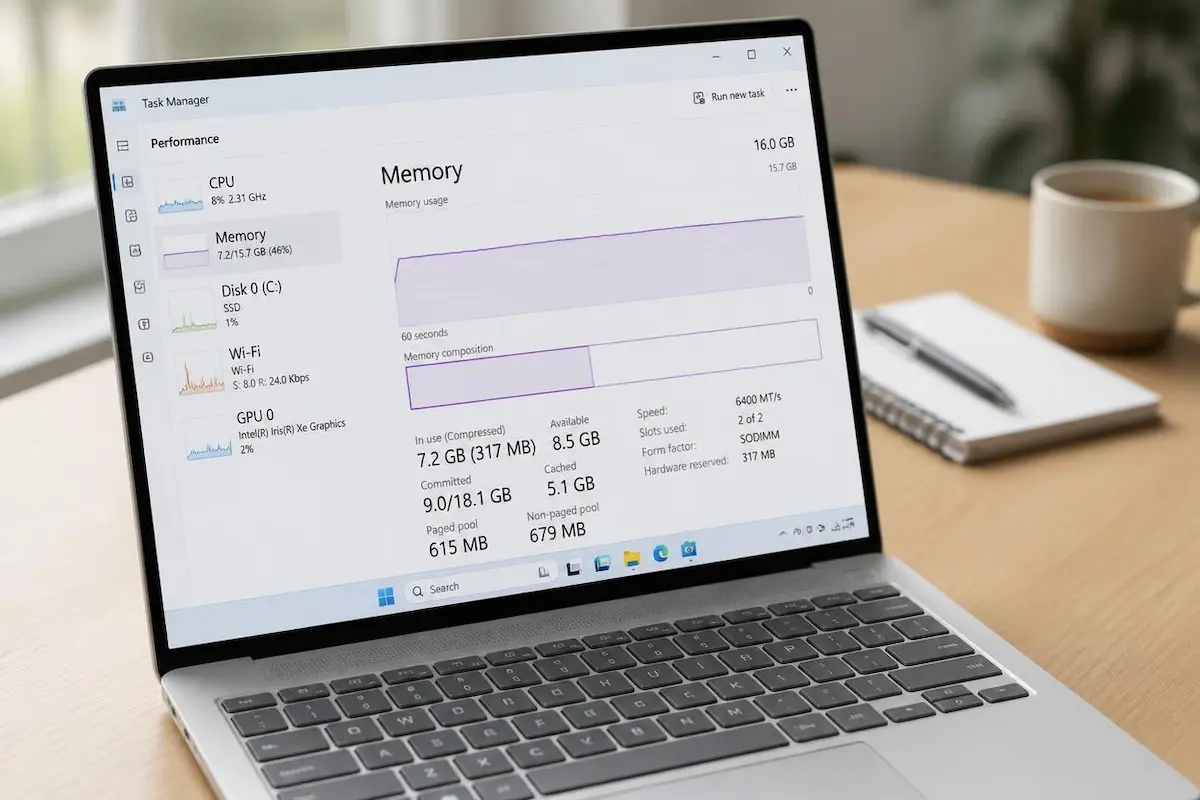
A high percentage on its own does not prove that something is wrong. Windows uses available memory for caching and can reclaim much of that memory when apps need it. Instead of trying to keep RAM empty, look for persistent memory pressure, low available memory and symptoms such as stuttering, slow app switching or apps becoming unresponsive.
When you should act
There is no single percentage that means every PC has a problem. Check memory while you are doing your usual tasks, then look at Available, In use (Compressed) and Committed in Task Manager → Performance → Memory. If available memory repeatedly becomes very low and the PC also slows down, investigate further. Cached memory is not automatically wasted, and the committed figure includes memory that may be backed by the page file.
2. Find out what is using your memory
Before changing settings, identify which programs are actually using memory. Press Ctrl + Shift + Esc to open Task Manager, select Processes and click the Memory column to sort the list from highest to lowest. Check the list while the slowdown is happening; a snapshot taken after closing apps may not show the cause.
Browsers, video calls, games and cloud-sync tools can use substantial memory, but the order varies by computer and workload. Apps such as Edge may appear as a group with a number in brackets; expand the group to inspect its processes. The number is a process count, not a direct measure of how many tabs are open. Also remember that Task Manager’s process figures do not always add up neatly to the total shown on the Memory performance page, because some memory is shared between processes or used by Windows.
Only close apps you recognise and do not need at that moment. Save your work first. If you do not recognise a process, use Search online or check its publisher and file location rather than ending it. Closing a process does not fix the underlying cause if the app automatically restarts or has a memory leak.
Useful check: if memory use rises steadily while you keep using the same app, close and reopen that app and see whether the problem returns. If it does, update it or check the developer’s support information. If the slowdown affects the whole PC, compare the Processes list with the Memory page before deciding what to change.
3. Trim your startup apps
Many programs start automatically when you sign in and then remain in memory even when you are not using them. Disabling unnecessary startup apps can reduce background activity and improve sign-in time; the memory savings depend on which apps you disable.
Open Settings → Apps → Startup and review the list. You can also use Task Manager → Startup apps. Disable apps you do not need running immediately after sign-in, such as game launchers or optional chat apps. The Startup impact label estimates the effect on startup performance; it does not tell you exactly how much RAM an app uses.
Administrator
Disabling an entry here does not uninstall the program; you can usually launch it manually and re-enable it later. Do not disable entries simply because their names are unfamiliar. Keep essential security, hardware-control and accessibility utilities enabled unless you know what the entry does. Some apps may still run background services even after their startup entry is disabled.
You can also reach the same list in Task Manager, under the Startup apps page in the left sidebar.
4. Tame your web browser
If you keep many tabs open, your browser may be one of the largest memory users. Tabs, extensions and background processes all consume resources, although modern browsers can suspend or discard inactive tabs to reduce their impact.
Turn on Memory Saver
Google Chrome calls its feature Memory Saver. Open Settings → Performance and turn it on; depending on your version, you may be able to choose a memory-saving level. In Microsoft Edge, the comparable feature is called Sleeping tabs. Open Settings → System and performance → Performance and make sure Automatically put tabs to sleep is enabled. When you return to an inactive tab, it may need to reload or refresh some content. Menu wording can vary slightly by browser version.
Settings
System and performance
Stop the browser running after you close it
In Edge, open Settings → System and performance → System and consider turning off Startup boost and Continue running background extensions and apps when Microsoft Edge is closed if you do not need faster browser startup or background activity. In Chrome, check Settings → System for Continue running background apps when Google Chrome is closed. The exact labels and availability can vary by version. Turning these options off may reduce background activity, but it can also delay startup or stop background features you rely on.
Review your extensions
Extensions can add memory use, especially if they run scripts or keep background pages active. Remove extensions you no longer use and review the permissions of those you keep. In Chrome and Edge, Shift + Esc opens the browser’s task manager on supported desktop versions. Use it to identify resource-heavy tabs or extensions; close only items you recognise, because unsaved form data or active work may be lost.
5. Stop apps running in the background
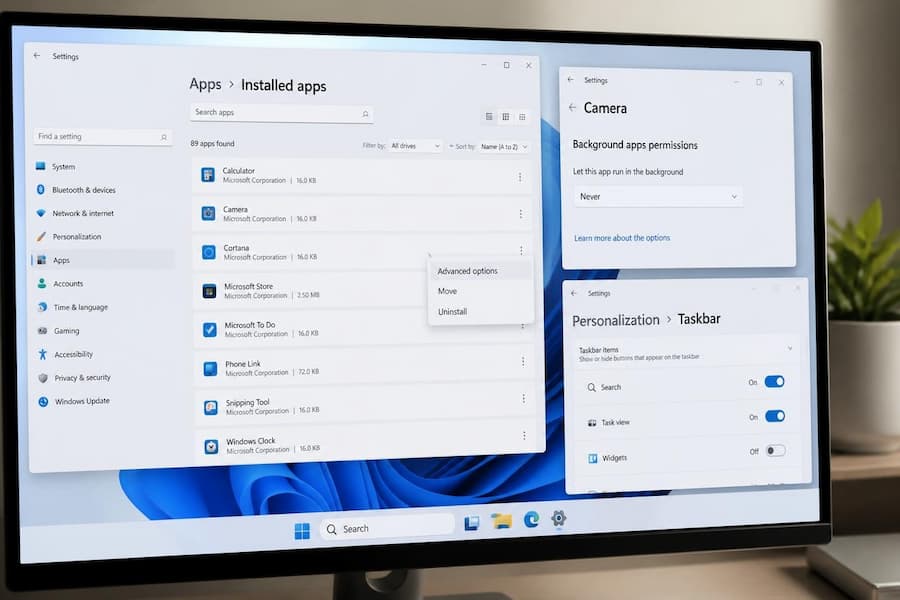
Some apps can continue background activity when they are not open. For supported apps, go to Settings → Apps → Installed apps, select the three-dot menu and choose Advanced options. If a background-permissions setting is available, choose an option such as Power optimized or Never for apps that do not need background access. This setting is not available for every app, and changing it may stop notifications, syncing or live updates.
Traditional desktop programs may not offer this Windows background-permissions switch. Check each program’s own settings for options such as “Start with Windows” or “Keep running in the system tray”. For cloud storage or messaging apps, decide whether you need continuous syncing and notifications before disabling background activity.
Widgets
If you do not use Widgets, you can hide the button through Settings → Personalization → Taskbar → Widgets. This may reduce some background activity on certain systems, but the memory savings are usually modest and vary by Windows version. Hiding the taskbar button does not necessarily remove every related background component.
6. Restart, update and scan
These three habits sound boring, but they fix a surprising number of memory problems.
Restart properly
An app with a memory leak may keep allocating memory without releasing enough of it. Restarting closes running apps and clears their current memory use, so it can temporarily resolve the symptoms; it does not repair the underlying bug. Choose Start → Power → Restart when troubleshooting. Fast Startup can affect shutdown behaviour, but a normal Windows restart performs a full restart of the operating system.
Keep Windows and drivers updated
Install relevant Windows updates and app updates, since they can include performance fixes. Open Settings → Windows Update and check for updates. Install optional driver updates only when they are appropriate for your device or recommended by its manufacturer; do not assume every optional driver is necessary. If the slowdown began immediately after a driver update, check the device manufacturer’s guidance before changing drivers.
Run a quick scan
Malware is one possible cause of unusual resource use, although high RAM use alone is not evidence of infection. Open Windows Security → Virus & threat protection → Quick scan. If symptoms persist or you suspect malware, consider a more thorough scan. Uninstall programs you no longer need through Settings → Apps → Installed apps, and avoid downloading “RAM optimisers” from unfamiliar sites.
7. Small visual tweaks
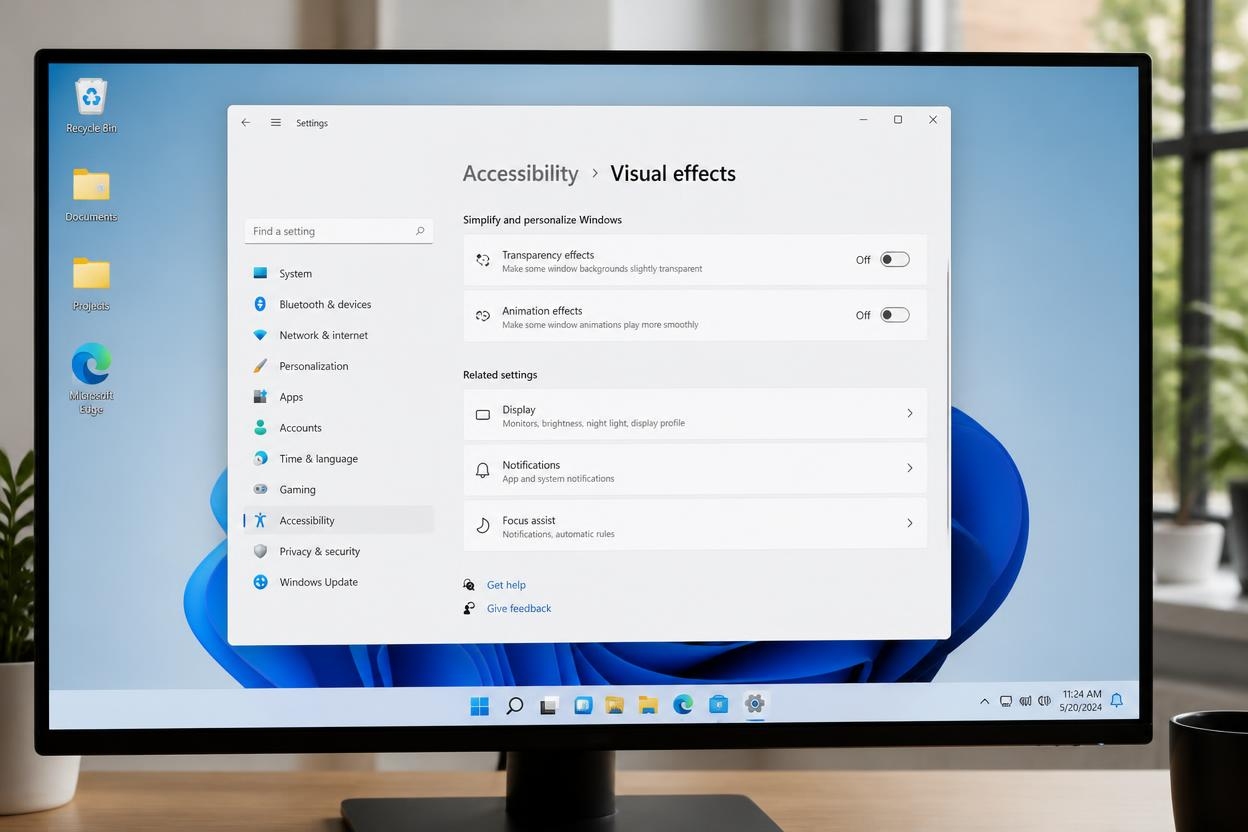
Turning off transparency and animations can make Windows feel more responsive on some older or lower-powered PCs, particularly if graphics performance is limited. The RAM savings are generally small, so treat this as an accessibility or responsiveness preference rather than a major memory fix. Open Settings → Accessibility → Visual effects and turn off Transparency effects or Animation effects if you prefer.
Keeping your desktop organised can make files easier to find, but a large number of ordinary shortcuts does not usually cause a meaningful RAM problem by itself. If performance is poor, focus first on active apps, browser tabs, startup programs and available memory rather than deleting desktop files.
8. What not to do
The internet is full of “speed up your PC” advice that sounds clever and causes trouble. Skip these:
RAM cleaner and booster apps
Many “RAM cleaner” tools try to force cached data out of memory or use other aggressive methods that can make Windows reload data later. They rarely solve the cause of high memory use and may add another background process. Prefer Task Manager and the built-in settings described above.
Turning off virtual memory
The paging file (page file) is part of Windows’ virtual-memory system. It supports memory commitments and can help prevent some apps from failing when physical RAM is under pressure, although it is much slower than RAM. Disabling it can cause application errors, instability and problems creating crash dumps. For most users, leave Automatically manage paging file size for all drives enabled.
Disabling services and editing the registry
Disabling Windows services in bulk or applying unexplained registry tweaks can break updates, networking, printing, sign-in or security features. Many popular tweaks are outdated or offer little measurable benefit. Do not change these settings unless you understand the specific purpose and have a recovery plan.
Ending system processes
Do not end core processes such as System, Registry or essential Service Host processes. Windows may restart some processes automatically, but ending the wrong one can close apps, interrupt services or destabilise the system. If you are unsure what a process does, leave it running and research it first.
9. When more RAM is the real answer
Sometimes software changes are not enough. As a practical guide in 2026, 8 GB can handle basic browsing, email and office tasks, but leaves less room for many tabs or multitasking. 16 GB is a more comfortable target for general Windows 11 use, while 32 GB or more can make sense for video editing, virtual machines, large creative projects or demanding games. Actual needs depend on the apps you use; these are recommendations, not minimum requirements for every workload.
To check installed memory, open Settings → System → About and look for Installed RAM. You can also check Task Manager → Performance → Memory for the total, speed, slots used and other hardware details when available. Before buying RAM, confirm the computer’s supported capacity, memory type and upgrade procedure. Some laptops have soldered memory or only one accessible slot, and mixing modules can impose compatibility or speed limits.
My experience
I tried these steps on a Windows 11 laptop with 8 GB of RAM that had become slower after a couple of years of use. Immediately after restarting, with no apps opened manually, Task Manager showed around 6 GB in use. That number alone did not prove a fault, so I also checked which apps and background processes were running and how the laptop behaved during normal use.
The clearest improvement came from reviewing startup apps. Five programs were launching with Windows, including a chat app and a game launcher I rarely used. Disabling those entries reduced background activity and lowered the reported idle memory use by more than 1 GB on that particular laptop. Results will differ depending on the installed software.
Enabling the browser’s inactive-tab memory feature made a noticeable difference with around 20 tabs open, and removing three unused extensions helped further. Eventually, reported idle memory use settled at about 4.3 GB, and switching between apps felt smoother. These figures describe one test system, not a result every Windows 11 PC should expect.
Disabling visual effects did not make a noticeable difference on this laptop, so I turned them back on. That reinforced the main lesson: identify the real source of memory pressure instead of expecting every tweak to produce a measurable improvement.
Frequently asked questions
How much RAM should Windows 11 use when nothing is open?
There is no single normal figure for every PC. Memory use after restart depends on installed RAM, drivers, security software, manufacturer utilities and apps that start automatically. Windows also uses spare memory for caching. Check whether available memory stays low during your normal workload and whether that coincides with slowdowns, rather than judging the PC by one number alone.
Is 8 GB of RAM enough for Windows 11 in 2026?
8 GB can be sufficient for basic browsing, email, office work and streaming with a modest number of tabs open. It can become limiting when many tabs and apps run together. For a more comfortable general-use experience, 16 GB is a sensible target, provided the computer supports an upgrade.
Are RAM cleaner apps worth using?
Generally, no. Such tools rarely address the underlying cause and may force Windows to reload cached data or add unnecessary background activity. Use Task Manager and Windows’ built-in controls first.
Should I turn off virtual memory to save RAM?
No. The page file supports Windows virtual memory and can help apps continue working when physical RAM is under pressure. Disabling it can cause errors or instability. Most users should leave Windows to manage its size automatically.
Does restarting really free up memory?
A restart closes running apps and clears their current memory use, so it can temporarily improve performance if an app has been using excessive memory. It will not fix the underlying bug if the problem returns. Choose Start → Power → Restart when troubleshooting; unlike a standard shutdown with Fast Startup, Restart performs a full Windows restart.
💬 Comments