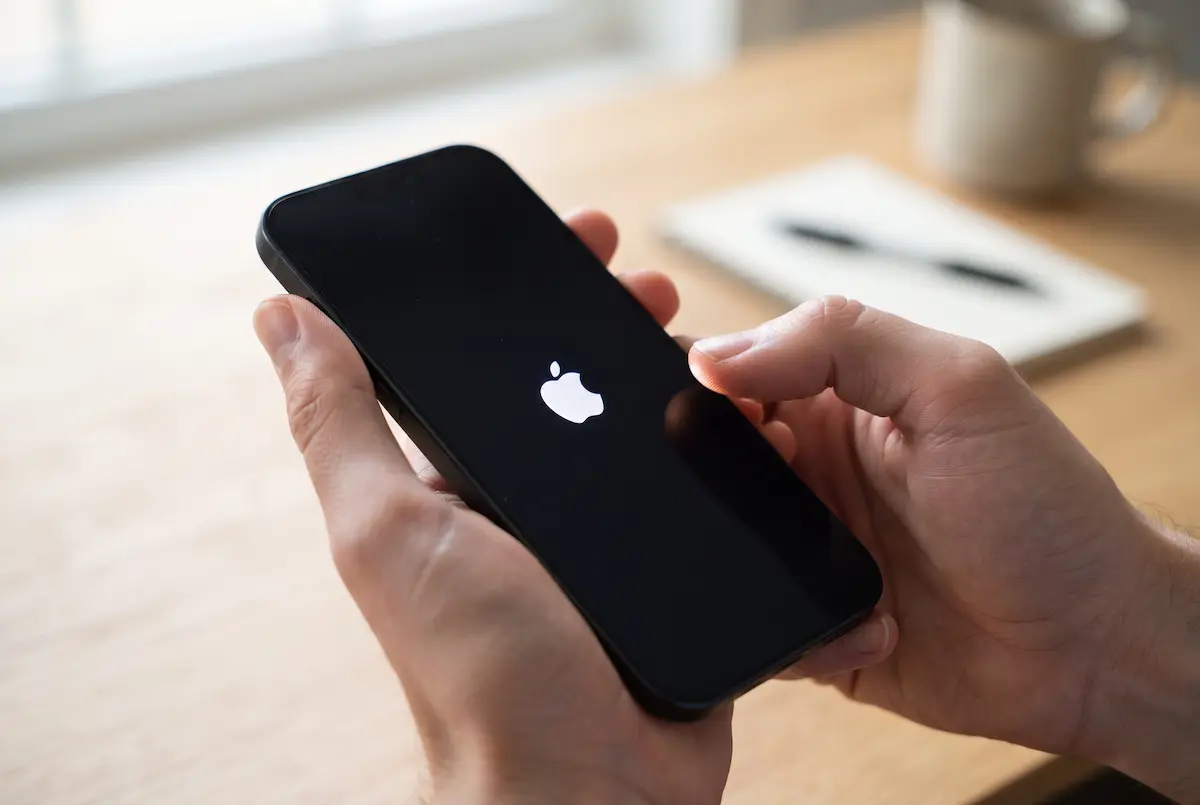
Your iPhone freezes in the middle of a message. Or the screen goes black and nothing you tap does a thing. Somebody online says "just restart it", somebody else says "force restart", and a third person tells you to "hard reset" it. They sound like the same thing, but they are not. One is harmless, one is a handy rescue move, and one wipes your phone clean.
This guide explains the difference in plain English, then shows you exactly how to do each one on the iPhones people are actually using in 2026, from the iPhone SE to the iPhone 17 family. No jargon, and no guessing which button comes first.
Restart, force restart and hard reset: what is the difference?
Think of it as three levels of help, from the gentlest to the most drastic. Always start with the lightest one that could solve your problem.
Restart
The polite one
You switch the iPhone off properly, wait a moment, and switch it on again. Apps close, temporary junk clears, and nothing is deleted.
Force restart
The emergency one
A button combination that reboots the phone immediately, even when the screen is frozen or black. It is safe and your data stays untouched.
Hard reset
The nuclear one
Most people mean a factory reset here: everything on the phone is erased and it goes back to its "just unboxed" state. Back up first.
Here is the same thing side by side, in case you want to compare at a glance.
| Restart | Force restart | Hard reset | |
|---|---|---|---|
| What it does | Normal shutdown, then power on | Immediate forced reboot | Erases the whole phone |
| Deletes my data? | No | No | Yes, everything |
| Use it when | The phone is slow, glitchy or an app misbehaves | The screen is frozen, black or ignores touches | You are selling the phone or nothing else has worked |
| Takes about | 1 minute | 10 to 20 seconds | 10 to 30 minutes plus setup |
The term is used loosely. Some websites use it to mean a force restart, others mean a full factory reset. In this article, "hard reset" always means the full erase, and I will call the button combination a "force restart" so there is no confusion.
How to restart your iPhone
A normal restart fixes more problems than you would expect. Laggy scrolling, an app that will not open, a camera that refuses to focus, Wi-Fi that suddenly drops: all of these often disappear after a clean restart. It takes a minute and it cannot hurt anything.
Method 1: Use the buttons
The button combination depends on whether your iPhone has Face ID or a Home button.
| Your iPhone | How to turn it off |
|---|---|
| Face ID models: iPhone X and later, including iPhone 11 to iPhone 17, iPhone Air, iPhone 16e and 17e | Press and hold the Side button and either volume button together until the power-off slider appears. |
| Models with a Home button: iPhone SE (2nd and 3rd generation), iPhone 8, 7 and 6 | Press and hold the Side button until the power-off slider appears. |
(front view)
- Hold the buttons from the table above until the slide to power off slider shows up on the screen. Let go as soon as you see it. If you keep holding on some iPhones, an Emergency SOS countdown can begin.
- Drag the slider to the right and wait about 30 seconds for the screen to go fully black.
- Press and hold the Side button until the Apple logo appears, then let go. Your iPhone is starting up again.
After every restart, your iPhone asks for your passcode once before Face ID or Touch ID work again. That is a normal security feature, not a sign that something broke. If you use a SIM PIN, you may be asked for that too.
Method 2: Use Settings (no buttons needed)
This is the easiest way if your buttons are stiff, cracked or you simply do not want to fumble with them.
- Open Settings and tap General.
- Scroll all the way to the bottom and tap Shut Down.
- Drag the slider, wait 30 seconds, then hold the Side button until the Apple logo returns.
Method 3: Use Control Center (iOS 18 and later)
Newer versions of iOS added a power button right inside Control Center. Swipe down from the top-right corner of the screen, then touch and hold the power icon in the top-right corner. The same slider appears, and you drag it to turn the phone off.
Method 4: Use AssistiveTouch (when the buttons are broken)
If a button no longer works, AssistiveTouch gives you an on-screen menu that can restart the phone for you.
- Open Settings > Accessibility > Touch > AssistiveTouch and switch it on. A small floating button appears.
- Tap the floating button, then choose Device and More.
- Tap Restart and confirm. The iPhone shuts down and starts again by itself.
How to force restart your iPhone
A force restart is for the moments when a normal restart is not possible: the screen is frozen, the phone does not react to touch, the display is black but you think it is still on, or the slider will not appear. It cuts the power to the running software and starts fresh, a bit like pulling the plug on a desktop computer and plugging it back in.
Yes. A force restart does not erase photos, messages, apps or settings. The only thing you might lose is something you were typing at the very moment the phone froze.
Pick the steps for your model
| Your iPhone | Force restart steps |
|---|---|
| iPhone 8 and later, including iPhone SE (2nd and 3rd generation), iPhone 16e, 17e and the whole iPhone 17 family | Press and release Volume Up, press and release Volume Down, then press and hold the Side button until the Apple logo appears. |
| iPhone 7 and iPhone 7 Plus | Press and hold Volume Down and the Side button together until the Apple logo appears. |
| iPhone 6s, 6, and the original iPhone SE | Press and hold the Home button and the Side (or Top) button together until the Apple logo appears. |
Most people today have an iPhone 8 or newer, so here is that sequence in a picture. The first two presses are quick taps. Only the last button is held.
Volume Up
Volume Down
Side button until the Apple logo appears
Tips that make it work the first time
- Do the two volume taps one after the other, quickly. If you pause for too long, the phone may ignore the sequence and you have to start over.
- Keep holding the Side button even if the power-off slider flashes on the screen. Do not release until you see the Apple logo. That usually takes around ten seconds.
- Take any case off if the buttons feel hard to press. A thick case can stop a button from clicking properly.
Plug the iPhone into a charger and leave it for up to an hour, then try the force restart again. A fully drained battery looks exactly like a frozen phone. If it still shows nothing, jump to the recovery mode section further down or contact Apple Support.
What "hard reset" really means
Here is where most of the confusion comes from. Apple does not use the words "hard reset" in its menus. What you will find instead is a list of reset options, each one stronger than the last. It is worth knowing them, because you often do not need the strongest one.
You will find them all in Settings > General > Transfer or Reset iPhone.
| Option | What it does | Your data? |
|---|---|---|
| Reset > Reset Network Settings | Forgets saved Wi-Fi networks and passwords, Bluetooth pairings and VPN settings | Kept |
| Reset > Reset All Settings | Puts every setting back to default (wallpaper, privacy, display, and so on) | Kept |
| Erase All Content and Settings | Wipes the phone completely, which is the real "hard reset" or factory reset | Deleted |
| Restore with a computer | Wipes the phone and installs a fresh copy of iOS, used for a phone that will not start properly | Deleted |
If only your internet connection is acting up, Reset Network Settings is usually enough. If the phone behaves strangely after changing lots of options, Reset All Settings is the next step. Neither one touches your photos, contacts or apps.
How to erase your iPhone (the full hard reset)
This is the one you use before selling, trading in or giving away an iPhone, or as a last resort when a persistent software problem survives everything else. It removes everything, so do the preparation properly.
Before you start
- Make a backup. The easiest way is iCloud: open Settings, tap your name, then iCloud, then iCloud Backup, and tap Back Up Now. You can also back up to a Mac or a Windows PC.
- Know your Apple Account password. The phone asks for it, because erasing also switches off Find My and Activation Lock.
- Charge the battery to at least half, and use Wi-Fi so nothing gets interrupted.
- Think about your eSIM. If you use one, you will be asked whether to keep it or delete it. Delete it only if the phone is leaving your hands, and expect to contact your carrier to set the plan up again.
The steps
- Open Settings and tap General.
- Tap Transfer or Reset iPhone near the bottom.
- Tap Erase All Content and Settings, then tap Continue on the summary screen.
- Choose whether to keep or delete your eSIM if the phone asks.
- Enter your device passcode, then your Apple Account password.
- Wait while the iPhone erases itself. When it restarts, you will see the Hello screen, which means it is ready to be set up as new or restored from your backup.
Once the erase starts, your photos, messages, apps and settings cannot be recovered unless you made a backup first. If you are selling the phone, also unpair any Apple Watch from it before you begin.
When the iPhone will not respond: recovery mode
Sometimes the phone is stuck on the Apple logo, restarts in a loop, or cannot be erased from Settings because you cannot get into it. In that case a computer can rescue it with recovery mode. You will need a Mac with Finder, or a Windows PC with the Apple Devices app (or iTunes), plus a working cable.
- Connect the iPhone to the computer with a cable and open Finder (Mac) or the Apple Devices app (Windows).
- For iPhone 8 and later: press and release Volume Up, press and release Volume Down, then hold the Side button. Do not let go when the Apple logo shows. Keep holding until the recovery screen appears, which shows a cable pointing to a computer.
- On the computer, choose Update when asked. This reinstalls iOS and tries to keep your data.
- Only if Update fails, repeat the process and choose Restore. This erases the phone, so you will need your backup afterwards.
If the software download takes more than about 15 minutes, the iPhone can drop out of recovery mode on its own. Let the download finish, then repeat the button steps.
If you forgot your passcode
After several wrong attempts, the iPhone shows an iPhone Unavailable or Security Lockout screen. On many iPhones you will see an Erase iPhone option in the bottom corner. Tap it and follow the prompts, which will ask for your Apple Account password. If that option is missing, recovery mode with a computer is the way forward. Either route erases the phone, so your backup is what brings your data back.
Which one should you use?
Match what you see on the screen with the lightest fix that could work.
| What is happening | Try this |
|---|---|
| One app freezes or misbehaves | Close the app and reopen it. If that fails, restart. |
| The phone feels slow, hot or glitchy | Restart |
| The screen is frozen or does not react to touch | Force restart |
| The screen is black but the phone might be on | Force restart, then charge for an hour if nothing happens |
| Wi-Fi, Bluetooth or mobile data keep failing | Restart, then Reset Network Settings |
| Strange behavior after changing many settings | Reset All Settings |
| Stuck on the Apple logo or restarting in a loop | Force restart, then recovery mode |
| Selling, trading in or giving the phone away | Erase All Content and Settings (after a backup) |
| Forgot the passcode | Erase iPhone on the lock screen, or recovery mode |
The short version: restart first, force restart if the phone will not listen, and keep the full erase for the moments when you truly want a blank phone. That order saves you from losing data you did not need to lose.
My experience
While putting this guide together I ran through every method on two phones: a recent Face ID iPhone on iOS 26 and an older iPhone SE (2nd generation) with a Home button. I wanted to see where a normal person would get stuck, rather than just copy the steps.
The first thing I noticed is how easy it is to get the force restart wrong. On the Face ID phone my first attempt failed because I pressed the volume buttons too slowly and then let go of the Side button the moment the power-off slider flickered up. The second time I tapped both volume buttons in quick succession and simply kept my thumb on the Side button, ignoring the slider. About ten seconds later the Apple logo appeared. That "keep holding" detail is exactly what trips people up.
On the iPhone SE the whole thing was simpler. Holding the Side button gave me the slider straight away, and the force restart is the same three-step sequence as on newer phones.
I also tried the Settings route and the AssistiveTouch route. The AssistiveTouch Restart option is genuinely useful if a button is damaged, because you never touch the hardware. For the full erase, I used a spare phone that was already backed up. The eSIM question and the Apple Account password prompt were the two screens that made me stop and read, so I would not rush them. After the erase, the phone went straight to the Hello screen, as expected.
💬 Comments