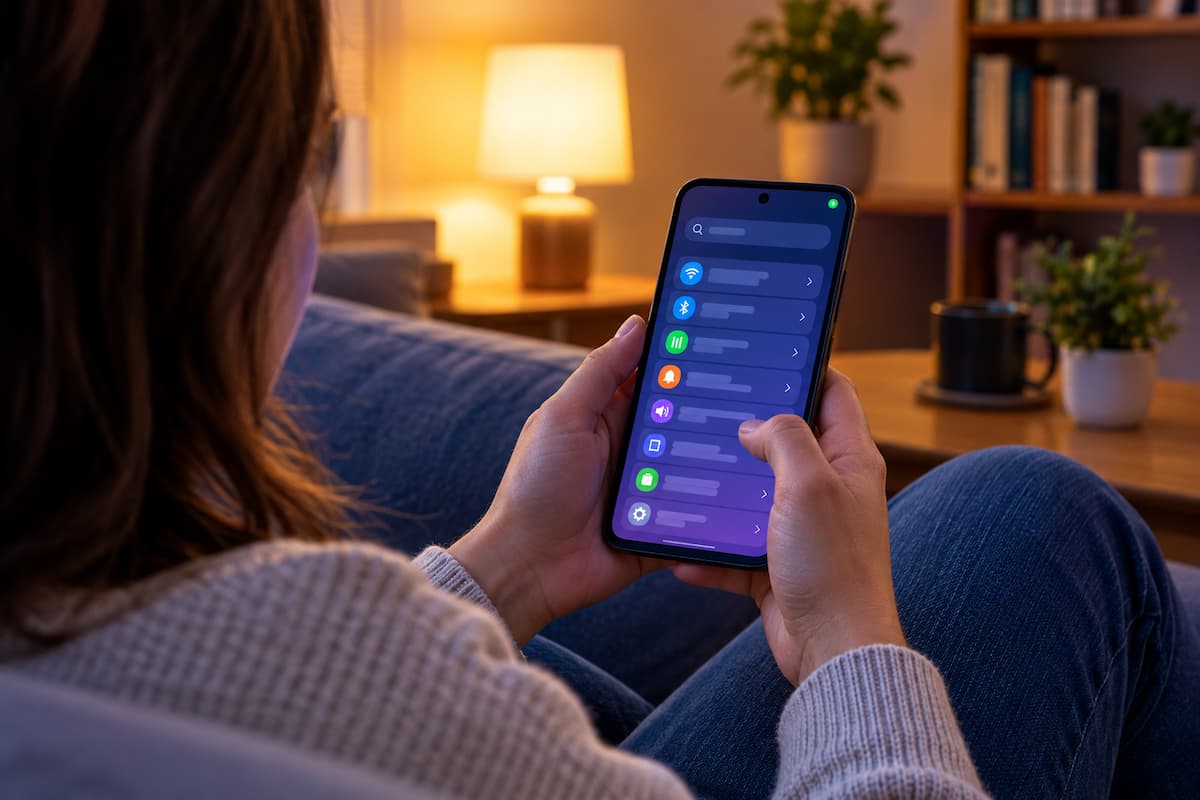
Your phone knows where you sleep, who you talk to and what you search for at 2 a.m. That makes it a tempting target. Spyware is software that secretly watches what you do and passes it on to someone else, and the good news is that it usually leaves traces.
This guide shows you how to spot those traces, how to check app permissions on Android and iPhone, and how to lock your phone down in 2026. You don't need a technical background.
A quick reality check before we start: most phones are not infected. A battery that drains quickly or a phone that runs warm is far more often a tired battery or a misbehaving app than a spy. Still, ten minutes of checking costs nothing, and it is worth doing, especially if someone close to you has ever had access to your unlocked phone.
What phone spyware actually is
Spyware is an app, or a hidden piece of code, that collects information from your phone without your clear knowledge. That can mean messages, location, call history, photos and, in the worst cases, the microphone and camera. The word covers very different situations, and it helps to know which one you might be dealing with.
| Type | Who uses it | How it reaches your phone | How common |
|---|---|---|---|
| Stalkerware | A partner, ex or someone with access to your phone | Installed by hand on an unlocked phone, or through a shared account | The most common "personal" spyware |
| Data-hungry apps | Ad and data companies | You install them yourself and accept broad permissions | Very common, often within the terms you agreed to |
| Mercenary spyware | Governments and their contractors | Advanced attacks that exploit unknown flaws | Very rare, aimed at a small number of people |
Most of this guide deals with the first two, because they are the ones ordinary people actually meet. The third gets its own section near the end.
One more thing worth knowing: spyware doesn't show up as an app called "Spyware". Stalkerware in particular likes bland names such as "Sync Service" or "System Update", and it may have no icon at all. That is why the checks below look at behaviour and permissions, not just at what's on your home screen.
Warning signs worth noticing
No single sign proves anything. What matters is several signs at once, or a sudden change you can't explain. These are the ones worth a second look:
Spyware has to run in the background and send data out, and that costs power. Compare today with how the phone behaved a few weeks ago.
Warmth during charging or gaming is normal. A phone that heats up in your pocket with the screen off deserves a closer look.
Spyware uploads what it collects. An app you barely use, or don't recognise, that sends gigabytes is a red flag.
The screen lighting up by itself, random restarts, a phone that takes ages to shut down, or settings that change without you touching them.
Texts full of odd symbols, or verification codes you never asked for. Some older stalkerware is controlled through coded text messages.
If another person keeps knowing where you've been or what you've said in private, take it seriously. It is one of the most telling signs of all.
Look for generic names, missing icons or "system" apps that don't belong to your phone brand.
Look at your data usage first
It is the quickest check, and spyware finds it hard to hide. On Android, open Settings, find the mobile data usage screen (the exact menu name varies by brand) and sort apps by usage. On iPhone, go to Settings > Mobile Service (or Cellular) and scroll down to the list of apps. Ask yourself one question for every app near the top: does this make sense?
An app you don't recognise, using more data than your browser, is a good reason to dig deeper. (Example screen.)
Signs that are usually harmless
Be fair to your phone, too. A big system update often causes a day or two of heavy battery use while the phone re-indexes everything. An old battery loses capacity whatever software you run. Pop-up ads in your browser usually come from a website, not from spyware. And a phone that's hot after twenty minutes of navigation in the sun is just a phone in the sun.
The difference is the pattern. Harmless causes fade, and you can explain them. Spyware-style symptoms keep coming back and come with other clues.
Check what uses your microphone, camera and location
Spyware that listens or watches has to use the microphone or camera, and modern phones tell you when that happens. This is one of the best tools you have, and it takes seconds to use.
On Android
On Android 12 and newer, a small green dot appears in the top-right corner whenever an app uses the camera or microphone. Tap it and the phone tells you which app is responsible. Recent Android versions add a similar indicator for location. If the dot shows up while you're not recording, calling or video chatting, note the name of the app.
For the bigger picture, open the Privacy dashboard. On most phones it lives under Settings > Security & privacy > Privacy > Privacy dashboard, though the path changes a little between brands. It lists which apps used the camera, microphone and location in the past 24 hours, and you can tap a permission to see a timeline. Google explains how it works in its Privacy dashboard help page.
A recording at 3 a.m. from an app you never opened is the kind of detail that deserves attention. (Example screen.)
On iPhone
An orange dot at the top of the screen means an app is using the microphone, and a green dot means the camera is on. Swipe down to open Control Center and you'll see which app used them most recently.
For a longer record, go to Settings > Privacy & Security > App Privacy Report and turn it on. From then on, iOS logs which apps touched your location, photos, camera, microphone and contacts, and which websites they contacted. Give it a few days before you look, because it only records from the moment you switch it on.
A recording from your voice-message app at 6 p.m. is normal. A recording from something you don't recognise at 3 a.m. is not.
Review the powerful permissions on Android
Camera and microphone permissions get the attention, but the permissions that matter most to spyware are the less obvious ones. These are "special access" settings that give an app deep control over the phone. Plenty of honest apps use them too, such as password managers, screen readers and parental controls, so the question is never "is this on?" but "do I know this app, and did I choose this?"
Can read what's on your screen and act on your behalf. Check Settings > Accessibility and look at the list of downloaded apps.
Can lock the phone, block uninstalling and enforce rules. Usually found under Settings > Security & privacy > More security settings.
Can read every notification, including messages and one-time codes. Look under Settings > Apps > Special app access.
Lets an app install other apps outside the Play Store. It should be off for almost everything. Same Special app access menu.
Can draw on top of other apps or watch which ones you use. Also in Special app access.
Menu names differ between Pixel, Samsung, Xiaomi and others, so if you can't find one, type the name into the Settings search box. Here is what an accessibility service looks like when it's on, and what it can do:
An accessibility service with no clear purpose, from an app you don't remember, is worth turning off and uninstalling. (Example screen.)
Look through the full app list
Go to Settings > Apps and open the complete list. Some stalkerware hides its home-screen icon, but it still appears here, sometimes only after you tap the three-dot menu and choose to show system apps. Look for generic names, apps with no icon and anything that sounds like a system component but isn't from your phone's maker.
Then run a scan. Google Play Protect checks apps when you install them and also scans your device regularly, including apps that came from outside the Play Store. Open the Play Store, tap your profile picture, choose Play Protect and tap Scan. Google describes the feature on its Play Protect help page.
Run the same check on iPhone
iPhones are harder to infect with everyday stalkerware, because apps are tightly sandboxed and can't easily watch each other. That doesn't make them immune. In practice, most iPhone cases come down to someone knowing your Apple Account password, a jailbroken phone, or the misuse of normal features such as location sharing, Screen Time or Family Sharing. (In the EU, newer iOS versions also allow alternative app marketplaces, which is another reason to look at what's installed.)
Here is a sensible order for an iPhone check:
Privacy & Security
Safety Check sits near the bottom of Privacy & Security, so you may need to scroll. (Example screen.)
If you see signs of a jailbreak, such as an app called Cydia or Sileo, treat the phone as compromised. A jailbreak removes many of iOS's protections, which is exactly what spyware needs.
Check your accounts and linked devices
Here's something many guides skip: a lot of "spying" never touches the phone at all. If someone has your Google or Apple password, they can read your cloud backups, see your location history and sign in to your messages from another device. Removing an app won't fix that.
So check where you're signed in. In your Google Account, open Security and look at "Your devices". In your Apple Account, scroll the list under your name in Settings. Then check the messaging apps, which all have a linked-devices list: WhatsApp (Settings > Linked devices), Telegram (Settings > Devices) and Signal (Settings > Linked devices). Sign out of anything you don't recognise.
Your devices
You're signed in to your Google Account on these devices.
A device or location you don't recognise means it's time to sign out and change your password. (Example page.)
After signing out, change your passwords from a different, trusted device, not from the phone you suspect. Then turn on two-factor authentication, ideally with an authenticator app or a passkey rather than SMS codes. Also check your email settings for forwarding rules and your recovery phone number and address, because attackers sometimes add their own.
When the threat is more serious: mercenary spyware
There is a different, much rarer category. Mercenary spyware is made by commercial vendors and sold to governments. Apple describes these attacks as aimed at a very small number of people, often journalists, activists, politicians and diplomats. If that's not you, your risk is low.
The catch is that you can't find this kind of spyware by checking battery use or the app list. It is built to leave almost nothing behind, and some versions need no tap from the victim. Defence works differently here: keep the phone updated, because updates patch the flaws these attacks depend on, and pay attention to warnings from the platform itself.
Apple sends threat notifications to people it believes have been individually targeted. In August 2026 it sent a new round to users in 110 countries, as TechCrunch reported. A genuine notification appears on the Lock Screen and in Settings, arrives by email, and also shows as a banner when you sign in at account.apple.com. It will never ask you to click a link, install an app or enter a password, so anything that does is a scam. Apple explains the details on its threat notifications page.
If you receive one, Apple recommends turning on Lockdown Mode and getting expert help, for example from the Digital Security Helpline run by Access Now. Lockdown Mode is an optional extreme setting that blocks or limits features attackers often abuse, so some things on your phone will work differently. You'll find it under Settings > Privacy & Security. Recent Android versions have a similar high-risk option called Advanced Protection, which you can look for under Security & privacy.
Lockdown Mode
Extreme protection for the rare person who may be targeted by advanced attacks. Many features work differently while it is on.
Lockdown Mode is meant for people at real risk, not for everyday use. (Example screen.)
What to do if you find spyware
If you think a partner, ex or family member installed the spyware, don't delete it straight away. Removing it can tell that person you've found it, and in some situations that can make things worse.
Talk to a domestic-violence advocate or helpline first, from a different phone or a computer the person can't access, and plan around your safety. The FTC explains this in its guide to stalking apps, and the Coalition Against Stalkerware lists organisations that can help.
If you're not in that situation, or once you have a plan, work through these steps in order:
How to protect your phone from now on
Good habits stop most spyware before it starts. None of these is complicated, and together they close the doors that spyware uses most.
Most stalkerware needs a few minutes with an unlocked phone. A passcode that nobody else knows prevents that.
Install system and app updates as soon as they arrive. They fix the flaws that spyware relies on.
Keep "install unknown apps" off, and keep Play Protect on. Think twice before sideloading anything.
Both remove protections that keep spyware out and make it harder to detect.
Remove access from apps you no longer use, and uninstall the ones you've forgotten.
Don't tap links in surprise texts or emails, even ones that look official. Go to the website or app directly instead.
Use unique passwords, a password manager and two-factor authentication so that a leaked password isn't enough.
Important Security Tips
Finding suspicious activity on your Android phone does not automatically mean it has been infected with spyware. Unusual battery drain, increased data usage, or unexpected overheating can also be caused by background apps, outdated software, or normal battery wear.
Pay particular attention to apps that have access to sensitive permissions, including your location, microphone, camera, and notifications. If an app you barely use or no longer recognize has access to these features, review whether it actually needs them to function.
Also check Accessibility permissions, notification access, and the option to install unknown apps. These settings can be abused by malicious applications to monitor activity, access private information, or perform actions without your knowledge.
Before removing an app or changing system settings, make sure you understand what it does. Some permissions belong to legitimate Android or manufacturer services. If something looks suspicious, investigate it first rather than assuming every unfamiliar process is malware.
💬 Comments