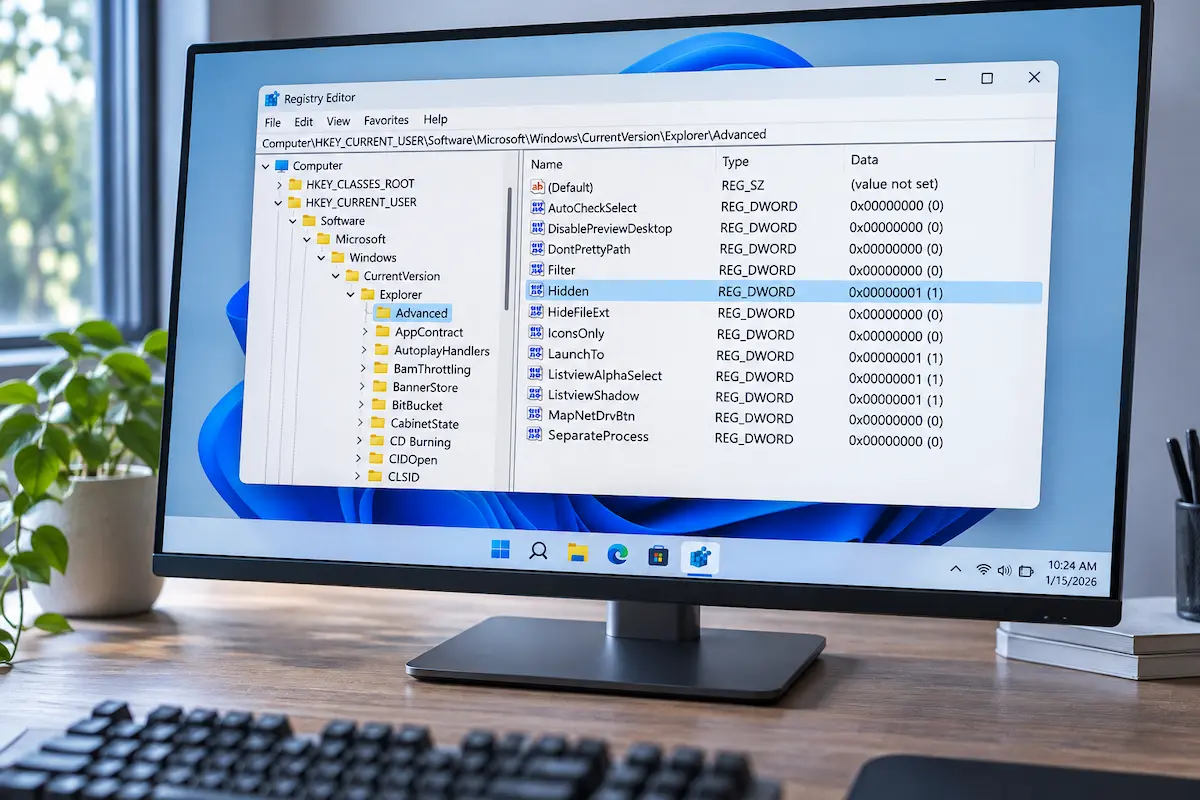
The Windows Registry is where Windows keeps thousands of settings, and a handful of small edits there can make your PC feel cleaner, quicker and a little less nosy. This guide walks you through 12 Registry tweaks that still make sense in 2026, with the exact keys and values, plus realistic previews of what you should see on your own screen.
Just as important, it leaves out the myths. Some famous “speed hacks” do nothing on a modern PC, and where a tweak is more limited than older guides claim, you will find a clear note.
Every tweak comes with a risk label, a restart note and an easy way to undo it. Back up first (section 2), then take them one at a time.
What the Windows Registry is and how to read it
The Windows Registry is a big database where Windows, your drivers and your apps store their settings. When you change a toggle in the Settings app, Windows very often writes that choice into the Registry. Editing it directly simply lets you reach settings that the normal menus hide, or switch many things off in one go.
To open it, press Windows + R, type regedit and press Enter. Confirm the User Account Control prompt if it appears.
Keys, values and data in plain English
Think of keys as folders and values as the settings inside them. Every value has a name, a type and its data. In this guide you will meet only two types: DWORD (32-bit), which holds a number (usually 0 for off and 1 for on), and String (REG_SZ), which holds plain text.
The three-step routine
Nearly every Registry tweak follows the same routine: navigate to the key, find (or create) the value, then change its data. The quickest way to navigate is to copy the path from this guide and paste it into the address bar at the top of Registry Editor, then press Enter.
HKCU or HKLM?
Paths start with a short hive name. HKEY_CURRENT_USER (HKCU) affects only your own Windows account. HKEY_LOCAL_MACHINE (HKLM) affects the whole PC, and you need an administrator account to change it. Each tweak below tells you which one it uses.
Back up before you change anything
A Registry edit is easy to undo, but only if you have something to go back to. Make a backup before the first tweak, and it takes under a minute.
Option 1: export the key you are about to edit
In Registry Editor, click the key you plan to change, then choose File → Export. Pick a safe folder, give the file a clear name such as backup-before-tweaks.reg, make sure Selected branch is ticked, and click Save. To restore it later, double-click the .reg file and confirm. Choose All if you want a copy of the whole Registry.
Option 2: create a restore point
Type Create a restore point in the Start menu, select your system drive, click Create and name it. If something misbehaves after a change, System Restore can roll Windows back. This is the safer choice for the tweaks that touch the whole PC.
Good habitChange one tweak at a time and restart if the tweak asks for it. If something looks odd, you will know exactly which change caused it.
Tweak 1: Remove ads and app suggestions from Start
Windows 11 can fill your Start menu with app suggestions and promoted content. This tweak switches off one of the settings that feed those suggestions, so Start stays focused on the apps and files you actually use.
- Open Registry Editor and paste the path above into the address bar.
- Look for
SubscribedContent-338388Enabledin the right-hand pane. If it is missing, right-click an empty area and choose New → DWORD (32-bit) Value, then name it exactly that. - Double-click it, set Value data to 0 and click OK.
- Sign out and back in, or restart the PC.
SubscribedContent-338388Enabled shows 0x00000000 (0).Worth knowingStart has several suggestion switches, and a big Windows update can flip them back. For the rest, open Settings → Personalization → Start and turn off Show recommendations for tips, shortcuts, new apps, and more. To undo this tweak, set the value back to 1.
Tweak 2: Make Windows close frozen apps faster
When an app stops responding, Windows waits several seconds before it forces the app to close. Shortening that wait makes sign-out and shutdown feel snappier, especially if one stubborn program tends to hold everything up.
- Go to the path above.
- Find
WaitToKillAppTimeout. If it is not there, create a new String Value with that exact name. - Double-click it and type 1000.
- Optional: do the same for
HungAppTimeoutto shorten the wait before Windows labels an app as not responding. - Sign out and back in, or restart.
1000.Worth knowingDon't go too low. If Windows closes an app before it can save your work, you may lose unsaved changes. If you often work with unsaved files, 2000 or 3000 is a gentler choice than 1000. To undo, delete the values you added.
Tweak 3: Reduce diagnostic data (telemetry)
Windows sends diagnostic data to Microsoft to fix bugs and improve updates. This policy lowers that data to the minimum your edition of Windows allows.
- Go to the path above. If the
DataCollectionkey does not exist, right-clickWindowsand choose New → Key. - Inside it, create a DWORD (32-bit) Value named
AllowTelemetry. - Set its data to 0.
- Restart your PC.
AllowTelemetry value in the DataCollection policy key.Technical noteOn Windows 11 Home and Pro, a value of 0 is treated as the lowest level (called required diagnostic data). It does not switch telemetry off completely, because Windows still sends what it needs for updates, security and licensing. You can also turn off optional data under Settings → Privacy & security → Diagnostics & feedback.
Tweak 4: Bring back the classic right-click menu
The Windows 11 right-click menu shows a short list and hides the rest behind Show more options. This tweak brings back the full Windows 10 style menu, so every command is one click away.
- Go to
HKEY_CURRENT_USER\Software\Classes\CLSID. - Right-click
CLSID, choose New → Key and name it{86ca1aa0-34aa-4e8b-a509-50c905bae2a2}(include the curly brackets). - Right-click the new key, choose New → Key and name it
InprocServer32. - Select
InprocServer32, double-click (Default) in the right pane and click OK without typing anything. The data now shows as blank. - Restart File Explorer: open Task Manager, right-click Windows Explorer and choose Restart. Or simply sign out and back in.
Worth knowingTo go back to the new menu, delete the {86ca1aa0-...} key and restart File Explorer. Microsoft can change how this works in a future update, so treat it as a tweak that may need to be redone. You can also hold Shift while right-clicking to open the classic menu once, without any Registry edit.
Tweak 5: Stop Windows Update from installing drivers
Windows Update can install drivers on its own. That is convenient for most people, but it sometimes replaces a newer driver from your graphics card or laptop maker with an older one. This policy tells Windows Update to leave drivers out of its regular quality updates.
- Go to the path above. Create the
WindowsUpdatekey if it is missing. - Create a DWORD (32-bit) Value named
ExcludeWUDriversInQualityUpdate. - Set it to 1.
- Restart, then check for updates again.
Why this one is Medium riskFrom now on you are in charge of driver updates. Keep an eye on your graphics, network and chipset drivers, because they often include security fixes. The setting also doesn't block every driver path, and a big feature update can reset it, so check it after major updates.
Tweak 6: Turn off Widgets on the taskbar
The Widgets panel shows news, weather and sports from the taskbar, and it keeps fetching online content in the background. If you never open it, switching it off reduces clutter and a little background activity.
- Go to
HKEY_LOCAL_MACHINE\SOFTWARE\Policies\Microsoft. - If there is no
Dshkey, right-clickMicrosoftand choose New → Key. - Inside
Dsh, create a DWORD (32-bit) Value namedAllowNewsAndInterests. - Set it to 0 and restart.
AllowNewsAndInterests set to 0.Easier alternativeOpen Settings → Personalization → Taskbar and switch Widgets off. The Registry route is mainly handy when you want to apply the same setting to several PCs. Once the policy is set, the switch in Settings may be locked.
Tweak 7: Shorten the boot menu wait
If your PC offers a boot menu (for example because two operating systems are installed, or after a failed start), Windows waits for you to choose. By default that wait is 30 seconds. Cutting it to 3 seconds means less staring at the screen.
- Press Windows + R, type
msconfigand press Enter. - Open the Boot tab.
- Change Timeout from 30 to 3 seconds.
- Click Apply, then OK, and restart.
Worth knowingThis one edits the boot configuration, not the Registry itself, but it belongs on the list of safe startup tweaks. On a PC with a single copy of Windows the menu is normally skipped, so you may not notice any change. If you dual-boot, don't go below 3 seconds, or you may not have time to choose. Prefer the command line? bcdedit /timeout 3 in an administrator Command Prompt does the same job.
Tweak 8: Disable AutoPlay for removable drives
AutoPlay reacts the moment you plug in a USB stick, memory card, phone or external drive. Windows 11 is much safer than older versions, but turning AutoPlay off is still a sensible habit, especially for drives you did not buy yourself.
- Go to the path above and create the
Explorerkey if it is missing. - Create a DWORD (32-bit) Value named
NoDriveTypeAutoRun. - Double-click it, choose Decimal and enter 255 (or choose Hexadecimal and enter FF).
- Sign out and back in.
NoDriveTypeAutoRun shows 0x000000ff (255).Technical noteNoDriveTypeAutoRun is the Microsoft-documented policy for this job. Older guides mention DisableAutoplay, but it is less reliable on current Windows 11 builds. You can also turn AutoPlay off in Settings → Bluetooth & devices → AutoPlay.
Tweak 9: Limit recent files in Start and Explorer
The Recommended area in Start, Jump Lists and File Explorer all show what you opened recently. On a shared PC, or if you simply prefer a tidier trail, this value stops Windows from keeping that history.
- Go to the same
Policies\Explorerkey you used in the previous tweak. - Create a DWORD (32-bit) Value named
NoRecentDocsHistory. - Set it to 1.
- Restart File Explorer or sign out and back in.
A more effective fix for StartWindows 11 no longer has a reliable Registry switch that removes the whole Recommended section, and the HideRecentlyAddedApps value hides only newly installed apps. For Start itself, open Settings → Personalization → Start and turn off Show recently added apps, Show recently opened items in Start, Jump Lists, and File Explorer and Show recommendations for tips, shortcuts, new apps, and more.
Tweak 10: A QoS policy for special network setups
You may have read that Windows secretly reserves 20% of your internet speed, and that a Registry tweak unlocks it. That is an old myth. Modern Windows does not take 20% of your bandwidth. This QoS (Quality of Service) policy can matter on managed or specialised networks, but it won't make a home connection faster.
- Go to
HKEY_LOCAL_MACHINE\SOFTWARE\Policies\Microsoft\Windows. - Create the
Pschedkey if it does not exist. - Create a DWORD (32-bit) Value named
NonBestEffortLimitand set it to 0. - Restart.
Is it worth doing?For most home users, no. Gaming, streaming and browsing won't change in any measurable way. You will get far more from fewer startup apps, up-to-date drivers and a fast SSD. Consider this tweak information only.
Tweak 11: Stop OneDrive from starting with Windows
On many PCs OneDrive launches every time you sign in, even if you never use it. This tweak stops the automatic launch without uninstalling anything. You can still open OneDrive yourself whenever you like.
- Go to the path above.
- Find the entry named
OneDrivein the right-hand pane. - Right-click it and choose Delete, then confirm.
- Sign out or restart.
OneDrive entry to stop it launching at sign-in.Easier alternativeOpen Task Manager → Startup apps, right-click Microsoft OneDrive and choose Disable. It's the same result, and you can switch it back on with one click. Note that a major Windows update or a OneDrive update may add the entry again.
Tweak 12: Turn off the Xbox Game Bar overlay
Xbox Game Bar opens with Windows + G and offers recording, screenshots and widgets. If you never use those features, switching off capture reduces background activity and stops overlays from appearing at the wrong moment.
- Go to the path above. Create the
GameDVRkey if it is missing. - Create a DWORD (32-bit) Value named
AppCaptureEnabled. - Set it to 0.
- Restart.
AppCaptureEnabled set to 0.Easier alternativeYou can also go to Settings → Gaming and turn off the Game Bar and the capture options there. The Registry method is mainly useful when you set up several PCs the same way.
Quick summary of all 12 tweaks
Here is everything on one page. If you only want the safest wins, start with tweaks 4, 2, 6, 11 and 12. They are easy to reverse and you will notice them in daily use.
| # | Tweak | Where | Admin? | Risk | Benefit |
|---|---|---|---|---|---|
| 1 | Remove Start menu ads and suggestions | HKCU | No | Low | Cleaner Start menu |
| 2 | Faster shutdown of unresponsive apps | HKCU | No | Low | Quicker shutdowns |
| 3 | Reduce telemetry collection | HKLM | Admin required | Low | Better privacy |
| 4 | Restore the classic right-click menu | HKCU | No | Low | Full menu at once |
| 5 | Block automatic driver installs | HKLM | Admin required | Medium | Hardware control |
| 6 | Disable Widgets on the taskbar | HKLM | Admin required | Low | Less background activity |
| 7 | Cut the boot menu wait time | msconfig | Admin required | Low | Less waiting at startup |
| 8 | Disable AutoPlay | HKCU | No | Low | USB safety |
| 9 | Limit recent file history | HKCU | No | Low | Privacy on shared PCs |
| 10 | Network QoS tweak (mostly a myth) | HKLM | Admin required | Info only | Niche use cases |
| 11 | Stop OneDrive from auto-starting | HKCU | No | Low | Faster startup, less RAM |
| 12 | Disable the Xbox Game Bar overlay | HKCU | No | Low | Cleaner gaming and recording |
In the table, HKCU means the tweak affects only your account, and HKLM means it affects the whole PC and needs administrator rights.
Registry myths worth skipping in 2026
“Registry cleaners make Windows faster”
They don't. A few leftover entries from uninstalled programs are tiny and harmless, and cleaners can delete things Windows still needs. Skip them.
“A bigger Registry slows the PC down”
Windows reads only the keys it needs, when it needs them. The size of the database has no noticeable effect on speed.
“One tweak can turn telemetry off for good”
No single Registry value does that on Windows 11. You can reduce what is sent, as in tweak 3, but never remove it completely.
“Copy a huge tweak pack from a forum and run it”
This is how people end up with a broken Start menu or a PC that won't update. Change one documented value at a time, as in this guide.
My experience
I went through these tweaks on a Windows 11 Pro PC with a normal user account, creating a restore point first and exporting each key before I touched it. I changed one thing at a time and restarted only when the tweak asked for it, so any odd behaviour could be traced back to a single edit.
The two I'd keep on every PC are the classic right-click menu and the shorter timeout for frozen apps. Both are small changes, yet you notice them within the first day. Turning off Widgets, stopping OneDrive from starting and disabling the Game Bar also make Windows feel a little less crowded, particularly if you never used those features.
The most common slip was a typo in a value name. Regedit doesn't complain: it happily creates a brand-new value that Windows ignores, and then the tweak seems not to work. Copy and paste the names instead of typing them. The other trap is forgetting that HKLM edits need an administrator account.
The QoS tweak made no difference to my connection, and the driver block is only worth it if you manage your own drivers. My advice: start with the low-risk tweaks, keep your backup file, and leave the rest alone unless you have a real reason.
💬 Comments