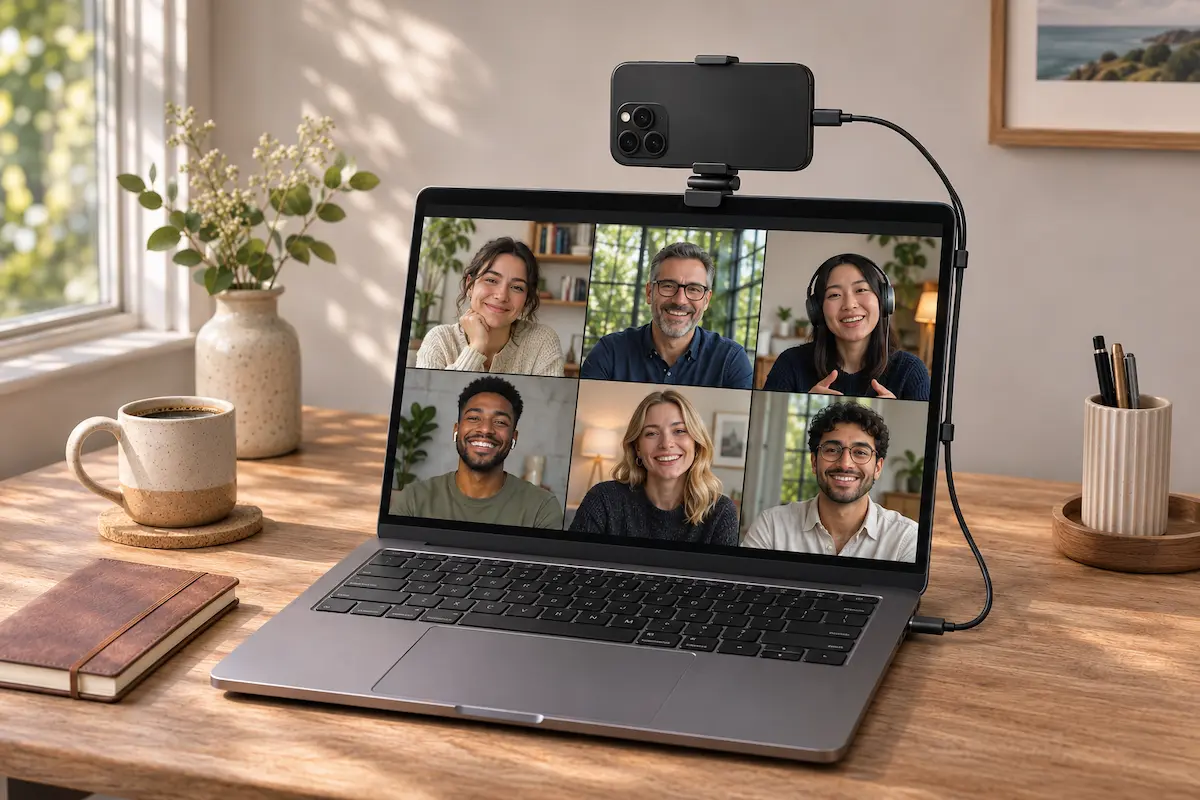
The camera in a modern phone is better than almost any laptop webcam, and you already own one. With the right setup, you can use your phone as a webcam for Zoom, Teams, Google Meet or OBS in about five minutes. This guide covers the built-in options for Windows 11, Mac and Android, plus free apps for everything else.
What you need before you start
The setup is simple, but a few basics save a lot of frustration later.
First, you need a phone made in the last few years and a computer with a video app. Second, put both devices on the same Wi-Fi network if you want a wireless connection. Third, get a stand or a clamp. A phone leaning on a pile of books will slide off sooner or later.
Finally, keep a charger and a USB cable handy. Streaming video is hard work for a phone, and the battery drains faster than you might expect. A cable also gives you a fallback if the wireless connection acts up.
Which method should you pick?
The best method depends on your phone and your computer. Here is the short version.
| Method | Phone | Computer | Connection | Cost |
|---|---|---|---|---|
| Windows connected camera | Android 10 or later | Windows 11 | Wireless | Free |
| Continuity Camera | iPhone XR or later, iOS 16+ | Mac with macOS Ventura 13+ | Wireless or USB | Free |
| Android USB webcam mode | Android 14+ phones that support it | Windows, Mac, Chromebook | USB cable | Free |
| DroidCam | Android or iPhone | Windows, Linux (OBS plugin also on Mac) | Wi-Fi or USB | Free, paid HD upgrade |
| Camo | Android or iPhone | Windows 10+ or Mac | USB or Wi-Fi | Free, paid Pro |
In short: Android with Windows 11 should start with Microsoft’s built-in feature. iPhone with a Mac should use Continuity Camera. Everyone else, such as an iPhone with a Windows PC, can use a free app.
Windows 11 and Android: the built-in way
Windows 11 can treat a linked Android phone as a camera, with no extra webcam software on the PC. Microsoft’s requirements are Windows 11, Android 10 or later, and the Link to Windows app on your phone at version 1.24022.0 or later.
- Update Windows, then install or update Link to Windows from Google Play on your phone.
- On your PC, open Settings, then Bluetooth & devices, then Mobile devices.
- If your phone isn’t linked yet, select Add device and follow the pairing steps on screen.
- Select your phone and turn on Use as connected camera.
- Open your video app, go to its camera settings and pick your phone from the list.
Flip the switch, and your phone appears in your video app’s camera list.
When the phone asks for permission to use its camera, allow it. If you never see that request and the preview stays black with a white icon, look in the Windows taskbar. A small window with a camera icon should appear there and guide you through the next step.
One more detail: the picture follows your phone’s orientation. If it won’t rotate, check that the rotation lock on the phone is off.
iPhone and Mac: Continuity Camera
Apple’s version is the smoothest of the bunch because it needs no app at all. You need an iPhone XR or later with iOS 16 or later, and a Mac running macOS Ventura 13 or later. Both devices must be signed in to the same Apple Account with two-factor authentication, sit near each other, and have Bluetooth and Wi-Fi turned on.
- On the iPhone, open Settings, then General, then AirPlay & Continuity (or AirPlay & Handoff). Make sure Continuity Camera is on. It is on by default.
- Place the iPhone in a mount near your Mac: locked, stable, with the rear cameras facing you and nothing blocking them.
- Open FaceTime or another video app. If it doesn’t pick the iPhone on its own, choose it from the app’s video or camera menu.
The camera list in a Mac video app, and the controls on the iPhone screen.
Landscape orientation lets apps choose the iPhone automatically, but portrait works too. It works wired or wirelessly, and Apple suggests plugging the iPhone in to keep it charged. For a wireless connection, your Mac can’t be using AirPlay or Sidecar at the same time. For USB, the iPhone has to trust your Mac.
Once connected, macOS adds video effects such as Center Stage, Portrait mode and Studio Light, plus Desk View, which shows your desk from above. Some effects need newer hardware, so don’t panic if one is missing on an older iPhone.
You also get privacy signals. A camera indicator appears on the iPhone and in the Mac menu bar, and a wireless session plays a short sound when an app starts using the camera. To pause, tap Pause on the iPhone or just unlock it.
Android over USB: the cable method
Since Android 14, Google has built a USB webcam mode into the system. Pixel phones had it first, and Samsung added it to the Galaxy S26 series in 2026, then to its newest foldables. Because it follows the standard USB webcam format, it works with Windows, Mac and Chromebooks without installing anything on the computer.
- Connect the phone to your computer with a USB cable that carries data, not a charge-only cable.
- Pull down the notification shade and tap the USB notification.
- Under Use USB for, choose Webcam.
- Open your video app and select the phone as the camera.
If “Webcam” is missing from your list, your phone may not support the feature.
Not every Android phone has it. Many models still don’t show a Webcam option, and manufacturers decide whether to include it. On the Galaxy S26 you can use the rear and front cameras, and a high-quality mode gives a better picture but may warm the phone up. If your phone lacks the option, use the next method.
Any phone, any PC: DroidCam and Camo
If the built-in options don’t fit, a free app fills the gap. Both of these work with Android and iPhone, which makes them the usual answer for an iPhone paired with a Windows PC.
DroidCam
DroidCam has two parts: the app on your phone and a client on your computer. The Windows and Linux client works with Zoom, Skype, Discord and most other video apps. The free version offers unlimited standard-definition video (640x480). A paid Pro upgrade unlocks HD video, up to 1080p as a webcam and up to 4K through the free DroidCam OBS plugin. Pro prices vary by region.
- Install DroidCam on your phone and the client on your computer.
- Start the app on your phone. It shows an IP address and a port.
- In the computer client, choose Wi-Fi (or USB) and type in the same IP address and port.
- Click Start, then pick DroidCam as the camera in your video app.
DroidCam Port: 4747
The DroidCam app on the phone, and the client on the PC. Example values only, so use the IP address and port shown on your own phone.
Camo
Camo works the same way: a free phone app plus Camo Studio on your computer. Camo Studio runs on Windows 10 or newer and on recent versions of macOS. The free tier covers basic calls, and Camo Pro adds extra controls and higher quality. It’s a good pick if you want more control over the image than DroidCam offers.
Set up your phone for a better picture
The software only gets the phone connected. The picture itself depends on how you place it.
Use the rear camera. It is almost always sharper than the selfie camera, and Continuity Camera uses it by default. Raise the phone to eye level, so you aren’t looking down into the lens.
Fix the light. Face a window or a lamp. A bright window behind you turns you into a silhouette, whatever the camera costs.
Clean the lens. A fingerprint smear makes video look foggy. A quick wipe with a soft cloth fixes it.
Plan for power and heat. Plug the phone in for meetings longer than a few minutes. Phones can get warm while streaming, so keep it out of direct sunlight and don’t cover it.
Silence the phone. Turn on Do Not Disturb so calls and alerts don’t interrupt your meeting.
If both devices support it, join a 5 GHz Wi-Fi network for wireless setups. It is usually less crowded than 2.4 GHz.
When your phone doesn’t show up
Most problems come down to a few causes. Work through these in order.
Update everything. On Windows, install pending Windows updates, then update Link to Windows on your phone and Cross Device Experience Host in the Microsoft Store. On a Mac, install the latest macOS and iOS updates, and update your video app too.
Check permissions. On Android, make sure Link to Windows has camera permission in the phone’s Settings. On an iPhone, check that both devices use the same Apple Account and that Bluetooth and Wi-Fi are on.
Lock, then plug in. If Continuity Camera ignores you, unlock the iPhone and lock it again. Then try a USB cable, restart both devices, and try again. Apple lists these same steps for troubleshooting.
Swap the cable. For USB webcam mode and app-over-USB setups, a charge-only cable is the classic culprit.
Check the network. For DroidCam over Wi-Fi, both devices must be on the same network. Guest networks and some public Wi-Fi block devices from seeing each other. Switching to a USB connection avoids the problem entirely.
My experience
I tried these methods on a Windows 11 laptop and a MacBook, using an Android phone and an iPhone. Each setup took about five minutes once everything was updated.
The Mac and iPhone pair was the easiest. After I locked the iPhone and put it in a mount, it showed up in FaceTime without any extra clicks, and Zoom and Google Meet found it as well. The Windows connected camera took a little longer. At first the preview stayed black, until I noticed the small camera window in the taskbar and granted the camera permission on the phone.
The USB webcam mode was the most stable. My first cable turned out to be charge-only, and the Webcam option only appeared after I swapped it for the one that came with the phone. On Wi-Fi, DroidCam worked as soon as both devices were on the same network, but the picture lagged more than over a cable.
My choice for everyday calls is the built-in feature of whichever system I’m on, and a cable for anything longer than half an hour. Treat this as a starting point, since your results will depend on your router, your phone and your apps.
FAQ
Can I use my iPhone as a webcam on Windows?
Not with a built-in Microsoft feature. Windows 11’s connected camera works with Android phones only. On Windows, an iPhone needs a third-party app such as Camo or DroidCam, installed on both the phone and the PC.
Are these methods free?
The Windows 11 connected camera, Apple’s Continuity Camera and Android’s USB webcam mode are built in and free. DroidCam and Camo both have free versions, with paid upgrades for higher quality and extra controls.
Is a cable better than a wireless connection?
A cable keeps the phone charging and avoids Wi-Fi hiccups, so it is the safest choice for long meetings. Wireless is more convenient for short calls. If a wireless connection misbehaves, plugging in is the quickest fix.
Does this work on Windows 10?
Microsoft’s built-in connected camera requires Windows 11. On Windows 10, use an app such as Camo, which supports Windows 10 or newer, or DroidCam.
What happens if someone calls my phone during a meeting?
With Continuity Camera, your Mac shows an incoming call notification, and the video pauses if you answer it. With other methods, switching on Do Not Disturb before the meeting stops calls and alerts from getting in the way.
💬 Comments