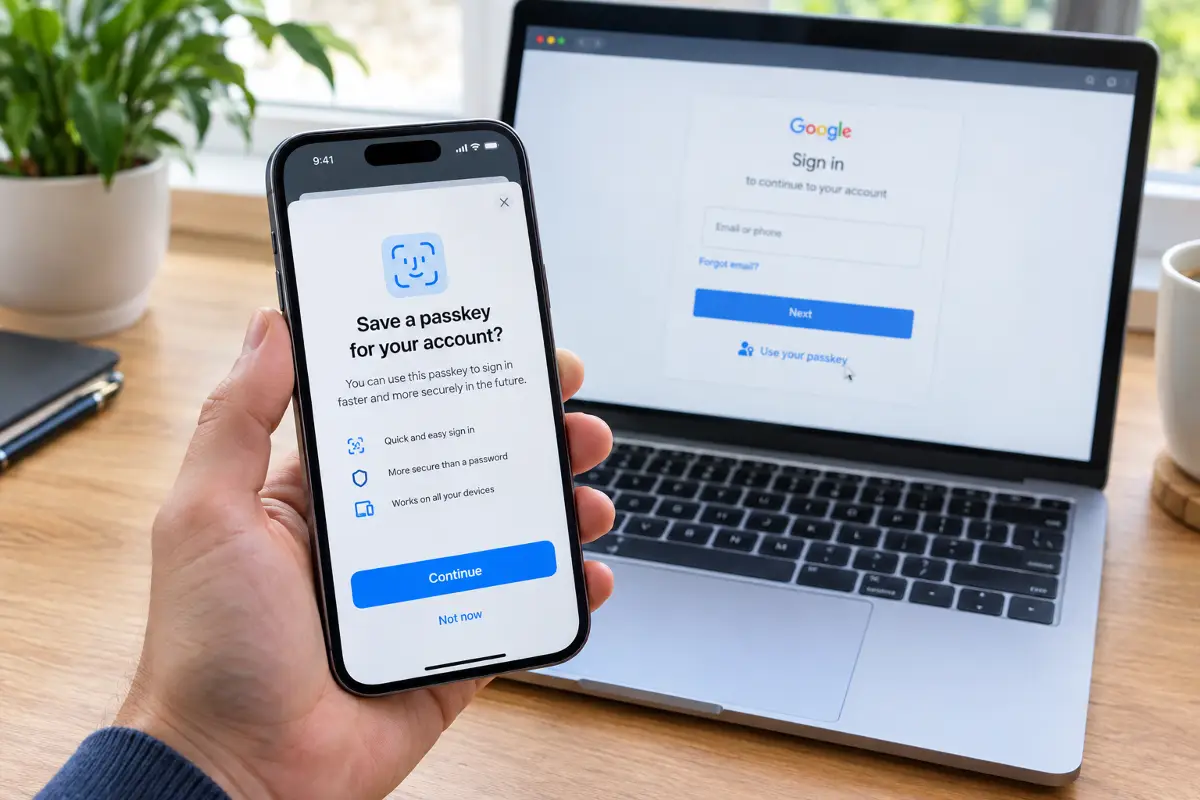
If you've signed in to Google, Amazon or your Microsoft account lately, you've probably seen a pop-up asking you to "create a passkey". Most people tap "Not now" and move on, because nobody really explains what it is. That's a shame, because passkeys are the biggest improvement to online security in years, and they're actually easier to use than passwords.
In this guide I'll explain what a passkey is in plain English, why it's safer than a password, what happens if you lose your phone, and exactly how to set one up on the accounts that matter most.
What is a passkey?
A passkey is a way to sign in to a website or app without typing a password. Instead, you confirm it's you the same way you unlock your phone or laptop: with your fingerprint, your face, or your device PIN.
Behind the scenes, a passkey is a small digital key that your device creates for one specific website. You never see it, you never have to remember it, and you can't accidentally give it away. It was developed by the FIDO Alliance, a group that includes Apple, Google and Microsoft, which is why it works across iPhone, Android, Windows and Mac.
🔑 Password
- You have to remember it
- Can be guessed or reused
- Can be typed into a fake site
- Stolen in data breaches
✅ Passkey
- Nothing to remember
- Unique for every site
- Won't work on fake sites
- Useless to hackers if the site is breached
How a passkey works (without the jargon)
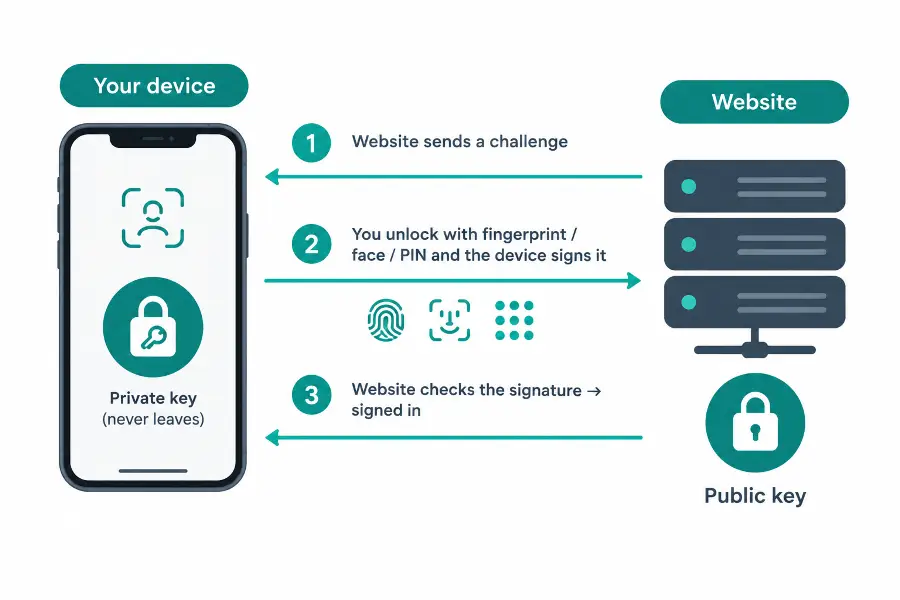
Every passkey uses a pair of cryptographic keys that belong together, a bit like a padlock and its key.
- The public half (the padlock) is handed to the website. It's fine if anyone sees it, because on its own it can't open anything.
- The private half (the key) is protected by your device or passkey manager. With a device-bound passkey it stays on that device; a synced passkey can be backed up in encrypted form by its provider. The website never receives the private key.
When you sign in, the website sends your device a one-time challenge. Your device asks for your fingerprint, face or PIN, then uses the private half to "sign" that challenge. The website checks the signature against the padlock it already has. If they match, you're in. Your fingerprint or face never goes anywhere: it only unlocks the key on your own device.
Why passkeys are safer than passwords
They can't be phished
Phishing is when a fake email or text leads you to a site that looks exactly like your bank or Google, and you type your password into it. With a passkey, that trick simply fails. Each passkey is tied to the real website's address, so your device won't even offer it on a look-alike site like "g00gle-login.com".
Data breaches don't expose them
When a website stores passkeys, it keeps the public key, not the private key used to sign in. A breach of that website's credential database therefore does not hand attackers the private key. This protection is about the website's copy: synced passkeys also rely on the security of the account and provider that stores their encrypted backup.
No reuse, no weak passwords
Most account takeovers happen because people reuse the same password on several sites. Every passkey is unique and randomly created, so there's nothing weak to guess and nothing to reuse.
Where your passkeys are stored
This is the part that worries most people: "If the key lives on my phone, what happens if I lose it?" It depends on where the passkey was saved. Some passkeys are synced by a password manager and can be restored on another device; others are device-bound and stay on one device or security key.
| Where it's saved | Works on | Good for |
|---|---|---|
| iCloud Keychain | iPhone, iPad, Mac | People who mainly use Apple devices |
| Google Password Manager | Android, Chrome on any computer | Android users and Chrome fans |
| Windows Hello | Your Windows PC | Signing in on one specific computer |
| Password managers (Bitwarden, 1Password, etc.) | Almost everything | Mixed setups, like an iPhone with a Windows PC |
If you use a mix of Apple, Android, Windows and Mac devices, check which passkey provider each device and browser supports. A cross-platform password manager may make synced passkeys easier to reach, while a device-bound passkey may require a QR-code sign-in from your phone or a separate passkey on each device.
How to set up a passkey on Google, Apple and Microsoft
Setting one up takes less than a minute per account. Menu names change from time to time, but the path is usually very close to what's below.
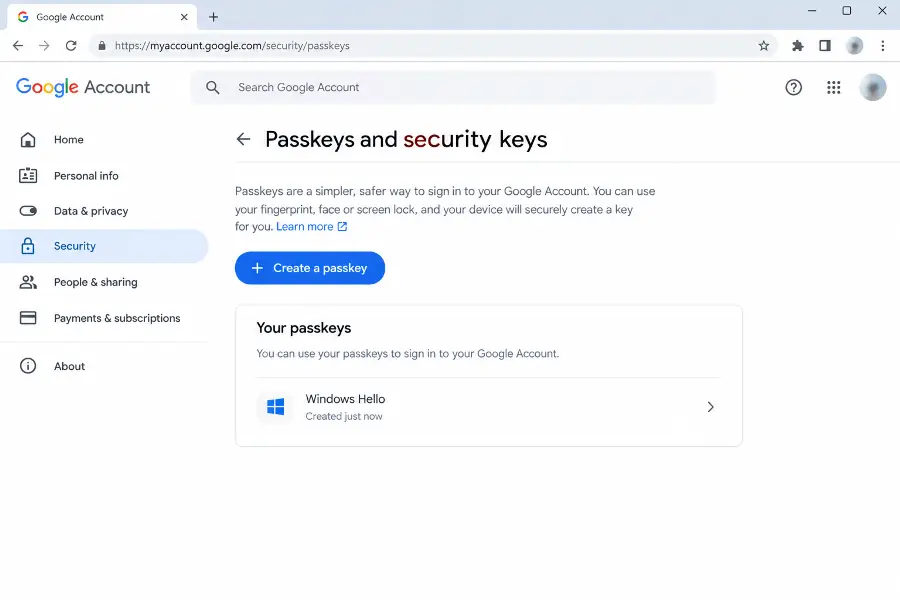
Google account
- Go to myaccount.google.com and sign in.
- Open Security (on some screens it's called Security & sign-in) and choose Passkeys and security keys.
- Tap Create a passkey, then Continue.
- Confirm with your fingerprint, face or screen lock. Done.
iPhone and Apple devices
On Apple devices there's no separate "turn on passkeys" switch. As long as iCloud Keychain is on, your iPhone will offer to save a passkey whenever a site or app supports it.
- Open Settings, tap your name, then iCloud and make sure Passwords (iCloud Keychain) is switched on.
- Sign in to a site that supports passkeys, like Amazon or PayPal, and look for an option such as Create a passkey in its security settings.
- When the "Save a passkey?" sheet appears, tap Continue and confirm with Face ID or Touch ID.
- You'll find all your saved passkeys later in the Passwords app.
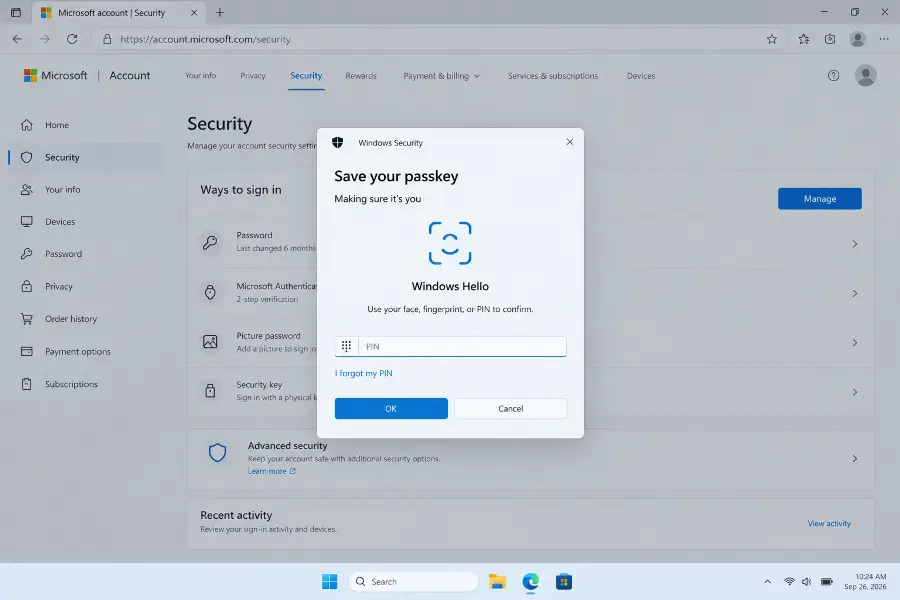
Microsoft account
- Go to account.microsoft.com and open Security.
- Choose the option to manage how you sign in, then Add a new way to sign in or verify.
- Pick Face, fingerprint, PIN or security key.
- Follow the Windows Hello or phone prompt to save it.
Signing in on another device
What if you're on a friend's laptop or a work computer that doesn't have your passkey? You can still sign in using your phone:
- On the computer, choose Use a passkey and then an option like Use a phone or tablet.
- A QR code appears. Scan it with your phone's camera.
- Confirm with your fingerprint or face on the phone. Bluetooth checks that the phone is physically nearby, which stops someone from doing this remotely.
You're signed in, and nothing is left behind on the other computer. Just remember to sign out when you're done.
What passkeys feel like in everyday use
The first setup usually means choosing where the passkey will be saved, then confirming with a fingerprint, face scan or device PIN. After that, signing in on the same device is often just a prompt and a confirmation—no password to type or one-time code to copy.
The experience depends on the devices and passkey manager involved. If the passkey syncs through the same provider used on your other devices, it may appear there after you sign in to that provider. If it is tied to one device, you may need to use your phone to approve a QR-code sign-in or create another passkey on the second device.
Some websites may still ask for an extra verification code, especially when you use a new browser or device. That does not necessarily mean the passkey failed; the site may require an additional account check. Keep recovery details current and retain another sign-in method until you know how the service handles account recovery.
In short, passkeys can make routine sign-ins quicker, but the smoothest setup depends on how well your devices and credential manager work together. Before removing a password or backup method, test signing in from your usual devices and confirm that you can recover access if one is lost.
💬 Comments