You press the power button, click on an app and… wait. The spinning circle keeps going, the fan keeps whirring, and a job that should take seconds eats up a whole minute.
Before you start shopping for a new laptop, it's worth knowing that most slowdowns have a simple cause, and most of them can be fixed for free in a few minutes. You don't need special software or any technical background, just Task Manager and a bit of patience.

Below are ten fixes, ordered from the quickest to the ones that cost a little money. Work through them from the top and stop when your laptop feels fast again. Everything here is written for Windows 11, which is where most people should be now — Windows 10 stopped receiving free security updates on October 14, 2025.
First, a 30-second diagnosis
Press Ctrl + Shift + Esc to open Task Manager and look at the Performance tab. What you see there usually points straight at the right fix:
🔄 Restart and finish your updates Free 2 minutes
It sounds too simple, but a proper restart clears out memory, stops background processes that have been running for days and resets services that have got stuck. Many of us just close the lid and let the laptop sleep for weeks, and it slowly gets heavier.
Pending updates matter too. While Windows is downloading or preparing an update, it uses processor time and keeps the disk busy in the background. Open Settings → Windows Update, install what's waiting and restart when it asks. While you're there, empty the Recycle Bin as well.
🔋 Pick the right power mode Free
Windows can deliberately hold back your processor to save battery. That's great on the train, but annoying when you're plugged in at your desk and wondering why everything feels slow.
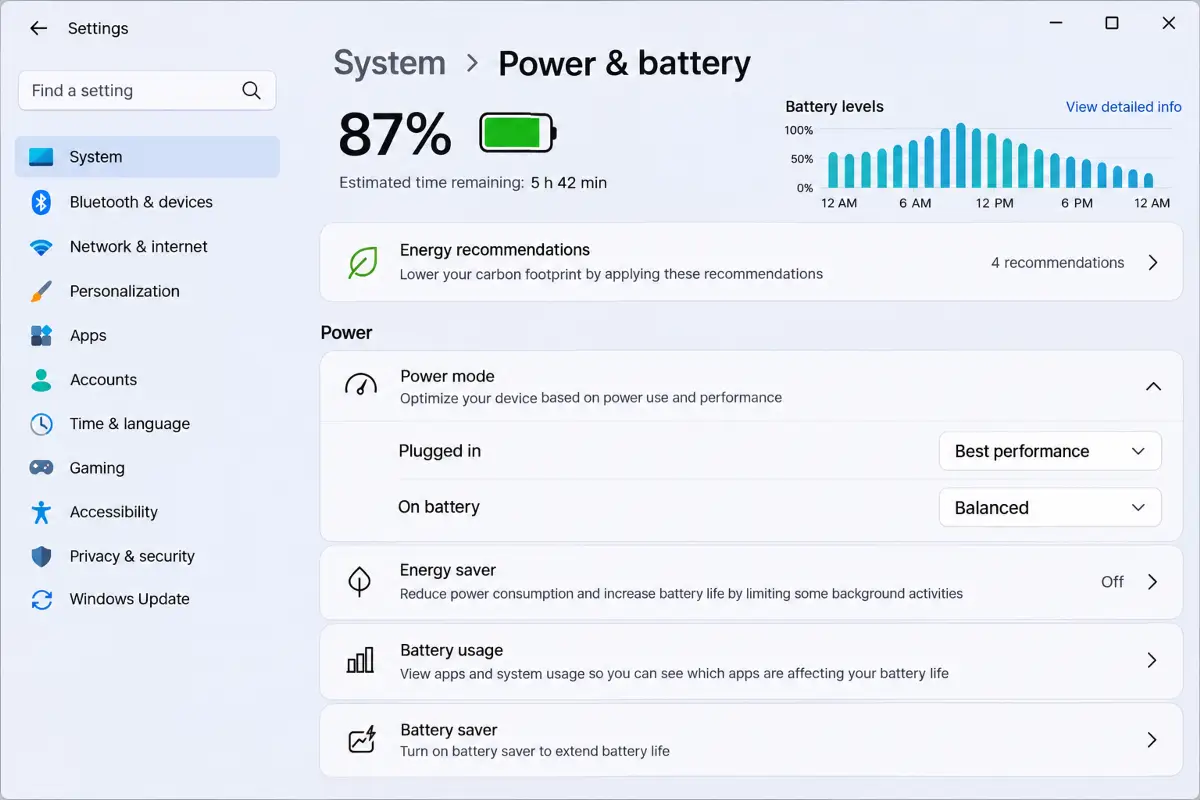
If your laptop maker has its own app, such as Lenovo Vantage, MyASUS or HP Smart, check it too. These apps often have their own "quiet" or "battery" mode that overrides Windows.
🛑 Stop apps from starting with Windows Free Biggest free win
This is the most common reason a laptop feels slow right after you switch it on. Spotify, Discord, Teams, OneDrive, Steam, Adobe's updater and many others quietly add themselves to startup. Every one of them uses memory and processor time before you've even opened your first app.
Turning them off is completely safe. You're not uninstalling anything, just telling Windows not to open them automatically.

🧹 Uninstall programs you don't use Free
New laptops often arrive with trial antivirus, games and "helper" apps you never asked for. Older laptops collect years of tools you installed once and forgot about. Many of them run small background services or update checkers.
Go to Settings → Apps → Installed apps, sort the list by size or date, and remove anything you don't recognise as useful. A trial antivirus is worth removing in particular: running two security programs at the same time is a classic cause of slowdowns, and Windows Security is perfectly good on its own.
💾 Free up disk space Free
A full drive doesn't just stop you saving files. Windows needs free space for updates, temporary files and virtual memory (the space on the drive it borrows when RAM runs out). When the drive is almost full, everything slows down. A good rule is to keep at least 15–20% of the drive free.
- Open Settings → System → Storage to see what's using the space.
- Click Temporary files and remove what you don't need. Check the Downloads folder carefully before ticking it.
- Turn on Storage Sense so Windows cleans up old temporary files automatically.
- Under Cleanup recommendations, Windows lists large files and apps you haven't opened in a while.
- Move big videos, photo libraries and old backups to an external drive or cloud storage.

🌐 Tame your browser Free
On most laptops today, the browser is the heaviest app by far. Thirty open tabs can easily use several gigabytes of RAM, and every extension adds a little more work to each page you load.
- Turn on sleeping tabs. In Edge it's under Settings → System and performance. In Chrome, look for Memory Saver under Settings → Performance. Tabs you haven't touched for a while stop using resources.
- Remove extensions you don't use. Old coupon, shopping and "PDF helper" extensions are frequent troublemakers.
- Check the browser's own task manager with Shift + Esc in Chrome or Edge to see which tab or extension is eating the memory.
🔒 Scan for malware Free
Not every slowdown comes from old hardware. Adware, cryptominers and browser hijackers work quietly in the background and use your processor, memory and internet connection.
- Open Windows Security from the Start menu and go to Virus & threat protection.
- Run a Quick scan. If you're suspicious, choose Scan options → Full scan and let it finish.
- For a second opinion, the free version of Malwarebytes is very good at catching adware and unwanted programs. Use it as an on-demand scanner, not as a second always-on antivirus.
🌬️ Clean the dust and cool it down Free Most overlooked
This is the most overlooked fix of all, especially for laptops more than two or three years old. Dust builds up in the vents and around the fan, air can't flow properly and the temperature inside rises.
When the processor gets too hot, it automatically slows itself down to avoid damage. This is called thermal throttling. It's harmless in itself, but it makes a perfectly good laptop feel sluggish. Watch out for these signs:
- The bottom or the area around the vents gets unusually hot.
- The fan runs loudly even when you're just browsing.
- The laptop starts fast, then slows down after 20–30 minutes.
Shut the laptop down and unplug it. Use a can of compressed air on the vents, held upright, in short bursts, from a few centimetres away. Don't force the fan blades to spin or hold them still unless the manufacturer recommends a safe method for your model. Do this every six to twelve months, and avoid using the laptop on a bed or sofa, where fabric blocks the air intakes underneath.

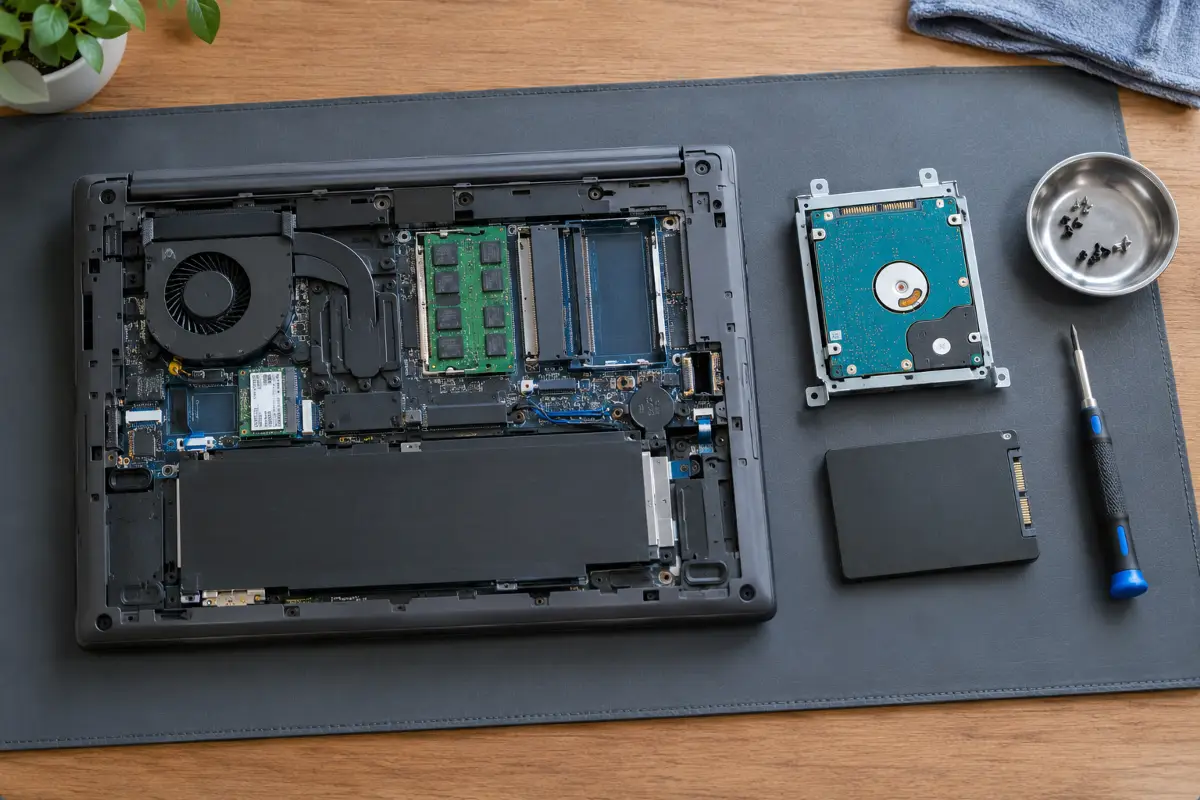
⚡ Swap the hard drive for an SSD Costs money Biggest jump
If your laptop still has a mechanical hard drive, this is the biggest improvement you can make, full stop. No other upgrade changes how a laptop feels so dramatically:
- Windows starts in seconds instead of a couple of minutes.
- Apps open almost instantly and updates finish much faster.
- There are no moving parts, so it's silent and copes better with knocks.
How to check what you have: in Task Manager, go to Performance, click Disk 0, and look at the top right. Windows shows SSD or HDD there.
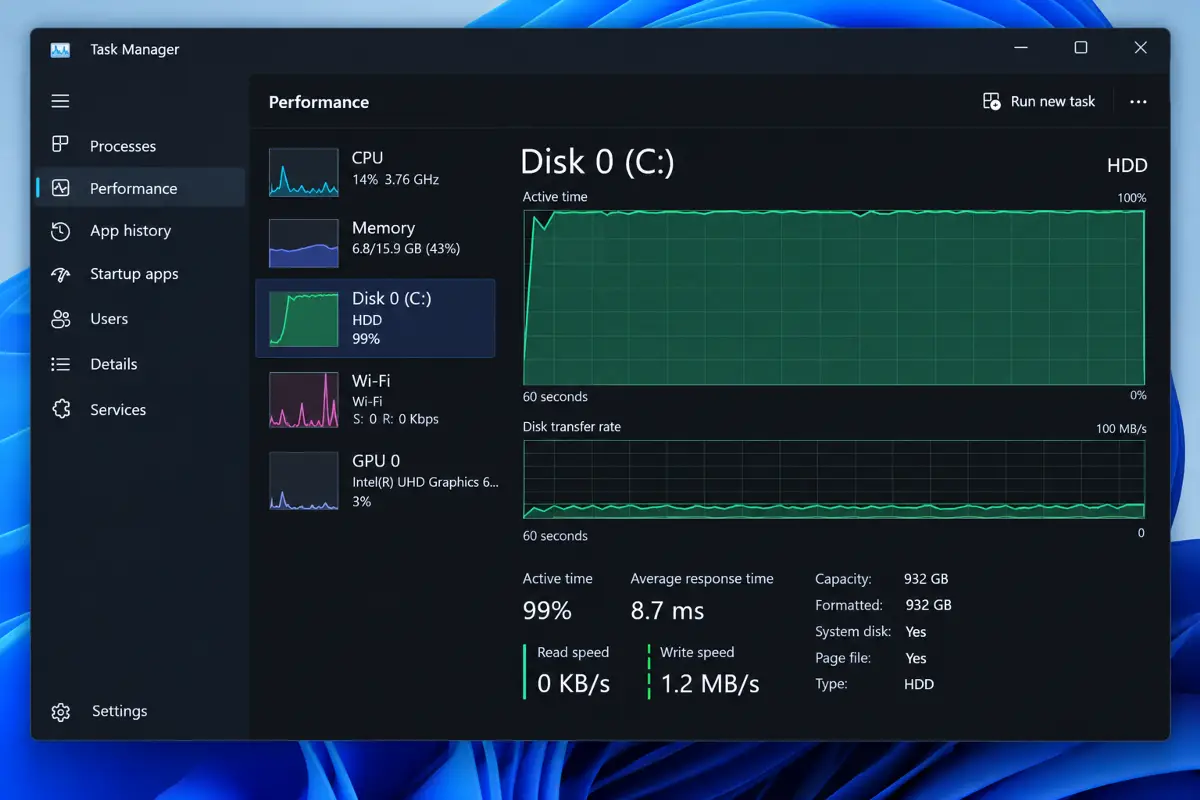
Before buying, check whether your laptop uses a 2.5-inch SATA drive or an M.2 slot, and confirm the interface and physical size in the manufacturer's specifications. Older laptops usually take a 2.5-inch SATA SSD; newer ones use a small M.2 stick.
🧠 Check your RAM Costs money
RAM is the laptop's short-term memory, holding everything you're working on right now. When it runs out, Windows starts using the storage drive as a stand-in, which is far slower, and you get stutters and pauses every time you switch apps.
8 GB is still fine for browsing and documents. For video calls with lots of tabs open, photo editing or heavy multitasking, 16 GB is the comfortable amount.
✅ Quick checklist
Not sure where to start? Go down this list in order and stop when your laptop feels fast again.
🙋 My experience
My sister's laptop had become a running joke in the family. It took ages to start, Teams calls froze, and she was ready to replace it. Before she did, I spent an afternoon going through exactly the steps in this guide, measuring before and after.
The free fixes alone made a clear difference. Task Manager showed 14 apps starting with Windows, including two trial antivirus programs fighting each other. I disabled 9 of them, removed both trials, and cleared 23 GB of old temporary files and downloads. The fan vents were properly clogged, and the compressed air brought out an embarrassing amount of dust.
| Measurement | Before | After free fixes | After SSD + RAM |
|---|---|---|---|
| Boot to usable desktop | 2 min 10 s | 1 min 5 s | 22 s |
| RAM in use at idle | 71% | 52% | 27% |
| Opening Word | ~14 s | ~9 s | ~2 s |
Not everything went smoothly. After I cloned the drive with Clonezilla and fitted the SSD, Windows stopped at a blue screen asking for the BitLocker recovery key. Device encryption had been switched on without my sister ever knowing about it. The key was saved in her Microsoft account, but finding it on my phone took a stressful ten minutes. That's why I now tell everyone to write the key down before touching the drive.
The end result was a laptop that felt genuinely quick for the everyday things she actually uses it for. The SSD made the biggest jump, but I was surprised by how much the free fixes achieved on their own.
❓ Frequently asked questions
Why is my laptop suddenly so slow?
How can I speed up my laptop for free?
Is an SSD upgrade still worth it in 2026?
How much RAM does a Windows 11 laptop need?
Can dust really slow down a laptop?
Is it safe to disable startup apps?
🏁 The bottom line
A slow laptop is rarely a lost cause. In most cases the problem is clutter, heat or an old hard drive, not a computer that's too weak for the job.
Start with the free fixes. Many laptops feel noticeably quicker after the first three or four. If yours still struggles and it has a mechanical drive, an SSD will give it a second life for a fraction of the cost of a new machine.
💬 Comments