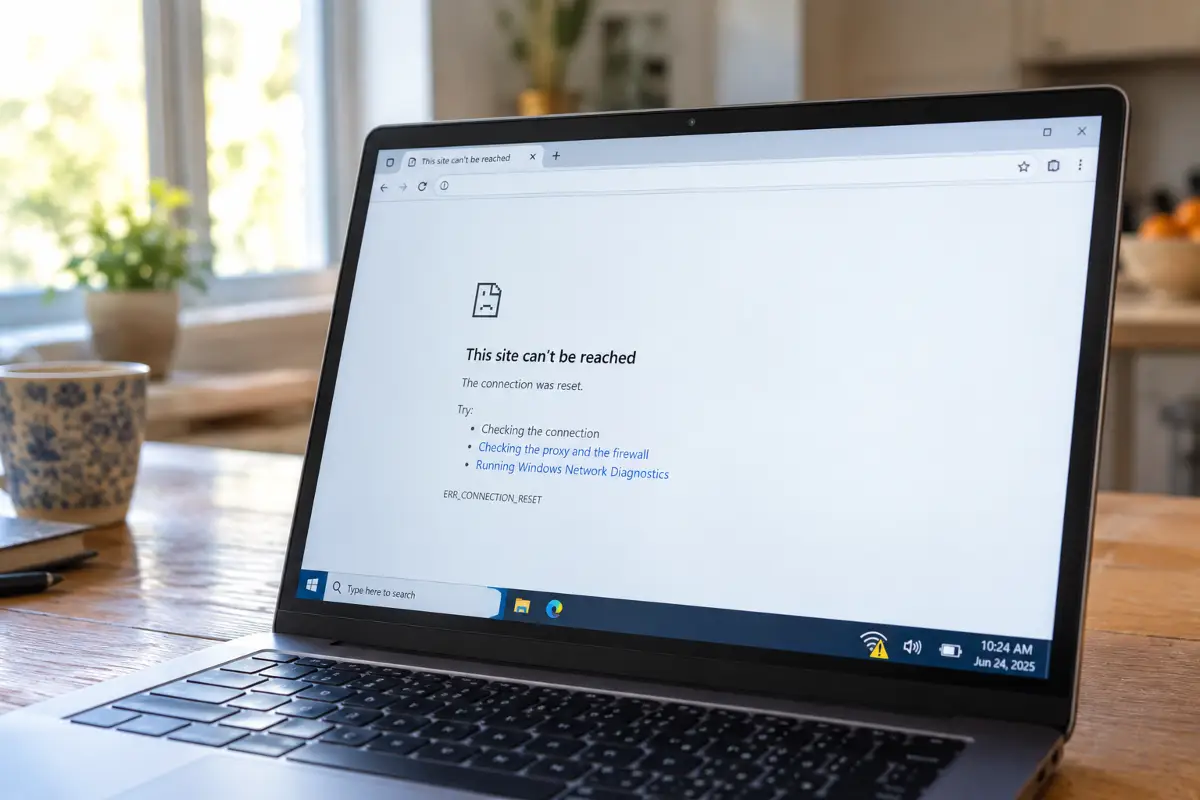
Your phone says it is connected. The Wi-Fi icon is full. And yet nothing loads — no pages, no messages, no video. It is one of the most annoying problems in a home network precisely because everything looks fine.
The good news is that this message almost always comes down to one of a small number of causes, and you can work out which one in about two minutes without knowing anything about networking. This guide goes through the checks in a sensible order: the fast ones first, the router afterwards, and the provider last.
Why "connected" does not mean "online"
Getting online involves two separate jobs, and your Wi-Fi icon only reports on the first one.
The first job is joining your own network. Your laptop finds the router, gives the password, and the router hands it a local address — something like 192.168.1.42. As soon as that happens, the icon fills up and the system says "Connected". At this point your device can talk to the router and to the printer in the next room, and to absolutely nothing else.
The second job is everything beyond the router: the router has to have a live connection from your provider, and a service called DNS has to translate names such as lovefortechnology.net into the numbers the network actually uses. DNS is best thought of as the phone book of the internet. If the phone book is closed, you can be perfectly connected and still reach nothing, because your device has no way to look up where anything lives.
So there are three links in the chain — device to router, router to provider, and name lookup — and "connected but no internet" simply means link one is fine and one of the other two is not. The whole job is working out which.
The two-minute test that finds the culprit
Do not start changing settings yet. Five quick checks will tell you where to aim, and they take longer to read about than to perform.
192.168.1.1 or 192.168.0.1 into the browser. If the login screen appears, your device and the router are talking to each other properly and you can stop suspecting the Wi-Fi itself.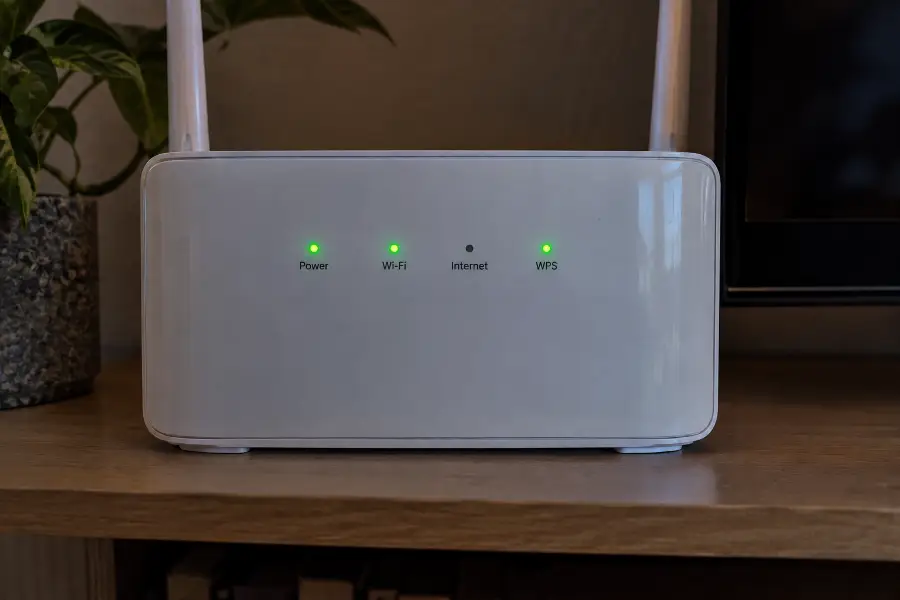
By now you should know roughly where you stand. Use this as a shortcut:
| What you see | Where the problem is | Go to |
|---|---|---|
| Only one device affected | That device's settings | Section 3 |
| Every device affected, WAN light steady | Inside the router | Section 4 |
| Every device affected, WAN light off or red | The line or the provider | Section 8 |
| 1.1.1.1 loads, websites do not | DNS | Section 5 |
| Happens only on public Wi-Fi | A login page you have not seen | Section 6 |
Fixes on the device that is failing
If the rest of the house is online and only one machine is stuck, work through these. They are ordered so that the least disruptive ones come first.
Windows 10 and 11
Start with the network profile itself. Open Settings → Network & internet → Wi-Fi → Manage known networks, select your network and choose Forget. Then join it again and type the password. This throws away a saved profile that may have gone stale, and on its own it clears a surprising share of cases.
If that does not help, ask Windows for a fresh address. Open the Start menu, type cmd, right-click Command Prompt and choose Run as administrator, then run these three lines one after another:
ipconfig /release— hands back the address the router gave you.ipconfig /renew— asks for a new one.ipconfig /flushdns— empties the cached list of website addresses, which may be pointing at the wrong places.
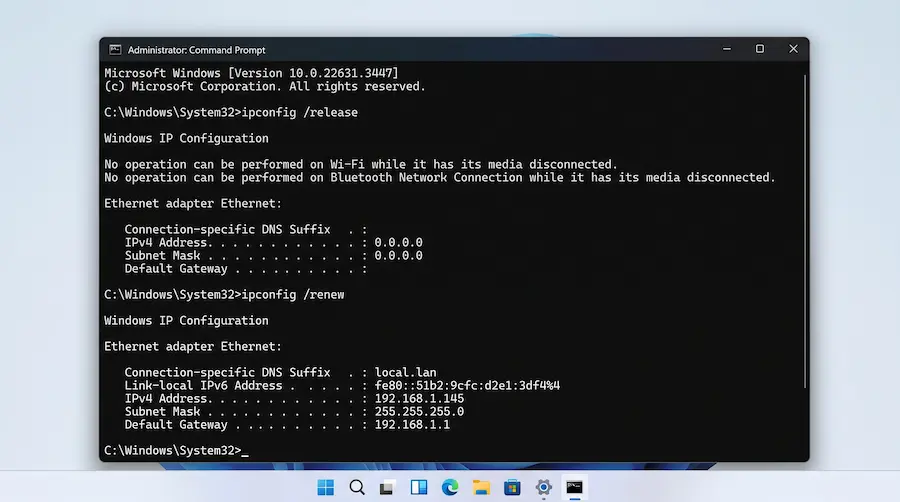
Still nothing? Two more commands reset the part of Windows that handles network connections. Run them in the same window, then restart the computer:
netsh winsock resetnetsh int ip reset
Finally, check for something switched on that you have forgotten about. Under Settings → Network & internet → Proxy, everything should be off unless your workplace told you otherwise. And if you have a VPN, disconnect it and quit the app completely rather than just closing the window.
Mac
Go to System Settings → Network → Wi-Fi → Details → TCP/IP and click Renew DHCP Lease. That is the Mac equivalent of the release-and-renew pair above. If the connection is still dead, go back to the Wi-Fi panel, click the three dots next to your network, choose Forget This Network, and join it again.
One more thing worth checking on a Mac that has been switched off for a long time: System Settings → General → Date & Time. A clock that is badly wrong makes secure websites refuse to open, which looks exactly like a dead connection.
Android
Turn airplane mode on, count to ten, turn it off. It is not folklore — it forces the phone to drop and rebuild every connection it has. If that fails, hold your network name in Settings → Network & internet → Internet and choose Forget, then rejoin.
Two Android settings cause this problem more often than people realise. The first is Private DNS, under Network & internet → Private DNS: if it is set to a specific provider that has stopped responding, every app will fail while Wi-Fi shows as connected. Set it to Automatic. The second is the per-network randomised MAC address. On a network that only allows known devices, a new random address gets ignored; open the network's settings, find Privacy and switch it to "Use device MAC".
iPhone and iPad
Tap the blue "i" next to your network in Settings → Wi-Fi, choose Forget This Network, then join again. In that same panel, try turning Private Wi-Fi Address off for this network, for the same reason as on Android. If you are still stuck, Settings → General → Transfer or Reset iPhone → Reset → Reset Network Settings clears everything networking-related. It deletes no photos, apps or messages, but it does erase saved Wi-Fi passwords, so have yours to hand.
A quick sanity check before you go further: if the device has been asleep in a drawer for weeks, plug it in and let it update the time and date first. A wrong clock produces "your connection is not private" on every site, which many people read as no internet at all.
Fixes on the router
If nothing in the house can reach the internet, the router is the next stop. Do these in order and stop as soon as it works.
Restart it properly
Most people press the power button and call it a restart. Do it the thorough way instead:
- Unplug the router from the wall socket. If your modem is a separate box, unplug that too.
- Wait a full minute. This is the part everyone skips, and it matters — it gives the capacitors time to drain and the provider's equipment time to notice you have gone.
- Plug the modem back in first, and wait until its lights settle, usually two to three minutes.
- Plug the router back in and give it another two minutes before you test anything.
Check the cables you never look at
The cable from the wall to the router is the one that gets kicked, pulled by a vacuum cleaner or slowly worked loose. Unplug it and push it back in until it clicks at both ends. While you are there, make sure the cable from your modem goes into the router's WAN or Internet port — usually a different colour from the rest — and not into one of the numbered LAN ports. A cable in the wrong socket gives you a perfect Wi-Fi network with no way out of the house.
Look for the settings that quietly block a device
Log into the router page you opened earlier and check three things. MAC filtering or "allowed devices" lists will block anything new. Parental controls and schedules switch the internet off for certain devices at certain hours, and they are easy to forget once set. And the DHCP pool — the range of addresses the router can hand out — can simply run out in a house full of phones, TVs, speakers and bulbs, at which point the next device to join gets connected with nowhere to go.
Before you press the reset pin: a factory reset wipes your Wi-Fi name, your password and any provider-specific settings, and on some connections the router will not come back online until those are entered again. Leave it as a last resort, and only after you know your provider's username and password or have their support line open.
Update the firmware, then leave it alone
If the router has an update waiting, install it — ageing firmware is a real cause of connections that drop every few days. Do it while nobody is streaming or working, do not unplug anything during the process, and once it is done, resist the urge to change five settings at once. Change one thing, test, then change the next.
When the problem is DNS
If 1.1.1.1 opened but nothing with a name did, the phone book is your problem. Providers run their own DNS servers and they are not always well looked after; when one gets overloaded or goes down, every customer sees exactly this symptom. Switching to a public service takes a minute and usually fixes it on the spot.
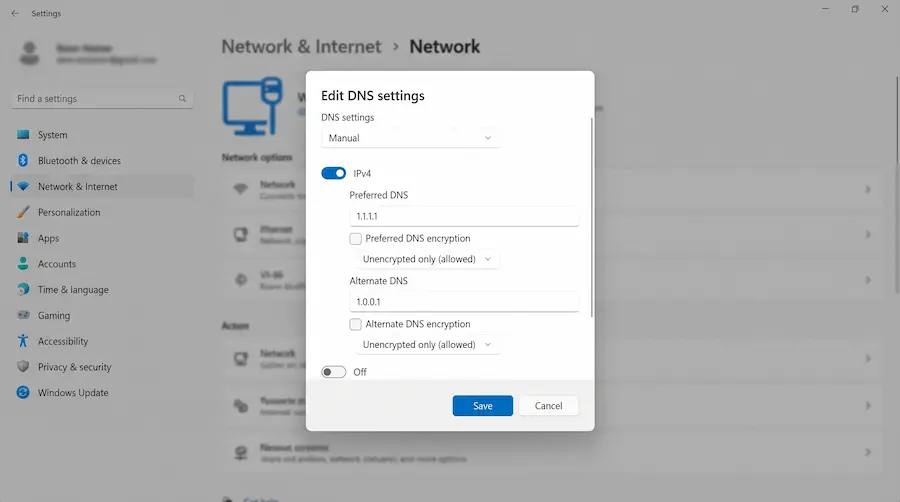
The two well-known free options are Cloudflare at 1.1.1.1 and 1.0.0.1, and Google at 8.8.8.8 and 8.8.4.4. Either is fine.
On Windows
Open Settings → Network & internet → Wi-Fi → Hardware properties, find DNS server assignment and click Edit. Switch from Automatic to Manual, turn on IPv4, and type the two addresses into the preferred and alternate boxes. Save, then run ipconfig /flushdns once.
On a phone
On Android the cleanest route is Settings → Network & internet → Private DNS, choose "Private DNS provider hostname" and enter one.one.one.one. On an iPhone, tap the "i" beside your network, then Configure DNS → Manual, remove what is there and add 1.1.1.1.
Or do it once, for everything
If you would rather not repeat this on every device, set it on the router instead. The setting usually lives under WAN, Internet or DHCP settings, labelled DNS servers. Everything that joins your Wi-Fi from then on picks it up automatically, including the television and the game console that have no such setting of their own.
Hotel, airport and cafe Wi-Fi
Public networks produce this message constantly, and almost always for the same reason: you have joined the Wi-Fi but you have not yet accepted the terms on the login page. Until you do, the network lets you connect and blocks everything else.
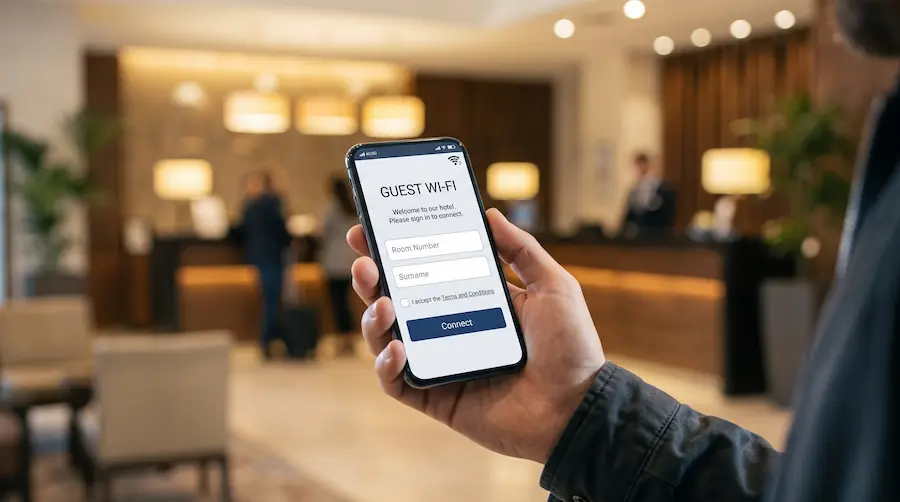
Normally that page appears by itself. When it does not, here is how to summon it:
- Open a browser and go to a plain address that does not use encryption, such as
http://neverssl.com. Secure sites refuse to be redirected, which is why typing a normal website name often just fails. - If nothing happens, type the gateway address directly:
192.168.0.1or the address your phone lists as Router in the network details. - Turn off any VPN before you try. A VPN starting automatically is the single most common reason a hotel login page never appears.
- On Android, set Private DNS back to Automatic for the same reason — an encrypted DNS setting stops the network from redirecting you.
- Still stuck? Forget the network, rejoin, and watch for the notification that says "Sign in to network".
Many hotel networks tie your session to the device, so your laptop may need its own login even though your phone is already working. And a good number of them cut the session after a set number of hours, which is why a connection that worked all morning suddenly stops at lunchtime.
Mesh systems, extenders and second routers
Extra boxes solve coverage problems and create new ones. If your home has more than one thing broadcasting Wi-Fi, check these before anything else.
An extender that has lost its link. A repeater keeps broadcasting its network name even after it has lost contact with the main router. Your phone happily joins the strongest signal in the room, which is the extender, and ends up connected to a box that leads nowhere. The test is simple: turn the extender off at the wall and see whether the phone works on the main network. If it does, restart the extender and pair it again.
A device stuck on the far node. In a mesh system a laptop will sometimes hold on to a distant node long after you have walked to the other end of the house. Turning Wi-Fi off and on for a couple of seconds forces it to pick the nearest one.
Two routers fighting. If your provider's box and your own router are both handing out addresses, devices get an address from one and try to leave through the other. The usual fix is to put the provider's box into bridge or modem mode, or to switch off DHCP on the second router and connect it by a LAN port rather than its WAN port.
The guest network. Guest networks are often configured to allow internet only, or nothing at all if a schedule is switched on. If the device in trouble is the only one joined to the guest name, move it to the main network and see whether the problem disappears.
When it really is your provider
You have reached this point if every device is affected, the router has been restarted, and the Internet light is off, red or blinking. At that stage nothing you change at home will help.
Before you call, spend two minutes gathering the things they will ask for, because it turns a long call into a short one:
- Which light is misbehaving and what colour it is.
- Whether it affects every device or just one.
- When it started, and whether anything changed that day — a storm, a power cut, a new TV, someone drilling a wall.
- Whether you have already restarted the modem and router, and for how long they were unplugged.
Also check your provider's app or social media account, and a public outage tracker, before you queue on the phone. Neighbourhood faults are common and there is nothing to do but wait. If the line looks healthy on their side, ask them to re-provision your connection or resend the settings to the router — a surprising number of faults clear the moment they do that from their end.
One last thing worth ruling out: an unpaid bill or a data cap. Some providers do not cut you off, they redirect you to a notice page, and if your device never shows that page you simply see no internet access.
The checklist, in order
If you want the short version, this is the whole article in ten lines. Work down it and stop when the connection returns.
- Check whether another device in the house is also affected.
- Open 1.1.1.1 in a browser to separate a DNS fault from a dead connection.
- Turn Wi-Fi off and on, or use airplane mode for ten seconds.
- Forget the network and join it again with the password.
- Disconnect any VPN and quit the app.
- On Windows, run release, renew and flushdns from an administrator prompt.
- Unplug the modem and router for a full minute, then power them up in order.
- Check the Internet light and the cable from the wall.
- Switch DNS to 1.1.1.1 on the device, or on the router for everything at once.
- If the Internet light is still not steady, call your provider with the notes above.
My experience
This exact message haunted my flat for about three weeks last winter, and it taught me to stop guessing.
It always happened in the evening. Around eight o'clock a phone or the television would show a full Wi-Fi icon and refuse to load anything, while my desktop — wired to the router — carried on without a hiccup. I did what most people do: restarted the router, forgot networks, changed the Wi-Fi channel, blamed the provider twice. Nothing changed, because none of it was the problem.
What finally gave it away was the router's device list. I counted what was actually joined: two laptops, four phones, a television, a games console, a printer, three speakers, a robot vacuum and eleven smart bulbs. The router — the standard box my provider supplies — had a DHCP pool of exactly twenty addresses with a four-hour lease. Every evening, when everyone came home and the bulbs woke up, the twenty-first device got connected to the Wi-Fi and was never given an address. Connected, with nowhere to go.
The fix took two minutes: I widened the pool from 192.168.1.20–192.168.1.39 to 192.168.1.20–192.168.1.199 and dropped the lease time to one hour. It has not happened once since.
The second case was on my own phone and was embarrassingly simple. A Pixel that worked everywhere except at my parents' house turned out to have Private DNS pointing at a server that their connection blocked. Setting it back to Automatic fixed it instantly, after I had spent half an afternoon convinced their router was dying.
Both times the lesson was the same. The two-minute test in section two would have found it straight away, and both evenings of fiddling would have been unnecessary. Find out where the fault is before you change anything — otherwise you end up with a router full of settings you no longer understand and a problem that is still there.
💬 Comments