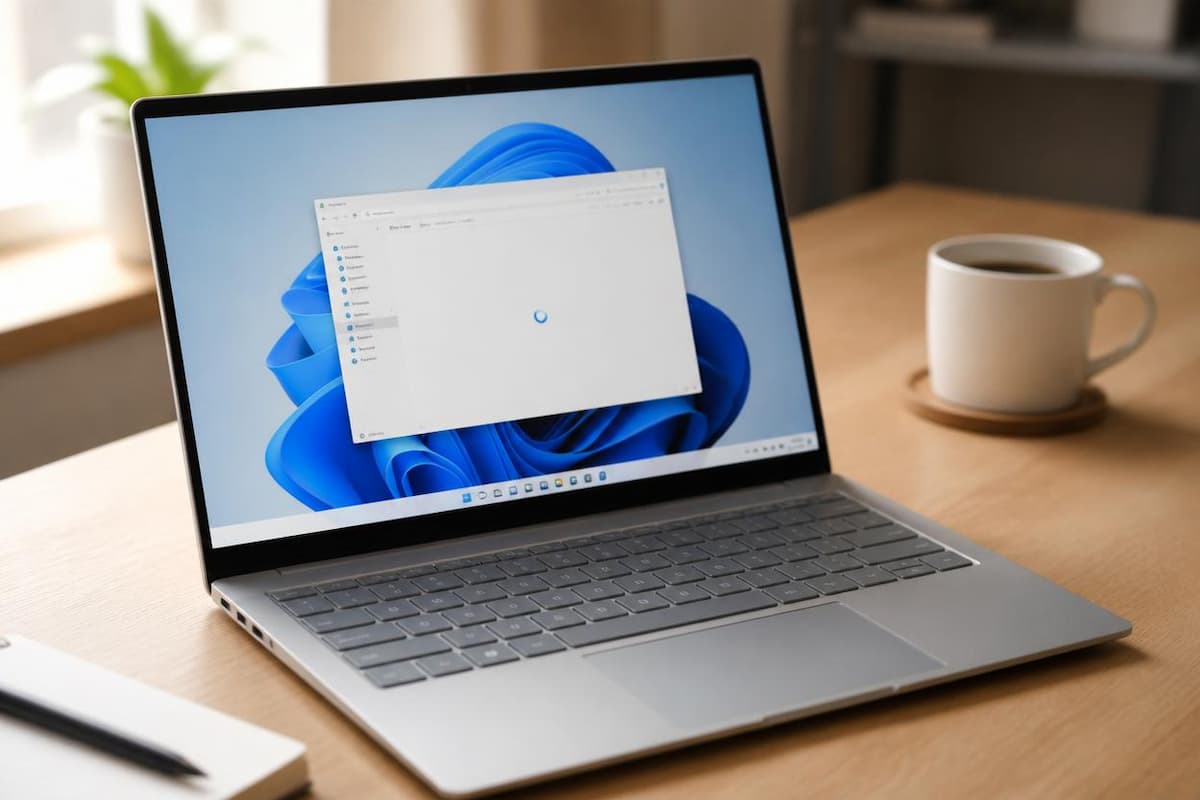
You click Start and wait. Apps open late, the fan spins up for no obvious reason, and even typing in a browser feels sticky. A slow Windows 11 PC is annoying, but it is rarely a lost cause.
Most of the time the cause is a handful of small things piling up: a nearly full drive, too many apps launching at startup, and background processes you never asked for. This guide gives you 12 fixes in a sensible order, from the quickest wins to the deeper repairs. Everything uses tools already built into Windows 11 in 2026, so you don’t need to install anything.
Start with the basics: restart, update, find the culprit
Before you change anything, spend two minutes on these two fixes. They solve more slow-PC problems than people expect, and they tell you where to look next.
Fix 1: Restart your PC and install pending updates
Many people never actually restart. Clicking Shut down can keep part of the previous session alive because of a feature called Fast Startup. Restart always gives you a completely fresh start, which clears stuck processes and memory leaks.
After the restart, open Settings › Windows Update and click Check for updates. Then open Advanced options › Optional updates, where Windows often hides driver updates. Microsoft itself lists updating Windows and drivers as the first thing to try, because updates regularly include performance fixes.
One note: after a big update, Windows can spend a few hours reindexing files and optimizing itself in the background. If your PC was fast yesterday and sluggish today, give it a day before you worry.
Fix 2: See what is actually eating your resources
Guessing wastes time. Press Ctrl + Shift + Esc to open Task Manager, stay on the Processes tab, and click the column headers to sort. Windows shades the busiest cells in orange, so the problem usually jumps out.
Here is how to read it. If Disk sits near 100% for minutes at a time, your drive is the bottleneck. If Memory stays above roughly 85–90%, you are running out of RAM and Windows is falling back on the much slower drive. If one app hogs the CPU while you aren’t using it, that app is your target.
To close something you don’t need, right-click it and choose End task. Save your work first, and leave processes named System, Service Host or Windows Explorer alone unless you know exactly what you are doing.
Free up disk space and remove what you don’t use
A drive that is almost full slows Windows down in many small ways. It has no room for temporary files, updates or virtual memory, so everything takes longer. Aim to keep at least 15–20% of your system drive free.
Fix 3: Clear temporary files and turn on Storage Sense
Open Settings › System › Storage. You will see a colored bar that shows what is filling your drive. Click Temporary files, tick the categories you want to remove, and press Remove files.
Leave Downloads unticked unless you have already checked that folder. It holds your own files, and Windows does not tick it by default for a reason.
Microsoft points out that some temporary files help apps load a little faster, so deleting them won’t work miracles on a drive that already has plenty of space. The big gains come when the drive is nearly full. While you are in Storage, switch on Storage Sense so Windows cleans up automatically, and check Cleanup recommendations for large files you haven’t touched in months.
Fix 4: Uninstall apps you never use
Go to Settings › Apps › Installed apps and sort the list by Size. Click the three dots next to anything you don’t recognize or need and choose Uninstall.
Typical candidates are manufacturer trial software, old antivirus trials, duplicate PDF readers, and games you finished years ago. Don’t remove anything made by your PC maker that controls drivers, touchpad or power features unless you are sure what it does. Apps that stay installed but unused also tend to add startup entries and background tasks, which is exactly what the next section tackles.
Stop apps from starting and running for nothing
This is the biggest win on most PCs. Every app that starts with Windows adds to your boot time and keeps using memory all day, whether you need it or not.
Fix 5: Trim your startup apps
Open Settings › Apps › Startup. Set Sort by to Startup impact so the heaviest apps come first, then switch off the toggle for everything you don’t need the moment you sign in. You can also do this in Task Manager under the Startup apps tab by right-clicking an app and choosing Disable.
Safe to switch off: chat apps, music players, game launchers, cloud tools you open yourself, and updater helpers. Keep on: your antivirus, touchpad and keyboard utilities, and audio or graphics drivers. If something stops working, come back and flip the toggle on again. Nothing is deleted.
Fix 6: Stop background apps you don’t need
Some Microsoft Store apps keep running even when you aren’t using them. Open Settings › Apps › Installed apps, click the three dots next to an app, and choose Advanced options. Under Background apps permissions, change the setting to Never. This only appears for apps from the Store, so classic desktop programs need to be handled in their own settings or in the startup list above.
Also look at the system tray near the clock. If OneDrive is busy syncing a huge folder, click its icon and pause syncing for a few hours. Microsoft suggests this too when a PC feels slow.
Switch Windows to a faster mode
Two settings quietly trade speed for battery life and good looks. Changing them takes under a minute.
Fix 7: Set Power mode to Best performance
Open Settings › System › Power & battery and find Power mode. The default is Balanced. Switch it to Best performance and Windows will let your processor run faster for longer.
On a laptop this uses more battery and can make the fan louder, so it is best while plugged in. Switch back to Balanced when you are on the move. Desktops have the same option and rarely need to care about the cost.
Fix 8: Turn off animations and transparency
Windows 11 looks good partly because of fades, shadows and see-through panels, and all of that costs memory and graphics power. On an older or budget PC it can make menus feel laggy.
The quick way is Settings › Accessibility › Visual effects, where you switch off Transparency effects and Animation effects. For a deeper cut, press Start, type Adjust the appearance and performance of Windows, open it, and choose Adjust for best performance on the Visual Effects tab. Afterwards, tick Smooth edges of screen fonts again. That one option keeps your text easy to read at no real cost.
Tame your browser and update your drivers
Fix 9: Put your browser on a memory diet
For many people the browser is the single hungriest program on the PC, as the Task Manager screenshot above shows. A few small changes help a lot.
First, remove extensions you don’t use. Every one of them runs inside every tab. Second, turn on the built-in resource savers. In Microsoft Edge, open Settings › System and performance and enable Efficiency mode and Save resources with sleeping tabs. Chrome has a similar option called Memory Saver in its Performance settings. Finally, close the 40 tabs you opened “for later”. Bookmark them instead.
System and performance
Fix 10: Update your drivers
Drivers are small programs that let Windows talk to your hardware. Old graphics, chipset or storage drivers can cause stutters and high CPU use. Start with Windows Update › Advanced options › Optional updates. If you have a dedicated graphics card, download the latest driver straight from NVIDIA, AMD or Intel. Laptop owners should also check the support page of their maker, such as Dell, HP, Lenovo or ASUS, for chipset and firmware updates.
Avoid “driver updater” programs. They often bundle adware and install the wrong version.
Scan for malware and repair system files
Fix 11: Run a malware scan
Malware can quietly use your CPU and disk. Open Settings › Privacy & security › Windows Security › Virus & threat protection and run a Quick scan first. If the PC still behaves strangely, go to Scan options, pick Microsoft Defender Antivirus (offline scan) and press Scan now. Windows restarts and checks the system before most threats can hide, which takes about 15 minutes.
Fix 12: Repair damaged system files
If Windows crashes, freezes or throws odd errors on top of being slow, corrupted system files may be to blame. Right-click the Start button, choose Terminal (Admin), and run this command:
PS C:\WINDOWS\system32> sfc /scannow

Beginning system scan.  This process will take some time.

Beginning verification phase of system scan.
Verification 100% complete.

Windows Resource Protection did not find any integrity violations.

PS C:\WINDOWS\system32> DISM /Online /Cleanup-Image /RestoreHealth

Deployment Image Servicing and Management tool
[==========================100.0%==========================]
The restore operation completed successfully.
The operation completed successfully.

PS C:\WINDOWS\system32> _
sfc /scannow checks protected Windows files and replaces broken ones. It can take 10 to 20 minutes, so let it finish. If it reports problems it couldn’t fix, run DISM /Online /Cleanup-Image /RestoreHealth next, which repairs the Windows component store, then run sfc /scannow once more and restart.
When software fixes aren’t enough
If you worked through all 12 fixes and the PC is still slow, the hardware is probably the limit. Microsoft says it plainly: older PCs may not see big improvements from software tweaks, and upgrading can be the best long-term answer.
Check what kind of drive you have
Open Task Manager, go to the Performance tab and click Disk. The top right tells you whether it is an HDD or an SSD. A traditional hard disk is the number one reason a Windows 11 PC feels slow. Replacing it with an SSD is the most dramatic upgrade you can make, often turning a two-minute boot into a 20-second one.
Look at your memory
Windows 11 officially needs 4 GB of RAM, but that is a bare minimum. In 2026, 8 GB is tight with a modern browser, and 16 GB is comfortable. If Memory stays above 85% even with few apps open, adding RAM helps more than any setting. Check your model first, because some laptops have memory soldered to the board.
Optimize your drives, but don’t defragment an SSD by hand
Search for Defragment and Optimize Drives in the Start menu. Windows already schedules this for you. On a hard disk it defragments, and on an SSD it only sends a harmless TRIM command. You don’t need to run it constantly.
The last resort: reset Windows
If nothing else works, open Settings › System › Recovery and choose Reset this PC, then Keep my files. Windows reinstalls itself and removes your apps, so back up important files first and make a list of the programs you want to put back. A fresh start is often the quickest cure for a PC that has collected years of leftovers.
My experience
I went through this checklist, in this order, on an older laptop with 8 GB of RAM and a SATA SSD. After two years of normal use it had become painful: slow boots, a stuttering browser, and a fan that never really calmed down.
Task Manager told the story right away. Memory sat at around 90% minutes after startup, and the C: drive was 94% full. The biggest win was the startup list. Nine apps were launching with Windows, six of them rated High impact, and I switched off all six. The laptop was usable noticeably sooner after signing in, and idle memory dropped from roughly 90% to about 60%.
Cleaning temporary files, mostly leftover Windows Update data and old installers, freed around 20 GB, and the system felt less cramped afterwards. Moving Edge to Efficiency mode helped on top of that.
Not everything made a difference. Turning off animations changed very little on this machine, and Best performance power mode only mattered while plugged in. One thing went wrong: I switched off a touchpad utility at startup and the gestures stopped working until I turned it back on. Learn from that and leave input and driver tools alone.
My advice: do the startup list and the disk cleanup first. They deliver most of the improvement for about ten minutes of work.
💬 Comments