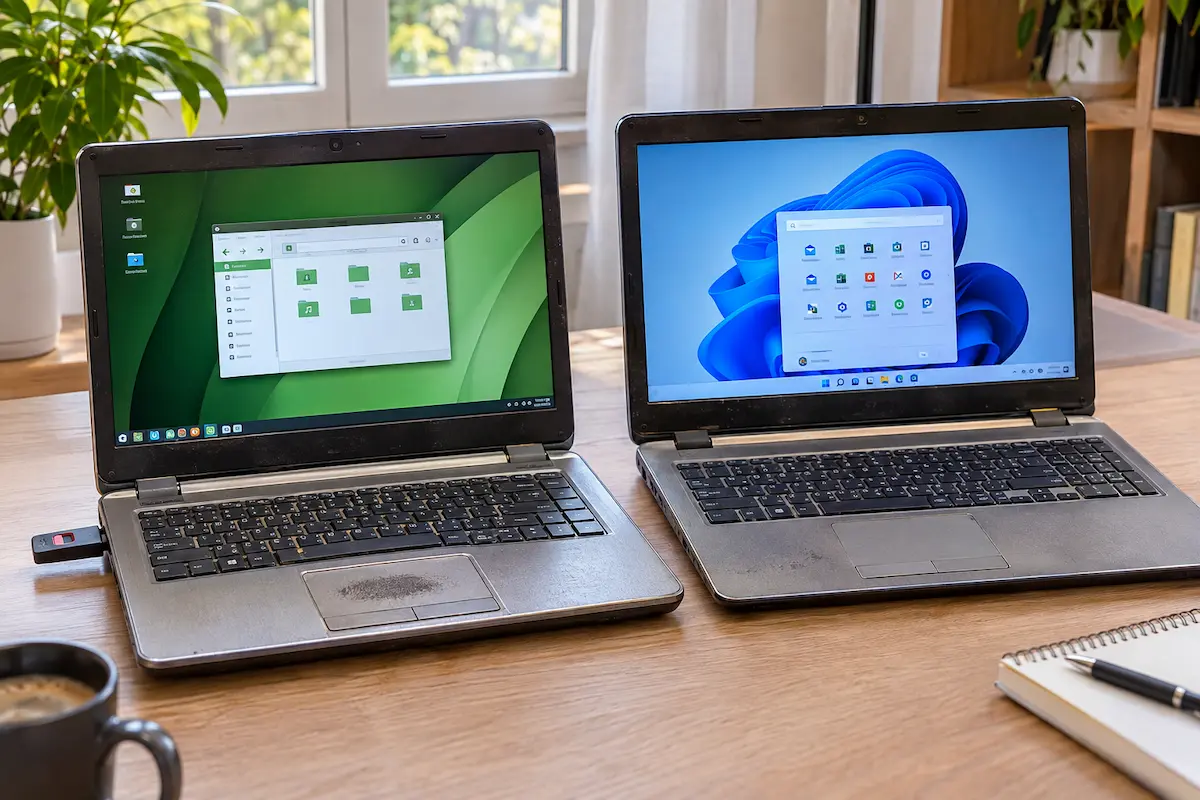
Your old PC still works, but it feels slow, and Windows 10 is no longer a long-term plan. So should you move to Windows 11 or switch to Linux Mint? This guide compares them on what actually matters for older hardware: whether your PC can run them at all, how fast they feel, how long they stay secure, and what you give up along the way.
1. The short answer
If your PC meets Microsoft's requirements and has at least 8 GB of RAM and an SSD, Windows 11 is a perfectly good choice, especially if you depend on Windows-only software. If it does not meet them, or it has 4 GB of RAM or less, or it still uses a slow hard drive, Linux Mint is usually the better pick.
Linux Mint is free, runs happily on much older hardware, and the current 22.x series is supported with security updates until 2029. Windows 11 gives you the familiar world of Windows apps, but it asks for newer hardware and more memory to feel smooth.
Rule of thumb: a PC that Windows 11 officially accepts and that has 8 GB of RAM can stay on Windows. Anything older or weaker will almost always feel better on Linux Mint than on a forced Windows 11 install.
2. Can your old PC run Windows 11?
This is the first question, because Windows 11 is strict. Microsoft requires a 64-bit processor with at least two cores, 4 GB of RAM, 64 GB of storage, UEFI firmware with Secure Boot, and a security chip called TPM 2.0. In practice that means most PCs from around 2018 onward qualify, while many older ones do not.
The easiest way to check is Microsoft's PC Health Check app. If your PC fails, it tells you exactly why.
This PC can't run Windows 11
- The processor isn't currently supported for Windows 11.
- TPM 2.0 must be supported and enabled on this PC.
- This PC must support Secure Boot.
Example of what PC Health Check shows on an unsupported older PC.
You will find tricks online that skip these checks. Microsoft does not recommend them and does not guarantee updates for such PCs. Since version 24H2, Windows 11 also needs a processor that supports a feature called SSE4.2, so very old chips cannot run it at all, even with workarounds.
Linux Mint asks for far less. It needs a 64-bit processor, 2 GB of RAM (4 GB recommended), 20 GB of disk space (100 GB recommended) and a 1024x768 screen. There is no TPM requirement, and it does not insist on Secure Boot.
| Requirement | Windows 11 | Linux Mint 22.x |
|---|---|---|
| Processor | 64-bit, 2+ cores, 1 GHz (supported list) | Any 64-bit processor |
| RAM | 4 GB minimum, 8 GB advised | 2 GB minimum, 4 GB advised |
| Storage | 64 GB or more | 20 GB minimum |
| Firmware | UEFI + Secure Boot capable | BIOS or UEFI |
| TPM 2.0 chip | Required | Not needed |
| Price | License included on PCs that came with Windows | Free |
3. Speed and memory use
Even when Windows 11 installs, being allowed to run is not the same as running well. Windows 11 keeps more things going in the background: search indexing, widgets, cloud syncing, built-in security scanning and a steady stream of updates. On a PC with 4 GB of RAM, that often leaves very little free memory once you open a browser.
Linux Mint, especially the Xfce edition, starts with far fewer background tasks. The same 4 GB laptop usually has several gigabytes still free right after startup, so the browser and office apps get room to breathe.
3.9 GB
689.3 MiB (17.5%) of 3.8 GiB
Illustration: memory in use right after startup on a 4 GB laptop. Windows 11 on the left, Linux Mint Xfce on the right. Your numbers will differ.
One upgrade matters more than the operating system itself: an SSD. A PC that boots from a spinning hard drive feels sluggish under either system, and Windows 11 suffers more. If your old machine still has a hard drive, a cheap SATA SSD will transform it, whichever system you choose.
4. Updates and security
Windows 10 and Windows 11
Windows 10 reached the end of regular support on October 14, 2025. Home users can still get security-only updates through Microsoft's Extended Security Updates (ESU) program, which now runs until October 12, 2027 and requires you to enrol in Windows Update. Microsoft has not said whether it will extend it again, so treat it as a bridge, not a destination.
Windows 11 Home and Pro get yearly feature updates, each with roughly two years of security fixes. Version 24H2 stopped receiving updates in October 2026, so make sure you are on 25H2 or newer.
Linux Mint
Linux Mint 22.x is a long-term support series based on Ubuntu 24.04, with security updates promised until 2029. The latest release at the time of writing is 22.3, and the next major version is planned for around the end of the year. The advice in this guide still applies to it.
Updates are handled by the Update Manager, and a built-in tool called Timeshift can take system snapshots, so a bad update is easy to roll back. Linux is not magically immune to malware, but it is a much smaller target. Keep it updated and install software from the Software Manager, and you are in good shape.
5. Which Linux Mint edition to pick
Mint comes in three editions, and the choice matters more on old hardware than on new.
Xfce is the lightest. Choose it for the oldest machines, 2 to 4 GB of RAM, or a slow processor. MATE is a traditional desktop that sits in the middle and suits older dual-core PCs with 4 GB. Cinnamon is the flagship: polished and modern, but it works best with 4 GB of RAM or more and working graphics acceleration.
The official minimum is the same for all three, but the experience is not. If you are unsure, start with Xfce on anything older than about 2012, and Cinnamon on anything newer with 4 GB or more.
6. How to try Linux Mint safely
You do not have to commit. Mint runs from a USB stick without touching your disk, so you can test it first.
Step by step
Download the ISO file of your chosen edition from the official Linux Mint website. Then use a free tool such as Rufus on Windows to write it to a USB stick of at least 8 GB. Restart the PC and press the boot menu key, usually F12, F2, F9 or Esc depending on the brand, and pick the USB drive.
Mint starts in a live session. Check that Wi-Fi, sound, the touchpad and the screen all work. If they do, double-click Install Linux Mint on the desktop. Back up your files first, then choose how to install.
Installation type
The installation type step. Pick the first option to dual boot with Windows.
The first option gives you a dual boot, so you can switch between both systems at startup. The second wipes the disk and gives Mint the whole drive, which is the cleanest and fastest choice on a weak PC. During setup, tick the option to install multimedia codecs so videos and music play right away.
7. What you might miss
Linux Mint is not a drop-in copy of Windows, so be honest about what you rely on.
Office and creative apps. Microsoft Office does not run natively, but LibreOffice opens Word and Excel files well, and Office on the web works in any browser. Adobe apps are not available on Linux, and alternatives such as GIMP and Kdenlive take some getting used to.
Games. Many Windows games run through Steam on Linux, but some titles with strict anti-cheat protection do not. If gaming is the reason you keep the PC, check your games first. An old PC is rarely a gaming machine anyway.
Hardware. Most printers, webcams and touchpads work without any setup. A few Wi-Fi chips and graphics cards need an extra driver, which you can install from Mint's Driver Manager. It is worth testing Wi-Fi in the live session before you install.
8. So which one should you pick?
A quick way to decide.
Choose Windows 11 if your PC passes the check, has enough memory, and you need Windows-only programs. Choose Linux Mint if your PC fails the check, feels slow, or you mainly browse, write documents, watch videos and manage photos. Choose both with a dual boot if you want a safety net while you get used to Linux.
Quick checklist before you decide
- Run PC Health Check first, and note exactly why a PC fails.
- Back up your files to an external drive or cloud storage before changing anything.
- Test Linux Mint from a USB stick and check Wi-Fi, sound and the touchpad.
- Upgrade a hard drive to an SSD and add RAM if the PC allows it. It helps both systems.
- List your must-have programs and check that each one has a Linux version or a good alternative.
- Do not force Windows 11 onto unsupported hardware. You may miss updates and run into odd problems.
💬 Comments