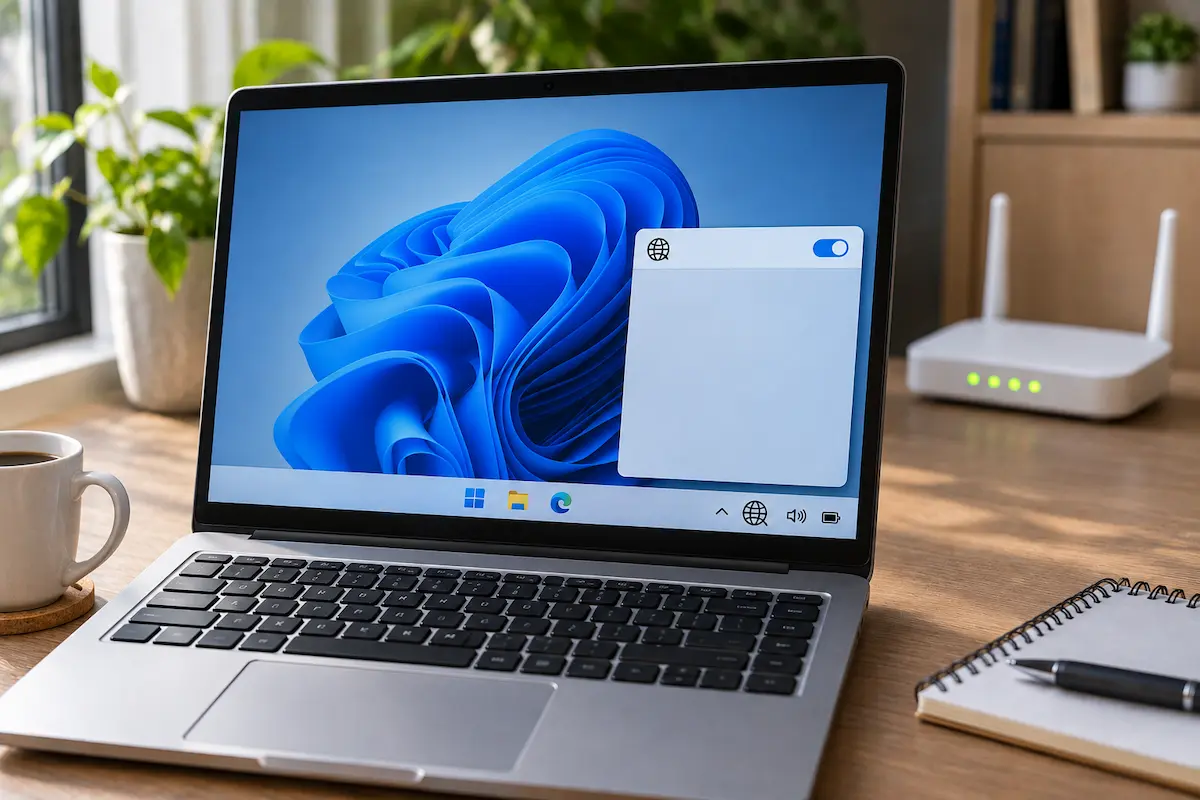
You click the network icon in the taskbar and Wi-Fi simply isn't there. No Wi-Fi tile, no list of networks, and sometimes not even a Wi-Fi symbol. It feels worse than a slow connection, because you can't search for the fix from the same computer.
The good news is that this is usually a small problem: a switch that got flipped, a setting, or a driver that needs a nudge. This guide starts with the quickest checks and moves on to the deeper fixes, so you can stop as soon as your Wi-Fi comes back. The steps match Windows 11 in 2026 (versions 24H2 and 25H2).
1. Find out which kind of "missing" you have
"Wi-Fi not showing up" can mean three different things, and each one points to a different fix. Look at the right-hand corner of the taskbar and compare it with the three cases below.
11/6/2026
11/6/2026
11/6/2026
The icon next to the speaker already tells you where to start.
There is also a fourth case: you see other people's networks, but not your own. That one is almost always about the router or the Wi-Fi band, and step 11 covers it.
2. Restart the PC and the router
It sounds too simple, but a restart clears stuck drivers and half-loaded services, and it fixes a surprising number of cases. Use Start > Power > Restart. Don't use Shut down, because with Fast Startup turned on Windows 11 can keep part of the old session and bring the same problem back.
Then restart the router too. Unplug its power cable (and the modem's, if it is a separate box), wait at least 30 seconds, plug the modem in first, wait for the lights to settle, then plug in the router. Give it a couple of minutes.
While you wait, take your phone and see whether it finds your Wi-Fi. If the phone sees the network, the router is fine and the problem is on the PC. If the phone can't see it either, the router is the place to look.
3. Turn off Airplane mode and switch Wi-Fi on
Airplane mode switches off every wireless radio at once, and it is easy to turn on by accident. Click the network, speaker and battery icons at the right end of the taskbar to open Quick Settings. If the Airplane mode tile is blue, click it once to turn it off. Then click the Wi-Fi tile so it turns blue as well.
Off2
Off
Turn off tile 1 (Airplane mode) first, then turn on tile 2 (Wi-Fi).
If Quick Settings is hard to use, open Settings > Network & internet > Airplane mode instead. Under Wireless devices you can switch Wi-Fi on separately, even when Airplane mode is off. Also check the main switch at the top of Network & internet > Wi-Fi. When you turn Wi-Fi off there, Windows asks when to turn it back on, and a choice like "In 1 day" can leave it off longer than you expect.
4. Check the Wi-Fi key on your keyboard
Many laptops have a key that toggles Airplane mode or the Wi-Fi radio, usually in the top row and marked with an airplane or an antenna. On some models you have to hold Fn while you press it. Pressing it by accident, for example while cleaning the keyboard, is a classic reason for a Wi-Fi icon that suddenly vanishes.
An example only: the Airplane mode key (1) is on F7 here, and some laptops need Fn (2) as well. On your laptop it may sit on a different key.
Press the key once, wait a few seconds, and look at the taskbar icon again. Older laptops may also have a small slide switch on the front or the side. If your laptop has one, make sure it is in the "on" position.
5. Run the Network Adapter troubleshooter
Windows has a built-in troubleshooter that checks the adapter, the driver and the basic settings, and it can fix simple problems on its own. Open Settings > System > Troubleshoot > Other troubleshooters, find Network Adapter and click Run. When it asks which adapter to diagnose, choose Wi-Fi, or "All network adapters" if you're not sure.
Run the Network Adapter troubleshooter (1).
If the troubleshooter reports that it fixed something, restart the PC and check again. If it says the adapter is disabled or has a driver problem, the next two steps show you how to deal with that yourself.
6. Look for your Wi-Fi adapter in Device Manager
Device Manager lists every piece of hardware Windows knows about, so it is the best place to find out whether the Wi-Fi adapter is still there. Right-click the Start button, choose Device Manager and expand Network adapters.
Look for a name with "Wi-Fi", "Wireless", "WLAN" or "802.11" in it, often from Intel, Realtek, Qualcomm or MediaTek. What you see next tells you what to do:
- A small down arrow on the icon means the adapter is disabled. Right-click it and choose Enable device.
- A yellow triangle, or an entry called "Network Controller" under Other devices, means the driver is missing or broken. Go to step 7.
- No Wi-Fi adapter at all, even after you click View > Show hidden devices, points to a hardware or BIOS problem. See step 13.
A disabled adapter has a down arrow. Right-click it and choose Enable device (1).
7. Update, roll back or reinstall the Wi-Fi driver
A driver is the small piece of software that lets Windows talk to the Wi-Fi card. When it is outdated, damaged, or replaced by a bad version during an update, the adapter can disappear. Double-click the adapter in Device Manager and open the Driver tab. You have three options, and it makes sense to try them in this order.
Try Update Driver (1), then Roll Back Driver (2), then Uninstall Device (3). The version numbers are only an example.
Option 1: Update the driver
Click Update Driver and choose Search automatically for drivers. You can also open Settings > Windows Update > Advanced options > Optional updates and look under Driver updates, because newer Wi-Fi drivers often arrive there. Installing the latest Windows updates is worth doing anyway.
Option 2: Roll back the driver
If the Wi-Fi vanished right after an update, click Roll Back Driver. It brings back the previous version. If the button is greyed out, Windows has no older driver to go back to, so move on to the next option.
Option 3: Uninstall the device and let Windows reinstall it
Right-click the adapter, choose Uninstall device, and tick Attempt to remove the driver for this device if you see that box. Then restart the PC. Windows detects the adapter again and installs a fresh driver by itself.
No internet to download a driver? Use another computer to download the driver from your PC maker's support page (Dell, HP, Lenovo, ASUS and so on) and copy it to a USB drive. You can also plug in an Ethernet cable, or share your Android phone's connection over USB tethering.
8. Stop Windows from switching the adapter off
To save battery, Windows can turn the Wi-Fi adapter off when it thinks you aren't using it, and sometimes it doesn't wake up properly. If your Wi-Fi disappears after sleep or after a few idle minutes, this is the setting to change. In Device Manager, double-click the Wi-Fi adapter, open Power Management and untick Allow the computer to turn off this device to save power.
The box next to 1 should be empty. Click OK to save.
9. Make sure the WLAN AutoConfig service is running
Windows finds and connects to wireless networks through a background service called WLAN AutoConfig. If it's stopped, the Wi-Fi tile and the list of networks can disappear even though the adapter itself is fine. Some "PC cleaner" tools switch it off, so this is worth a check if you've used one.
Press Win + R, type services.msc and press Enter. Scroll down to WLAN AutoConfig. Its status should be Running and its startup type Automatic. If not, double-click it, set the startup type to Automatic, click Start, then OK.
WLAN AutoConfig should say Running and Automatic.
10. Reset the network stack with a few commands
Over time, the network settings that Windows keeps in the background (the "network stack") can get corrupted. A few built-in commands put them back to a clean state. They don't touch your files.
Right-click the Start button and choose Terminal (Admin), or search for Command Prompt and pick Run as administrator. Type these commands one at a time, pressing Enter after each:
netsh winsock resetnetsh int ip resetipconfig /releaseipconfig /renewipconfig /flushdns
If a command prints "Access is denied", the window was not opened as administrator.
When you're done, restart the PC. The first two commands only take effect after a restart.
11. Only your own network is missing? Check the router
If the Wi-Fi list opens and shows your neighbors' networks but not yours, the PC is working. The cause is usually one of these:
- The network name is hidden. Some routers don't broadcast their name. Open Settings > Network & internet > Wi-Fi > Show available networks, pick the entry called "Hidden network" and enter the name and password yourself.
- A band your adapter can't use. Many routers broadcast on 2.4 GHz and 5 GHz, and newer ones add 6 GHz. An older adapter may not support 5 GHz or 6 GHz. If your router lets you, turn on the 2.4 GHz band too, and try connecting to the other network in the list.
- An unusual channel. Some adapters struggle with certain channels. In the router's settings, set the channel to Auto, or on 2.4 GHz pick channel 1, 6 or 11.
- Too far away. Walls and floors weaken Wi-Fi quickly. Move the laptop into the same room as the router for a minute to rule this out.
Your own network isn't in the list. If it is a hidden network, it may be the "Hidden network" entry.
12. Use Network reset as a last resort
If nothing so far has worked, Network reset removes all network adapters and puts the networking settings back to their defaults. After the restart, Windows detects the adapters again and installs them from scratch. It is the strongest software fix, and it also helps after upgrading from Windows 10.
Before you start, make sure you know your Wi-Fi password, because the reset forgets saved networks. It also removes VPN settings and virtual switches, which you will have to set up again. Your files and apps are not affected.
Open Settings > Network & internet > Advanced network settings > Network reset, click Reset now and confirm with Yes. The PC restarts by itself.
Click Reset now (1) and confirm. Windows restarts by itself.
13. When the problem is the hardware
If Device Manager shows no Wi-Fi adapter at all and the reset didn't change it, the adapter may be switched off at a lower level or may have failed. Check these in order:
- BIOS or UEFI. Restart the PC and open the BIOS setup (the key is shown at startup, often F2, Del or Esc). Look for an option named Wireless LAN, WLAN or Wi-Fi in the advanced or security pages, and make sure it is enabled.
- A loose card. On many laptops the Wi-Fi card sits in a small slot under the bottom panel and can come loose after a drop. Open the laptop only if you're comfortable doing it, or ask a technician.
- A cheap workaround. A USB Wi-Fi adapter costs very little and works while you decide whether to repair the laptop. An Ethernet cable also works, if your router is within reach.
If the laptop is still under warranty, ask the manufacturer before you open it.
My experience
I went through these steps on a Windows 11 laptop with an Intel Wi-Fi 6 card, after an update left it with a globe icon in the taskbar and no Wi-Fi tile at all. The phone next to it saw my router without any trouble, so I knew the problem was on the laptop and not on the router.
Restarting and checking Airplane mode changed nothing. Device Manager showed the adapter with a yellow warning. Updating the driver from there found nothing, but Roll Back Driver was available, and the old driver brought Wi-Fi back in under a minute. I would have saved some time by opening Device Manager first.
The one thing that surprised me was the power setting in step 8. On another machine Wi-Fi kept vanishing after sleep, and unticking the power-saving box fixed it for good. My advice: go through the steps in order, and don't jump straight to Network reset, because it wipes your saved Wi-Fi passwords.
💬 Comments