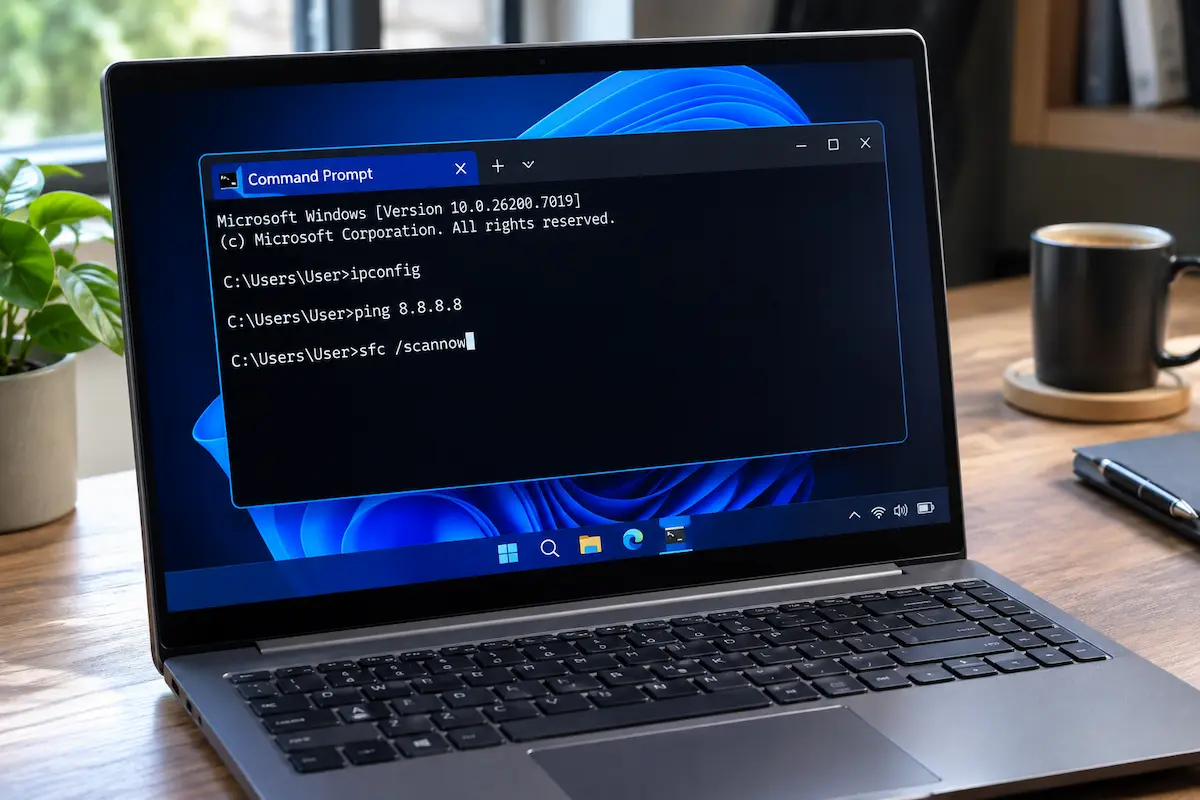
Have you ever watched someone type a few words into a black window and fix a problem in seconds? It looks like magic, but it isn’t.
That black window is Command Prompt (CMD), or its newer sibling PowerShell. Both are already on your PC, and you don’t need to be a programmer to use them.
In this guide you’ll learn the commands that are actually worth knowing in 2026: how to find your Wi-Fi password, clean up junk files, repair Windows, update your apps and build small automatic scripts. Every command is explained in plain English, and the risky ones are clearly marked.
1. CMD or PowerShell: which one should you use?
Both tools let you control Windows by typing instead of clicking. The difference is how much they can do.
Command Prompt is the classic one. Its commands are short, and it’s perfect for quick everyday jobs. PowerShell is the modern tool: its commands read like short sentences, and it can filter, sort and automate things that CMD can’t.
| Command Prompt | PowerShell | |
|---|---|---|
| Best for | Quick, simple tasks | Detailed checks and automation |
| Command style | Short: dir, cd | Verb-Noun: Get-Process |
| Output | Plain text | Objects you can sort and filter |
| Learning curve | Gentle | A little steeper |
| Included in Windows | Yes | Yes (Windows PowerShell 5.1) |
Tip: Start with CMD for the basics. When you feel comfortable, try PowerShell. You can use both in the same window, because Windows Terminal puts them in separate tabs.
2. How to open them (and run as administrator)
There are several ways. These are the quickest:
cmd or powershell and press Enter. Press Ctrl + Shift + Enter instead to open it as administrator.cmd and press Enter. The window opens already in that folder.Why does “administrator” matter? Commands that repair or change Windows need extra permission. Without elevation, some commands fail with a permission or elevation error. Terminal is a host for several shells: select Command Prompt from its profile menu for CMD examples, or Windows PowerShell for PowerShell examples.
Good to know: Windows Terminal is the default terminal app in current Windows 11 versions. Windows 10 reached the end of regular support in October 2025, so if you’re still on it, plan your move to Windows 11. Nearly all the commands in this guide work on both, and I mention the few exceptions where they come up.
3. Basic commands for everyday use
Use Command Prompt (CMD) for the examples in sections 3–6. PowerShell can interpret commands such as dir, copy and del differently. Paths and file names are examples: replace them with your own existing paths. Type one, press Enter, and read the result.
dirShows the files and folders in the current folder. Try dir *.pdf to list only PDF files.cd DocumentsMoves into another folder. Use cd .. to go one level up and cd \ to jump to the top of the drive.clsClears the screen when it gets messy.type notes.txtShows the contents of a text file without opening it.tree "%USERPROFILE%\Documents" /fDraws your folders as a tree, files included. Handy for seeing how things are organized.systeminfoShows details about your PC: Windows version, memory, processor and more. Add | more to read it page by page.tasklistLists running processes, including background processes. Filter the heavy ones with tasklist /fi "memusage gt 100000" (programs using over about 100 MB).taskkill /im notepad.exeAttempts to end matching processes. Save your work first; adding /f forces termination and can lose unsaved work.whoamiShows which user account you’re signed in with.If a folder name contains spaces, put it in quotation marks, for example cd "My Photos". Quotation marks keep paths together and work reliably across commands.
4. Copy, move and delete files
With a few commands you can handle hundreds of files at once, which is much faster than dragging them with the mouse.
mkdir "Photos 2026"Creates a new folder.copy /-y *.txt D:\Backup\Copies matching text files into an existing backup folder on drive D. The original files stay where they are; confirm any overwrite only if intended.xcopy C:\Work D:\Backup /e /i /-yCopies the folder contents, including empty subfolders. The destination is treated as a folder, and overwrites require confirmation.robocopy C:\Work D:\Backup /E /Z /R:3 /W:5Copies new or changed files, including empty folders. /Z enables restartable copying, and the retry options limit waiting. Existing destination files can be overwritten.move /-y old.txt new.txtMoves or renames a file, asking before overwriting. move /-y *.doc D:\Documents\ moves matching files into an existing folder.del /p *.tmpDeletes files and asks for confirmation each time. Files deleted this way do not go to the Recycle Bin.findstr /i "error" *.logSearches for a word inside files. /i ignores capital letters, and /n shows line numbers.Careful with /MIR: robocopy ... /MIR makes the backup an exact mirror of the source. If you delete a file from the source, it is deleted from the backup too. For a first backup, use /E as shown above.
5. Network commands and your Wi-Fi password
When the internet misbehaves, these commands help narrow down the cause, but a single result rarely proves what is wrong.
ping google.comChecks whether the named host responds to ICMP echo requests. Some hosts block these requests even when their websites work. ping -n 10 google.com sends 10 tests, and ping -t google.com keeps going until you press Ctrl + C.ipconfig /allShows your network details: IP address, router and DNS. Plain ipconfig shows just the basics.ipconfig /flushdnsClears the Windows DNS resolver cache. Run in an administrator CMD window if needed; it can help with stale DNS records, not every website problem.ipconfig /releaseReleases DHCP-assigned IPv4 addresses and temporarily interrupts connectivity. Follow it with ipconfig /renew to request an address again. Do not do this during a remote session.tracert google.comShows each stop your connection makes on the way to a site. Missing or slow intermediate replies alone do not prove a fault; routers may limit diagnostic replies.nslookup google.comTurns a website name into its IP address. Useful for checking DNS problems.netstat -anLists TCP connections and listening TCP and UDP endpoints using numeric addresses and ports.netsh winsock resetA stronger fix for stubborn connection problems. Needs an administrator window and a restart.How to see a saved Wi-Fi password
Forgot the password of a network your PC already knows? Open an administrator window and type this to list the saved networks:
netsh wlan show profiles
Then ask for the password of one network, replacing the name with your own:
netsh wlan show profile name="Your-WiFi-Name" key=clear
If the profile contains a shared Wi-Fi key and your permissions allow viewing it, look for Key Content under “Security settings”. Enterprise networks may not have such a key. Do not share the output.
Fair use: Use this only for your own networks or with the owner’s permission.
6. Repair Windows with commands
If your PC freezes, shows errors or feels slower than before, these commands act like first aid. Run them in an administrator window.
DISM /Online /Cleanup-Image /RestoreHealthRun this first to repair the Windows component store. By default it may need Windows Update; an alternative repair source can be configured. Wait for successful completion.sfc /scannowRun after DISM to check and repair protected system files. Allow the scan to finish; duration varies.chkdsk C: /scanChecks an NTFS drive for errors without restarting. If repairs are needed, back up your files first. chkdsk C: /f fixes file-system errors and may ask to schedule the check at restart. Reserve /r for suspected unreadable sectors; it includes /f and can take a long time.cleanmgr /d C:Opens Disk Cleanup so you can free space from junk files.powercfg /batteryreportCreates a battery health report as a web page. On a battery-equipped PC, use powercfg /batteryreport /output "%USERPROFILE%\battery.html" to save it in your user folder. Open that folder with explorer "%USERPROFILE%".The right order: Microsoft recommends running DISM /Online /Cleanup-Image /RestoreHealth first, then sfc /scannow. These tools address system-file corruption, not every PC problem.
Only if Windows won’t start: Start with Startup Repair in Windows Recovery Environment (Troubleshoot → Advanced options → Startup Repair). Commands such as bootrec /rebuildbcd address specific boot configuration problems and are not a universal fix. UEFI and legacy BIOS systems may require different procedures; avoid experimenting with boot commands.
7. Useful PowerShell commands
PowerShell commands follow a pattern: a verb, a dash and a noun. Get-Process means “get the list of processes”, so they’re easy to guess and remember.
Get-ProcessShows running programs. To see the five processes with the most accumulated CPU time (not current CPU percentage), use Get-Process | Sort-Object CPU -Descending | Select-Object -First 5.Get-ServiceLists background services. Add | Where-Object Status -eq "Running" to see only the active ones.Get-WinEvent -LogName System -MaxEvents 10Shows the last 10 system events, which is handy for tracking down errors. It replaces the older Get-EventLog.Test-NetConnection google.comA clearer version of ping. Add -Port 443 to check that a website’s secure port is reachable.Get-DiskShows your drives, their size and their health status.Get-ChildItem -Recurse -File | Sort-Object Length -Descending | Select-Object -First 10 FullName,LengthFinds up to 10 largest accessible files in the current folder and its subfolders, showing full paths and sizes in bytes. Perfect for cleaning up space.Get-ComputerInfoShows complete details about your PC and Windows.wmic is gone from Windows 11: Starting in August 2026, Microsoft removed the old wmic command from updated Windows 11 version 24H2 and later, including its optional feature. On Windows 10 it still exists, but it is outdated. Use Get-CimInstance or Get-ComputerInfo instead, for example Get-CimInstance Win32_BIOS.
One more thing: the PowerShell built into Windows is version 5.1. A newer, separate PowerShell 7 is free and installs with a single command, winget install --id Microsoft.PowerShell --exact. You don’t need it as a beginner, but it’s good to know it exists.
8. Update your apps with winget
Windows 11 includes winget, a tool that installs and updates programs without visiting websites. It’s one of the most useful commands for everyday life.
winget upgradeShows which of your apps have updates waiting.winget upgrade --allAttempts all eligible updates. Pinned apps, unknown versions and failed installers can be skipped.winget search vlcLooks for a program by name.winget install --id VideoLAN.VLC --exactInstalls the program using its ID from the search results.Run winget upgrade first and read the list before you use --all. That way you know exactly what is about to change.
9. Open any settings page instantly
Press Win + R, type one of these and press Enter. Availability depends on your Windows version and hardware.
ms-settings:network-wifiWi-Fi settings. It works only on PCs that have a Wi-Fi adapter.ms-settings:windowsupdateWindows Update.ms-settings:appsfeaturesInstalled apps, where you can uninstall them.ms-settings:storagesenseStorage and automatic cleanup of temporary files.ms-settings:displayScreen resolution, text size and brightness.ms-settings:privacy-webcamCamera privacy: which apps are allowed to use your camera.shell:startupThe startup folder. Shortcuts placed here open when your user account signs in, unless disabled or blocked.shell:downloadsYour Downloads folder.taskmgrTask Manager: check CPU, memory and running programs.devmgmt.mscDevice Manager, for drivers and hardware problems.diskmgmt.mscDisk Management, for drives and partitions.eventvwrEvent Viewer, with errors and system events.You’ll also meet msconfig, services.msc and regedit. They open tools that can change important system settings, so leave them alone unless you know exactly what you’re doing.
10. Build your own automatic scripts
A batch file (.bat) is just a text file with commands. Double-click it, and Windows runs every line for you. No programming is needed.
.bat, for example cleanup.bat.Clean up temporary files
@echo off
echo Opening Disk Cleanup...
cleanmgr /d C:
pause
Review the categories in Disk Cleanup before confirming. This example does not automatically delete files or empty the Recycle Bin.
Back up a folder with today’s date
@echo off
set "source=C:\Important"
for /f %%d in ('PowerShell -NoProfile -Command "Get-Date -Format yyyy-MM-dd"') do set "today=%%d"
set "dest=D:\Backup\%today%"
if not exist "%source%\." (
    echo Source folder not found.
    pause
    exit /b 1
)
robocopy "%source%" "%dest%" /E /Z /R:3 /W:5
if errorlevel 8 (
    echo Backup failed. Review the Robocopy output.
    pause
    exit /b 1
)
echo Copy completed without a reported copy failure.
echo Review the results in "%dest%".
pause
PowerShell supplies a consistent date format. Robocopy exit codes of 8 or higher indicate a copy failure; lower codes still deserve review. A dated folder is not a substitute for a verified backup on a separate drive. Change the source and dest lines to your own folders.
Quick network check
@echo off
echo ===== Connection test =====
ping -n 4 google.com
echo.
echo ===== Network details =====
ipconfig
pause
11. Dangerous commands to avoid
Commands are powerful, and most of them have no “Undo”. A typo can delete files for good, so read before you press Enter.
format D:
Wipes everything on that drive. Windows won’t let you format the drive it is running from, but it will happily format your other drives and USB sticks.
del /s /q *.*
Deletes every file in the folder and all subfolders, with no questions asked. Use del /p to get a confirmation instead.
rmdir /s /q
Removes a folder and everything inside it. If you’re in the wrong folder, you lose the wrong files.
reg delete
Removes entries from the Windows registry. A wrong deletion can cause serious problems, so always export a backup first.
diskpart with clean
Erases a disk’s partition table. Check the disk number three times before you run it.
Golden rule: If you’re not sure what a command does, type the command followed by /?, for example robocopy /?. It shows the built-in help. You can also search for it online before running it.
12. Shortcuts that save time
↑ / ↓Scroll through the commands you typed before. No need to type them again.TabCompletes a file or folder name for you. Press it again to cycle through matches.F7Opens command history in the classic CMD console; this shortcut may not work in Windows Terminal.EscErases the line you’re typing in CMD.Ctrl + CUsually interrupts the current command; it does not undo changes already made.Ctrl + LClears the screen in PowerShell. In CMD, use cls.Ctrl + Shift + CIn File Explorer on Windows 11, copies the full path of the selected file or folder. Paste it with Ctrl + Shift + V in Windows Terminal. (On Windows 10, hold Shift, right-click the file and choose Copy as path.)cd /d D:\ProjectsChanges the drive and the folder in one go.dir > list.txtSaves a command’s result into a file, overwriting an existing file of that name. Use >> to add to the file without erasing it.tasklist | findstr chromeThe | symbol (pipe) passes one command’s result to another, here to filter it.shutdown /s /t 3600Schedules shutdown in one hour. Save your work first: a positive timeout implies forced app closure. Cancel before the timeout expires with shutdown /a.You don’t have to learn everything at once. Pick one problem you have today, such as a slow PC, a forgotten Wi-Fi password or an app that needs updating, and solve it with one command. Each one you try makes the next one easier.
13. FAQ
Is Command Prompt still available in Windows 11?
Do I need administrator rights to use these commands?
dir, cd, ping or ipconfig. Repair and system commands such as sfc, DISM, chkdsk and netsh winsock reset need an administrator window.Should I learn CMD or PowerShell first?
Why does the wmic command not work on my PC?
Get-CimInstance or Get-ComputerInfo in PowerShell instead.Can a command damage my computer?
del, rmdir, format and reg delete have no undo. Read what a command does before pressing Enter, add the /p switch to del for a confirmation prompt, and back up important files first.
💬 Comments